

Are you looking to make your WordPress site more dynamic and engaging? Adding a block is one of the easiest ways to customize your pages and posts exactly the way you want.
Whether you want to insert images, text, videos, or buttons, knowing how to add a block gives you full control over your content. In this guide, you’ll discover simple, step-by-step instructions that anyone can follow—even if you’re new to WordPress.
Keep reading, and you’ll be creating eye-catching content that grabs your visitors’ attention in no time.
What Is A WordPress Block
WordPress blocks are the building pieces of your website content. They let you create different parts of a page or post easily. Each block has a specific function, like adding text, images, videos, or buttons. Blocks help you design your content without any coding skills.
Using blocks makes your content flexible. You can move, edit, or delete blocks anytime. This way, you control how your page looks and feels. Blocks also keep your content clean and organized.
What Does A WordPress Block Do?
A WordPress block holds one type of content. For example, a paragraph block contains text. An image block shows a photo. Each block works by itself but fits well with others. This helps build pages faster and with less effort.
Types Of WordPress Blocks
There are many block types. Common blocks include paragraph, heading, image, list, and quote. You also find blocks for videos, buttons, columns, and galleries. Each block type has its own settings and style options.
Why Use Blocks In WordPress?
Blocks make editing simple and quick. You see exactly how your content looks while editing. This reduces mistakes and improves design. Blocks also help keep your website consistent and clean.
Accessing The WordPress Editor
Accessing the WordPress editor is the first step to creating content. It is the place where you write, edit, and format your posts or pages. The editor lets you add blocks like text, images, and videos easily. Understanding how to open the editor helps you work faster and better.
Accessing The Editor From The WordPress Dashboard
Log into your WordPress dashboard using your username and password. On the left menu, find “Posts” or “Pages.” Click on “Add New” to create a fresh post or page. The editor will open, showing a blank canvas for your content.
Opening The Editor For An Existing Post Or Page
Go to the “Posts” or “Pages” section in the dashboard. Find the post or page you want to edit in the list. Click the title or “Edit” link below it. The WordPress editor will appear with your content ready to change.
Using The Classic Editor Vs. Block Editor
WordPress offers two editors: Classic and Block. The Block Editor is newer and uses blocks for each content element. The Classic Editor looks like a simple text box. Most sites use the Block Editor by default today.
Locating The Add Block Button
Finding the Add Block button is the first step to creating content in WordPress. This button helps you insert new blocks like text, images, or videos. Knowing where it is saves time and makes editing easier.
WordPress uses blocks to build pages and posts. Each block holds a different type of content. The Add Block button opens a menu with all block options.
Where To Find The Add Block Button
The Add Block button appears as a plus sign (+). It is usually at the top left or top center of the editor. Sometimes, it shows up between blocks while you write.
Using The Add Block Button In The Editor
Click the plus sign to open the block menu. The menu lists common blocks first. Scroll or search to find more block types.
Why The Add Block Button Is Important
The button lets you build your page easily. You can add paragraphs, images, lists, and more. It makes editing fast and simple for all users.
Choosing The Right Block Type
Choosing the right block type is important to create a clear and attractive page. Each block type serves a specific purpose. Picking the correct one helps you share your message better. It also makes your content easier to read and understand. This guide explains the main block types you can use in WordPress.
Text Blocks
Text blocks are the most common block type. Use them to add paragraphs, headings, or lists. They help organize your words clearly. You can format text with bold, italic, or links. Text blocks are easy to edit and move around. Use them to tell your story or share information.
Media Blocks
Media blocks include images, videos, and audio. They make your page more interesting and engaging. Visual content can explain ideas better than text alone. Add photos to show products or places. Embed videos to teach or entertain. Use media blocks to catch readers’ attention quickly.
Layout Blocks
Layout blocks control the structure of your page. They include columns, groups, and spacers. Use columns to place content side by side. Groups help you move several blocks at once. Spacers add empty space to improve design. Layout blocks keep your page neat and organized.
Adding A Block To Your Page Or Post
Adding a block to your WordPress page or post is a simple way to build content. Blocks let you insert text, images, videos, and more. Each block acts like a separate piece you can move or edit easily.
This method helps keep your content organized and clear. It works well for beginners and advanced users alike. Understanding how to add blocks improves your control over page design.
Using The Block Inserter Tool
Start by opening the page or post editor in WordPress. Click the plus (+) button at the top or within the content area. This opens the block inserter tool with many block types to choose from.
Scroll through or search for the block you want. Click the block to add it to your page instantly. The block appears where your cursor is located.
Inserting Blocks Between Existing Content
Hover your mouse between two blocks on the editor screen. A small plus (+) icon will appear. Click this icon to open the block inserter tool right there.
Select the block you need to add it between existing content. This helps keep your layout neat and precise.
Using Keyboard Shortcuts
WordPress allows quick block adding with keyboard shortcuts. Type a slash (/) followed by the block name in an empty paragraph. For example, type “/image” to add an image block quickly.
Press Enter to insert the block. This speeds up content creation without using the mouse.
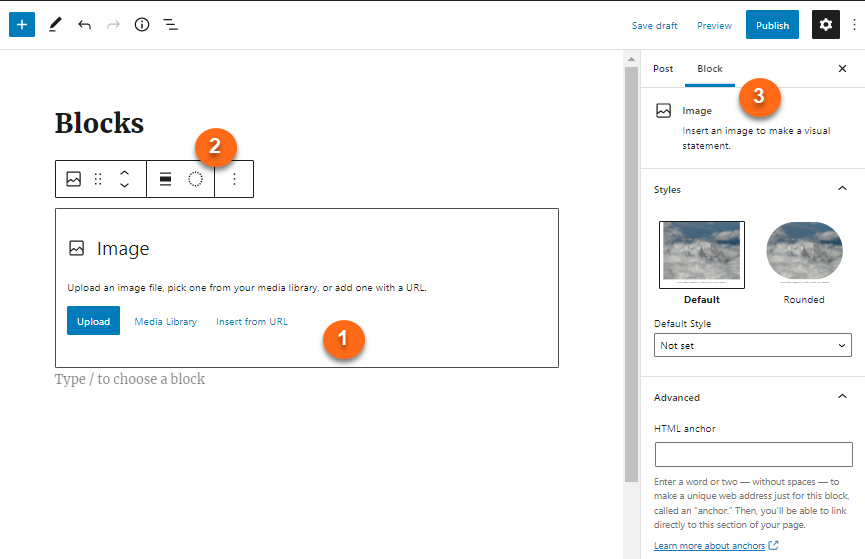
Credit: www.hostgator.com
Customizing Blocks
Customizing blocks in WordPress lets you make your content unique. You can change text, images, and layouts easily. This helps your pages look exactly how you want. Each block has options to adjust its look and feel.
Understanding how to customize blocks improves your site’s design. It also helps visitors enjoy your content more. Let’s explore two key ways to customize blocks: editing content and adjusting block settings.
Editing Content
Editing content is simple and quick. Click on the block you want to change. You can type new text or delete old text directly. For images, click and upload a new picture or change the existing one. WordPress shows a toolbar above the block for basic text changes like bold or italic.
Use this toolbar to add links or change alignment. You can also add lists or quotes. These tools help make your message clear and readable. Editing content lets you keep your website fresh and relevant.
Adjusting Block Settings
Block settings give you more control over how each block looks. Select the block, then find the settings panel on the right side. Here, you can change colors, font sizes, and spacing. Some blocks allow custom backgrounds or borders.
Settings also let you control block width and alignment on the page. For example, make a block full width to span across the screen. Adjusting these settings helps your site look professional and neat. Spend time exploring these options to get the best result.
Moving And Rearranging Blocks
Moving and rearranging blocks in WordPress is simple. It helps organize content and improve page flow.
You can change block order to highlight important information. This keeps readers engaged and content clear.
Using Drag And Drop To Move Blocks
Click the block you want to move. Hold and drag it to a new spot. Drop it where you want the block to appear.
This method is quick and easy. It works well for small or large changes.
Using Arrow Buttons To Rearrange Blocks
Select the block you want to move. Use the up or down arrows on the block toolbar. Move the block step by step.
Arrows help place blocks precisely. This is good for small adjustments.
Moving Blocks Inside Columns Or Groups
Blocks inside columns or groups can also be moved. Click the block, then drag it within the group.
You can reorder blocks inside columns without breaking the layout. This keeps your design neat and clean.
Saving And Previewing Your Changes
Saving and previewing your changes on WordPress is very important. It helps you keep your work safe. It also lets you see how your content looks before it goes live. This step avoids mistakes and makes your site look better. You can fix any issues before visitors see your page.
WordPress makes saving and previewing easy. You do not need special skills. Just follow a few simple steps. This section explains how to save your block and preview it clearly.
Saving Your Block Changes
After adding a block, look for the Save button. It is usually at the top right of the screen. Click it to save your work. WordPress will store your changes safely. You can keep editing later without losing anything.
Remember to save often. This protects your work from unexpected problems. If your internet connection drops, your work stays safe.
Previewing Your Block Before Publishing
Previewing shows how your block looks on the live site. Find the Preview button near the Save button. Click Preview to open a new tab. This tab shows your page as visitors will see it.
Check if the block appears correctly. Look for any errors in text or images. Make sure the block fits well with other content. This helps create a smooth, readable page.
Making Adjustments After Preview
If you find mistakes in the preview, go back to editing. Change the block’s content or design. Save your changes again. Preview the page once more to confirm improvements.
This cycle repeats until you are happy with the block. Taking time here improves your website’s quality and user experience.
Tips For Using Blocks Efficiently
Using blocks efficiently in WordPress helps create better content quickly. Blocks are the building pieces of your page or post. Knowing some tips can save time and improve your site’s look.
Good block use keeps your content clean and easy to read. It also makes editing smoother. Here are some simple ways to work smart with blocks.
Use Reusable Blocks For Common Content
Save blocks that you use often as reusable blocks. This way, you add them anytime without rebuilding. It keeps your pages consistent and speeds up editing.
Organize Blocks With Group And Columns
Group blocks to move or style them together. Use columns to place blocks side by side. It helps create neat layouts and better designs.
Keep Blocks Simple And Focused
Avoid cluttering one block with too much content. Use separate blocks for text, images, and other elements. Simple blocks are easier to edit and look cleaner.
Use Keyboard Shortcuts To Add And Move Blocks
Learn shortcuts to add new blocks faster. Use arrows and commands to move blocks quickly. This makes editing faster and smoother.
Preview Your Blocks On Different Devices
Check how blocks look on phones and tablets. Adjust block settings to make sure content fits well everywhere. Good previews avoid layout problems later.

Credit: learn.wordpress.org

Credit: wordpress.org
Frequently Asked Questions
How Do I Add A Block In WordPress Editor?
To add a block, click the “+” icon in the WordPress editor. Choose the desired block type from the menu. Then, insert it into your post or page to start editing.
Can I Customize Blocks After Adding Them?
Yes, you can customize blocks after adding them. Use the block toolbar and sidebar settings to change styles, colors, and layout easily.
What Types Of Blocks Are Available In WordPress?
WordPress offers various blocks like paragraphs, images, headings, galleries, lists, and embeds. These help create rich, engaging content effortlessly.
How To Delete A Block In WordPress Editor?
Click on the block you want to remove. Then, click the three-dot menu and select “Remove Block” to delete it instantly.
Conclusion
Adding a block on WordPress is simple and quick. You can create pages or posts with ease. Blocks let you add text, images, and more. This helps your site look good and work well. Practice a few times to feel confident.
Use the WordPress editor to explore different block types. Your website will become more interesting and user-friendly. Keep experimenting and enjoy building your content.


