
Have you ever landed on a broken link and felt lost on a website? Your visitors feel the same when they hit a missing page on your WordPress site.
Adding a custom 404 page is a simple yet powerful way to keep your audience engaged and guide them back to what matters. You’ll learn exactly how to create and add a 404 page in WordPress, step by step. By the end, you’ll turn those frustrating dead ends into helpful waypoints that improve your site’s user experience and keep visitors coming back.
Let’s get started!
Credit: www.searchenginejournal.com
Why 404 Pages Matter
404 pages are a small but important part of any website. They show up when a visitor tries to open a page that does not exist. A well-designed 404 page helps keep visitors on your site. It guides them back to useful content instead of leaving frustrated. This improves the overall experience on your website.
Impact On User Experience
A clear 404 page stops visitors from feeling lost. It tells them the page is missing in a friendly way. Good 404 pages offer links to popular pages or a search box. This helps visitors find what they want quickly. Without a 404 page, users may leave your site fast.
Seo Considerations
Search engines see 404 pages as errors but expect them sometimes. A proper 404 page helps search engines understand your site better. It prevents broken links from harming your site’s ranking. Using a custom 404 page can keep your SEO healthy by guiding visitors back.
Preparing Your WordPress Site
Preparing your WordPress site is the first step before adding a 404 page. This helps keep your website safe and organized. Taking a few simple actions ensures smooth changes without losing data or causing errors.
Focus on protecting your site’s content and design first. Next, set up a child theme to make your edits safe. These preparations make managing your 404 page easier and safer.
Backup Your Website
Backing up your website saves a copy of all your files and data. This copy can restore your site if something goes wrong. Use a reliable backup plugin or your hosting service to create a backup. Store the backup in a secure place outside your website. Regular backups prevent loss of important content.
Choose A Child Theme
A child theme lets you make design changes without affecting the original theme. It keeps your customizations safe during theme updates. Create or activate a child theme before editing files. This step protects your site’s look and functionality. Using a child theme is a smart way to keep your site stable.
Creating A Custom 404 Page
Creating a custom 404 page helps visitors find their way if a page is missing. A good 404 page reduces frustration and keeps users on your site. You can make your 404 page friendly and useful by editing your theme and adding helpful content.
Using The Theme Editor
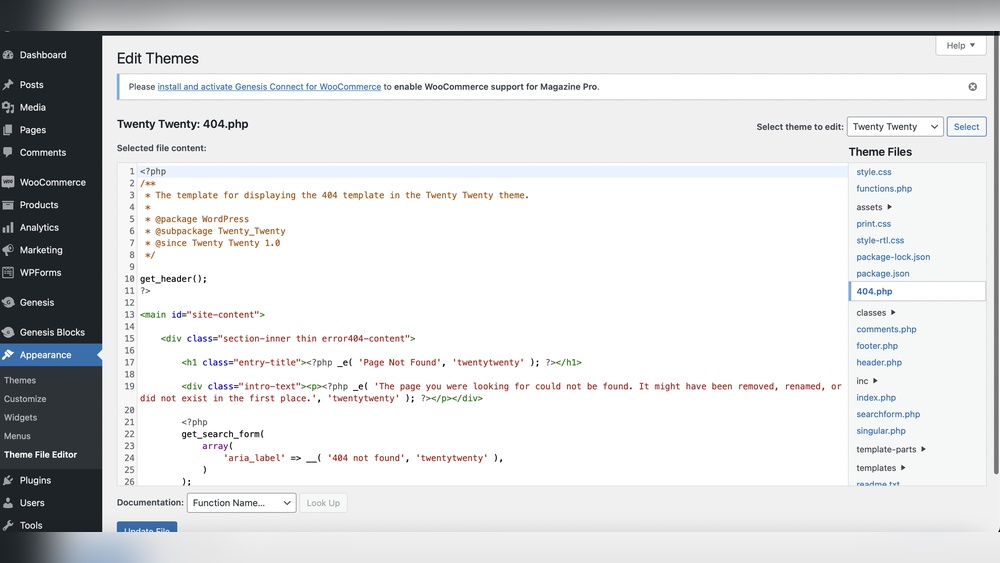
Open your WordPress dashboard and go to Appearance > Theme Editor. Find the 404.php file in your theme files. If your theme does not have this file, create a new one named 404.php. Add simple HTML and PHP code to show a clear message. Save your changes and test the page by typing a wrong URL.
Adding Helpful Elements
Include a search bar so visitors can find content fast. Add links to popular or recent posts to guide users. A homepage button helps users return easily. Keep the message kind and clear to avoid confusion. These elements make the 404 page useful and user-friendly.
Design Tips For Engagement
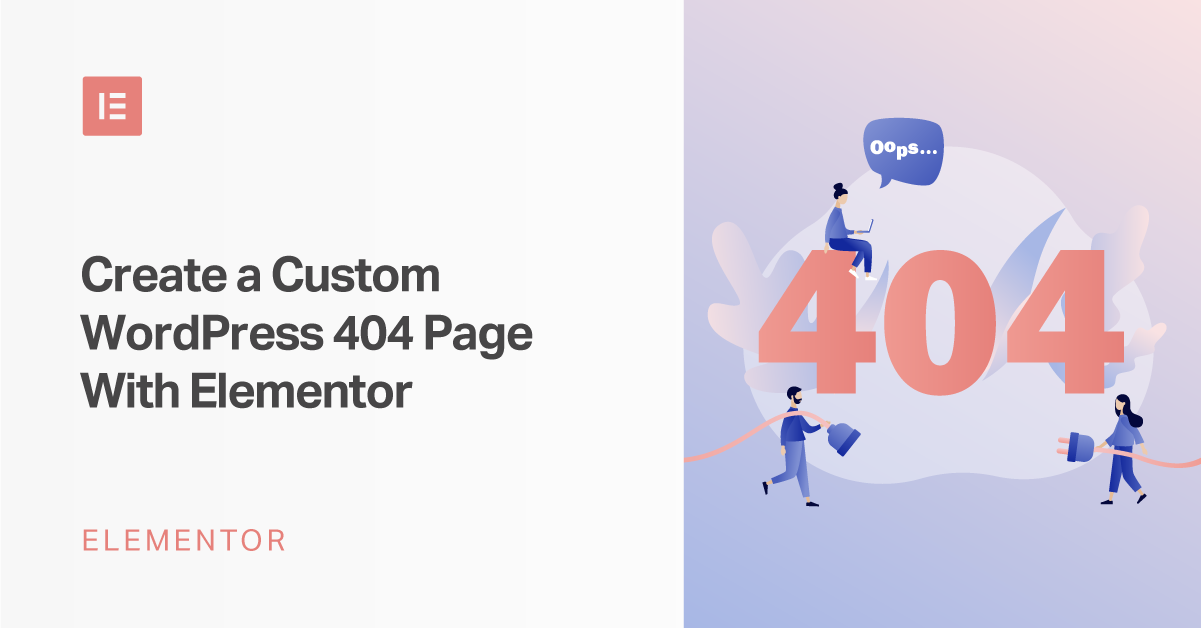
Use colors that match your website style for a smooth look. Keep the layout clean with enough space around text. Use a readable font size and style for easy reading. Add a small image or icon to grab attention without clutter. Simple design keeps users focused and encourages them to explore more.
Credit: elementor.com
Using Plugins For 404 Pages
Using plugins for 404 pages makes the process easy. Plugins let you customize the error page without coding. This helps keep visitors on your site even if they hit a broken link. Plugins also offer features like redirecting users or showing helpful links. This improves user experience and reduces bounce rates.
Popular 404 Plugins
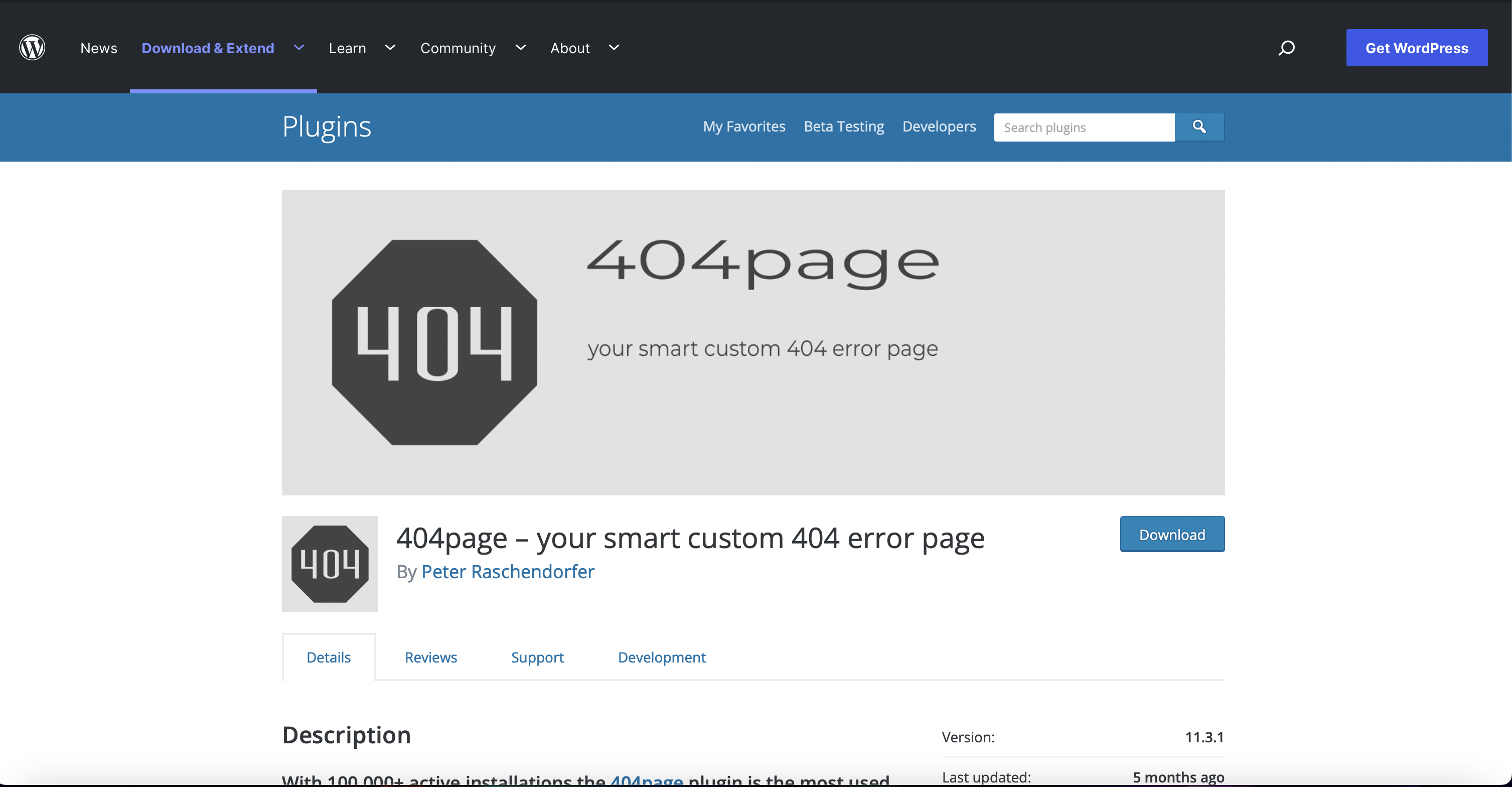
Several plugins work well for 404 pages in WordPress. “404page” lets you create a custom error page from the WordPress editor. “All 404 Redirect to Homepage” sends visitors back to your homepage. “Custom 404 Pro” offers design options and analytics for broken links. These plugins are easy to install and use, even for beginners.
Configuring Plugin Settings
After installing a 404 plugin, adjust its settings carefully. Choose the error page you want visitors to see. Enable redirects if the plugin supports it. Add helpful links or search bars to guide users. Test the 404 page by entering a wrong URL. Save your changes and check if everything works fine.
Testing Your 404 Page
Testing your 404 page ensures it works correctly for visitors. It helps you spot errors and improve user experience. A well-tested 404 page guides users back to your site easily. Always check it on different devices and browsers.
Simulating Broken Links
Create a URL on your site that does not exist. Type it in the browser and press enter. This simulates a broken link. Confirm your custom 404 page appears. Check for clear messages and useful links on the page.
Checking Mobile Responsiveness
Open your 404 page on a smartphone or tablet. Look for proper text size and readable fonts. Make sure buttons and links are easy to tap. A responsive 404 page keeps visitors from leaving your site.
Tips To Improve Your 404 Page
A 404 page appears when visitors try to access a page that does not exist. A well-designed 404 page helps keep visitors on your site. It reduces frustration and guides users to useful content. Simple changes can make your 404 page more helpful and user-friendly.
Adding Search Functionality
Include a search box on your 404 page. It lets visitors find what they want quickly. A search bar is easy to add with WordPress widgets or plugins. This feature saves time and improves user experience.
Including Navigation Links
Add links to your main pages on the 404 page. Common links include Home, About, and Contact. These links help visitors explore your site easily. They reduce the chance visitors will leave your site.
Using Friendly Language
Write simple and kind messages on your 404 page. Avoid technical terms that confuse visitors. Use words like “Oops” or “Sorry, page not found.” Friendly language keeps visitors calm and engaged.

Credit: colibriwp.com
Frequently Asked Questions
What Is A 404 Page In WordPress?
A 404 page appears when a user visits a non-existent URL on your WordPress site. It helps guide visitors back to useful content.
How Do I Create A Custom 404 Page In WordPress?
You can create a custom 404 page by editing the 404. php file in your theme or using a plugin to design one.
Why Should I Add A 404 Page To My WordPress Site?
Adding a 404 page improves user experience by offering helpful navigation options instead of showing a generic error.
Can I Customize The Default WordPress 404 Page Without Coding?
Yes, you can use page builder plugins or themes with built-in 404 page options to customize without coding.
Conclusion
Creating a custom 404 page in WordPress helps visitors stay on your site. It guides users when a page is missing or moved. This small step improves user experience and keeps your site professional. Regularly check your 404 page to ensure it works well.
Simple, clear messages help visitors find what they need. A good 404 page reduces frustration and keeps visitors engaged longer. Take a few minutes to add one today and watch your site feel more complete.


