
Are you struggling to bring your inactive WordPress widgets back to life? Widgets play a big role in making your website more functional and engaging.
But when they go inactive, it can feel frustrating and confusing. Don’t worry—you’re not alone, and activating those widgets is easier than you think. You’ll discover simple steps to get your widgets working again quickly, so your site looks and performs just the way you want.
Keep reading, and let’s unlock the full potential of your WordPress widgets together.
Locate Inactive Widgets
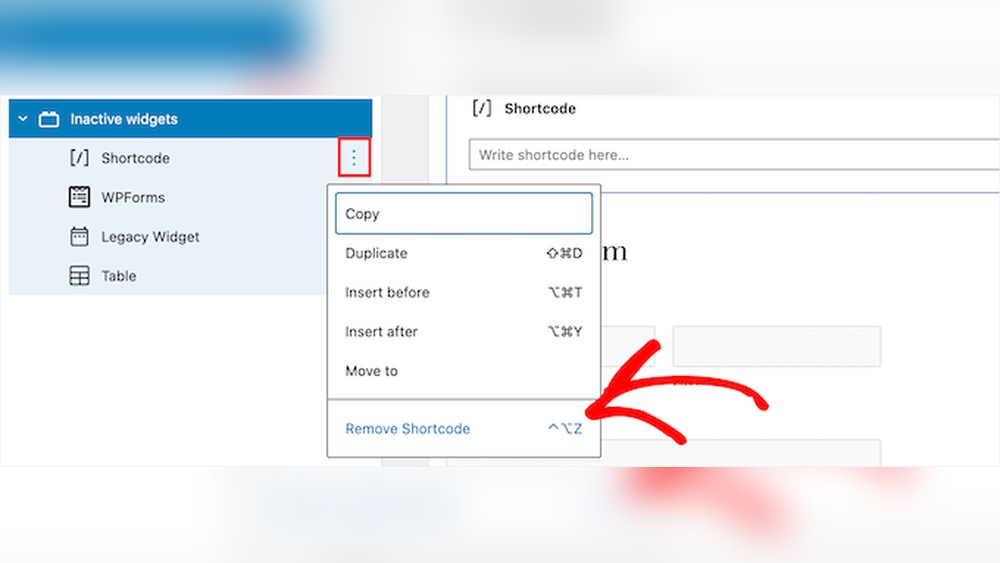
Locating inactive widgets in WordPress is the first step to reusing them. These widgets are saved but not currently shown on your site. Finding them saves time and effort when updating your sidebar or footer.
WordPress keeps inactive widgets in a special area. You can drag them back to active sections anytime. This helps keep your design clean without losing widget settings.
Access The WordPress Dashboard
Start by logging into your WordPress dashboard. This is your control center for managing widgets. Use your admin username and password to sign in securely.
Open The Widgets Screen
Go to Appearance and then select Widgets. This screen shows all widget areas on your site. You will also see inactive widgets stored at the bottom.
Identify The Inactive Widgets Section
Scroll down to find the Inactive Widgets box. It holds widgets you removed but kept saved. These widgets keep their settings ready for reuse.
Review The Stored Widgets
Look through each inactive widget carefully. Check their titles and content to find what you want. This helps avoid adding the wrong widget back.
Credit: www.greengeeks.com
Access Widgets Screen
Accessing the Widgets screen is the first step to activate inactive widgets in WordPress. This screen lets you manage all widgets on your website. You can add, remove, or activate widgets easily here.
The Widgets screen shows all widget areas and the widgets assigned to them. It also displays any inactive widgets you saved for later use. Understanding this screen helps keep your site organized.
Navigate To The WordPress Dashboard
Log in to your WordPress admin area. You will see the main dashboard where site settings are managed.
Open The Appearance Menu
On the left menu, find and click “Appearance.” This expands a list of options related to site design.
Select The Widgets Option
Click “Widgets” under Appearance. This opens the Widgets screen where you can see all widget zones.
Explore The Widgets Screen Layout
The screen shows widget areas on the right. Available widgets are on the left side. Inactive widgets appear in a separate section below.
Identify Widgets To Activate
Identifying which widgets to activate is a key step in managing your WordPress site. Widgets help display important content and features on your site’s sidebars and footers. Some widgets may become inactive after theme changes or plugin updates. Finding these widgets and deciding which to use again improves your site’s appearance and function.
Inactive widgets are stored separately in the WordPress dashboard. They keep their settings but do not show on the live site. Reviewing these widgets helps you pick the ones that still add value. This process saves time and keeps your site clean.
Check The Inactive Widgets Area
Open the WordPress dashboard and go to Appearance > Widgets. Scroll down to find the “Inactive Widgets” section. This area lists all widgets that are not currently active. Each widget here keeps its settings, ready for use again. Look through this list carefully to see what you have.
Review Widget Settings And Content
Click each inactive widget to check its saved settings. Look at the title, links, and text inside. Confirm if the content is still relevant to your site. Outdated or unnecessary widgets should stay inactive or be deleted. Only activate widgets that improve user experience.
Match Widgets With Your Site Layout
Think about your current site layout and design. Choose widgets that fit the active theme’s style and space. Some widgets may not display well with certain themes. Activating compatible widgets keeps your site looking neat and professional. Avoid clutter by selecting only needed widgets.

Credit: wordpress.org
Drag And Drop Widgets
Drag and drop widgets make managing your WordPress site easy. You can move widgets from one area to another without any coding. This feature helps activate inactive widgets quickly. Just click, hold, and drag the widget to the desired section.
This method saves time and simplifies the process. It works well for beginners and experts alike. The visual nature of drag and drop makes it clear where your widgets will appear.
How To Access The Widgets Area
Go to your WordPress dashboard. Find the Appearance menu and click on Widgets. You will see all widget areas and available widgets. This screen lets you drag and drop widgets easily.
Moving Widgets To Active Areas
Click on an inactive widget and hold it. Drag the widget to an active sidebar or footer area. Release the mouse to drop the widget in place. The widget is now active and visible on your site.
Rearranging Active Widgets
Drag and drop also lets you reorder widgets. Click and hold a widget in an active area. Move it up or down to change its position. This helps organize your site’s layout quickly.
Saving Your Changes
After moving widgets, WordPress usually saves automatically. Still, check for a Save button and click it if needed. This ensures your widget settings stay as you want them.
Adjust Widget Settings
Adjusting widget settings is key to making inactive widgets work again. It helps customize how widgets appear and behave on your site. Small changes can activate widgets and improve user experience.
Let’s explore the simple steps to adjust widget settings effectively in WordPress.
Access The Widget Area
First, go to your WordPress dashboard. Navigate to Appearance > Widgets. Here, you will see all available widgets and inactive ones. Locate the widget you want to activate or change.
Edit Widget Options
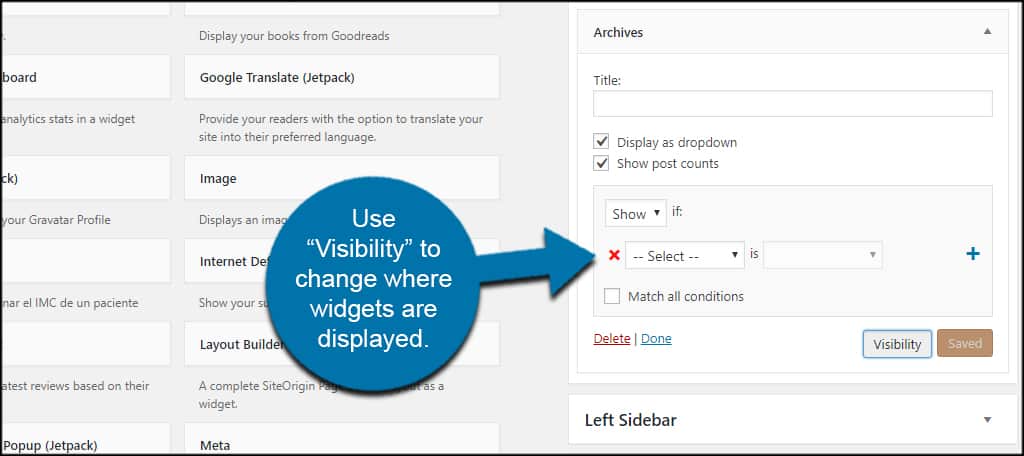
Click on the widget to open its settings. Adjust the title, content, or display options as needed. Sometimes, missing or incorrect settings cause widgets to stay inactive. Correct these settings to fix the issue.
Choose The Widget Location
Select the sidebar, footer, or any widget area where you want the widget to appear. Assigning a proper location is important for activation. Drag and drop the widget to the desired area if needed.
Save Your Changes
After adjusting settings, click the “Save” button. This action activates the widget with the new options. Refresh your site to check if the widget shows correctly.
Save Changes
Saving changes is a key step after activating inactive widgets in WordPress. It makes sure your updates appear on your website. Without saving, the changes will not take effect and your effort will be lost.
Always double-check your widget settings before saving. This avoids mistakes and ensures the widgets work as intended. Saving is quick but crucial for your site’s appearance and function.
Where To Find The Save Button
The save button is usually at the bottom of the widget area in WordPress. You can see it clearly after you add or activate a widget. Look for a button labeled “Save” or “Save Changes.” Click it once you finish adjusting your widgets.
What Happens After Saving
Once you click save, WordPress updates the site with your new widget settings. The inactive widget becomes active and visible on your site. The changes are stored in your site’s database. This keeps your widget setup safe even if you close the browser.
Common Issues When Saving
Sometimes, saving might fail due to browser issues or plugin conflicts. If the save button does not work, refresh the page and try again. Clear your browser cache if the problem continues. Disable conflicting plugins to check for errors.
Use Widget Plugins
Using widget plugins can help activate inactive widgets in WordPress. These plugins offer extra tools to manage widgets easily. They help bring back widgets that might be hidden or disabled. Plugins also add new features to customize your site.
With widget plugins, you can organize and display widgets better. This makes your website look more complete and user-friendly. Many plugins come with drag-and-drop options, making it simple to move widgets around.
Choose The Right Widget Plugin
Pick a plugin that matches your needs. Some plugins focus on restoring inactive widgets. Others add more widget areas or styles. Read reviews and check ratings to find reliable options. Make sure the plugin updates often and works with your WordPress version.
Install And Activate The Plugin
Go to your WordPress dashboard and select “Plugins.” Click “Add New” and search for the chosen plugin. Click “Install Now” and then “Activate.” Once active, the plugin will add new settings to your widgets area.
Manage Inactive Widgets Using The Plugin
Open the plugin’s settings or widget section. Look for options to restore or activate inactive widgets. Some plugins show a list of inactive widgets you can drag back to active areas. Adjust settings as needed to control where widgets appear.

Credit: github.com
Troubleshoot Common Issues
Inactive widgets can cause frustration. They might not show up or work correctly. Troubleshooting helps fix these issues quickly. This section covers simple steps to solve common widget problems.
Check Theme Compatibility
Some themes do not support all widgets. Verify if your theme allows the widget you want. Switch to a default WordPress theme to test this. If the widget works, the theme is the issue.
Clear Cache And Refresh
Caching can prevent changes from showing. Clear your website cache and browser cache. Refresh the page after clearing. This often makes inactive widgets active again.
Deactivate Conflicting Plugins
Plugins may conflict with widgets. Deactivate all plugins except the one needed for widgets. Check if the widgets become active. Reactivate plugins one by one to find the culprit.
Update WordPress And Plugins
Old versions of WordPress or plugins cause widget problems. Ensure WordPress and all plugins are up to date. Updates fix bugs and improve compatibility.
Reset Widget Settings
Widget settings might be corrupted. Remove the inactive widget and add it again. Resetting can solve many display issues. Save changes and check the widget’s status.
Tips To Optimize Widget Use
Optimizing widgets can improve your WordPress site’s look and performance. Using widgets wisely keeps your site clean and useful. It helps visitors find what they need fast. Small changes make a big difference in user experience.
Focus on choosing the right widgets for your site’s goals. Avoid clutter by limiting the number of widgets. Keep important widgets easy to see and use.
Choose Widgets That Add Value
Select widgets that help visitors. Use ones that show recent posts, search bars, or contact info. Avoid widgets that do not serve a clear purpose.
Organize Widgets For Easy Navigation
Place widgets in logical order. Group similar widgets together. This helps visitors find information quickly and easily.
Keep Widget Areas Clean
Limit the number of widgets in sidebars or footers. Too many widgets can slow down your site. Remove widgets that are not useful.
Use Widgets To Highlight Important Content
Showcase popular posts or special offers with widgets. This draws visitor attention to key areas. Update widget content regularly to keep it fresh.
Test Widgets On Different Devices
Check how widgets appear on phones and tablets. Ensure they work well on all screen sizes. Fix any display issues promptly.
Frequently Asked Questions
How Do I Find Inactive Widgets In WordPress?
Inactive widgets appear in the “Inactive Widgets” section of the Widgets page in your WordPress dashboard. They are saved widgets not currently active on your site but can be reactivated anytime.
Can I Restore Inactive Widgets Without Losing Settings?
Yes, inactive widgets keep their settings intact. Reactivating them restores the widget with all saved configurations, avoiding the need to set them up again.
Why Are My Widgets Inactive After Theme Change?
Changing themes can deactivate widgets because new themes may use different widget areas. Inactive widgets are stored safely and can be reactivated or reassigned manually.
How To Activate Inactive Widgets In WordPress?
To activate, drag the inactive widget from the “Inactive Widgets” area to an active sidebar or widget area. Then customize it as needed and save.
Conclusion
Activating inactive widgets in WordPress is simple and quick. Just follow the steps carefully. Widgets help improve your website’s look and function. Keep your site fresh by using useful widgets. Don’t let good widgets stay inactive and unused. Regularly check your widget area for updates.
This keeps your site user-friendly and engaging. Small changes can make a big difference. Start activating widgets today and see the improvement. Your visitors will notice the better experience.


