
Are you ready to give your WordPress site a fresh look but feel overwhelmed by the process? Activating a new WordPress theme can transform your website’s appearance and functionality.
But if you’re unsure how to do it, you might worry about making mistakes or missing out on features. Don’t let these concerns stop you from achieving the website of your dreams. In this guide, you’ll discover simple steps to activate a WordPress theme without any hassle.
Imagine the satisfaction of seeing your site in its new, stunning design, perfectly tailored to your brand. Keep reading to unlock the secrets to a seamless activation and unleash the full potential of your website today.
Choosing The Right Theme
Themes should have the features you need. Check for customizable options. Look at the widgets it supports. Make sure it has a responsive design. This helps on all devices. See if it has a support system. Good support is important. Also, read user reviews. They show real experiences.
Pick a theme with a clean design. It should match your style. Layout matters too. Easy navigation is key. Check if it has multiple layout options. This adds flexibility. Colors should be easy on the eyes. Avoid very bright colors. Fonts should be clear and readable.
Ensure the theme works with the latest WordPress version. It should also be compatible with popular plugins. This ensures more functionality. Test the theme on different browsers. It should display well on all. Check if it supports multilingual sites. This helps reach more people.
Credit: www.wpzoom.com
Downloading And Installing
Activating a WordPress theme is straightforward. First, download your chosen theme and save it to your computer. Then, install it by uploading the file to your WordPress dashboard, and activate it in the themes section to start customizing your site.
Accessing The Theme Repository
Visit the WordPress theme repository to find free themes. Use the search bar to find themes you like. Check the ratings and reviews before downloading. Click the Install button to add the theme to your site.
Uploading Via WordPress Dashboard
Download your theme as a .zip file. Go to your WordPress dashboard. Click on Appearance and then Themes. Click Add New and then Upload Theme. Select your .zip file and hit Install Now. Finally, click Activate to use the theme.
Using Ftp For Installation
First, download the FTP client software. FileZilla is a good choice. Connect to your website server. Upload your theme folder to the /wp-content/themes directory. Go back to your WordPress dashboard. Look for your new theme under Appearance > Themes. Click Activate to start using it.
Activating The Theme
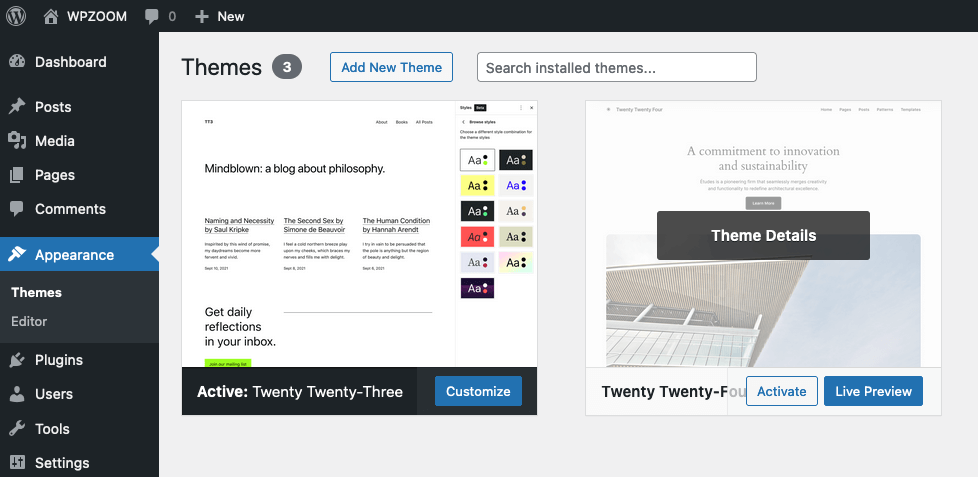
First, go to your WordPress dashboard. Click on Appearance in the sidebar. Then, choose Themes from the list. This will take you to the themes section. Here, you will see all available themes. You can find both active and inactive themes.
Before activating, it’s wise to preview the theme. Hover over the theme you like. Click Live Preview to see how it looks. Check if the design fits your need. If you like it, you can activate it. Previewing helps in making the right choice.
Once you decide on a theme, activating is simple. Hover over the theme again. Click the Activate button. Your new theme is now live. It’s very fast and easy. Your website will change instantly.

Credit: www.namecheap.com
Customizing The Theme
The Theme Customizer helps make your site unique. It offers tools to change the look of your website. You can adjust colors, fonts, and layout. Make sure to save changes. This tool is found in the dashboard. Easy and quick.
Colors and fonts give your site style. Bright colors catch eyes. Dark colors look professional. Choose a font that is easy to read. Combine colors and fonts for a unique look. Preview changes before saving.
Widgets add features to your site. They can show recent posts or social media links. Menus help visitors find pages. Drag and drop to arrange. Add links for easy navigation. Customize your menu in the dashboard.
Troubleshooting Activation Issues
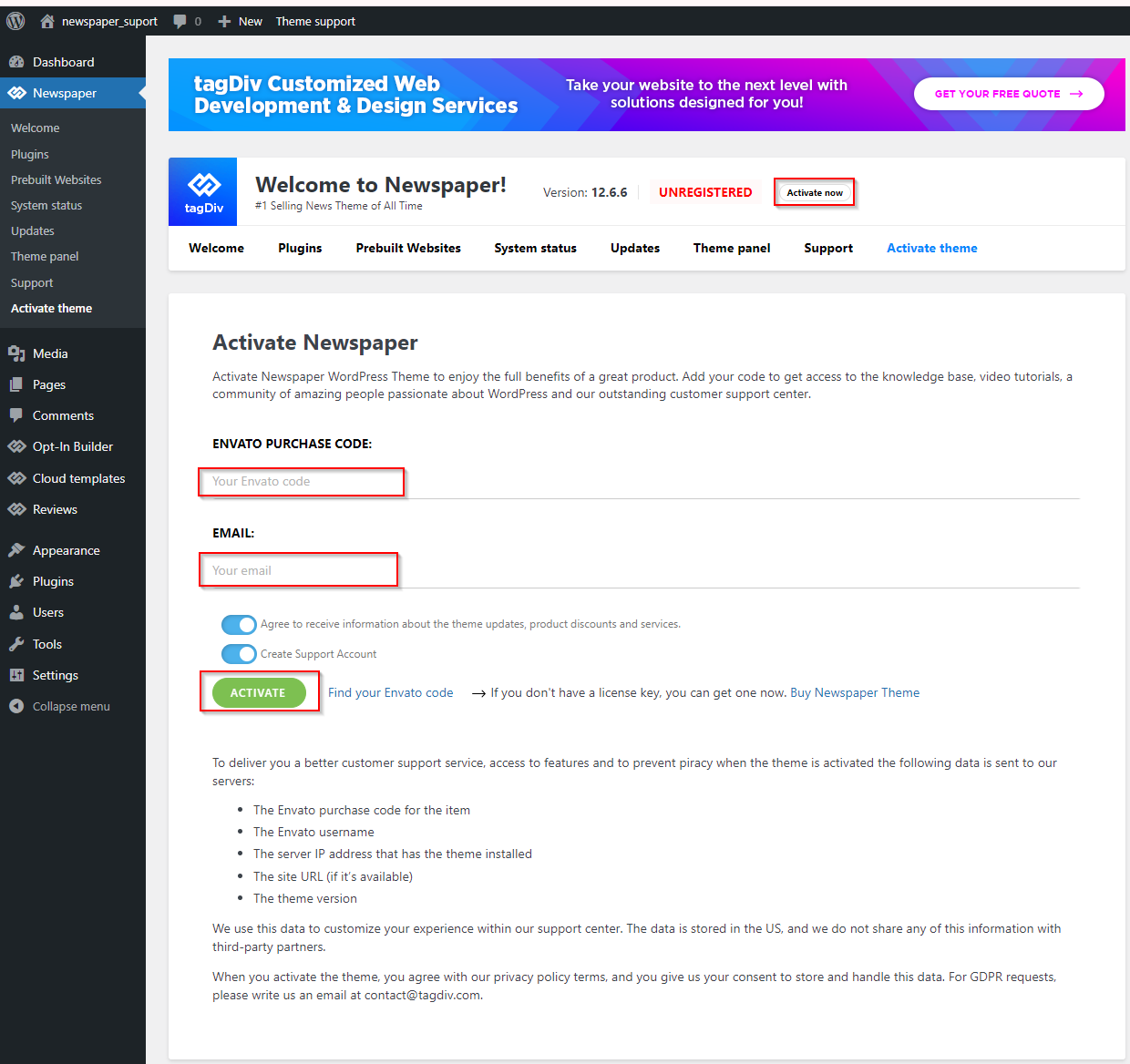
Activating a WordPress theme sometimes leads to errors. Check theme compatibility and ensure proper installation. Verify license keys and update plugins to resolve issues efficiently.
Identifying Common Errors
Errors happen during theme activation. Check for spelling mistakes in theme names. Ensure the theme folder is complete. Missing files lead to errors. Confirm compatibility with your WordPress version. Incompatible themes don’t activate. Double-check the theme’s requirements. Many themes need specific server settings. Read the theme documentation carefully.
Resolving Conflicts With Plugins
Conflicts often occur between themes and plugins. Disable all plugins first. Then, activate the theme. Reactivate plugins one by one. This identifies the conflicting plugin. Update both theme and plugins regularly. Outdated versions may cause issues. Keep your WordPress version updated too. Older versions might not support new themes.
Seeking Help From Support
Contact support for unresolved issues. Theme developers offer help. Explain your problem clearly. Provide screenshots if possible. Check online forums for similar issues. Other users may have solutions. Read the FAQs section on the theme’s site. It might answer your question.
Credit: forum.tagdiv.com
Maintaining Theme Performance
Keep your theme updated. New updates fix bugs and add features. Updates improve security and performance. Check for updates monthly. Use the latest version always.
Site speed affects user experience. Use tools to check speed. Fast sites load under three seconds. Remove unused plugins to improve speed. Optimize images for better loading times.
Back up your changes regularly. Use a plugin to save customizations. Losing changes can be frustrating. Backup files before updates. This protects your hard work.
Frequently Asked Questions
How Do I Activate A New Theme In WordPress?
Go to your WordPress dashboard. Click on “Appearance” then “Themes. ” Choose a theme and click “Activate. “
How To Start A WordPress Theme?
Begin by installing WordPress locally using a tool like XAMPP or WAMP. Create a new theme folder in wp-content/themes. Develop essential files like style. css, index. php, and functions. php. Customize the design and structure using HTML, CSS, and PHP.
Test your theme thoroughly before deploying it live.
How To Work On A WordPress Theme Without Activating It?
Use a staging site or local environment to test WordPress themes safely. Install the theme there without affecting your live site. Utilize plugins like WP Staging or Local by Flywheel for easy setup. This ensures you can make changes and test features without any risk.
How To Find Active Theme In WordPress?
Go to your WordPress dashboard. Click on “Appearance” and select “Themes. ” Your active theme is listed at the top.
Conclusion
Activating a WordPress theme is simple and rewarding. Follow the steps to enhance your site’s appearance. Explore various themes to find the perfect fit. Regular updates keep your theme secure and modern. Remember to check compatibility with plugins. A well-chosen theme boosts your site’s performance and user experience.
Practice makes perfect, so don’t hesitate to try different options. With these tips, your WordPress site will look professional and inviting. Enjoy the process and watch your website come to life. Happy theming!


