
Have you ever wondered how to access your host web server with ease? Whether you’re a seasoned webmaster or just starting out, using Filezilla can simplify the process.
Imagine having the power to upload, download, and manage your files with just a few clicks. This guide is designed with you in mind, offering a straightforward approach to mastering Filezilla. By the end of this article, you’ll be equipped with the knowledge to navigate your server like a pro.
Don’t miss out on unlocking the potential to streamline your web management tasks. Let’s get started on transforming how you interact with your web server.

Credit: developer.mozilla.org
Installing Filezilla
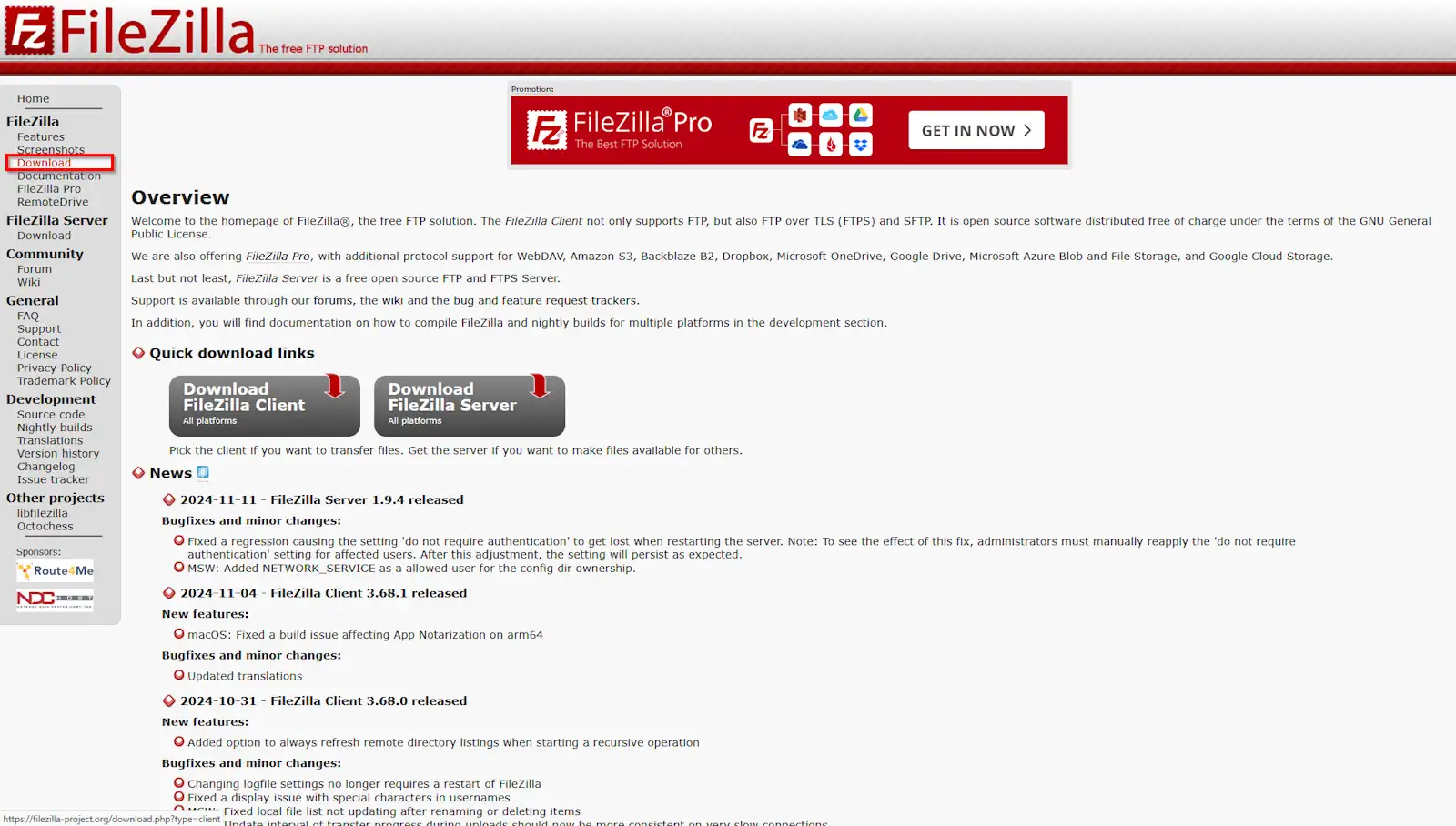
Filezilla is a free software. It helps connect to web servers. First, visit the Filezilla website. Look for the download link. Click on it. Choose the right version for your computer. Follow the steps to install it. It’s easy to follow.
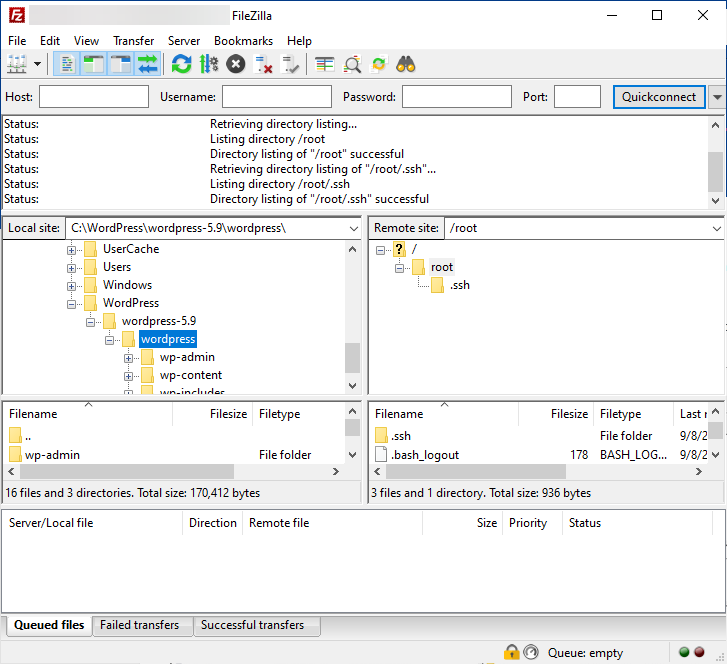
After installation, open Filezilla. The interface is user-friendly. On the left, see your computer files. On the right, connect to your server. You need your server details. This includes the host, username, and password. Enter these in the top bar. Then click “Quickconnect”.
Filezilla will now connect to your server. You can drag and drop files. This makes it simple to manage. Always ensure you use correct login details. This is important for access.
Configuring Ftp Settings
Locating FTP Credentials is the first step. Check your email from the web host. They send these details when you sign up. Look for the username, password, and server address. Write them down or save in a safe place. You will need them soon.
Entering Server Details is the next step. Open Filezilla and click on ‘File’ then ‘Site Manager’. A window will pop up. Enter the server address in the ‘Host’ field. Choose ‘FTP’ from the ‘Protocol’ dropdown. Type your username and password. Click ‘Connect’ to access your server. Now you are ready to manage your files. It is that simple!
Connecting To Your Web Server
Open Filezilla on your computer. Enter your host address in the Host box. Type your username in the Username field. Fill the Password box with your password. Set the Port box with the number 21 for FTP. Click the Quickconnect button. Filezilla will try to connect to your web server. You can see your files on the right side.
Check if your internet works. Ensure the host address is correct. Verify your username and password. Update Filezilla if needed. Disable any firewalls that might block it. Try connecting again. If problems continue, contact your hosting provider for help.
Credit: www.swhosting.com
Navigating The Filezilla Interface
Filezilla has a simple layout. It has two main parts. The left side shows your computer files. The right side shows server files. This helps in easy file transfer. Each part has two panels. The top panel shows folders. The bottom panel shows files. Drag and drop files between them. It’s easy to use.
The directory tree is like a map. It shows all folders. Look at the left side for local files. The right side shows server files. Click on folders to open them. Find files in these folders. The tree helps you locate files quickly. You can see where files are. This makes it easy to manage files.
Uploading Files To The Server
Accessing your host web server with Filezilla is simple. Open Filezilla and enter your server’s address, username, and password. Connect quickly and start uploading files to manage your website effectively.
Selecting Files For Upload
Click the “Local Site” panel on Filezilla. Choose the files for upload. Double-click or drag files to the “Remote Site” panel. Make sure the files are correct. Wrong files can cause problems.
Monitoring Upload Progress
Watch the “Transfer Queue” at the bottom. It shows upload progress. Green means success. Red means errors. If errors show, check file names and paths. Retry if needed. Large files might take longer. Be patient and wait for completion.
Downloading Files From The Server
First, open Filezilla on your computer. Connect to the server using the right details. You need the host name, username, and password. After connecting, you will see your files on the server. Choose the files you want to download. You can select one or many files. Right-click on the files and select Download. This will start the download to your computer. You can see the download progress at the bottom of Filezilla.
Choosing Files To Download
Select files that you need. Check file names carefully. Ensure you have enough space on your computer. Right-click and press download. Wait for the download to complete.
Verifying Download Success
After download, check the files on your computer. Open them to verify they work. Make sure all files are complete. If something is missing, try downloading again. Confirm download success by comparing sizes. Check the server and local size. They should match.
Managing Permissions
File permissions control who can read, write, or run a file. Right-click on the file or folder in Filezilla. Choose “File permissions” from the list. A window will open with checkboxes. These boxes let you set permissions. Read means see the file. Write allows changes. Execute lets the file run. Tick the boxes for the permissions you want. Click “OK” to save.
Permissions are shown as numbers. 755 is common for folders. It means all can read and run. Only owners can write. 644 is for files. Only owners can change them. Always check permissions after changes. This ensures everything works fine.
Security Considerations
Ensure secure access to your web server using Filezilla by employing strong passwords and enabling two-factor authentication. Regularly update Filezilla to its latest version to protect against vulnerabilities. Configure firewall settings to allow only necessary connections, enhancing your server’s security.
Using Secure Ftp
FileZilla supports Secure FTP, known as SFTP. It protects files during transfer. Encryption keeps data safe from hackers. Always choose SFTP over regular FTP. It adds a layer of security. Make sure your server supports SFTP.
Use strong passwords. A strong password protects your account. Avoid common words or sequences. Change passwords regularly. Two-factor authentication is also helpful. It adds extra security to your account.
Always update FileZilla. Latest versions fix security bugs. Old versions can be risky. Check for updates often. It keeps your software secure.
Protecting Your Data
Backup files regularly. Backups save copies of your data. If data is lost, backups help recover. Use external drives or cloud services for backups.
Monitor your server activity. Check logs for unusual activity. Suspicious activity could mean threats. Regular monitoring helps detect issues early.
Use a firewall. Firewalls block unwanted access. They protect your server from attacks. Ensure your firewall settings are correct.
Credit: www.ionos.com
Frequently Asked Questions
How To Connect To A Host Server Using Filezilla?
Open FileZilla and enter your host, username, password, and port in the Quickconnect fields. Click “Quickconnect” to establish a connection. Once connected, navigate through the server files using the interface. Ensure your server details are accurate for a successful connection.
How To Access A Website Via Filezilla?
Open FileZilla and enter your FTP credentials: Host, Username, Password, and Port. Click “Quickconnect” to establish a connection. Navigate to the “Remote Site” panel to access your website files. Drag and drop files between the “Local Site” and “Remote Site” panels to upload or download files.
How To Access A Website Through Ftp?
To access a website via FTP, use an FTP client like FileZilla. Enter the site’s hostname, username, and password. Connect to the server, then upload or download files as needed. Ensure your FTP settings match the server requirements for a smooth transfer.
How To Access A Server Using Ftp?
Use an FTP client to connect to the server. Enter the server’s IP address, username, and password. Choose the correct port, usually 21, and click connect. Once connected, you can upload or download files. Ensure your credentials are correct for successful access.
Conclusion
Using Filezilla is a straightforward way to access your host web server. You can transfer files easily and manage your website’s content efficiently. Remember to check your connection settings for any issues. Familiarize yourself with Filezilla’s interface to use it effectively.
Don’t forget to safeguard your login details to keep your data secure. Practice regularly to enhance your skills. With patience, you’ll navigate Filezilla smoothly. This tool simplifies your web tasks, making server management more manageable. Explore its features to improve your workflow.
Enjoy your journey with Filezilla and happy file transferring!


