
Are you struggling to find your WordPress files? Whether you want to customize your site, fix an issue, or back up your content, knowing how to access your WordPress files is key.
In this guide, you’ll discover simple, step-by-step methods to reach your files quickly and safely. By the end, you’ll feel confident managing your website behind the scenes—no confusion, no frustration. Ready to take control of your WordPress site? Let’s dive in.
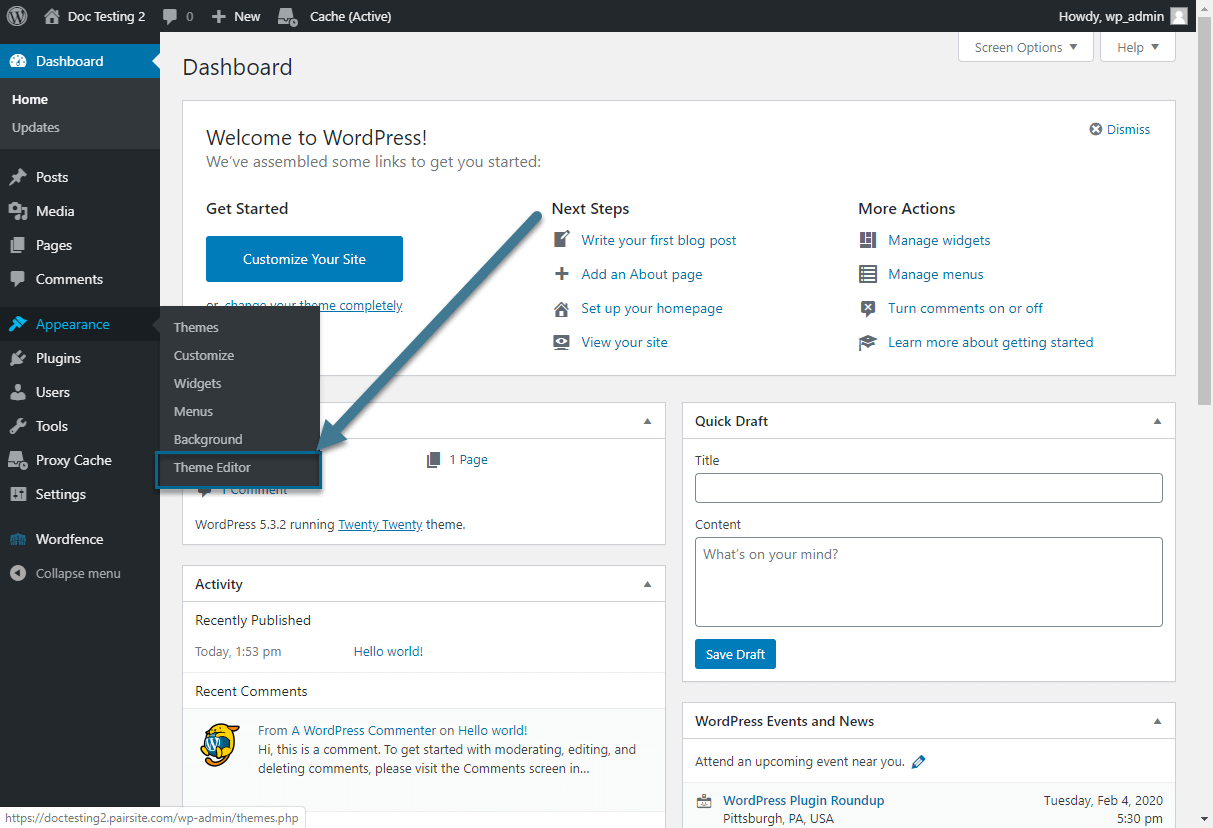
Credit: www.pair.com
Accessing WordPress Files Via Ftp
Accessing WordPress files via FTP gives direct control over your website’s files. FTP, or File Transfer Protocol, allows you to connect to your web server and manage files easily. This method is useful for editing themes, plugins, or troubleshooting issues.
Choosing An Ftp Client
Start by picking a reliable FTP client. Popular options include FileZilla, Cyberduck, and WinSCP. These programs help connect your computer to the web server. Choose one that fits your device and is easy to use.
Connecting To Your Server
Open the FTP client and enter your server details. These include the hostname, username, and password. This information is usually in your hosting account. After entering details, click connect. The client will link your computer to the server.
Navigating The WordPress Directory
Once connected, locate the WordPress root folder. It often appears as public_html or www. Inside, find folders like wp-content, wp-admin, and wp-includes. These hold your themes, plugins, and core files. Handle files carefully to avoid site issues.

Credit: www.youtube.com
Using File Manager In Hosting Control Panel
Using the File Manager in your hosting control panel is an easy way to access WordPress files. It does not require special software or skills. You can open, edit, and manage files directly from your browser. This method is fast and secure for small changes or quick fixes.
The File Manager gives you full control over your website files. You can see folders and files, upload new files, or delete old ones. It works with most hosting providers and helps you keep your website organized.
Locating File Manager
Log in to your hosting control panel first. Look for the “File Manager” icon or link. It is usually in the main dashboard or under the “Files” section. Click on it to open the file management interface.
The File Manager may open in a new tab or the same window. It shows your website files and folders in a list or tree view. You can navigate easily to find what you need.
Browsing WordPress Files
WordPress files are stored in the public_html or www folder. This folder holds your website’s main files. Inside, you will find folders like wp-content, wp-admin, and wp-includes.
Use the File Manager to open these folders. The wp-content folder contains themes, plugins, and uploads. The wp-admin folder has WordPress dashboard files. The wp-includes folder stores core WordPress files.
Editing Files Safely
Before editing any file, create a backup first. This protects your site if something goes wrong. Use the File Manager’s download option to save a copy.
Edit files with the built-in text editor. Avoid using external editors to prevent formatting issues. Make small changes and save the file. Refresh your website to check if the change works.
Never edit core WordPress files unless you know exactly what to do. Mistakes can break your site or cause errors. Focus on theme or plugin files for custom changes.
Accessing Files Through Ssh
Accessing WordPress files through SSH offers a fast and secure way to manage your website. SSH, or Secure Shell, connects you directly to your server’s file system. This method is useful for developers and site owners who want full control.
Using SSH, you can upload, edit, or delete files without using a web interface. It is more efficient than FTP and works well for handling large files or multiple tasks.
Setting Up Ssh Access
First, ensure your hosting provider allows SSH connections. You need the server’s IP address, username, and password or SSH key. Use a terminal on Mac or Linux. Windows users can use tools like PuTTY.
Generate an SSH key pair if required. Upload the public key to your hosting account. This setup improves security by avoiding passwords.
Using Command Line To Navigate
After connecting, use simple commands to move through folders. cd changes directories. ls lists files in a directory. Use pwd to see your current folder.
WordPress files usually reside in the public_html or www folder. Navigate there to find core files, themes, and plugins.
Managing WordPress Files With Ssh
Use commands like cp to copy files and mv to move or rename them. Delete files with rm. Edit files using command-line editors like nano or vim.
Back up files before making changes. SSH allows quick updates without logging into WordPress admin. This method helps fix errors or customize your site directly.
Locating Key WordPress Files
Finding the main WordPress files is key to managing your website. These files hold important settings, designs, and content. Knowing their locations helps you make changes safely and fix problems quickly. Below are the main folders and files you should know.
Wp-config.php
This file is in the root folder of your WordPress site. It stores your database name, username, and password. It also holds security keys and site settings. Be very careful when editing this file. A small error can break your site.
Themes And Plugins Folders
Both folders are inside the wp-content folder. The themes folder holds your site’s design files. Each theme has its own folder here. The plugins folder stores add-ons that add features. You can add, remove, or update files in these folders.
Uploads Directory
This folder is also inside wp-content. It keeps all your images, videos, and other files you upload. The uploads folder is organized by year and month. You can access this folder to back up or delete media files.
Best Practices For File Access
Accessing WordPress files needs care and attention. Following best practices helps protect your website and data. It also makes file management easier and safer. Use the right steps to avoid errors and security problems.
Backing Up Before Changes
Always create a backup before changing files. Backups keep a safe copy of your website. They help restore your site if something goes wrong. Use plugins or manual methods to save all files and databases. Store backups in a secure place outside your server.
Using Secure Connections
Use secure connections to access WordPress files. SFTP or SSH encrypts data during transfer. This stops hackers from stealing information. Avoid using plain FTP, as it is not safe. Secure connections protect your login details and files.
Avoiding Common Mistakes
Do not edit files without knowing their purpose. Changing the wrong file can break your site. Avoid deleting important files or folders. Always check file permissions to prevent unauthorized access. Keep your WordPress, themes, and plugins updated for safety.

Credit: melapress.com
Frequently Asked Questions
How Do I Access WordPress Files Via Ftp?
Use an FTP client like FileZilla. Connect with your hosting credentials. Navigate to the WordPress root directory to view files.
Can I Access WordPress Files Through Cpanel?
Yes, log in to cPanel. Open File Manager. Locate the public_html folder to access WordPress files directly.
What Are The Key WordPress Files To Edit?
Focus on wp-config. php,. htaccess, and theme files in wp-content. These control settings, security, and design.
Is It Safe To Edit WordPress Files Directly?
Editing files directly can cause errors. Always back up files before changes to avoid data loss.
Conclusion
Accessing WordPress files is simple with the right steps. You can use FTP, hosting control panels, or file managers. Always back up your files before making changes. This keeps your site safe and avoids problems. Knowing how to access these files helps you fix errors and customize your site.
Practice these methods to feel confident. Keep your WordPress site running smoothly and securely.


