
Are you struggling to find your way into your WordPress dashboard? You’re not alone.
The dashboard is where all the magic happens—where you create posts, customize your site, and manage everything behind the scenes. Knowing how to access it quickly saves you time and frustration. In this guide, you’ll learn simple, clear steps to get inside your WordPress dashboard without any hassle.
By the end, you’ll feel confident and ready to take control of your website like a pro. Keep reading—you’re just moments away from unlocking your site’s full potential.
Credit: www.youtube.com
Locating The Login Page
Finding the WordPress login page is the first step to access your dashboard. This page is where you enter your username and password. Knowing the right URL saves time and avoids confusion. It also helps keep your site secure.
Common Login Urls
The most common URLs to access the WordPress login page include:
yourwebsite.com/wp-login.phpyourwebsite.com/wp-admin
Typing these URLs in your browser will usually bring up the login screen. These are standard for most WordPress sites. They are simple and easy to remember.
Custom Login Urls
Some websites change the login URL for security reasons. This helps protect the site from hackers. Custom URLs might look like:
yourwebsite.com/myloginyourwebsite.com/admin-area
If your site uses a custom URL, check with your website manager or hosting provider. You can also look for clues in your site’s setup or emails from your web developer.
Entering Login Credentials
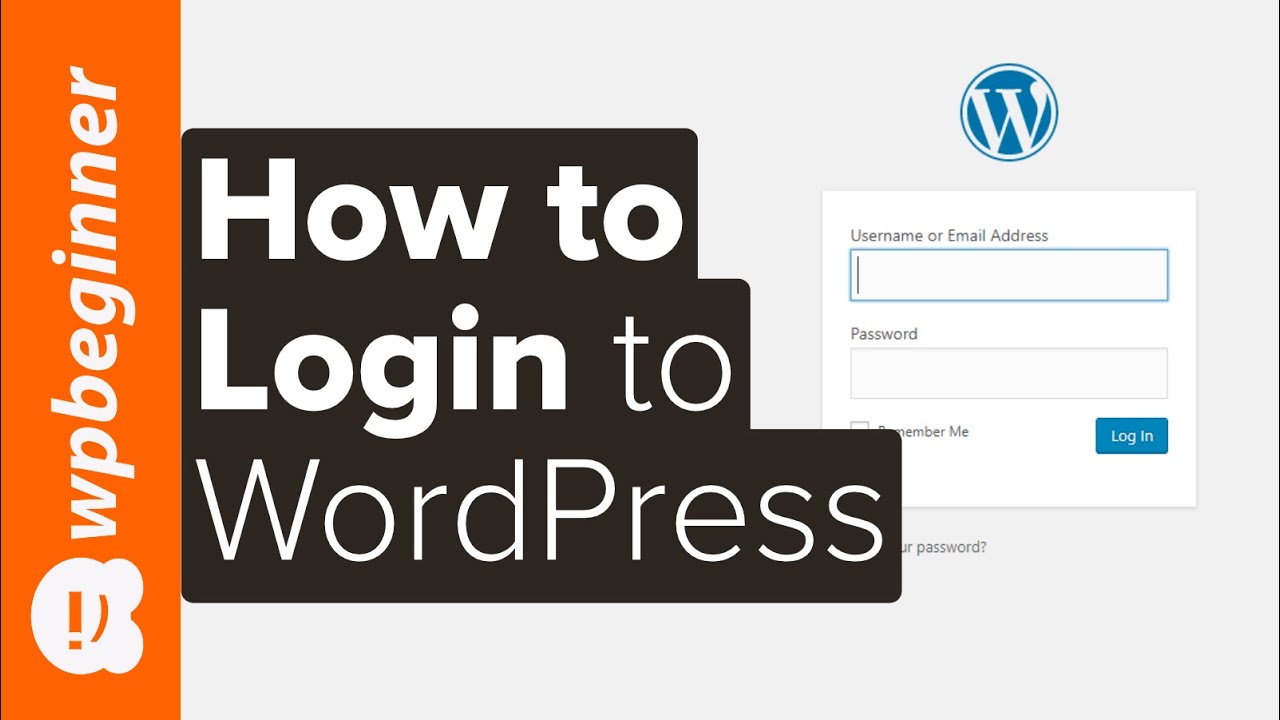
Entering your login credentials is the first step to access the WordPress dashboard. This step ensures only authorized users can manage the website. You need to provide both your username and password accurately. Make sure to keep these details safe and private.
Username And Password
Your username identifies you to the WordPress system. It is usually set during the installation or given by the site admin. The password protects your account from unauthorized access. Use a strong password with a mix of letters, numbers, and symbols. Avoid simple or common words to keep your account secure.
Using Password Managers
Password managers help store and fill your login details securely. They save time and prevent typing errors. These tools generate strong passwords and keep them safe. Using a password manager reduces the risk of forgetting your credentials. Choose a reliable password manager to protect your WordPress login.
Resetting Forgotten Password
Forgetting your WordPress password is common. It does not stop you from accessing your site. WordPress offers simple ways to reset your password. This guide covers easy steps to regain dashboard access quickly.
Using The Lost Password Link
Go to the WordPress login page. Click the “Lost your password?” link below the login form. Enter your username or email address. WordPress sends a password reset link to your email. Click the link in your email. Create a new password and confirm it. Use a strong password to keep your site safe. Return to the login page and use your new password.
Email Recovery Options
Your email must be active and accessible. Check your spam or junk folder if you do not see the reset email. Some email providers delay messages. Wait a few minutes and refresh your inbox. If you do not get the email, try again or use another recovery method. Keep your contact email updated in WordPress settings to avoid issues.
Navigating The Dashboard
Navigating the WordPress dashboard is simple once you know the basics. The dashboard is the control center for your website. Here, you manage content, settings, and appearance. A clear understanding helps you work faster and avoid mistakes.
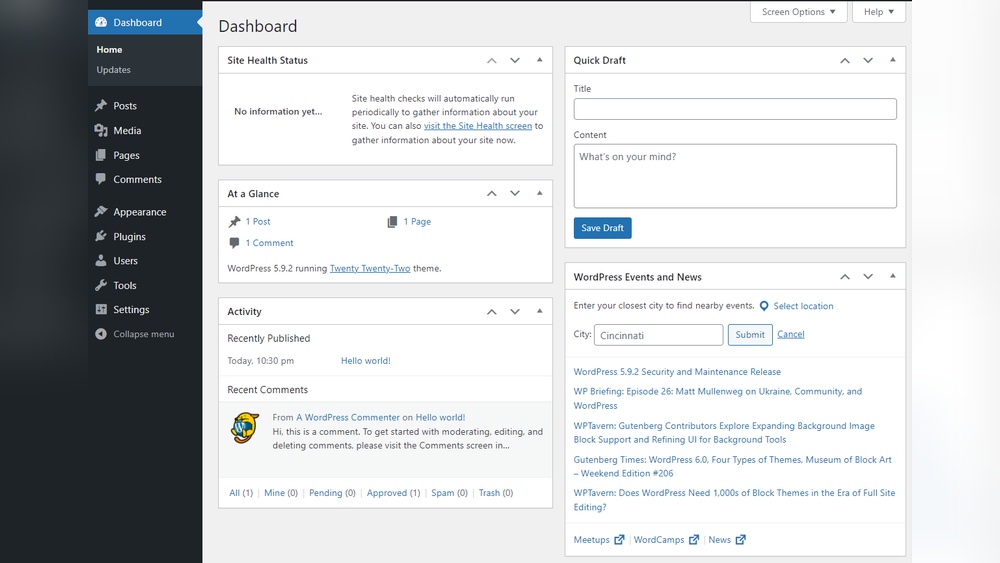
The dashboard has a clean layout. You can find everything you need in one place. Let’s explore the main parts and key menu items to help you get started.
Dashboard Overview
The dashboard opens with a welcome screen. It shows recent activity and site stats. Widgets display quick links and news from WordPress. You can customize which widgets appear here. This section offers a snapshot of your website’s health and updates.
The main area shows updates for plugins, themes, and WordPress itself. Alerts help keep your site secure and running smoothly. The dashboard also guides you to create new posts or pages quickly.
Key Menu Items
The left menu lists all important sections for managing your site. “Posts” is where you add or edit blog entries. “Pages” lets you handle static content like About or Contact pages. “Media” stores your images, videos, and files.
“Appearance” controls your website’s design and layout. You can change themes or customize the look here. “Plugins” help extend your site’s features by adding tools and functions. “Users” manage who can access or edit your site.
Settings let you adjust general site options like language and time zone. Each menu item opens a new set of tools. This structure keeps your dashboard organized and easy to use.
Troubleshooting Login Issues
Sometimes, logging into the WordPress dashboard can be tricky. Problems may stop you from accessing your site. This section helps you fix common login issues fast. Follow the steps carefully to get back inside.
Clearing Browser Cache
Your browser saves files to speed up loading. Sometimes, old data causes login problems. Clear the cache to remove stored files. This refreshes your browser and solves many issues.
Go to browser settings. Find the option to clear browsing data. Select cached images and files only. Then, restart your browser and try logging in again.
Disabling Plugins
Plugins add extra features to WordPress. Some plugins cause conflicts that block login. Disable all plugins to check if one is the problem.
Access your site files via FTP or your hosting file manager. Rename the “plugins” folder to something else. This turns off all plugins at once. Try logging in again. If successful, rename the folder back and disable plugins one by one to find the cause.
Checking Hosting Settings
Hosting settings can affect your WordPress login. Server errors or restrictions may block access. Login to your hosting control panel. Check error logs for issues related to your site.
Make sure your server meets WordPress requirements. Confirm your database is working properly. Contact your hosting support if you find any server problems.

Credit: www.interserver.net
Enhancing Dashboard Security
Keeping your WordPress dashboard safe is very important. It stops hackers from entering your site. Good security protects your content and user data. Simple steps can make your dashboard much safer.
Enabling Two-factor Authentication
Two-factor authentication adds an extra step to login. You need to enter a code from your phone. This makes it hard for others to access your dashboard. Many plugins offer easy setup for two-factor authentication. Always use this feature to strengthen your login security.
Using Strong Passwords
Choose passwords that are long and include letters, numbers, and symbols. Avoid common words or simple sequences like “12345.” Strong passwords reduce the risk of being hacked. Change your password regularly for added safety. A strong password is your first line of defense.

Credit: stackoverflow.com
Frequently Asked Questions
How Do I Log Into My WordPress Dashboard?
To log into your WordPress dashboard, go to yoursite. com/wp-admin. Enter your username and password. Click “Log In” to access the dashboard.
What Url Do I Use To Access WordPress Dashboard?
Use yoursite. com/wp-admin or yoursite. com/wp-login. php. Both URLs redirect to the login page for your WordPress dashboard.
Can I Access WordPress Dashboard On Mobile Devices?
Yes, WordPress dashboard is mobile-friendly. You can log in via any mobile browser or use the WordPress mobile app for easier management.
What If I Forget My WordPress Dashboard Password?
Click the “Lost your password? ” Link on the login page. Follow instructions to reset your password via email quickly.
Conclusion
Accessing the WordPress dashboard is simple and quick. Just enter your login details on the correct URL. Once inside, you can manage your website easily. The dashboard shows all your site’s tools and settings in one place. Regularly checking your dashboard helps keep your site updated and secure.
Start exploring the dashboard today to create and edit content with confidence. This small step makes running your website much easier.


