
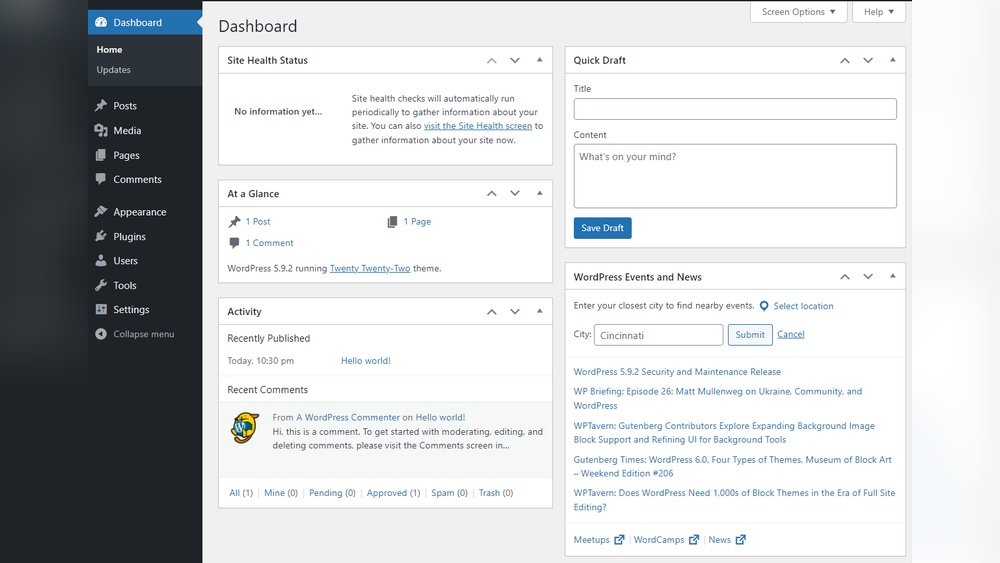
Are you struggling to find your WordPress admin page? You’re not alone.
Accessing this page is the first crucial step to managing your website, customizing its look, and adding new content. Without it, you’re stuck and can’t make the changes you want. You’ll discover simple, clear steps to get you straight to your WordPress dashboard quickly and safely.
By the end, you’ll feel confident navigating your site’s backend like a pro. Keep reading—your website control is just a few clicks away.

Credit: www.interserver.net
Locating The Admin Url
Finding the WordPress admin URL is the first step to access your site’s backend. This URL leads you to the login page. Knowing it saves time and avoids confusion. Many users find it easily, but some change it for security. This section explains how to locate the admin URL.
Default Admin Login Paths
Most WordPress sites use the standard admin login URLs. The common one is /wp-admin. Add it after your website address. For example, www.yoursite.com/wp-admin. Another popular option is /wp-login.php. Both direct you to the login screen. These paths work for nearly all new WordPress installations.
Custom Admin Urls
Some users change the admin URL for safety. This stops hackers from guessing the login page. Custom URLs might look like /admin123 or /dashboard. You or your developer sets this in WordPress settings or with plugins. If you forget the custom URL, check your site files or ask your host. Always keep the custom URL safe and easy to remember.
Using The Login Credentials
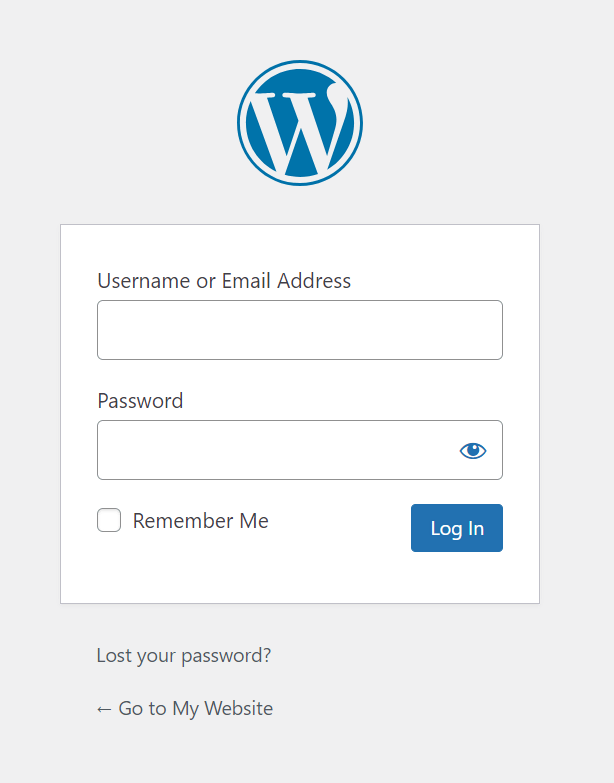
Accessing the WordPress admin page requires the correct login credentials. These credentials are your username and password. They protect your website from unauthorized access. Keeping them safe is important for website security.
Enter your username and password carefully. Any mistake can block your access. Take a moment to check each letter and number before submitting.
Username And Password Tips
Choose a username that is easy to remember but hard to guess. Avoid using “admin” as your username. Create a strong password with letters, numbers, and symbols. Use at least eight characters. Change your password regularly to keep your account safe.
Resetting Lost Passwords
Lost your password? No worries. Click the “Lost your password?” link on the login page. Enter your email address linked to your account. WordPress will send a reset link to your email. Follow the instructions to create a new password. Make sure your new password is strong and unique.
Accessing Admin Via Hosting Control Panel
Accessing the WordPress admin page through your hosting control panel is a simple and secure method. This approach helps you manage your website without needing to remember the admin URL. Hosting control panels offer direct links and tools to reach your WordPress dashboard quickly.
Many hosting providers use popular control panels, making it easier to find your WordPress admin area. These panels also provide options to reset passwords or manage files if you face login issues. Understanding how to use your hosting control panel saves time and avoids common login problems.
Using Cpanel To Access WordPress
cPanel is a popular hosting control panel used by many providers. To access WordPress admin, log into your cPanel account first. Look for the “WordPress” or “Softaculous Apps Installer” icon in the dashboard. Click on it to see a list of installed WordPress sites.
Select your website from the list. You will find a direct link to your WordPress admin page here. Click the link to open the login screen. This method skips the need to type the usual /wp-admin in the browser. You can also reset your WordPress password using cPanel tools if needed.
Alternative Hosting Panels
Some hosts use different control panels instead of cPanel. Examples include Plesk, DirectAdmin, or custom panels. The process to access WordPress admin is similar. Log into the panel and find the WordPress or website management section.
Look for your installed WordPress site and click the admin link provided. This link opens the WordPress login page directly. If the panel has a file manager or database manager, you can fix login problems there. Knowing your hosting panel helps you quickly reach the WordPress admin area without hassle.
Credit: www.hostinger.com
Troubleshooting Access Issues
Accessing the WordPress admin page is simple in most cases. Sometimes, issues block access. These issues can stop you from logging in or seeing the dashboard. Troubleshooting helps fix these problems fast. Here are common ways to solve access troubles.
Clearing Browser Cache
Your browser stores site data to load pages faster. This data can cause login problems. Clear your browser cache to remove old files. This step often fixes access errors. Restart your browser after clearing the cache. Try logging in again to see if it works.
Deactivating Plugins
Plugins add features to your site. Some plugins can cause conflicts with WordPress. These conflicts may block your admin access. To check, deactivate all plugins at once. Use FTP or your hosting file manager to rename the plugins folder. This action turns off all plugins. Try logging in after deactivation. Reactivate plugins one by one to find the problem.
Fixing .htaccess Errors
The .htaccess file controls important site settings. A wrong code in this file can block access. Rename the .htaccess file to disable it temporarily. WordPress will create a new .htaccess automatically. If this fixes the issue, edit the old file carefully. Remove any strange lines causing problems. Upload the corrected file back to your server.
Securing Your Admin Page
Securing your WordPress admin page is essential to protect your website from unauthorized access. The admin page is the gateway to your site’s control panel. Hackers often target this page to gain control. Strengthening its security reduces risks and keeps your data safe.
Simple steps can enhance your admin page security. These methods help prevent common attacks like brute force and hacking attempts. Focus on changing default settings and adding extra layers of protection.
Changing Default Login Urls
The default WordPress login URL is easy to find. Hackers know it well. Changing this URL makes it harder for them to find your login page. You can use plugins or manual methods to rename the login page.
Choose a unique and simple URL that only you know. Avoid common words like “login” or “admin.” Changing the login URL reduces automated attacks and keeps bots away.
Enabling Two-factor Authentication
Two-factor authentication (2FA) adds a second step to login. After entering your password, you must provide a code from your phone. This code changes every few seconds.
2FA stops hackers even if they steal your password. It is a strong security layer. Many free plugins offer easy 2FA setup for WordPress. Activate it for all admin users to secure your site.

Credit: support.hcommons.org
Frequently Asked Questions
How Do I Find The WordPress Admin Login Page?
To find the WordPress admin page, add /wp-admin or /wp-login. php after your website URL. For example, www. yoursite. com/wp-admin. This will direct you to the login screen where you can enter your credentials to access the dashboard.
What If I Forget My WordPress Admin Password?
Click the “Lost your password? ” Link on the WordPress login page. Enter your username or email to receive a password reset link. Follow the instructions in the email to create a new password and regain access to your admin panel.
Can I Change The WordPress Admin Url For Security?
Yes, changing the default admin URL improves security. Use plugins like WPS Hide Login to customize the login path. This prevents unauthorized access attempts targeting the default /wp-admin or /wp-login. php URLs.
Why Can’t I Access My WordPress Admin Page?
Access issues often arise from incorrect URL, browser cache, or plugin conflicts. Clear your cache, disable plugins via FTP if needed, and ensure you use the correct login URL. Contact your host if problems persist.
Conclusion
Accessing the WordPress admin page is simple and quick. Just use the right URL and login details. Keep your password safe and strong. This helps protect your site from unwanted access. Regularly updating your login info adds extra security. Now, you can easily manage your website settings and content.
Enjoy control over your WordPress site with confidence. Remember, practice makes it easier every time you log in.


