
Are you feeling lost trying to figure out how to access your web hosting control panel? You’re not alone.
Many people find themselves in a maze of technical terms and endless options when all they really want is a straightforward path to managing their website. Imagine having the power to control every aspect of your site, from email accounts to domain settings, right at your fingertips.
This guide will unlock that power for you. By the end of this article, you’ll have a clear understanding of how to access your control panel effortlessly and with confidence. Stick with us, and transform what seems like a daunting task into a simple step-by-step process. Ready to take control? Let’s get started.
Choosing The Right Web Hosting
Web hosting is important for your site. Different types serve different needs. Shared hosting is cheap. Many sites share one server. VPS hosting gives more control. It is like a small private space. Dedicated hosting is for big sites. You get a whole server. Cloud hosting is flexible. It grows with your site. WordPress hosting is for WordPress sites. Easy and optimized.
Cost matters when picking web hosting. Speed affects how fast your site loads. Support helps when things go wrong. Storage is for your files. Security keeps your site safe. Scalability lets your site grow. Ease of use makes control panel simple. Uptime shows how often your site is online. Backup services protect your data.
Understanding Control Panels
Web hosting control panels make website management easier. cPanel is popular and user-friendly. It has a simple interface. Many people use it for web hosting tasks. Plesk is another control panel. It works on both Windows and Linux. DirectAdmin is lightweight and fast. It’s perfect for basic tasks. ISPConfig is open-source and free. It offers many features, too.
A good control panel has a simple interface. It should be easy to navigate. Security features are also important. Look for SSL support and firewall tools. Backup options help keep data safe. Choose a panel with easy backup settings. Email management is another key feature. It should let you create and manage email accounts.
Logging Into Your Control Panel
First, check your welcome email. It often has your login details. These details include your username and password. Keep them safe and private. You can also find them on your hosting account page. Look for a section named Control Panel or Dashboard. If you cannot find your details, contact support. They are there to help you.
Open your browser. Type the control panel URL into the address bar. This URL is in your welcome email. Once the page loads, enter your username and password. Click the login button. If details are correct, you will enter the control panel. If you see an error, check your login info. Try again carefully.
Credit: www.ultimatewb.com
Exploring Control Panel Interface
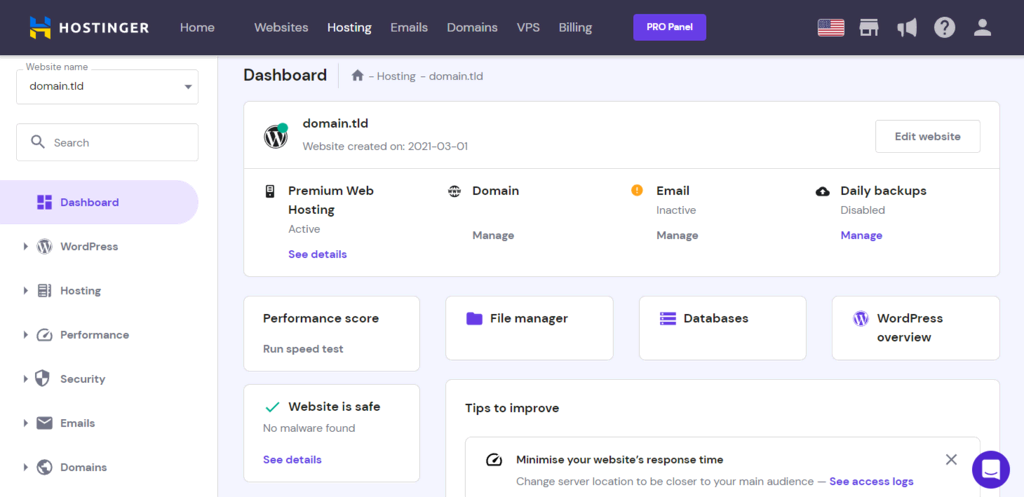
The dashboard is the first screen you see. It shows important information at a glance. You can find your account details here. There are also links to popular features. The dashboard is simple to use. Most icons are easy to understand.
There are many sections in the control panel. Each has a specific purpose. The file manager helps you manage files. The email section manages your emails. You can create new accounts here. The database section manages databases. There is also a section for security settings. This helps keep your site safe.
Managing Website Files
To upload files, find the upload button in your control panel. Click it. Choose the file from your computer. Then, press upload. Watch the file upload. It might take a moment. Editing files is simple too. Click the file name. Open the editor in the control panel. Make changes to the text. Save your changes when done. Always check your site after editing.
File Manager helps you see all your files. Navigate folders to find files. Use it to move, delete, or rename files. Select the file and choose the action. Be careful not to delete important files. File Manager keeps your site organized. It is a handy tool for web hosting.

Credit: metabox.io
Setting Up Email Accounts
Log in to your web hosting control panel. Find the Email Accounts section. Click on it to begin. You will see an option to create a new email address. Click on it. Enter the name you want. Choose a password. Make sure it is strong. Click Create. Your new email address is ready.
After creating an email, configure its settings. Go to the Email Settings section. Here, you can set up forwarding and auto-replies. Choose the options you need. Save your changes. Now, your email is fully set up. You can send and receive emails easily.
Database Management
phpMyAdmin is a useful tool to handle databases. Creating a database is simple. First, log into the control panel. Find phpMyAdmin. Click on it.
In phpMyAdmin, look for the Databases tab. Click it. You will see a field to name your database. Type a name. Press Create. Your database is ready.
Managing databases is easy too. Click the database name. Here, you can add tables. You can also edit or delete them. Use the Structure tab to change your tables. Use the SQL tab to run queries.
Always save your changes. Look at the bottom for the Save button. Click it when done. This keeps your work safe.
Security Features
SSL Certificates keep your data safe. They are like a lock for your website. Hackers cannot read your information. SSL makes sure your site is secure. Customers trust sites with SSL. It helps protect passwords and credit card numbers. A small padlock icon shows that SSL is active. This is important for any website owner.
Backup and Restore Options are very important. Imagine losing all your website data. That would be bad. Backups save copies of your data. You can restore your site if something goes wrong. It is like having an extra copy of your homework. Always keep backups up-to-date. This keeps your site safe from data loss. It is a smart move for website owners.
Troubleshooting Common Issues
Sometimes, you might see error messages. These messages can be confusing. They often tell you something is wrong. But what? That’s the tricky part. Always read error messages carefully. They often give clues to fix the problem. Missing files, wrong passwords, or server problems can cause errors. Check each part one by one. Make sure everything is correct. If not, try to fix it. This can solve many issues quickly.
Technical support can be very helpful. They know a lot about hosting. They can guide you to solve problems. Before contacting them, gather all information about the issue. This includes error messages and actions you took. Clearly explain the problem. They will understand better and help faster. Many hosting providers offer 24/7 support. Use it when needed. It can save time and reduce stress.
Credit: help.turbify.com
Frequently Asked Questions
Where Is The Web Hosting Control Panel?
Access the web hosting control panel via your hosting provider’s website. Log in using your account credentials. Once logged in, navigate to the control panel section. This is where you manage your hosting services and settings. Contact your hosting provider if you have trouble locating it.
How Do I Login To The Hosting Control Panel?
Access the hosting control panel by visiting your hosting provider’s website. Enter your username and password to log in. If you encounter issues, use the “Forgot Password” option to reset your credentials. Ensure your internet connection is stable for a smooth login experience.
How Do I Access The Cpanel Of My Website?
Access your website’s cPanel by visiting yourdomain. com/cpanel. Enter your username and password to log in. Check your hosting provider’s email for login details. Ensure your domain points to the correct server. Use a secure connection for safety. Contact support if you encounter issues.
How Do I Open The Control Panel Of A Website?
Log in to your website’s hosting account. Navigate to your hosting dashboard. Click on “Control Panel” or “cPanel” option to access it.
Conclusion
Navigating a web hosting control panel becomes easier with practice. Start by exploring its features. Familiarize yourself with basic tools and settings. They help in managing your site efficiently. Keep learning through tutorials and guides. This builds your confidence. Regular updates are crucial for security.
They protect your data and improve site performance. Troubleshooting common issues saves time. It ensures smooth website operations. Always back up your data. This prevents data loss during technical glitches. Remember, mastering the control panel enhances your website management skills.
Your journey to better web hosting starts with understanding these essentials.


