
Are you looking to give your WordPress site a fresh look? Accessing and tweaking your theme settings is the perfect way to start.
Whether you’re aiming for a sleek, modern design or a classic, timeless feel, understanding how to navigate these settings can transform your site with just a few clicks. If you’ve ever felt overwhelmed by the numerous options WordPress offers, you’re not alone.
But here’s the good news: customizing your theme is simpler than you might think. In this guide, you’ll discover straightforward steps to access and adjust your theme settings, allowing you to create a site that truly reflects your vision. Stick around, and you’ll be crafting a website that not only captivates your audience but also enhances their experience. Your perfect WordPress site is just a few steps away!
Accessing The WordPress Dashboard
Begin by logging into your WordPress Dashboard. Use your username and password. This is the main control area. You can change your website from here. Look to the left side of the screen. Find the menu bar. It shows many options. Click on “Appearance”. This opens new choices. Choose “Themes” to see available themes. Select the theme you want to use. Click “Customize” to change its settings. This area lets you adjust colors and fonts. Save your changes before leaving.
Navigating To Appearance
Start by logging into your WordPress dashboard. This is your main control panel. Look to the left side of the screen. You will see a menu. Find the word “Appearance” in this menu. Click on it to open more options.
The Appearance section lets you change how your site looks. You can change themes, menus, and widgets. This is where you find your theme settings. Click on “Customize” to open the theme settings. Here, you can adjust colors, fonts, and more. This makes your site look just the way you want.
Exploring Theme Options
Accessing theme settings on WordPress is simple. First, log into your WordPress dashboard. Look for the Appearance tab. It’s on the left side. Click on it. A menu will drop down. Choose Theme Options from the list.
Here, you can change colors, fonts, and layouts. Each theme has different settings. Explore them to see what fits best. Some settings let you add your own logo. Others may help you with the header image.
Always remember to save changes. Use the Save button at the bottom. This ensures your changes stay. Now your site looks unique and fresh!

Credit: wordpress.com
Using The Customizer
The Live Preview lets you see changes instantly. You can test colors and layouts. This helps in picking the right look. No need to guess. Just click and see the result. It’s like magic for your site.
Changing the Site Identity is easy. Update your site’s name and tagline. Add a logo to make it unique. This step helps in branding. Visitors will know your site at first glance.
Colors and fonts set the mood of your site. Choose from a palette of colors. Pick a font that matches your theme. Ensure text is easy to read. This makes your site look professional. Your choices will attract visitors.
Managing Widgets
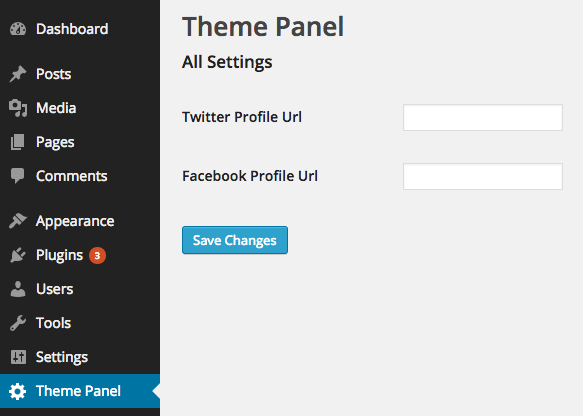
Widgets are small tools on your website. They add extra features. Access widgets in WordPress from the dashboard. Find the Appearance section. Click on Widgets. A list of available widgets appears. Drag and drop widgets to your sidebar. Customize widgets as needed. Some widgets need settings. Click on the widget name to open settings. Save changes before leaving. Widgets improve your site’s look. They help visitors find information easily. Use widgets wisely for best results.
Credit: www.sitepoint.com
Editing Menus
Menus help people find things on your site. To edit menus, go to the WordPress dashboard. Find the Appearance tab on the left side. Click it. Then, click Menus. You will see a list of menus. Pick the one you want to change. You can add new pages or remove old ones. Arrange the order by dragging them. Make sure to save changes. Look for the Save Menu button. Sometimes, themes let you put menus in different places. Check the settings for more options.
Menus can have sub-items too. This creates a drop-down effect. Move one item slightly to the right under another. This will make it a sub-item. Remember to save again. Good menus make navigation easy. This helps your visitors a lot.
Installing New Themes
Start by logging into your WordPress dashboard. Find the Appearance tab on the left side. Click on it to see options. Choose Themes from the list. You will see a page with available themes.
Want a new theme? Click Add New at the top. Use the search bar to find themes you like. You can also browse by categories. Click on any theme for more details.
Found one you like? Click Install. Wait a few seconds. Then, click Activate to use the new theme. Your site will now have a fresh look!
Theme Settings In Third-party Themes
Many third-party themes offer different settings. First, go to your WordPress dashboard. Find the Appearance menu on the left side. Click on Themes. Select your third-party theme. You will see a button labeled Customize. Click on it to open theme settings.
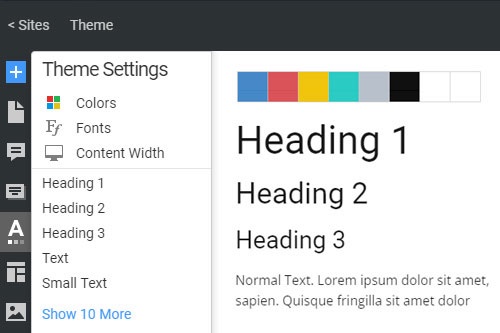
Inside, explore various options. You can change colors. You can change fonts. Adjust layouts easily. Some themes might have special settings. These include sliders or galleries. Check each section for these features. If you face issues, consult the theme documentation. Often, theme support can help too. Remember to save changes. Look for the Save button at the top.
Practice makes perfect. Spend time learning each setting. Soon you will be a theme expert. Enjoy customizing your site!
Credit: nicepage.com
Frequently Asked Questions
Where Are Theme Settings In WordPress?
Find theme settings in WordPress by navigating to Appearance > Customize in the dashboard. This section allows you to adjust design elements like colors, fonts, and layout. Each theme may offer different customization options, so explore the settings to personalize your website.
How Do I Edit Theme Options In WordPress?
Access WordPress dashboard, click “Appearance”, then “Customize” to edit theme options. Adjust settings like colors, fonts, and layout. Save changes to update your site instantly.
How Do I Access My WordPress Settings?
To access WordPress settings, log into your dashboard. Click on “Settings” in the left sidebar menu. Adjust options like general, reading, and permalinks to your preference. Save changes before exiting to ensure your settings are updated.
How Do I Manage Themes In WordPress?
Manage WordPress themes via the admin dashboard. Navigate to “Appearance” > “Themes”. Install, activate, or customize themes directly. Use the “Add New” button to explore more themes from the repository. Regularly update themes for security and functionality. Access theme options to personalize design elements effortlessly.
Conclusion
Exploring WordPress theme settings can feel daunting. But it doesn’t have to be. With practice, accessing and customizing themes becomes simpler. Start by navigating to your dashboard. Familiarize yourself with the options available. Each setting offers unique customization choices. Experiment to find what suits your site best.
Remember, small tweaks can make a big difference. Don’t be afraid to explore different themes. Each offers distinct features and styles. Keep learning and adapting as your site grows. In time, you’ll gain confidence in managing your theme settings. Embrace the process and enjoy designing your WordPress site.


