
Are you ready to take control of your WordPress website? Accessing theme files can be your gateway to customization and enhanced functionality.
Imagine being able to tweak every detail and tailor your site exactly the way you envision. You might think it’s complicated, but it’s simpler than you imagine. By learning how to access theme files, you unlock the potential to make your website truly unique.
This guide will walk you through the steps, ensuring you feel confident and empowered to make those changes. Dive into the article and discover how easy it is to elevate your WordPress skills. Your website deserves it!
Understanding WordPress Theme Files
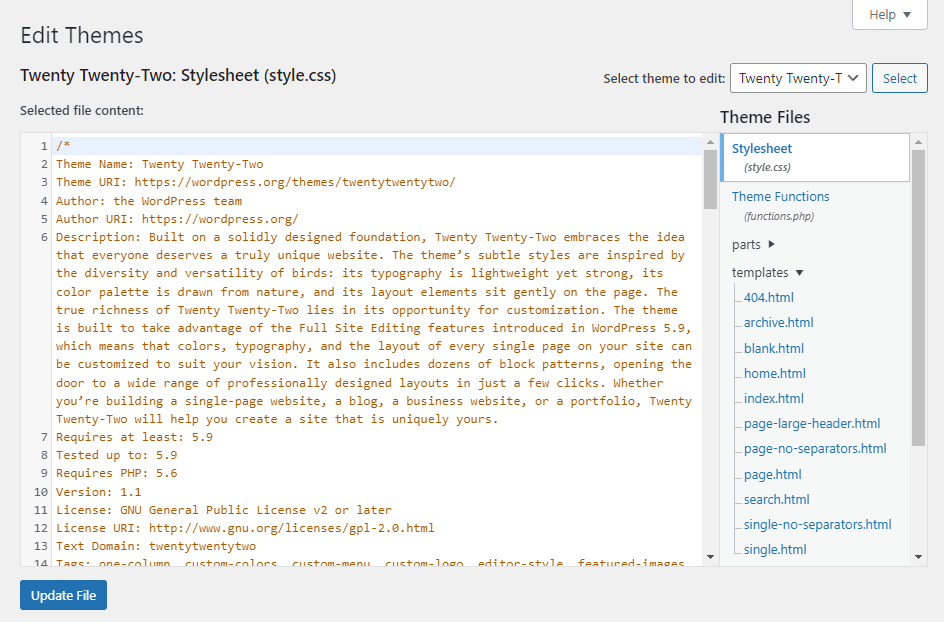
WordPress themes have many core files. These files make your website look nice. The style.css file is important. It controls the look of your site. Another key file is functions.php. It adds features to your theme. The index.php file shows content on your site. Each file has a special job. They work together for the theme.
WordPress uses a hierarchy for themes. This means files are used in a certain order. The order helps WordPress know which file to use first. The index.php file is often used as a default. Other files are used for specific pages. For example, single.php is used for posts. This hierarchy helps organize how content appears.
Credit: www.hostinger.com
Methods To Access Theme Files
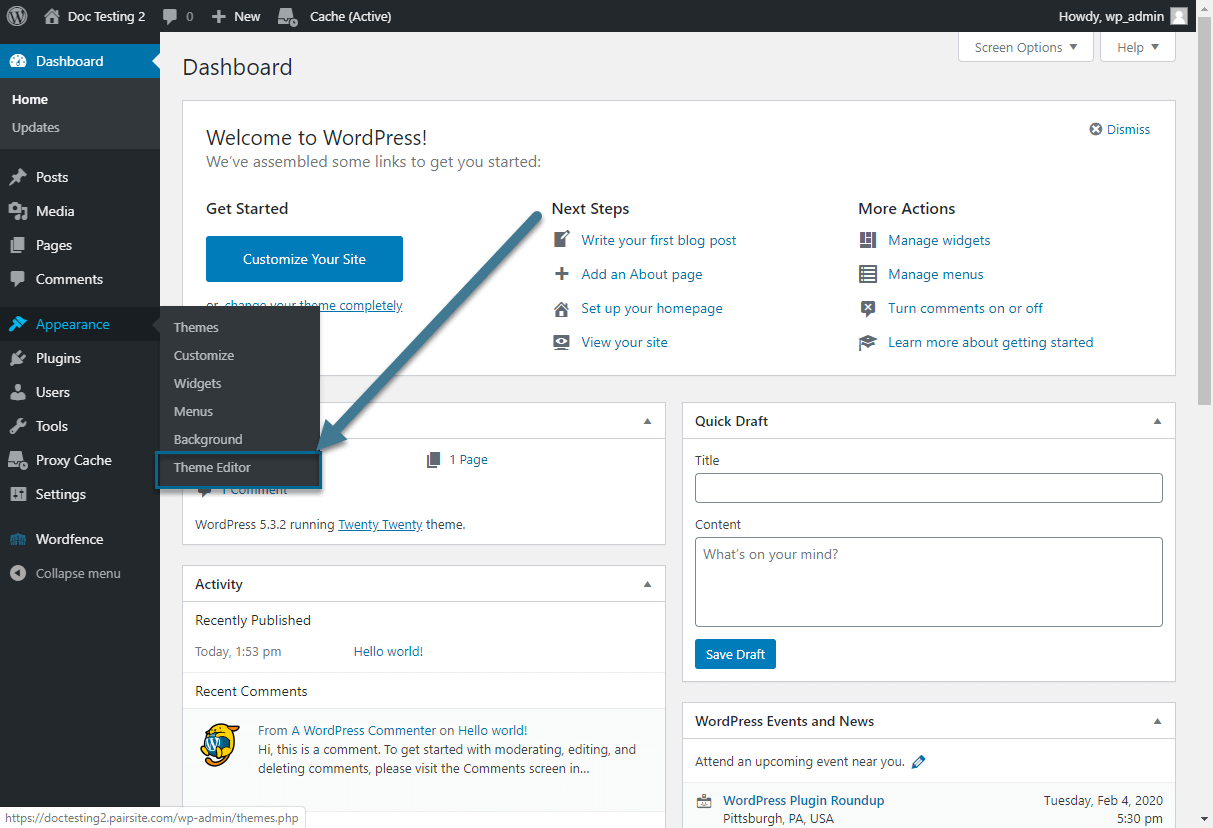
The WordPress Dashboard is easy for beginners. First, login to your WordPress site. Find the Appearance tab and click on it. Next, select Theme Editor. You can see theme files here. Click on a file to edit. Always save changes before exiting. Be careful. Mistakes can break your site.
FTP gives more control over files. Use an FTP client like FileZilla. Connect it to your website. You need server details for this. After connecting, look for the wp-content folder. Inside, find themes. Here are your theme files. You can download, edit, and upload files back. This method is safe for big changes.
Hosting File Manager is another way. Log in to your hosting account. Find the File Manager tool. Look for the public_html folder. Inside, find wp-content. Then, locate themes. You can view and edit theme files here. This method is quick and easy. No special software needed.
Navigating The WordPress Dashboard
Begin by logging into your WordPress dashboard. Look for the left-hand menu. This menu has many options. Find the “Appearance” tab. It is usually near the middle. Click on it to explore more.
After clicking “Appearance,” the menu expands. Here, find the “Theme Editor” option. This is where you can edit theme files. Be careful while making changes. Small mistakes can cause problems. Always back up your files first. This keeps your site safe.
Using Ftp To Access Files
Accessing theme files in WordPress via FTP allows direct customization. This method requires an FTP client and login credentials. After connecting, navigate to the wp-content/themes directory to find your theme files.
Setting Up Ftp Client
FTP lets you see files on your server. First, you need an FTP client. FileZilla is a good choice. It is free and easy to use. Download it from their website. Install it on your computer. Open the program. Look for the Quickconnect bar. You will need some details here.
Connecting To Your Server
Get your server details from your hosting provider. You need the host name, username, and password. Enter these in the Quickconnect bar. Click ‘Quickconnect’ to connect. You will see two panels. The left panel shows your computer files. The right panel shows server files. Find the folder named ‘wp-content’. This folder has theme files. You can now access them. Be careful when changing files. Wrong changes can break your site.
Accessing Files Via Hosting Manager
Open your hosting account. Look for the File Manager in the control panel. It’s usually under the Files section. Click on it to open. You will see all your website files here. Navigate to the public_html folder. This is where your WordPress site is stored. Find the wp-content folder. Inside, you’ll see the themes folder. This is where all your theme files are located.
Always make a backup before editing. Use the edit option in File Manager. This lets you change the files directly. Be careful not to delete important files. Mistakes can break your site. Save changes once you’re done. Check your website to see if everything works fine.
Credit: www.pair.com
Common Theme File Modifications
The style.css file controls the look of your WordPress site. You can change colors, fonts, and spacing here. Want a blue background? Add a code snippet for the color. This file is easy to edit. Be careful, though. Wrong changes can break your site design. Always save a backup before editing. Small changes can make big differences.
Functions.php lets you add new features to your theme. You can create custom menus or add widgets. This file is more complex than style.css. Mistakes can cause errors. Use simple code snippets to start. Test each change to see if it works. Functions.php is powerful and flexible. Make sure to backup your changes regularly.
Best Practices For Editing Theme Files
Access theme files in WordPress through the admin dashboard or FTP. Use the built-in theme editor for quick changes. For more control, connect via FTP to download and modify files on your computer. Always create a backup before editing to prevent data loss.
Backing Up Before Changes
Always backup your theme files before editing. This ensures safety. Mistakes happen. Backups help restore original files. Use tools like FTP or hosting panel. Download copies of your theme files. Store them in safe places. This prevents data loss. Avoid editing directly on live sites. Test changes on local sites first. This minimizes risks.
Understanding Child Themes
Child themes are useful for editing. They protect original theme files. Create child themes for modifications. This keeps updates safe. Parent themes update regularly. Child themes remain untouched. Learn to make a child theme. Many guides are available online. Child themes are simple to manage. They allow easy customization. Follow best practices with child themes.

Credit: www.youtube.com
Troubleshooting Access Issues
Accessing theme files in WordPress can be tricky. Navigate to your WordPress dashboard and find the Appearance section. Here, locate the Theme Editor to view and edit your theme files. Always create a backup before making changes to avoid losing important data.
Permission Errors
Users might face permission errors when accessing theme files. This happens if the user lacks proper rights. Check the file permissions of your theme folder. The correct setting is usually 755 for folders and 644 for files. Use an FTP client to adjust these settings. Contact your hosting provider if the issue persists. They can help with server-level changes. Proper permissions ensure safe and smooth access.
Theme Editor Limitations
The WordPress theme editor has limitations. It doesn’t allow access to all files. Some files are hidden for security reasons. Access these files through an FTP client. This tool gives you a full view of your theme files. Always make a backup before editing. This prevents data loss if something goes wrong. Editing directly in the theme editor has risks. Use it with caution.
Frequently Asked Questions
How To Access WordPress Theme Files?
To access WordPress theme files, use the built-in Theme Editor under Appearance in the WordPress dashboard. Alternatively, access files via FTP by connecting to your server. Navigate to wp-content/themes, locate your theme folder, and edit files using a code editor.
Always back up files before editing.
How To Access Theme File Editor In WordPress?
Access the theme file editor by logging into WordPress, then navigate to Appearance > Theme Editor in the dashboard.
Where Are Themes Stored In WordPress?
Themes in WordPress are stored in the “wp-content/themes” directory. You can access this folder via your hosting server. Each theme has its subfolder containing files like style. css and functions. php. Always ensure themes are updated for security and performance.
Where Can I Find Wp Content Themes?
Find WP content themes on WordPress. org, ThemeForest, or Elegant Themes. Explore options on TemplateMonster and Mojo Marketplace.
Conclusion
Accessing theme files in WordPress is simple with the right steps. Begin by logging into your WordPress dashboard. Navigate to Appearance and select Theme Editor. You’ll find your theme files there. Be cautious while editing. Mistakes can disrupt your site.
Always back up before making changes. Use a child theme for safe editing. This keeps your main theme intact. For deeper modifications, use FTP. This method offers more control. Remember, practice makes perfect. As you get comfortable, editing becomes easier.
Happy customizing!


