
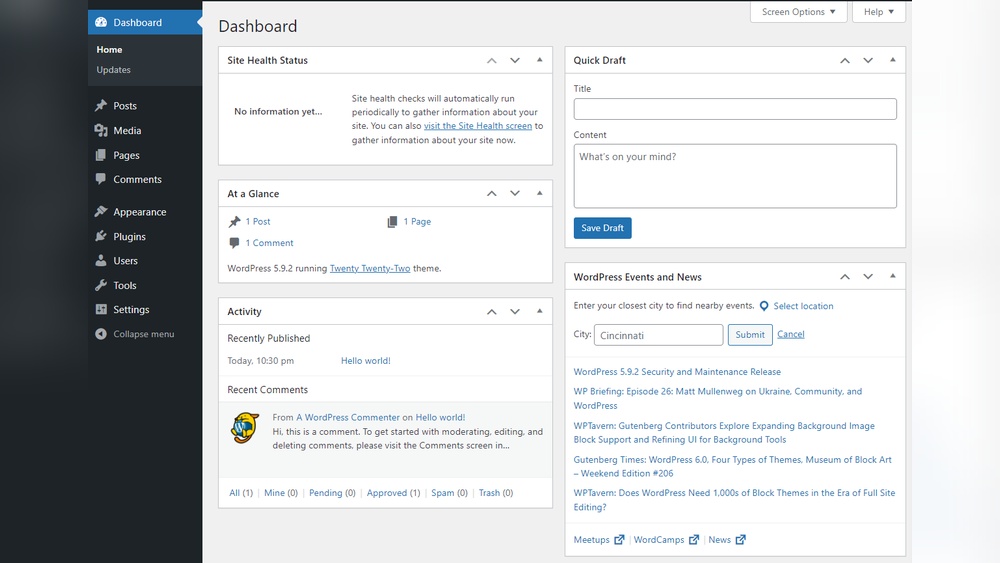
Are you struggling to find your way into the WordPress admin page? You’re not alone.
Accessing this key area is the first step to managing your website, making changes, and unlocking powerful features. Imagine having full control at your fingertips—editing posts, customizing your site, and boosting your online presence with ease. You’ll discover simple, clear steps to get you inside your WordPress dashboard quickly and confidently.
Keep reading, and you’ll never feel lost when it comes to managing your website again.
Locate Your WordPress Login Url
Locating your WordPress login URL is the first step to access your site’s admin area. This URL leads you to the page where you enter your username and password. Knowing the right URL saves time and avoids confusion. WordPress offers standard login paths, but some sites use custom URLs for added security.
Default Login Paths
Most WordPress sites use standard login URLs. The common one is yourwebsite.com/wp-admin. Another popular path is yourwebsite.com/wp-login.php. Entering these URLs in your browser opens the login page. These paths work for nearly all default WordPress setups. Keep these URLs handy for quick access.
Custom Login Urls
Some websites change the login URL to boost security. This helps stop unwanted login attempts. The custom URL can be anything the site owner chooses. It might look like yourwebsite.com/mylogin or yourwebsite.com/admin123. Check with your site administrator or hosting provider to find this URL. If you forget it, you might need help to recover access.
Use The Login Page
The WordPress admin page is the control center of your website. You can manage posts, pages, themes, and plugins here. The easiest way to access this page is through the login page. It acts as the gateway to your site’s backend.
Using the login page is simple. You just need your username and password to sign in. Let’s explore the steps involved in using the login page effectively.
Enter Username And Password
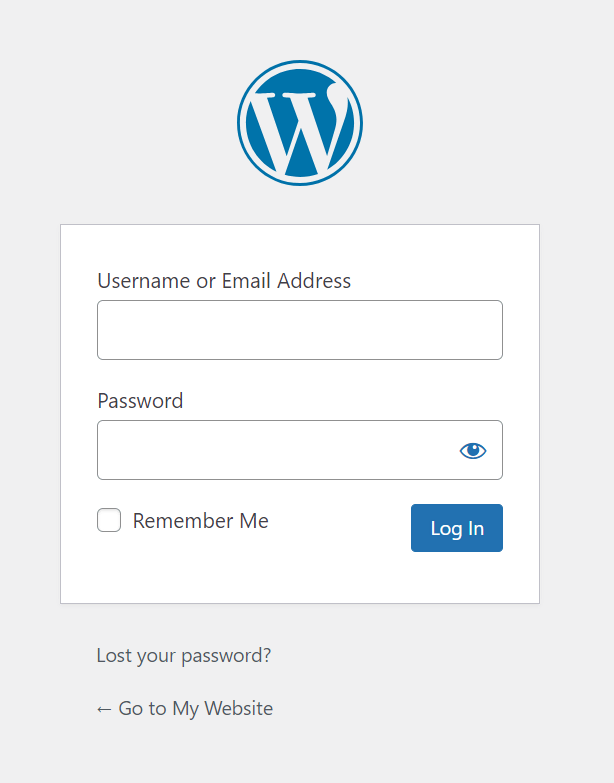
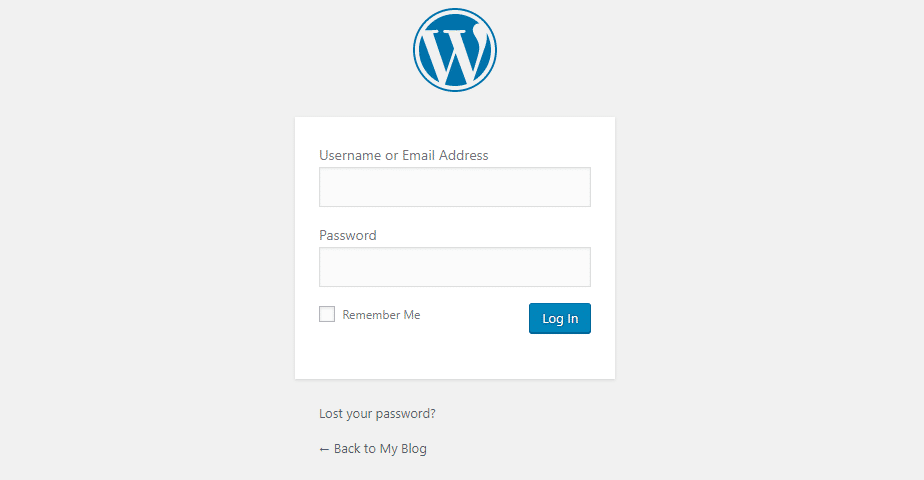
Start by opening your website’s login page. Usually, it is at yoursite.com/wp-admin or yoursite.com/wp-login.php. Enter your username or email address in the first box. Then type your password carefully in the next box. Make sure you use the correct details to avoid login errors. Press the login button to proceed.
Enable Remember Me Option
The login page offers a “Remember Me” checkbox below the password box. Tick this option to save your login information on the device. This saves time for future visits. You won’t need to enter your username and password every time. Use this feature only on private devices for security reasons.
Troubleshoot Login Issues
Accessing the WordPress admin page is usually easy. Sometimes, login problems occur. These issues can stop you from managing your site. Troubleshooting helps fix common login problems fast. This section covers simple steps to solve login troubles.
Resetting Your Password
Start by resetting your password if you cannot log in. Click the “Lost your password?” link on the login page. Enter your username or email address. WordPress sends a reset link to your email. Follow the link to create a new password. Choose a strong but easy-to-remember password. This step often solves login issues.
Clearing Browser Cache And Cookies
Browser cache and cookies can cause login errors. Clear them to remove outdated data. Open your browser settings and find the clear browsing data option. Select cache and cookies, then clear them. Restart your browser and try logging in again. This fix helps if the login page keeps refreshing or shows errors.
Disabling Plugins Via Ftp
Sometimes, plugins cause login problems. Disable all plugins without logging into WordPress. Use an FTP client to access your website files. Navigate to the /wp-content/ folder and find the plugins folder. Rename the plugins folder to something like plugins_old. This action disables all plugins. Try logging in again. If successful, rename the folder back and activate plugins one by one to find the culprit.
Credit: www.hostinger.com
Access Admin Via Hosting Control Panel
Accessing the WordPress admin page through your hosting control panel is a simple way to manage your website. This method saves time and avoids typing URLs. Many hosting providers offer direct links to your WordPress dashboard. This makes site management easier, especially for beginners.
Using One-click WordPress Admin Access
Some hosting panels provide one-click WordPress admin access. You just log into the hosting control panel. Then, find the WordPress section. Click the admin login button. The system opens the WordPress dashboard automatically. No need to enter your username or password again.
This feature is helpful if you forget your WordPress login details. It also speeds up your workflow. You can quickly make changes to your site without extra steps.
Navigating Hosting Dashboard
Hosting dashboards vary but share common elements. Look for sections named “Websites,” “Applications,” or “WordPress.” These sections list all your installed WordPress sites. Select the site you want to manage.
Inside the site’s menu, find the admin or dashboard link. Click it to open your WordPress admin page. The hosting dashboard may also offer tools for backups, updates, and security settings. Use these tools to keep your site safe and up to date.
Enhance Security For Admin Access
Securing your WordPress admin page is crucial to protect your website from hackers. The admin area is the gateway to your site’s control. Strong security here stops many common attacks. Simple steps can make a big difference. Use tools and settings to add extra layers of protection. This helps keep your content and data safe.
Using Two-factor Authentication
Two-factor authentication adds a second step to login. After entering a password, users must confirm their identity with a code. This code comes from an app or text message. It makes stealing accounts much harder. Even if a password leaks, the hacker can’t enter without the code. Many WordPress plugins offer easy setup for this feature.
Limiting Login Attempts
Limiting login attempts stops repeated guessing of passwords. After several failed tries, the system blocks further attempts. This slows down hackers using automated tools. It also alerts you to suspicious activity. Most security plugins allow you to set this limit. Choose a low number of attempts for better safety.
Changing Default Login Url
The default WordPress login page URL is well-known. Hackers often target this URL to find admin pages. Changing it to a custom address hides your login page. This reduces the chance of attacks. Use plugins to easily change the login URL. Remember to save the new link to access your admin area.
Credit: kinsta.com
Credit: www.youtube.com
Frequently Asked Questions
How Do I Find My WordPress Admin Url?
To find your WordPress admin URL, add /wp-admin or /wp-login. php to your website’s domain. For example, www. yoursite. com/wp-admin. This will take you to the login page, where you enter your username and password to access the admin dashboard.
Can I Change The WordPress Admin Login Url?
Yes, you can change the WordPress admin login URL using plugins like WPS Hide Login. Changing the URL improves security by preventing unauthorized access attempts. Always back up your site before making URL changes to avoid lockouts.
What Should I Do If I Forget My Admin Password?
If you forget your WordPress admin password, click the “Lost your password? ” link on the login page. Enter your email or username to receive a password reset link. Follow the link to create a new password and regain access.
Why Can’t I Access The WordPress Admin Page?
You might be locked out due to incorrect login details, plugin conflicts, or server issues. Clear your browser cache, disable plugins via FTP, or check with your hosting provider if problems persist. Always keep backup copies of your site.
Conclusion
Accessing the WordPress admin page is simple and quick. Just remember your website’s URL and add “/wp-admin” at the end. Enter your username and password to log in safely. This page lets you control your website’s content and settings easily.
Keep your login details private to protect your site. Now, managing your WordPress site feels less confusing and more in control. Start exploring your admin dashboard and enjoy creating your website.


