
Are you struggling to access PHP files in your WordPress site? Knowing how to find and edit these files can unlock powerful customization options for your website.
Whether you want to tweak your theme, add new features, or fix errors, understanding where PHP files are and how to access them is essential. You’ll discover simple, step-by-step methods to reach your WordPress PHP files safely and easily. Keep reading, and you’ll gain the confidence to take control of your site’s code without fear or confusion.
Locate WordPress Php Files
Locating the PHP files in WordPress is the first step to customizing or troubleshooting your site. These files control how your site looks and functions. Finding them is simple with the right tools. Below are three common ways to access these files safely and easily.
Accessing Files Via Cpanel
cPanel is a popular web hosting control panel. It lets you manage your website files without extra software. Log into your hosting account and open cPanel. Find the “File Manager” tool. Inside, navigate to the “public_html” folder. This folder holds your WordPress files. Look for folders named “wp-content,” “wp-includes,” and “wp-admin.” These contain most PHP files. You can open, edit, or download files here.
Using Ftp Clients
FTP (File Transfer Protocol) clients help you connect directly to your server. Tools like FileZilla or Cyberduck make this easy. Enter your FTP login details from your host. Connect to your site, then open the “public_html” directory. This folder stores your WordPress installation. Browse through the folders to find PHP files. Download or edit files carefully. FTP allows quick file transfers between your computer and server.
Exploring File Manager Plugins
File manager plugins offer file access inside the WordPress dashboard. Plugins like WP File Manager provide a simple interface. Install and activate the plugin from your dashboard. Use it to browse your site’s files without external tools. You can open, edit, and upload PHP files directly. This method is handy for quick edits without logging into hosting accounts.
Credit: www.pair.com
Edit Php Files Safely
Editing PHP files in WordPress needs careful steps. One wrong change can break your site. Always take safety measures before editing. This keeps your website stable and secure.
Creating Backup Before Changes
Backup your site before any edits. Save a copy of your PHP files. Use plugins or manual methods to backup. This helps restore files if something breaks. Do not skip this important step.
Using Code Editors
Edit PHP files using code editors, not plain text tools. Code editors highlight errors and improve readability. Popular editors include VS Code and Sublime Text. They help avoid syntax mistakes. Clean code reduces the risk of site crashes.
Testing Changes Locally
Test PHP changes on a local server first. Use tools like XAMPP or LocalWP. This shows how edits affect the site. Fix problems before uploading to live WordPress. Safe testing prevents downtime and lost visitors.
Modify Theme Php Files
Modifying theme PHP files allows you to change how your WordPress site works. You can add new features or fix issues by editing these files. This process needs care because wrong changes can break your site. Always back up your site before editing any PHP files.
Editing Functions.php
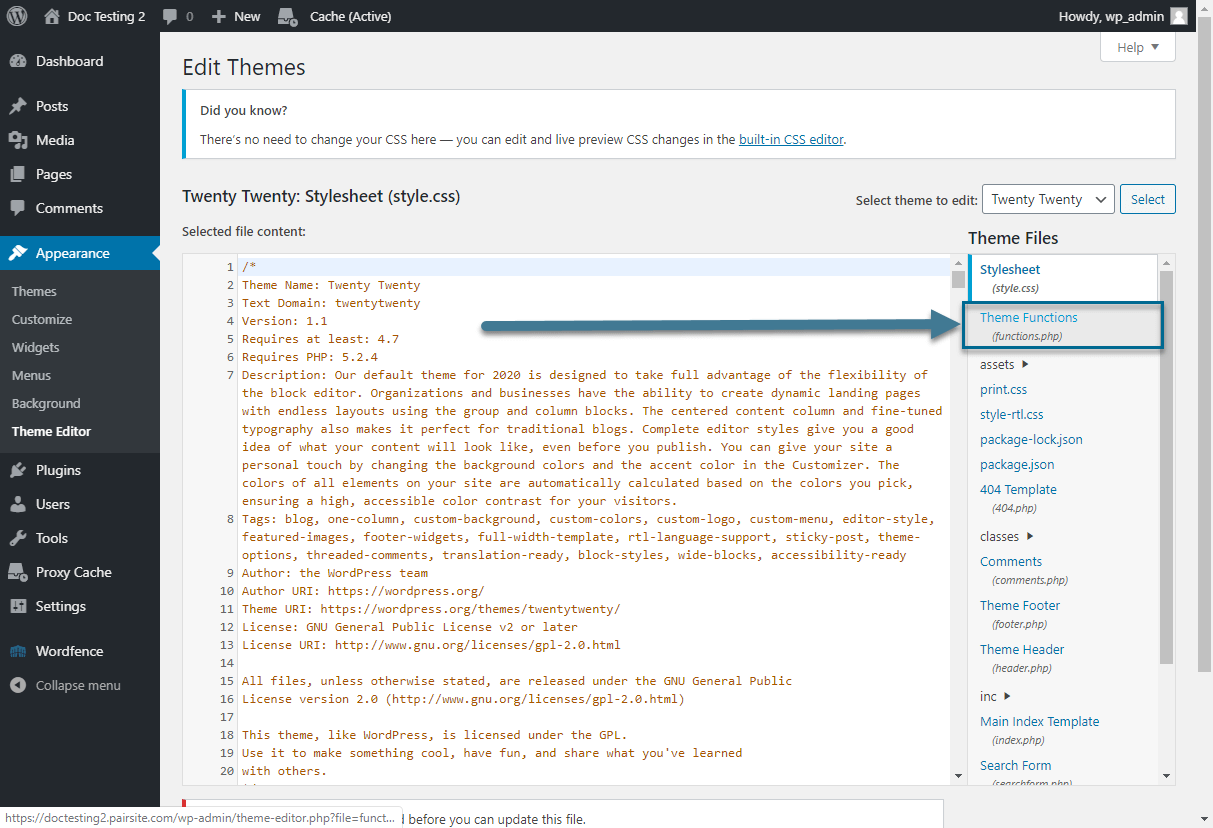
The functions.php file controls many parts of your theme’s behavior. You can add code snippets to change functions or add new ones. For example, you can add a custom menu or new widget areas. Edit this file using a code editor or the WordPress theme editor. Save changes carefully and check your site after editing.
Customizing Template Files
Template files control the layout of your pages, posts, and other content. You can modify files like single.php or page.php to change the look of your site. Copy the file to a child theme before editing. Make small edits and test your site to avoid errors. Templates use PHP to display dynamic content.
Child Theme Benefits
A child theme keeps your changes safe when the main theme updates. It uses the parent theme’s files but allows you to add your own PHP edits. Create a child theme and add modified files there. This method prevents losing your work after theme updates. It also helps organize your custom code better.
Work With Plugin Php Files
Working with plugin PHP files in WordPress lets you add or change features. Plugins extend WordPress without changing the core system. Understanding how to access these files helps you customize your site safely.
It is important to handle plugin files carefully. Direct changes can cause problems during updates. Use the right methods to keep your site secure and stable.
Locating Plugin Files
Plugin PHP files are inside the WordPress folder named “wp-content/plugins.” Each plugin has its own folder. Find the folder by the plugin name. Inside, you will see PHP files controlling the plugin’s functions.
Use an FTP client or your hosting file manager to access these files. Knowing their location helps you understand how the plugin works.
Avoiding Direct Edits
Editing plugin files directly is risky. Updates will overwrite your changes. This can break your site or remove custom code.
Never edit plugin PHP files on a live site. Instead, use child themes or custom plugins to add code. This keeps your customizations safe from updates.
Using Hooks And Filters
Hooks and filters let you change plugin behavior without editing files. Hooks allow you to add code at specific points. Filters let you modify data before it shows on the site.
Use action hooks to run your code at the right time. Use filter hooks to change text or settings. This is the safest way to customize plugins.
Use WordPress Dashboard Tools
Accessing PHP files directly through the WordPress dashboard is easy and quick. WordPress provides built-in tools that let you edit theme and plugin files without extra software. These tools help you customize your site on the fly. Use them carefully to avoid errors.
Theme Editor Features
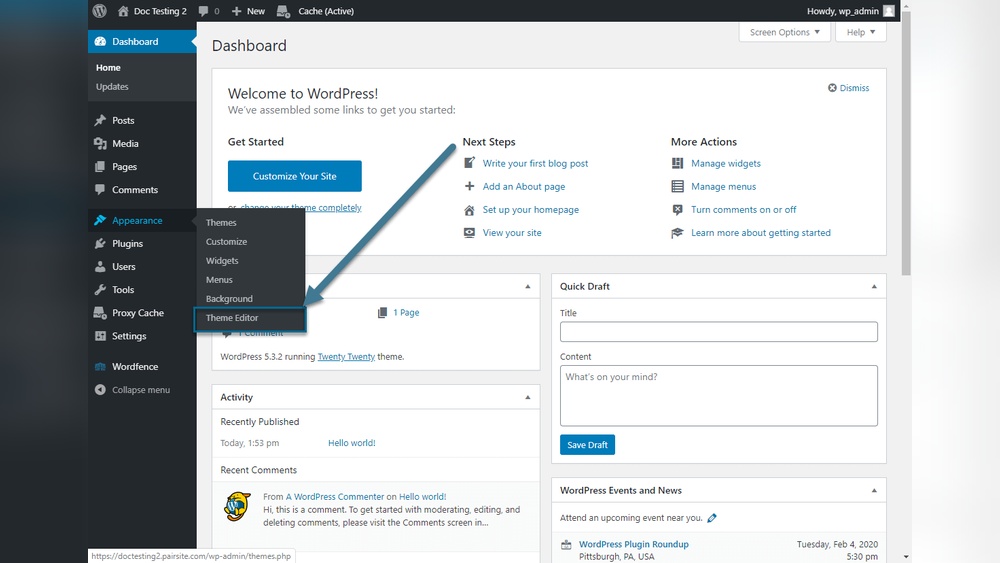
The Theme Editor allows you to open and edit PHP files in your active theme. You can find it under Appearance > Theme Editor. It shows all theme files on the right side. Clicking a file opens it for editing. You can add custom code or fix issues right here. The editor has basic syntax highlighting to make reading easier.
Plugin Editor Options
The Plugin Editor works like the Theme Editor but focuses on plugins. Access it via Plugins > Plugin Editor. Select a plugin to see its PHP files. You can edit these files to change plugin behavior. This is helpful for small tweaks or fixes. Always save a backup before making changes.
Limitations And Risks
Editing PHP files directly has risks. A small mistake can break your site. The dashboard editors do not have advanced error checking. Changes are live immediately, so errors can cause downtime. Use these tools only if you are confident in coding. Always back up your site before editing. Consider using a staging site for testing changes first.

Credit: kinsta.com
Best Practices For Php Access
Accessing PHP files in WordPress requires careful handling. Best practices help keep your site safe and working well. These steps protect your site from errors and hacks. Follow simple rules to manage PHP files smoothly.
Security Considerations
PHP files can expose your site to risks if not handled properly. Always restrict file access to trusted users only. Use proper file permissions to block unauthorized changes. Avoid editing PHP files directly on a live site. Test changes on a local or staging site first. Never share sensitive information inside PHP files.
Version Control Use
Use version control systems like Git to track changes. It helps you see what was added or removed. You can revert to previous versions if something breaks. Commit your PHP file changes regularly with clear messages. This method improves teamwork and reduces mistakes.
Regular Backups
Back up your PHP files often to prevent data loss. Store backups in a safe, separate location. Restore files quickly if errors or hacks occur. Use automated backup plugins or manual methods for safety. Keep multiple backup copies for extra protection.

Credit: jetpack.com
Frequently Asked Questions
How Can I Access Php Files In WordPress?
You can access PHP files via the WordPress theme or plugin editor. Alternatively, use an FTP client to directly edit files on your server. Always back up files before making changes to avoid site issues.
Where Are Php Files Located In WordPress?
PHP files are located in your theme or plugin folders within the /wp-content/ directory. The main files like index. php and functions. php reside in the active theme folder. Plugins have their own PHP files in /wp-content/plugins/.
Can I Edit Php Files Safely In WordPress?
Yes, but only with caution. Use a child theme to avoid losing changes after updates. Always back up your site and test modifications on a staging environment before applying them live.
Why Access Php Files Instead Of Using Plugins?
Accessing PHP files allows custom functionality beyond plugins. It gives more control over your site’s behavior and performance. This method suits developers needing tailored solutions or advanced customization.
Conclusion
Accessing PHP files in WordPress is simple with the right steps. You can add custom features or fix issues easily. Always back up your site before making changes. Use proper tools to edit files safely. This helps keep your website running smoothly.
Practice makes editing PHP files less confusing over time. Keep learning and experimenting to improve your skills. Your WordPress site can become more flexible and useful. Stay patient and take one step at a time.


