
Are you looking to unlock the full potential of your WordPress site? Knowing how to access and edit HTML can give you more control over your content and design.
Whether you want to customize a page, fix formatting issues, or add special features, understanding where and how to find the HTML is key. You’ll discover simple, step-by-step ways to access HTML in WordPress—no technical jargon, just clear instructions you can follow right now.
Ready to take your website to the next level? Let’s dive in.

Credit: wpbuffs.com
Accessing Html In WordPress
Accessing HTML in WordPress allows you to customize your site beyond the visual editor. You can add custom code, fix layout issues, or enhance content styling. WordPress offers different ways to view and edit HTML depending on the editor you use.
Using The Block Editor
The Block Editor shows content in blocks. Each block has its own settings and style options. To see the HTML for a block, click the block you want to edit. Then, select the three-dot menu in the toolbar. Choose “Edit as HTML” from the dropdown. This view lets you change the block’s HTML directly. It helps with adding custom code or fixing formatting.
Switching To Code Editor
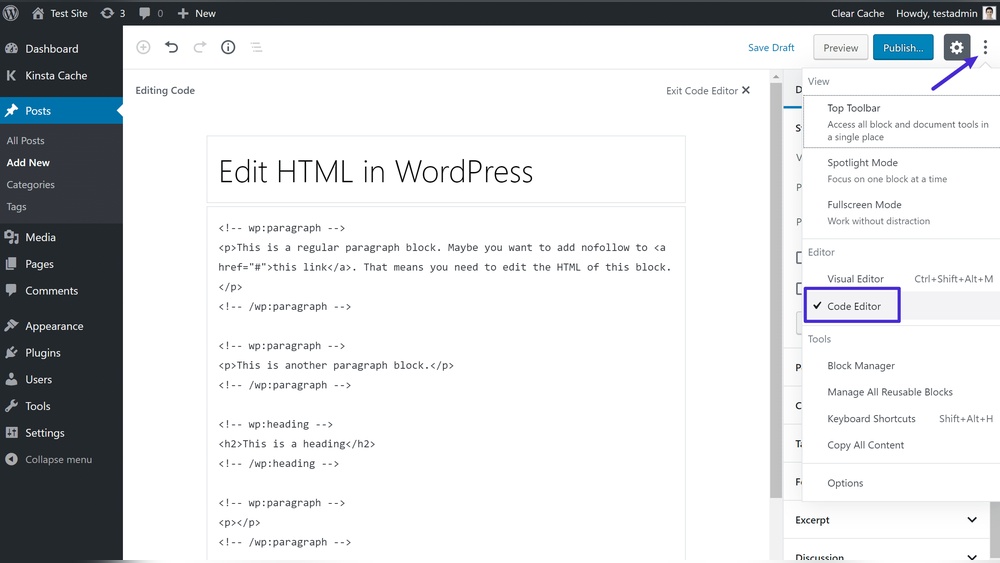
The Code Editor shows the full page’s HTML. To open it, click the three-dot menu at the top right corner. Select “Code Editor” from the list. The editor changes from visual blocks to raw HTML. You can edit all the content’s HTML here. After editing, switch back to the visual editor to see the changes.
Accessing Classic Editor Html
The Classic Editor uses a simple text box for content. It has two tabs: Visual and Text. Click the “Text” tab to see the HTML version. Here, you can add or edit HTML tags freely. This editor is useful for quick edits and basic HTML changes. Save your changes and switch back to “Visual” to view them.
Editing Html In Posts And Pages
Editing HTML in WordPress posts and pages lets you control how your content looks. You can change text, add images, or insert special codes. This gives you more freedom than the normal visual editor. Learning to work with HTML helps you make your site unique and clear.
Editing Html In Existing Content
Open the post or page you want to change. Switch from Visual to Code Editor mode. This shows the HTML behind your content. Find the part you want to edit. Make your changes carefully. Save your work to see the updates live.
Adding Custom Html Blocks
In the block editor, click the plus (+) icon. Search for the “Custom HTML” block. Add it where you want on your page. Write or paste your HTML code inside this block. This block works well for special layouts or scripts.
Previewing Html Changes
After editing, click the “Preview” button. This opens a new tab with your updated page. Check how your HTML looks on the screen. Make sure everything is correct and works well. Return to the editor to fix any issues.
Working With Theme Html
Working with theme HTML in WordPress lets you change how your site looks and works. Themes control the design and layout of your website. Editing HTML in themes helps customize your site beyond the settings.
You can access and change the theme HTML through different methods. Each method has its own benefits and risks. Understanding them helps keep your site safe and running well.
Using The Theme Editor
The Theme Editor is a tool inside WordPress. It lets you open and change the HTML files of your active theme. You can find it under Appearance > Theme Editor in the dashboard.
This editor shows files like header.php, footer.php, and index.php. These files have the HTML structure of your pages. You can add or change HTML code directly here.
Be careful. Mistakes in code can break your site. Save backups before editing. The Theme Editor is quick for small changes but not ideal for big edits.
Editing Template Files Safely
Editing template files means changing theme files with HTML and PHP code. Do this safely to avoid losing data or breaking your site.
Use a code editor outside WordPress for better control. Download theme files via FTP or the hosting file manager. Edit files locally, then upload them back.
Test changes on a staging site first. This keeps your live site safe. Always keep a backup of original files. This way, you can restore if something goes wrong.
Child Themes For Custom Html
Child themes let you customize HTML without changing the original theme. They inherit the main theme’s features but keep your changes separate.
Create a child theme folder and add a style.css and functions.php file. Copy the template files you want to change into the child theme. Edit HTML there.
Using a child theme protects your custom HTML from being lost during theme updates. It is the safest way to work with theme HTML in WordPress.
Using Plugins For Html Access
Using plugins for HTML access in WordPress simplifies editing and customizing your site. Plugins let you work with HTML without needing deep coding skills. They offer user-friendly tools to add or change HTML code safely.
Plugins can help you edit HTML in posts, pages, or site templates. They make it easier to insert custom code snippets and style your content.
Html Editing Plugins
HTML editing plugins allow direct access to your site’s HTML code. They provide a clean interface to write or edit code without switching to the default WordPress editor. Some popular plugins highlight syntax, making it easier to spot errors.
With these plugins, you can add custom HTML, CSS, or JavaScript. They keep your code organized and safe from accidental changes by others.
Page Builders With Html Control
Page builders offer drag-and-drop tools to design pages visually. Many include options to add custom HTML blocks. This gives you control over your layout and content structure.
You can mix HTML with other elements like images and text. Page builders simplify complex design tasks while still allowing HTML customization. This balance helps create unique, professional-looking pages.
Best Practices For Html Editing
Editing HTML in WordPress can improve your site’s look and function. Following best practices keeps your website safe and running well. Small changes can cause big problems. Careful steps protect your content and visitors.
Backing Up Your Site
Always save a copy of your site before editing HTML. A backup keeps your data safe if something goes wrong. Use WordPress plugins or your hosting service to create backups. Store backups in a secure place. This step helps restore your site fast after errors.
Testing Changes In Staging
Test HTML edits on a staging site, not the live one. A staging site is a copy of your website. It lets you see changes safely. Make sure new code works well and looks right. Fix problems here before updating your live site. This avoids breaking your website for visitors.
Avoiding Common Mistakes
Use simple, clean HTML code. Avoid broken tags and wrong nesting. Check that all tags open and close properly. Keep your code organized and easy to read. Don’t edit core WordPress files. Use child themes or custom CSS instead. These tips help keep your site stable and fast.

Credit: stackoverflow.com

Credit: kinsta.com
Frequently Asked Questions
How Do I Access Html In WordPress Editor?
To access HTML in WordPress, switch to the “Text” or “Code Editor” tab. This mode shows the raw HTML of your post or page content for editing.
Can I Add Custom Html In WordPress Posts?
Yes, you can add custom HTML directly in the WordPress editor’s code view. This lets you embed custom elements or scripts easily.
Is Editing Html In WordPress Safe For Beginners?
Editing HTML is safe if you back up your site first. Avoid changing core files and use the editor for content-level HTML only.
Where Is The Html Block In WordPress Gutenberg?
In Gutenberg, use the “Custom HTML” block to add or edit HTML code. It’s found under the formatting blocks section.
Conclusion
Accessing HTML in WordPress is simple and useful. You can edit your site’s code directly to change its look. Using the built-in editor or block editor helps you add custom features. Always save your changes carefully to avoid mistakes. Practice often to feel more confident with HTML.
This skill lets you create a unique and better website. Keep exploring different ways to use HTML in WordPress. Your site will grow and improve step by step.


