
Are you ready to unlock the full potential of your GoDaddy web hosting? Imagine having complete control over your website’s backend, where you can manage files, databases, and domains with ease.
Accessing GoDaddy’s cPanel is your gateway to this power, and it’s simpler than you might think. Whether you’re a seasoned web developer or a curious beginner, mastering this skill will give you the confidence to elevate your online presence. Picture yourself effortlessly navigating the cPanel interface, making changes that enhance your website’s functionality and user experience.
Stick around to discover step-by-step instructions that will transform you into a cPanel pro. Your website’s success is just a few clicks away!
Setting Up Godaddy Account
Visit the Godaddy website. Click on the “Sign Up” button. Fill in your details. Use a valid email. Choose a strong password. Click “Create Account”. Check your email. Confirm your account. Now you have a Godaddy account.
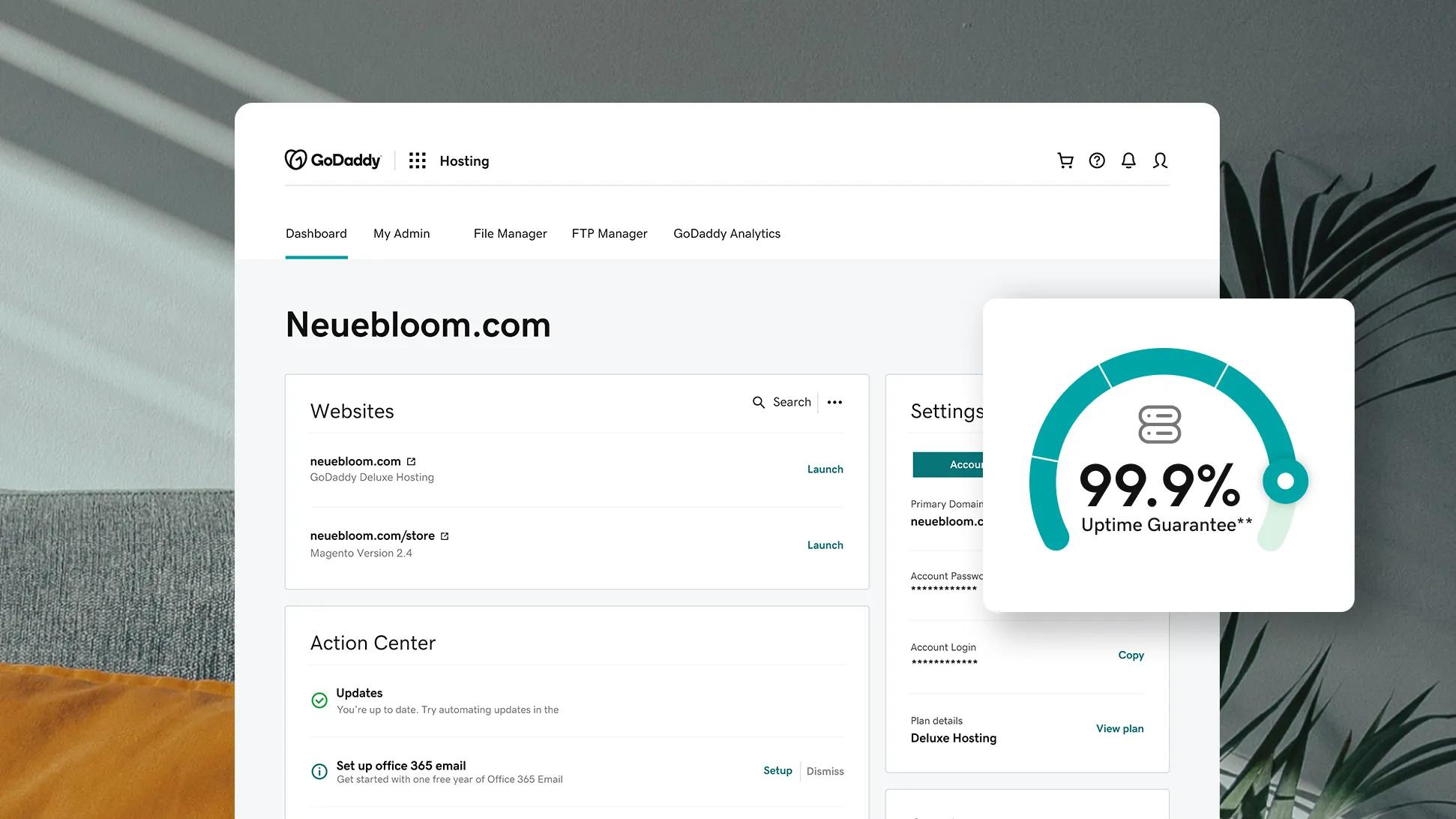
Open the Godaddy website. Click on “Log In”. Enter your email. Type your password. Click on “Sign In”. You are now logged into your account. Access your dashboard. Explore the features. It’s easy to use.
Credit: www.godaddy.com
Navigating To Web Hosting
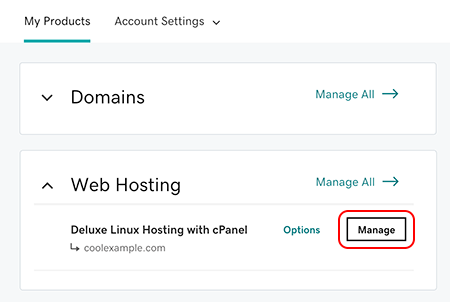
Start by logging into your GoDaddy account. Find the menu at the top. It shows different options. Look for a section called “My Products”. Click on it. You will see a list. This list contains all your GoDaddy services. Find the one labeled Web Hosting. It’s important to select the right one. Double-check the name and details. You will now be ready for the next step.
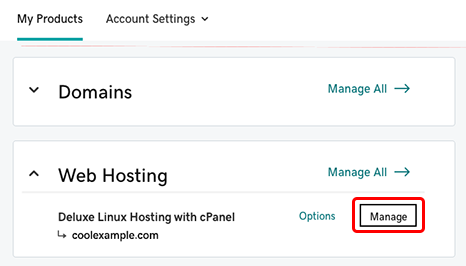
Within the Web Hosting section, there are different plans. Each plan has its name. Look for the plan you use. There will be a button next to it. This button is usually labeled “Manage”. Click it. This will take you to the next page. Here, you can find more details. This is where you access your cPanel. Make sure you click the right buttons. This ensures you get to the right place.
Accessing Cpanel
Start by visiting the Godaddy website. Look for the login area. It is usually at the top. Enter your account details. Click on the “Sign In” button. You’ll see a dashboard. Locate the “Web Hosting” section. Click to view your hosting details.
Once you find your hosting details, look for the Cpanel button. Click it. This will open the Cpanel dashboard. Here, you can manage your website. You can add files, create emails, and more. Remember, Cpanel is your control center. Use it wisely to keep your site running well.
Credit: www.godaddy.com
Exploring Cpanel Features
File Management in Cpanel helps keep your files organized. Use the File Manager to upload, delete, or move files. It is like a big storage box for all your website files. You can also create new folders to keep things tidy. Remember to save your changes.
Setting up email accounts is easy with Cpanel. Choose a name and a password. You can check your emails using Webmail. This tool is handy for sending and receiving messages. Keep your email safe with strong passwords.
Database Management is important for storing data. Cpanel provides tools like phpMyAdmin. Use it to create and edit databases. Databases help your website run smoothly. Always back up your data to avoid losing it.
Security Tools protect your website from harm. Use features like SSL certificates to keep data safe. Firewalls can block unwanted visitors. Regularly update passwords for better security. Stay alert for any suspicious activity.
Troubleshooting Access Issues
Sometimes login issues occur with Godaddy Cpanel. Incorrect username or password can block access. Forgetting login details is a frequent problem. Ensure the caps lock key is off when entering passwords. Double-check the spelling of your username. Browser cookies might be causing issues. Clear them and try again. Use a different browser if problems persist. Ensure your internet connection is stable. Weak connections can lead to login issues.
If login problems continue, reach out to Godaddy support. They offer help through live chat or phone calls. Explain your issue clearly. Have your account details ready. Support will guide you through steps to solve the problem. They are available 24/7 to assist you. Don’t hesitate to ask for help if you’re stuck.
Credit: www.godaddy.com
Frequently Asked Questions
How Do I Access The Cpanel Of Godaddy?
Log in to your GoDaddy account. Navigate to “My Products,” select your hosting account, and click “Manage. ” Click “cPanel Admin” to access it.
How Do I Access My Godaddy Cpanel Database?
Log into your GoDaddy account. Navigate to your product page. Select “Web Hosting” and click “Manage”. Locate your cPanel account and click “cPanel Admin”. In cPanel, find “phpMyAdmin” under the Databases section. Click it to access and manage your database.
How To Connect Cpanel To Godaddy?
Log into your GoDaddy account and go to “My Products. ” Find your hosting plan and click “Manage. ” Under “cPanel,” select “Access cPanel. ” This connects you to your hosting account’s cPanel, allowing you to manage your website easily.
How Do I Access Cpanel From Hosting?
Log in to your hosting account. Find the cPanel section in the dashboard. Click to access cPanel directly. Alternatively, use “yourdomain. com/cpanel” and enter your credentials.
Conclusion
Accessing GoDaddy’s Web Hosting cPanel is straightforward. Follow each step carefully. Start by logging into your GoDaddy account. Navigate to your products list. Locate your hosting package. Click on “Manage” to open cPanel. Explore various features like email setup, file management, and database tools.
This guide simplifies your journey. Managing your website becomes easier. Feel free to revisit any section as needed. Practice makes perfect. Familiarize yourself with the interface. You’ll gain confidence quickly. Enjoy managing your website with ease. Your online presence is in your hands.


