
Imagine having the power to manage your virtualized environment right at your fingertips, without the hassle of complex command lines or cumbersome interfaces. Accessing your ESXi host through a web client is like opening a door to simplicity and efficiency.
You might be wondering how this can transform your workflow and save you precious time. By the end of this article, you’ll be equipped with the knowledge to seamlessly connect to your ESXi host using the web client, enhancing your control and streamlining your operations.
Dive into this guide to unlock the secrets of effortless management, because who doesn’t want an easier way to handle their virtual machines?
Prerequisites For Accessing Esxi Host
To access the ESXi host through the web client, ensure you have network connectivity and browser compatibility. Obtain the ESXi host’s IP address and proper login credentials. Configure necessary firewall settings for seamless access.
Network Requirements
ESXi hosts need a stable network. Use a secure and reliable network. Connect your device to the same network. Ensure proper IP settings. Avoid using public Wi-Fi. Public networks can be unsafe. Use a strong firewall.
Software Requirements
Install the latest web browser. Update browsers regularly. Compatible browsers include Chrome and Firefox. Internet Explorer is not recommended. Download VMware’s vSphere Client. This software is crucial for access. Keep your software updated. New versions fix bugs.
Credit: learn.microsoft.com
Accessing Esxi Host Web Client
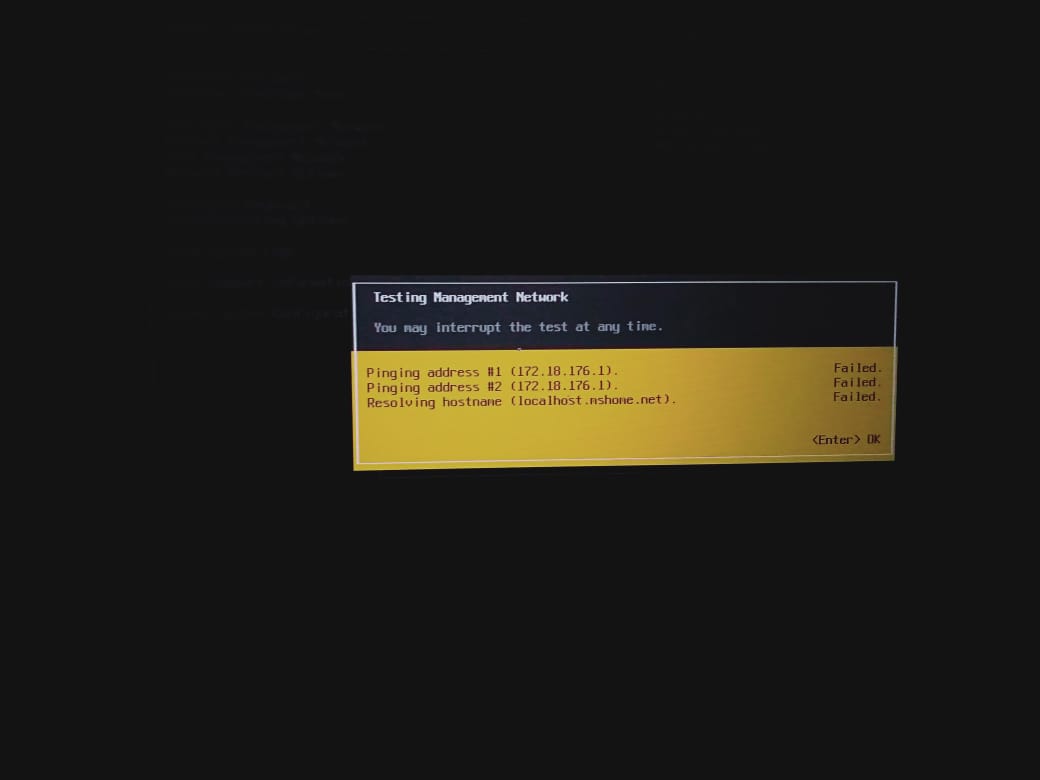
To access the ESXi host, first find its IP address. Check the display screen of the ESXi server. Sometimes, the IP address is shown there. If not, you need to login to the host console. Once logged in, navigate to the configuration tab. Here, you will find the network settings. Look for the IPv4 address. This is the host’s IP address. Remember or note it down.
Open any web browser on your computer. In the address bar, type the ESXi host’s IP address. Press enter on your keyboard. The ESXi web client login page will appear. Enter your username and password to login. Make sure your browser is up to date. This ensures compatibility with the ESXi web client.
Logging Into Esxi Web Client
To access the ESXi Web Client, find the login page. Type your username and password. Click the login button to enter.
Use a secure network connection. Never share your login details. Keep your passwords safe. Watch for security warnings on the page. Always log out after use.

Credit: blogs.vmware.com
Navigating The Esxi Web Client Interface
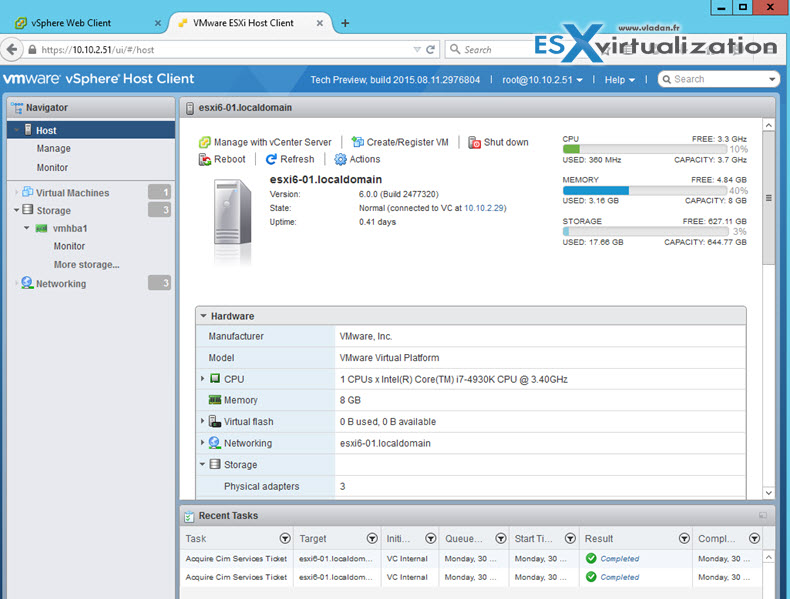
The dashboard shows the important parts of your ESXi host. You will see the system health. You can also find the resource usage here. CPU and memory details are easy to spot. The dashboard helps you find issues quickly. It also shows the performance graphs. Easy to understand and use.
The navigation panel is on the left side. It helps you find different sections. Click on any section to open it. You can see virtual machines here. Also, find storage and networking options. The panel is simple and user-friendly. Everything is just a click away. Explore with ease.
Managing Virtual Machines
Start by logging into the web client. Find the “Create New VM” button. Click it to begin. Follow the steps on screen. Choose your desired settings. Enter a name for the machine. Select the operating system type. Allocate memory and storage space. Review your choices. Confirm by clicking “Finish”. Your new virtual machine is ready.
Access the VM list. Select the machine you want to edit. Locate the “Edit Settings” option. Click to open settings. Adjust CPU and memory allocation. Change network settings if needed. Modify disk space. Save changes when done. Editing is simple and quick.
Keep an eye on your machine’s health. Find the “Performance Tab”. Click to view details. Check CPU usage graphs. Look at memory consumption. Observe disk activity. Analyze network traffic data. Monitoring helps in spotting issues early.
Configuring Esxi Host Settings
First, open the ESXi Host Client. Find the Networking tab. Click on it. You will see Network Adapters. Ensure they are connected. Next, check the Virtual Switches. They help in data flow. Make sure they are set right. This is important. Then, look at Port Groups. They help connect devices. Ensure they are linked correctly. Save all changes. This keeps the network working well.
In the Storage tab, check Datastores. They hold your data. Ensure they have enough space. Look at Storage Devices next. They must be connected. Also, check Storage Adapters. They link storage to the host. Make sure they work fine. This helps in smooth data access. Always save your changes. This keeps data safe and organized.
Troubleshooting Common Issues
Accessing your ESXi host through the web client is simple. Ensure your network settings are correct and the web client is compatible. Check firewall settings for potential blocks that might hinder access.
Connection Problems
Sometimes, the web client fails to connect. Check if the network cable is plugged in. Ensure the router is working. Restart your computer and try again. Verify the IP address is correct. Wrong IP can cause issues. Also, check your firewall settings. It might block the connection.
Authentication Errors
Authentication errors can stop access. Make sure your username and password are correct. Check for typing mistakes. Passwords are case-sensitive. Use the right login credentials. If errors persist, reset your password. Contact support if needed. They can help fix login issues.
Credit: www.vladan.fr
Enhancing Security
Accessing an ESXi host through a web client enhances security by minimizing direct exposure to potential threats. This method allows users to manage their virtual environments safely through a browser, ensuring secure and efficient operations. Regular updates and secure connections further safeguard sensitive data.
Updating Security Patches
Security patches keep systems safe. They fix bugs and block threats. Regular updates are essential. They prevent unauthorized access. Always download the latest patch. Check for updates every month. This keeps your system strong. Never skip an update. Your safety depends on it.
Configuring Firewall Settings
Firewalls protect your network. They block bad traffic. Configuring them is important. Set rules to allow good data. Block harmful connections. Use strong settings for better security. Always review your firewall rules. This ensures protection against threats.
Frequently Asked Questions
How To Connect To Esxi Host Using Web Client?
Access the ESXi host by entering its IP address in your web browser. Use your credentials to log in. Ensure the browser compatibility with ESXi version. Navigate through the web interface for management tasks. Keep software updated for security and functionality.
How Do I Access Esxi From My Browser?
Access ESXi via browser by entering your server’s IP address in the address bar. Log in using your admin credentials. Ensure your browser supports HTML5 for optimal functionality. You can manage virtual machines, configure settings, and monitor server performance directly from the web interface.
How To Access Esxi Host Directly?
Access ESXi host directly via VMware vSphere Client or SSH. Use IP address or hostname for login. Ensure correct credentials and network connectivity. For SSH, enable it through ESXi settings. Secure access with strong passwords. Regularly update ESXi for security enhancements and optimal performance.
How Do I Login Into The Esxi Host?
To login into ESXi host, open a web browser and enter the host’s IP address. Use your administrator credentials to access the VMware ESXi web client. Ensure your network settings allow connection to the host. Always verify the login details are correct for successful access.
Conclusion
Accessing the ESXi host through the Web Client is simple. Follow the steps carefully, and you’ll have no trouble. This method provides an efficient way to manage your server. Remember to keep your login credentials safe. Regularly update your system for security.
These actions ensure smooth operations. Explore the Web Client’s features to enhance your experience. Practice will make the process easier. Soon, you’ll navigate with confidence. Happy managing!


