
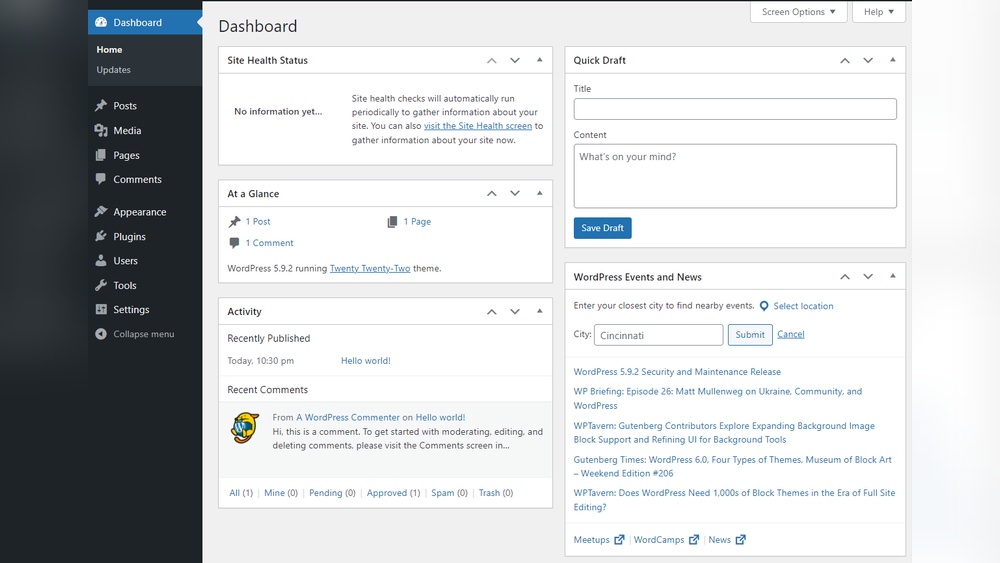
Are you struggling to find the admin panel of your WordPress site? Accessing it is the first step to customizing your website, managing content, and keeping everything secure.
Without knowing how to get there, you might feel stuck or miss out on important features. In this guide, you’ll discover simple, clear steps to reach your WordPress admin panel quickly and easily. By the end, you’ll have full control over your site and be ready to make it truly your own.
Keep reading—you’re just moments away from mastering your WordPress dashboard!
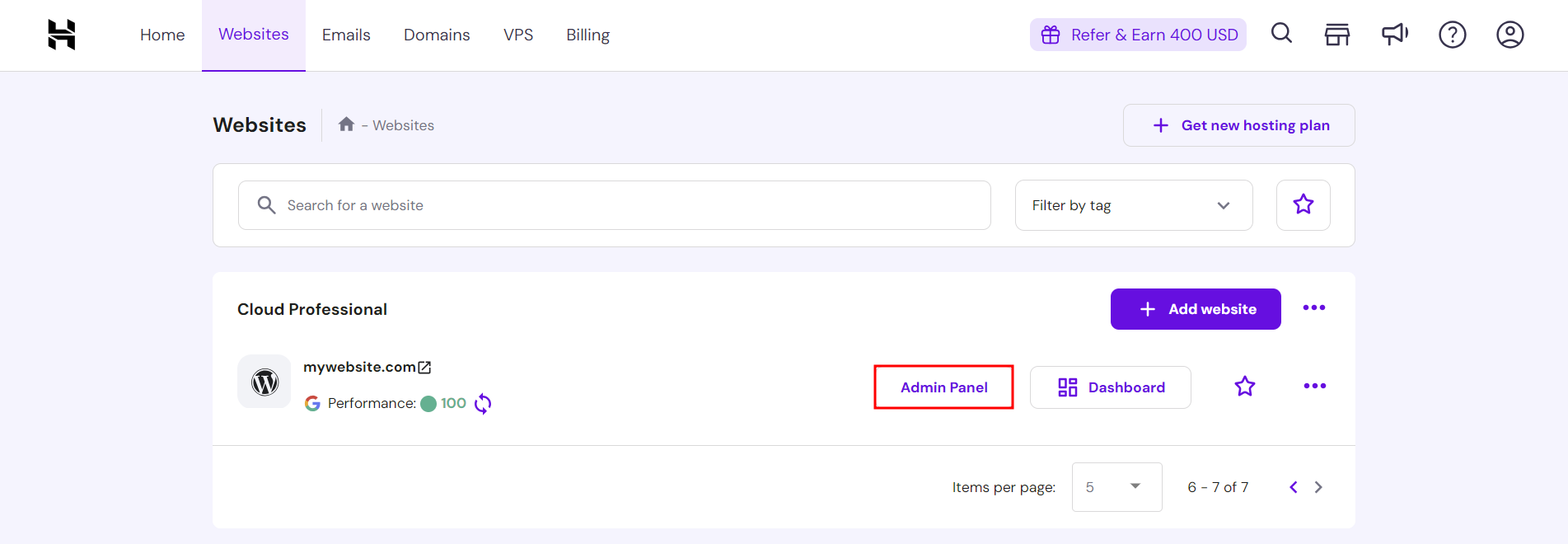
Credit: www.hostinger.com
Locate WordPress Admin Url
Finding the WordPress admin URL is the first step to managing your website. This URL gives you access to the control panel. From there, you can add posts, change settings, and update your site. Knowing the correct admin URL saves time and prevents confusion.
Default Login Paths
Most WordPress sites use standard login paths. The common URL is yourwebsite.com/wp-admin. Another option is yourwebsite.com/wp-login.php. These URLs lead directly to the login page. Typing them in your browser opens the admin panel login screen.
Custom Login Urls
Some websites use custom login URLs for extra security. This means the default path changes to something unique. Site owners often change it to avoid hacking attempts. Custom URLs can look like yourwebsite.com/mysecretlogin. You must know the custom path to access the admin panel.
Prepare Login Credentials
Preparing your login credentials is the first step to access the WordPress admin panel. These credentials allow you to enter the backend of your website safely. Keep them secure and ready before you start the login process.
Having the correct username and password is essential. Without them, you cannot manage your site’s settings or content.
Username And Password
Your username identifies you to the WordPress system. It is usually set during installation or by your site administrator. Use the exact username to avoid login errors.
The password protects your account from unauthorized access. Choose a strong password with letters, numbers, and symbols. Avoid simple or common words.
Store your username and password in a safe place. Never share them with others to keep your site secure.
Resetting Forgotten Password
Forgot your password? No worries. WordPress offers a simple way to reset it.
On the login page, click the “Lost your password?” link. Enter your username or email address to receive a reset link.
Follow the link in your email to create a new password. Make sure to pick a strong one. Then, use it to log in again.
Resetting your password helps maintain control of your admin panel safely.
Access Via Browser
Accessing the WordPress admin panel through a browser is the most common method. It allows you to manage your website easily from any device. You only need the correct URL and login details to get started.
Entering Url Correctly
To open the admin panel, type your website address followed by /wp-admin. For example, www.yoursite.com/wp-admin. This directs you to the login page.
Make sure there are no spaces or typos in the URL. Use https if your site has an SSL certificate. This keeps your connection secure.
Troubleshooting Access Issues
If the login page does not appear, check your internet connection first. Clear your browser cache and cookies to remove old data.
Disable browser extensions that may block the page. Try using a different browser or device to see if the problem persists.
Contact your hosting provider if the admin panel still does not load. They can check server or DNS problems for you.
Secure Your Admin Panel
Securing your WordPress admin panel is crucial for protecting your site. Unauthorized access can lead to data loss and site damage. Simple steps can greatly improve your admin panel’s security. Focus on strong passwords and two-factor authentication. These methods guard your site against common attacks and intrusions.
Using Strong Passwords
Choose passwords that are long and complex. Use a mix of letters, numbers, and symbols. Avoid common words or easy patterns like “12345” or “password.” Change your password regularly to keep it safe. Consider using a password manager to generate and store passwords securely. Strong passwords reduce the risk of hacking.
Enabling Two-factor Authentication
Two-factor authentication adds an extra layer of security. It requires a second form of verification besides the password. This can be a code sent to your phone or an app-generated token. Enable this feature in your WordPress admin settings. It blocks unauthorized users even if they know your password. Two-factor authentication greatly strengthens your admin panel’s protection.
Alternative Access Methods
Sometimes, the usual way to access the WordPress admin panel does not work. This can happen due to login issues or site errors. Alternative access methods help you manage your site without logging in the normal way. These methods give you control over your WordPress site through other tools and interfaces.
Using Hosting Control Panel
Your hosting control panel is a powerful tool. It often includes features to manage WordPress directly. You can find options to access the database or reset passwords here. Many hosts offer one-click WordPress admin access from the control panel. This method is useful if you cannot reach the login page or forgot your admin password. Check for WordPress management or security settings within your hosting dashboard.
Accessing Via Ftp Or File Manager
FTP and file managers allow direct access to your WordPress files. Use them to edit files or fix login issues. For example, you can disable plugins by renaming their folders. This helps if a plugin causes login problems. FTP also helps you upload scripts to reset passwords. Access your site files through the hosting file manager or an FTP client like FileZilla. This method gives full control over your WordPress installation without the admin panel.
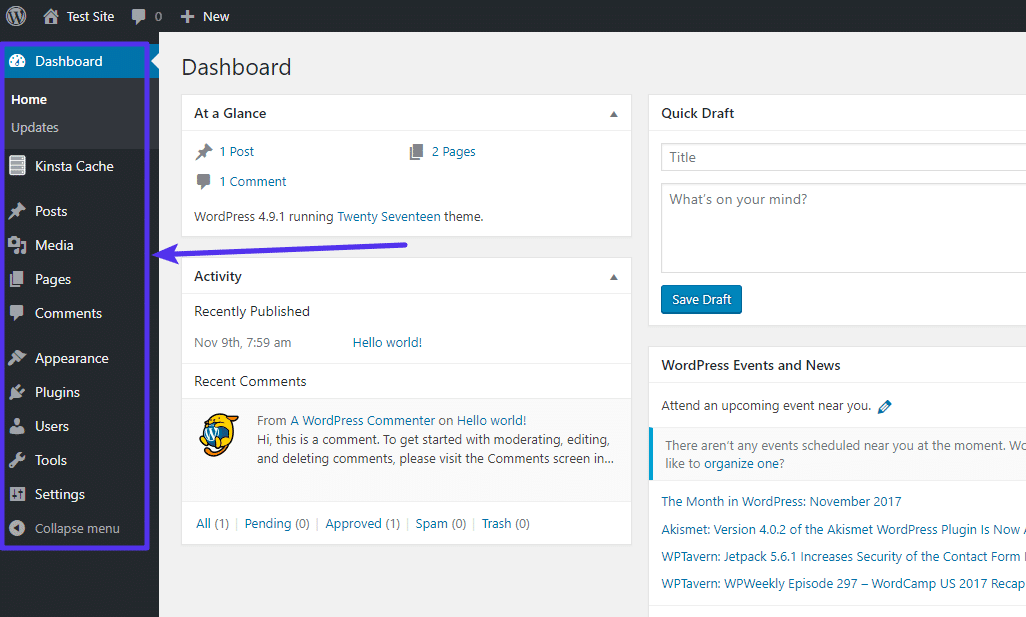
Credit: kinsta.com

Credit: support.hcommons.org
Frequently Asked Questions
How Do I Find My WordPress Admin Login Url?
You can find the login URL by adding “/wp-admin” or “/wp-login. php” to your site’s domain name. For example, www. yoursite. com/wp-admin. This URL directs you to the WordPress admin panel login page.
What Are The Default WordPress Admin Username And Password?
WordPress does not have default admin credentials. You set your username and password during installation. Use your chosen login details to access the admin panel.
How Can I Reset My WordPress Admin Password?
To reset your password, click “Lost your password? ” on the login page. Enter your email to receive a reset link. Follow the instructions to create a new password.
Why Can’t I Access My WordPress Admin Panel?
Access issues may be due to incorrect login info, plugin conflicts, or server errors. Clear your browser cache or disable plugins via FTP to troubleshoot.
Conclusion
Accessing your WordPress admin panel is simple and quick. Just remember your site’s URL and add “/wp-admin” at the end. Use your username and password to log in safely. Keep your login details private to protect your site. Regularly updating your password helps keep hackers away.
Now, you can manage your site easily and make changes anytime. Start exploring your WordPress dashboard with confidence today!


