
Ever stumbled upon a WordPress site with a stunning design and wondered what theme it uses? You’re not alone.
Whether you’re a blogger, a business owner, or just someone with a keen eye for design, uncovering the theme behind a captivating WordPress site can feel like a mystery. But here’s the secret: you can easily discover which theme powers any WordPress site by peeking into its source code.
This article will guide you on how to do just that, empowering you to replicate those eye-catching designs on your own site. Imagine the possibilities when you finally unlock this simple yet powerful trick. Dive in, and let’s uncover the hidden treasures of WordPress themes together.
Inspecting The Page Source
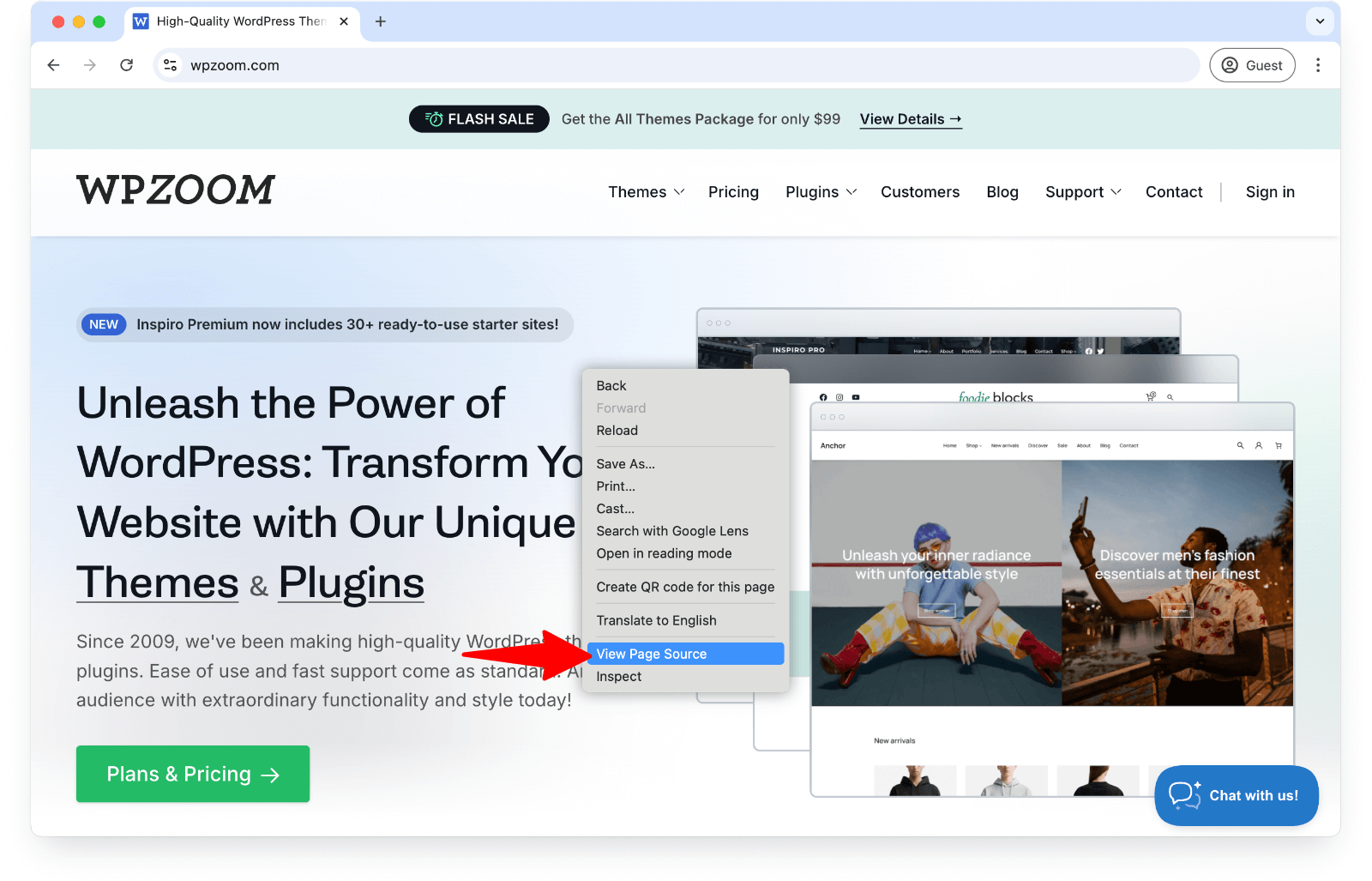
To see the source code, right-click on the web page. Then, click on “View Page Source” or “Inspect”. A new window will open. This window shows the HTML code of the page. Look for lines that start with or . These lines often show theme details. You might find the theme’s name here.
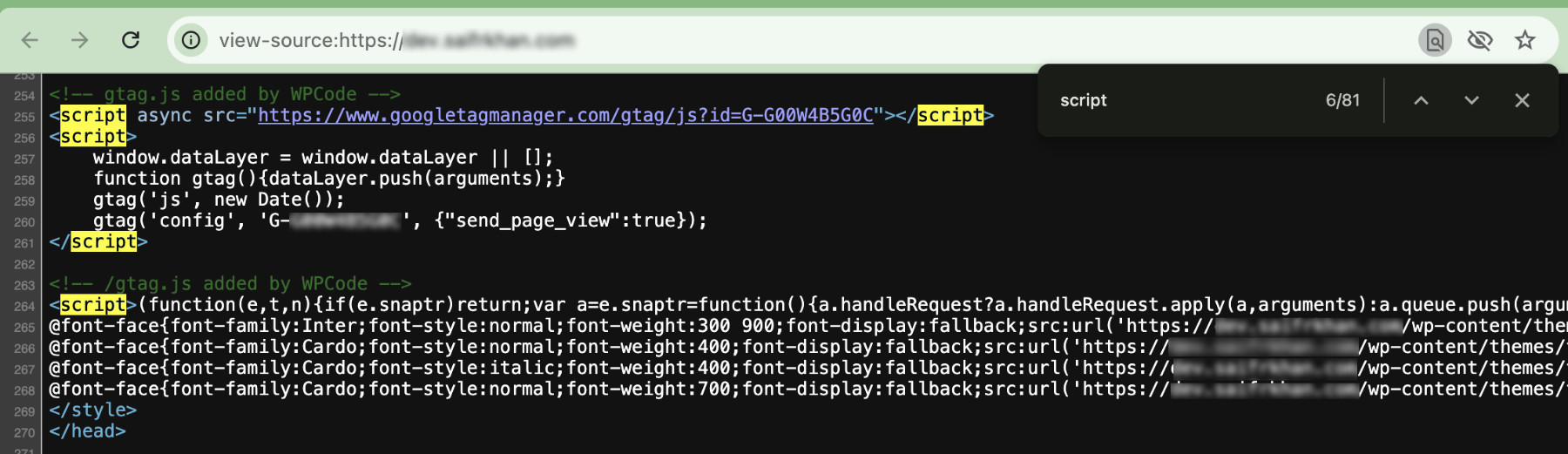
In the source code, search for “theme”. Use the search function by pressing Ctrl + F. This helps you find theme-related lines quickly. Look for words like “theme”, “stylesheet”, or “template”. These words point to the theme’s code. Keep an eye for URLs with “/wp-content/themes/”. This part usually tells the theme’s folder name. Each theme has a unique folder name.
Identifying Theme Information
Open the WordPress site you are curious about. Right-click on the page. Select “View Page Source.” A new tab will open with lots of code. Look for “wp-content/themes/”. You might see the theme name right after. This is the theme used for the site. Sometimes, it’s tricky to spot. Keep looking until you find it.
Stylesheets hold the theme’s look. In the page source, find “style.css”. This file shows the theme’s design. It might be in the “wp-content/themes” folder. Click the link to open it. The stylesheet often has theme details. You’ll see the theme name again. Look for a header at the top. It has more theme info.
Using Browser Developer Tools
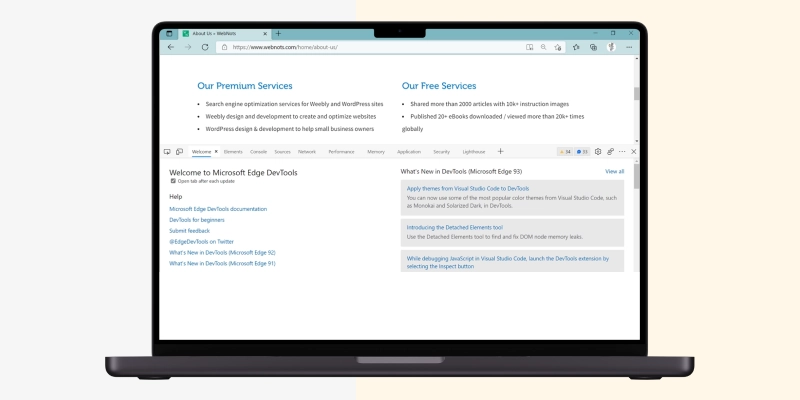
Start by opening your web browser. Click on the three dots in the top-right corner. Select “More tools” from the dropdown menu. Then, click on “Developer tools”. A panel will appear. This is your developer tools panel. You can also press F12 or Ctrl + Shift + I for quick access.
Look for the “Elements” tab in the developer tools. Click on it to see the page’s code. The code shows the structure of the webpage. Find themes information here. Look for CSS files linked in the code. They often contain the theme name. Check the file paths. They can help identify the theme.
Credit: www.janbaskdigitaldesign.com
Exploring Theme Detector Tools
Online theme detection services help identify themes on websites. These tools are easy to use. They show the theme name with just a few clicks. Many services are free. Some offer extra features for a fee. They save time and effort. Using them is easy for beginners. No coding skills are needed. Such tools are available online.
Automated tools work fast. They identify themes quickly. This saves time. Users find out theme names in seconds. No need to inspect the code manually. These tools are accurate. They provide reliable results. They are great for non-tech users. People can learn and explore with ease.
Understanding Theme Hierarchy
WordPress uses themes to change how a site looks. The main theme is called the parent theme. It has all the main files and styles. The child theme changes parts of the parent theme. It does not change the main files. This keeps the site safe during updates. Using a child theme is a good idea. It helps keep custom changes safe. Updates won’t break your site.
Themes have many components and files. Each part has a job. The style.css file changes colors and fonts. The functions.php file adds special features. Themes have a header and footer. These show at the top and bottom of the page. The sidebar is often on the side. Each part is important. Together, they make the theme work.
Credit: www.wpzoom.com
Recognizing Custom Themes
Custom themes often have unique features. They may show special code in the source. Look for specific CSS classes or IDs. These can be different from regular themes. Custom themes may also have a distinct layout. This layout can be seen in the HTML structure. The code might have unusual comments. These comments can help identify custom work.
A custom theme might use special plugins. These plugins are made for specific needs. The theme might have unique scripts. These scripts can be found in the source code. Custom themes might also have modified templates. These templates change the look of the site. Look for hard-coded elements. These elements can show custom design.
Standard themes often use generic layouts. Custom themes break away from these. They often have specific functions. These functions are not in standard themes. Custom themes might have additional files. These files can be seen in the source code. Look for unique naming conventions. These names can be different from standard ones.
Credit: wpcode.com
Frequently Asked Questions
How To Find WordPress Theme In Source Code?
Open the website, right-click, and select “View Page Source. ” Search for “wp-content/themes” to find the theme’s directory name. This reveals the active WordPress theme used by the site.
How Do I Find Out What WordPress Theme Is Being Used?
Use a tool like What WordPress Theme Is That to identify the theme. Inspect the site’s code for the theme name. Look for the theme’s style. css file in the code. Themes are usually listed in the header section. This helps reveal the theme being used.
How Do I View Page Source In WordPress?
Open your WordPress site in a browser. Right-click the page and select “View Page Source” or “Inspect”. This reveals the HTML code. Use this to analyze elements or debug issues.
How Do I Know Which Template Is Used In A Website?
Inspect the website’s source code using your browser’s “Inspect” tool. Look for template names in the HTML, CSS, or JavaScript files. You can also use tools like BuiltWith or Wappalyzer to identify the website’s technologies and templates.
Conclusion
Exploring WordPress themes through source code is simple. Just right-click and select “View Page Source. ” Search for “theme” in the code. This reveals theme details quickly. Knowing the theme helps in website design choices. It offers insights into layout and features.
Understanding themes can improve your site’s look and feel. Use this method to discover new design ideas. It’s a handy tool for web enthusiasts. Enhance your site by exploring themes effectively. Save time and find inspiration with this easy technique.
Enjoy browsing and learning from various WordPress designs.


