
Are you feeling overwhelmed by the thought of updating your WordPress theme manually? You’re not alone.
Many WordPress users find themselves stuck when it comes to refreshing their website’s look without relying on automated updates. But don’t worry—this guide is here to help you take control. Imagine the satisfaction you’ll feel knowing your site is up-to-date and running smoothly, all because you took the reins yourself.
This isn’t just about changing aesthetics; it’s about ensuring your site is secure and performs at its best. Dive in, and discover how easy it can be to manually update your WordPress theme. Your website deserves it!

Credit: www.youtube.com
Preparing For The Update
Always make a backup of your site. This saves your data if anything goes wrong. Use a plugin or do it manually.
Ensure the new theme version is compatible with your WordPress. Check the theme’s page or contact the developer. Compatibility is key for a smooth update.
Download the latest theme files from the theme provider. Keep them ready for the update. Store these files in a safe place on your computer.
Accessing WordPress Dashboard
First, open your web browser. Type your website URL. Add “/wp-admin” after it. A login page will appear. Enter your username and password. Click on the login button. You will see the dashboard.
Look for the menu on the left. Find “Appearance.” Click on it. A drop-down will show up. Choose “Themes” from the list. The themes section will open. You can see all installed themes here.
Deactivating Current Theme
Switching to a default theme is important. It helps keep your site safe. To start, go to your WordPress dashboard. Look for the Appearance tab. Click on it. Then, click on Themes. Here, you will see your current theme. You need to activate a default theme now.
Find the default theme. It is often named Twenty Twenty-One or similar. Click Activate. Now, your default theme is live. This step ensures your site remains functional during updates.
Check your site. Make sure everything works well. If something looks wrong, try refreshing. Sometimes, things take a moment to settle. This helps keep your site ready for theme updates.

Credit: www.youtube.com
Uploading New Theme Version
First, go to your WordPress dashboard. Click on Appearance, then Themes. You will see all your themes here. Find the theme you want to update. Make sure it’s not active. If it is, activate a different theme. Now, click on the Delete option. This will remove the old files.
After removing the old files, go back to Appearance and click on Add New. You will see an Upload Theme button. Click it. Now, choose the new theme’s zip file from your computer. Click Install Now to upload the theme. Once uploaded, click Activate. Your new theme is now live!
Activating Updated Theme
Choose the new theme from the list. Click the “Activate” button. The theme will change instantly. Your site now uses the updated theme. Check your site to see the new look. It’s important to ensure everything works well. Sometimes, widgets or menus may shift. Adjust them if needed. Remember to refresh your browser. This helps see changes clearly. Themes can affect site speed. Test the site’s loading time. Faster sites keep visitors happy. Slow sites can lose them. It’s good to check on mobile too. Many visitors use phones. A responsive theme is crucial. It should look nice on all devices.
Select New Theme
Go to the WordPress dashboard. Find “Appearance” on the left menu. Click “Themes”. Browse the available themes. You can see previews before activating. Look for a theme that fits your site’s style. Choose wisely, as themes affect your site’s feel. Some themes need plugins. Install them as needed. Always read the theme details. They show what features are included.
Verify Site Appearance
Visit your site after activation. Check the homepage for changes. Look at the layout and colors. Ensure the header is correct. See if the footer displays properly. Check the menu links. They should work smoothly. Review the sidebar for any issues. Look at images and text. They should display well. Check different pages on your site. Make sure they all look fine. Some pages may need tweaks. Adjust them for a polished look.
Troubleshooting Common Issues
Sometimes, after a theme update, features go missing. This can be confusing. First, check if the feature is disabled. Some updates might turn features off. You can enable them again in settings. Next, see if the theme needs a new plugin. Updates may require new plugins for features. Also, look at the theme’s documentation. It often explains changes and fixes. If problems persist, contact the theme’s support team. They can offer help and guidance.
Plugin conflicts can be a headache. Themes and plugins sometimes don’t get along. Start by disabling all plugins. Then, enable them one by one. This helps find the problematic plugin. Keep the WordPress version updated. Outdated versions cause conflicts too. Also, check if your plugins need an update. Sometimes, updates solve issues. If a plugin is the culprit, seek alternatives. Forums often suggest similar plugins. Always keep a backup before making changes.
Restoring Backup If Necessary
Sometimes updates can go wrong. It’s smart to keep a backup. Backups help when things break. They make sure nothing gets lost. Use a tool like UpdraftPlus for backups. Always save your theme files. Save your database too. This makes restoring easy.
Reverting To Previous Version
If an update fails, go back to the old version. First, deactivate the new theme. Then, activate the old one. This gets your site working again. Keep the old theme file handy. You need it to revert.
Ensuring Data Integrity
Data integrity means no loss of information. Check your site after restoring. Are all posts and pages showing? Is content missing? Ensure plugins are working well. They can break after theme changes. Test your site thoroughly.
Credit: www.wpzoom.com
Maintaining Updated Themes
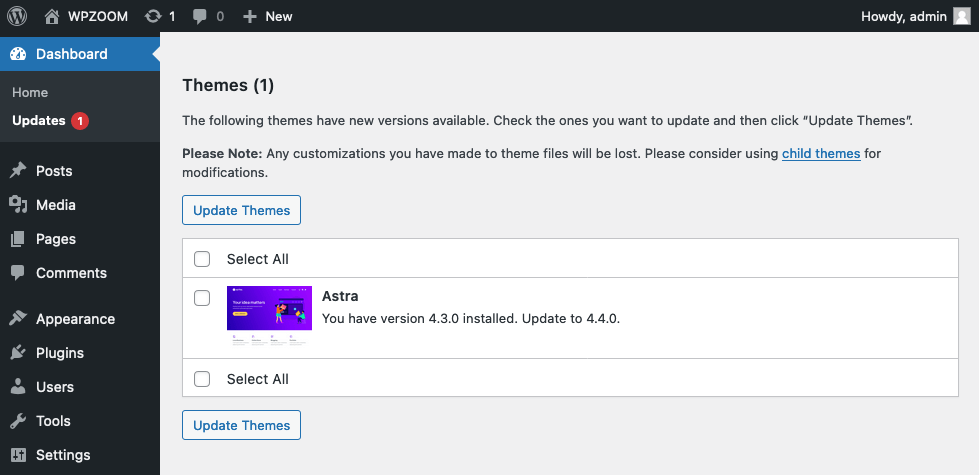
Many themes need regular updates. These updates fix bugs and improve security. Check your theme settings often. Look for any notifications about updates. You can find these in the WordPress dashboard. It is important to keep your theme updated. This helps your website stay safe.
Updated themes must work with your plugins. Check if the new version of the theme is compatible. Read the theme update notes. See if they mention any changes affecting plugins. Test your website after updating. Make sure everything works well. This keeps your website running smoothly.
Frequently Asked Questions
How To Update A WordPress Theme Manually?
Download the theme’s latest version from its source. Deactivate the current theme in WordPress dashboard. Use FTP to replace the old theme files with the new ones. Reactivate the theme from the dashboard. Clear your cache to ensure updates are visible.
Always backup your site before updating.
How Do I Manually Change The Theme In WordPress?
Go to WordPress dashboard, select “Appearance,” then “Themes. ” Click “Add New” to upload or choose a theme. Activate it by clicking “Activate” under the desired theme. Make sure to save changes and check your site for proper display.
How Do I Force A WordPress Theme To Update?
Manually download the latest theme version from the developer’s website. Deactivate the current theme, then upload and activate the new version through the WordPress dashboard. Always back up your site before making changes.
How Do I Edit An Existing WordPress Theme?
Edit a WordPress theme by accessing the theme files via the WordPress dashboard or FTP. Use the Appearance > Theme Editor for direct code edits. Always back up your site before making changes. Consider using a child theme to prevent losing changes during updates.
Conclusion
Updating a WordPress theme manually is simple. Follow the steps carefully. First, backup your site. It prevents data loss. Next, download the theme files. Always get them from a trusted source. Deactivate the current theme. Then, upload the new files.
Activate the updated theme. Check your website for any issues. Ensure everything works smoothly. This process keeps your site fresh and secure. Regular updates enhance your website’s performance. Remember, practice makes perfect. With time, you’ll gain confidence. Keep learning and exploring WordPress features.
It enhances your web management skills. Happy updating!


