
Do you ever wonder why some websites have that neat little icon on their browser tab? It’s called a favicon, and it plays a bigger role in your site’s branding than you might think.
A well-designed favicon not only helps in making your site recognizable at a glance but also enhances user experience by adding a professional touch. If you’re using WordPress and want to make your website stand out, learning how to enqueue a favicon in your theme is a must.
This process might sound technical, but it’s much simpler than you imagine. By the end of this guide, you’ll be equipped with the knowledge to seamlessly integrate a favicon into your WordPress theme, boosting your site’s visual appeal and brand recall. Let’s dive in and get your website the attention it deserves.
Favicon Importance
Brand Recognition is key for any business. A favicon helps with this. It is a small icon that shows on browser tabs. This tiny image makes your site stand out. It is like your brand’s face on the web. People see it and remember your site. A favicon builds trust. Visitors feel confident that they are on the right page. It is essential for a strong online presence.
User Experience matters a lot. A favicon improves it. Browsing becomes easier with favicons. Users can find your site faster. It is especially helpful when multiple tabs are open. This tiny icon saves time and effort. It also makes your site look professional. Users enjoy better navigation. They feel more connected with your brand.
Credit: 10web.io
WordPress Theme Basics
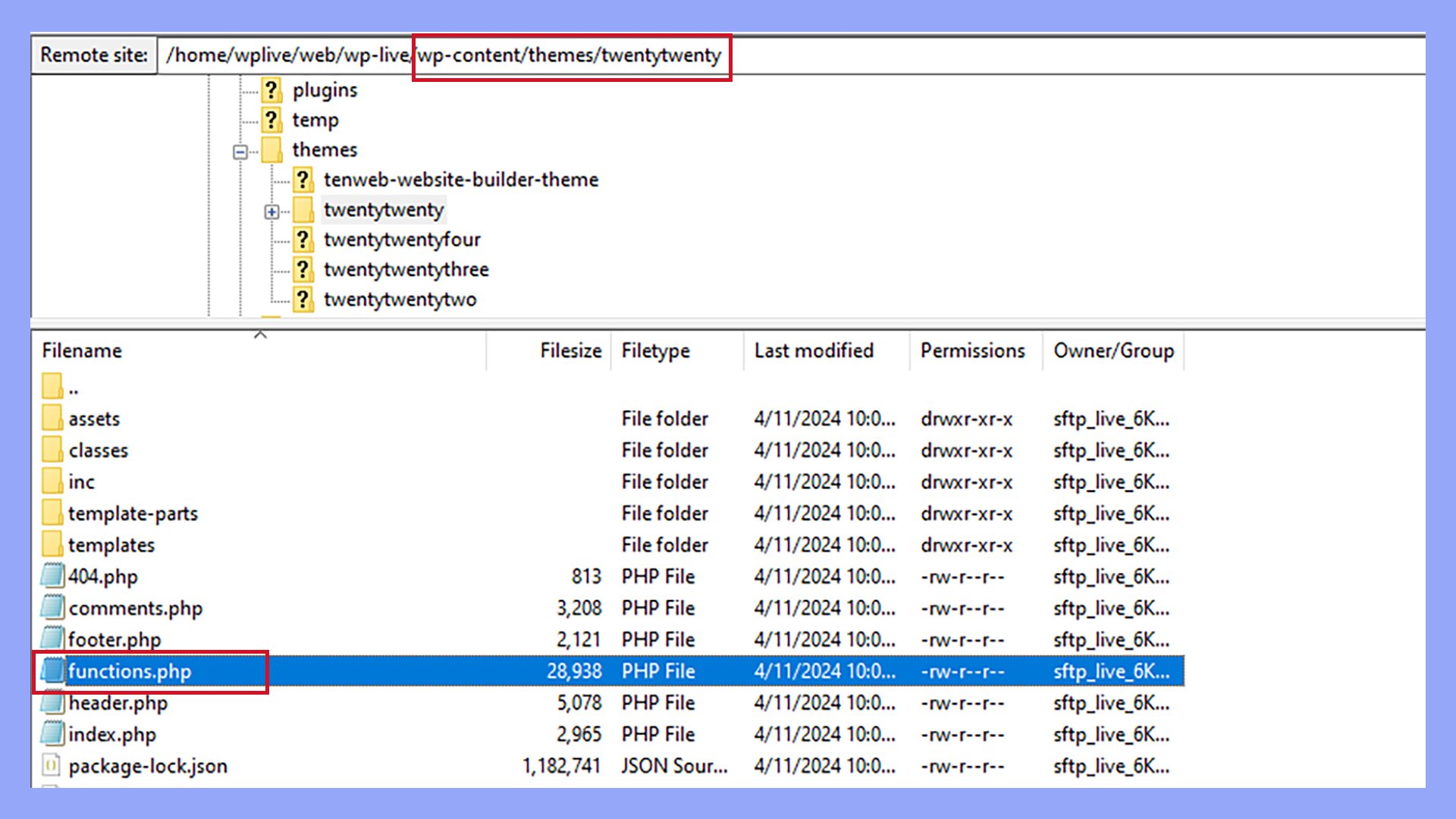
The theme files hold key parts of your site. These files include index.php, style.css, and functions.php. Each file has a special job. The index.php file is the main template. It shows your posts and pages. The style.css file controls how your site looks. It changes colors and fonts. functions.php is like a toolbox. It adds features to your theme.
The functions.php file is important. It lets you add new features. You can enqueue a favicon here. Use the wp_enqueue_script function. This is how you link your favicon. Adding code here is easy. It helps your site work better. Be sure to save your changes. This keeps your site up-to-date.
Preparing The Favicon
Pick a simple and clear design. A favicon is very small. It should be easy to see. Use bold colors. Bright colors are best. Make sure the design is unique. It should stand out.
Favicons need different sizes. Common sizes are 16×16 and 32×32. Create sizes for high-resolution screens too. Use 48×48 and 64×64 for these screens. Some use 128×128 or bigger. These are for special cases. Save in different formats. PNG and ICO are popular. Make sure all look clear.
Uploading Favicon Files
Favicons are small. They need specific formats and sizes. Common formats include ICO, PNG, and SVG. These formats work well on most browsers. The size should be 16×16 pixels or 32×32 pixels. Bigger sizes are for high-resolution displays. Choose the right format and size. This ensures a clear and crisp favicon.
First, go to the WordPress dashboard. Click on Media. Next, select Add New. Drag your favicon file here. Wait for the upload to finish. Now, the favicon is in your library. It’s ready to use. Make sure the file is named correctly. This helps in easy identification.
Adding Code To Functions.php
The functions.php file is key for WordPress themes. It lets you add custom code easily. To enqueue a favicon, use a simple code snippet. This code links the favicon to your site. Place the code inside the functions.php file. It is simple and effective.
Check if your theme supports favicons. Not all themes do. Ensure compatibility with older browsers. This helps users see your favicon correctly. Test the changes across different devices. This ensures everyone sees the favicon. Keeping the design consistent is crucial. A favicon enhances site identity.

Credit: www.youtube.com
Testing The Favicon
Browsers show a small icon in tabs. This icon is called a favicon. It helps people find your site easily. First, open your website in a browser. Look at the tab. See if your favicon appears there. If you can see it, then it works fine. If not, you may need to check your setup.
Browser Visibility
All browsers should show the favicon. Sometimes, it might not display. Try clearing the browser cache. Then, refresh the page. This might solve the issue. Also, check your favicon file size. It should not be too large.
Troubleshooting Common Issues
If the favicon is not visible, check the file path. Ensure it is correct. Sometimes, the file type is the problem. Use a .ico or .png file. Also, verify that your theme supports favicons. Updating the theme may help.
Alternative Methods
Plugins make life easy. They add features to your site. Many plugins help add a favicon. The All In One Favicon plugin is popular. It is simple to use. It supports different formats like ICO, PNG, and GIF. Another option is Favicon by RealFaviconGenerator. It generates favicons for different devices. Easy to install and works well. Plugins make adding favicons quick and easy.
Add a favicon by changing the header.php file. Locate the theme folder. Open header.php. Look for the section. Add the favicon code inside. Use the tag. Point to the favicon file location. Save changes. Refresh the site. The favicon should appear. Remember to back up files first. Mistakes can break the site.

Credit: docs.metabox.io
Frequently Asked Questions
How Do I Add A Favicon To My WordPress Theme?
Go to your WordPress dashboard and select “Appearance” > “Customize”. Click “Site Identity” and upload your favicon under “Site Icon”. Save changes to apply.
Why Is My Favicon Not Showing Up In WordPress?
Your favicon might not show due to cache issues. Clear your browser cache and refresh. Ensure the favicon is uploaded correctly in Appearance > Customize > Site Identity. Check file format compatibility, use. ico,. png, or. jpg. Verify if your theme supports favicons.
Update WordPress and plugins for compatibility.
How To Embed A Favicon?
To embed a favicon, save your icon as “favicon.ico”. Upload it to your website’s root directory. Add “ within the “ section of your HTML. This ensures browsers recognize and display your favicon.
Where Is Favicon Stored In WordPress?
The favicon in WordPress is stored in the Media Library. Access it via your dashboard under “Appearance” and then “Customize. ” Select “Site Identity” to upload or change the favicon. It is saved in your WordPress media files, making it easy to manage and update.
Conclusion
Adding a favicon enhances your WordPress theme’s identity. It’s a small but crucial step. A unique favicon helps visitors recognize your site quickly. Follow the steps mentioned to enqueue a favicon easily. Your site will look more professional and polished.
Remember, consistency is key in branding. A favicon aligns your website with your overall brand image. Keep it simple and relevant to your theme. By doing so, you boost user experience. Your website becomes more memorable. This small change can make a significant impact.
Start today and see the difference!


