
Are you looking to customize your WordPress site beyond the usual options? Editing HTML directly can give you the power to make your website truly unique and tailored to your needs.
But if you’re worried it’s too technical or complicated, don’t be. This guide will walk you through simple steps to edit HTML in WordPress, even if you’re not a coding expert. By the end, you’ll feel confident making changes that improve your site’s look and functionality.
Ready to take control of your website’s design? Let’s dive in.
Accessing Html In WordPress
Accessing the HTML code in WordPress lets you customize your website beyond standard options. It helps you add unique styles and fix small issues fast. You can work on HTML in different editors depending on the WordPress version and your comfort.
Using The Block Editor
The Block Editor is WordPress’s default editor since 2018. It uses blocks for content. To see HTML, select the block you want to edit. Click the three dots in the block toolbar. Choose “Edit as HTML.” Now, you can change the code inside that block. This way, you keep the block structure but adjust the HTML.
Switching To Code Editor
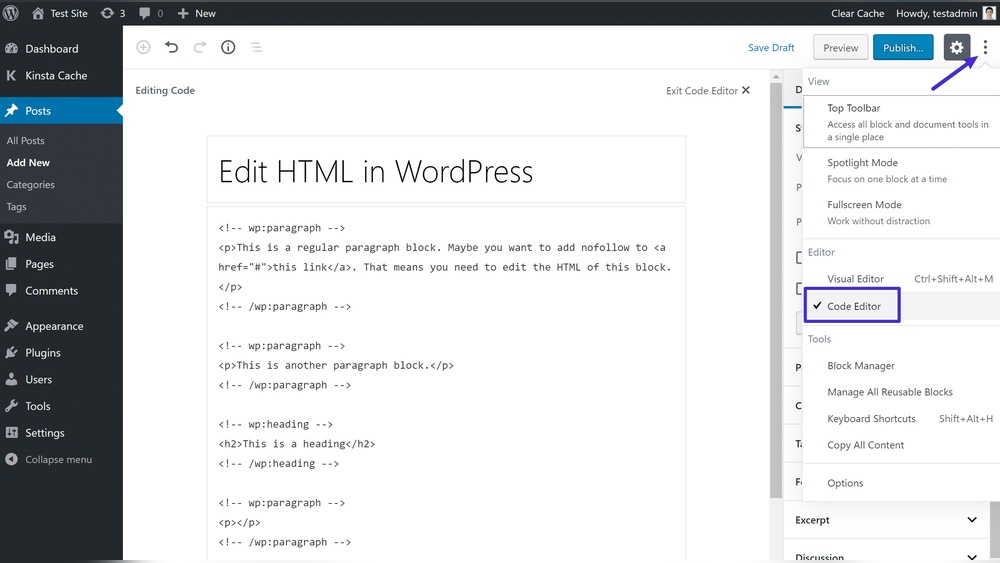
You can switch the whole post or page to Code Editor mode. Click the three dots on the top-right corner of the editor screen. Choose “Code Editor.” The screen changes, showing all content as HTML. This view lets you edit the full HTML of the post or page. It’s useful for bigger changes or cleaning up code.
Editing Html In Classic Editor
The Classic Editor uses a simpler interface with two tabs: Visual and Text. Click the “Text” tab to access HTML. You see all the code for your content here. This editor suits users who prefer a basic view. Make your changes carefully, then switch back to Visual to see the result.
Editing Html In Posts And Pages
Editing HTML in WordPress posts and pages lets you control the look and feel of your content. HTML gives you the power to change structure and style beyond the regular editor. You can fix issues, add special features, or embed extra content. This section explains how to work with HTML in your posts and pages.
Modifying Existing Content
To change HTML in your post, open the editor and switch to the code view. This shows the raw HTML behind your content. Find the part you want to change. Edit tags, text, or attributes carefully. Small changes can affect the whole layout. Save your work and preview the page to check results.
Adding Custom Html Blocks
WordPress lets you add custom HTML blocks easily. In the block editor, choose the “Custom HTML” block. Paste or write your own HTML code there. This block helps you add buttons, tables, or styles not available in the normal editor. Use this feature to create unique content sections.
Embedding External Code
You can embed external code like videos or widgets using HTML. Copy the embed code from the source website. Insert it into a custom HTML block in your post or page. WordPress will show the content directly on your site. Embedding enhances your pages with interactive or multimedia elements.
Editing Theme Html Files
Editing theme HTML files in WordPress lets you change how your site looks and works. Themes control the design and layout of your site. By editing these files, you customize parts like headers, footers, and page structure.
Small changes in HTML can improve your site’s appearance and user experience. It is important to edit safely to avoid breaking your site. Understanding the basics helps you make smart edits with less risk.
Using The Theme Editor
The Theme Editor is a tool inside WordPress. It lets you open and edit theme files directly from your dashboard. You find it under Appearance > Theme Editor. It shows a list of theme files, including HTML templates.
Editing here is quick but risky. Mistakes can break your site. Always create a backup before making changes. The editor highlights code for easy reading. Save changes carefully to update your site.
Working With Template Files
Template files control different parts of your site’s pages. Common files include header.php, footer.php, and page.php. These files contain HTML and PHP code combined. Editing them changes page structure and content display.
Know which file affects which part of your site. Open the file and look for HTML tags to edit. Be careful with PHP code. Small errors can cause errors or blank pages. Test your changes on a staging site first.
Creating Child Themes For Safe Edits
Child themes let you customize without changing the original theme. They inherit all functions from the parent theme. You create new files or override existing ones in the child theme.
This method keeps your edits safe during theme updates. Updates to the parent theme do not erase child theme files. Always use child themes to protect your custom HTML changes.
Credit: www.wpbeginner.com
Using Plugins For Html Editing
Editing HTML directly in WordPress can be tricky for many users. Plugins make this process easier. They offer tools to write and change HTML code without confusion. These plugins help improve the website’s design and function. They provide a user-friendly way to work with code.
Popular Html Editor Plugins
Several plugins stand out for HTML editing in WordPress. “TinyMCE Advanced” enhances the default editor with more options. “WP Editor” offers a clean interface to write and edit code. “Advanced Code Editor” helps with syntax highlighting and error checking. These plugins suit beginners and experienced users alike.
Benefits Of Visual Html Editors
Visual HTML editors show the code and its result together. This feature makes editing easier to understand. Users see changes immediately, saving time. It helps avoid errors by previewing updates. Visual editors reduce the need to know all HTML tags. They make website editing more accessible.
Safety And Backup Tips
Editing HTML can cause errors if done carelessly. Always back up your site before making changes. Use plugins with a backup feature for safety. Test edits on a staging site first. Keep your plugins and WordPress updated to avoid security risks. Small precautions prevent big problems later.
Troubleshooting Html Issues
Troubleshooting HTML issues in WordPress can feel tricky. Errors in your code might break your site’s layout or stop features from working. Fixing these problems quickly helps keep your site clean and user-friendly.
Knowing common HTML errors, checking your code, and restoring past versions are useful steps. These actions help you find and fix mistakes with confidence.
Common Html Errors
Missing closing tags are a frequent issue. Forgetting or can break page structure. Incorrect nesting, like placing a inside a , confuses browsers. Typos in tag names also cause errors. Extra or missing quotation marks in attributes disrupt HTML parsing. These small mistakes affect how your page looks and works.
Validating Your Code
Use online tools to check your HTML. Validators scan your code and highlight errors. They explain what is wrong and where. Validation ensures your HTML follows web standards. Clean code improves site performance and SEO. Copy your HTML into a validator and fix the issues shown.
Restoring Previous Versions
WordPress saves older versions of your posts and pages. This feature helps undo bad changes fast. Open the editor, find the revisions tab, and select a past version. Compare it with the current one to spot problems. Restore the version that works best. This safety net saves time and stress.

Credit: stackoverflow.com

Credit: kinsta.com
Frequently Asked Questions
How Can I Edit Html In WordPress Editor?
You can edit HTML by switching to the Text or Code Editor in WordPress. This lets you directly modify the HTML code of your posts or pages.
Is Editing Html In WordPress Safe For Beginners?
Yes, but be cautious. Editing HTML can break your site if done incorrectly. Always back up before making changes.
Can I Edit Html In WordPress Without A Plugin?
Yes, WordPress’s built-in editor allows HTML editing without plugins. Use the Text or Code Editor mode to access HTML.
How Do I Add Custom Html To WordPress Pages?
In the WordPress editor, switch to Code Editor and insert your custom HTML where needed. Save changes to apply them.
Conclusion
Editing HTML in WordPress helps you control your website’s look. You can fix errors or add new features fast. The process is simple when you follow steps carefully. Always save a backup before making changes. Practice makes editing easier over time.
Keep your site clean and updated for visitors. Try editing small parts first to build confidence. This skill helps improve your website’s design and function. Give it a try and see the difference yourself.


