

Are you wondering how to update PHP on your WordPress site? Keeping your PHP version up to date is crucial for your website’s speed, security, and overall performance.
But if you’re not a tech expert, the process might seem tricky or even risky. Don’t worry—this guide will walk you through every step clearly and simply. By the end, you’ll know exactly how to update PHP without breaking a sweat and keep your site running smoothly.
Ready to make your WordPress site faster and safer? Let’s dive in.
Credit: blog.hubspot.com
Why Update Php On WordPress
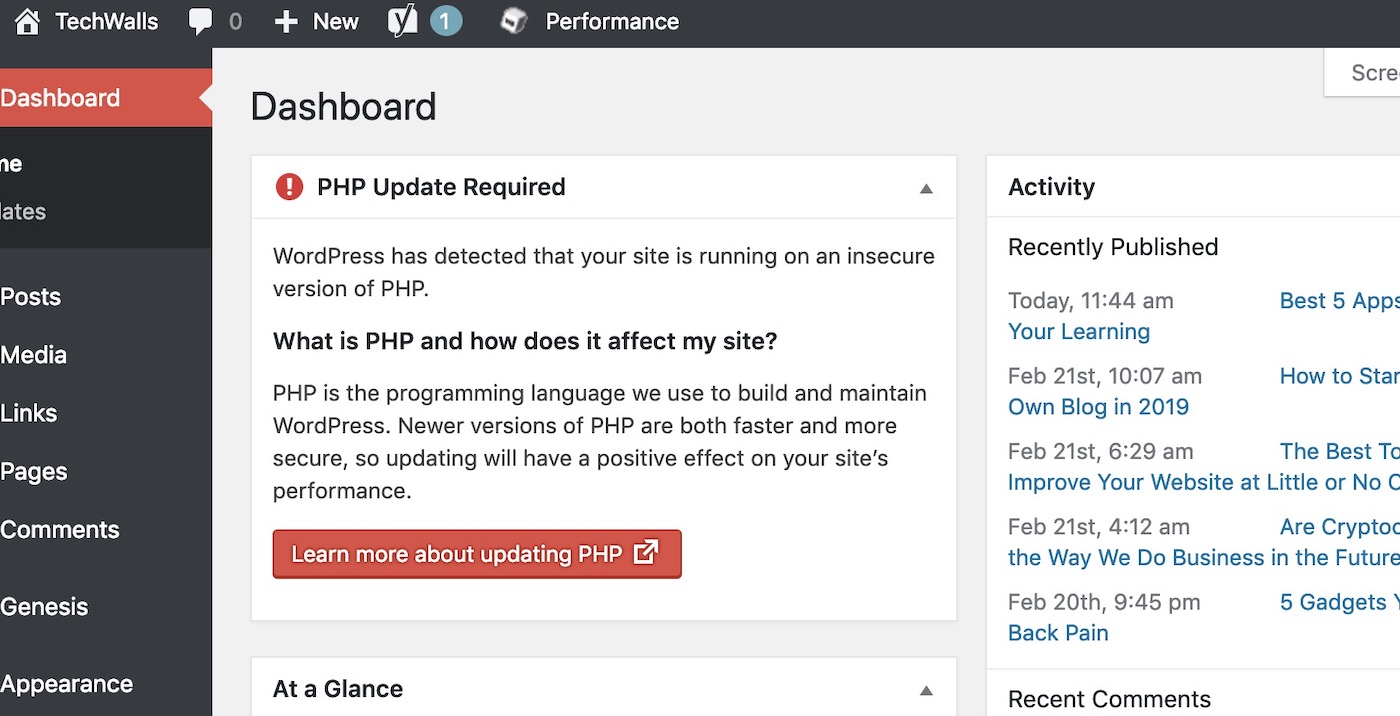
Updating PHP on WordPress is important for many reasons. PHP is the language that runs your WordPress site. Using an old version can cause problems. It can slow down your site and make it less safe. New PHP versions fix bugs and add features. Keeping PHP updated helps your site work better and stay secure.
Security Benefits
New PHP versions fix security holes. These holes let hackers attack your site. Updates close these gaps and protect your data. Running old PHP makes your site easier to hack. Updating PHP lowers the risk of attacks and data loss.
Performance Improvements
PHP updates make your site faster. New versions use less server resources. They process code more quickly and efficiently. A faster site keeps visitors happy. Speed also helps your site rank better in search engines.
Compatibility With Plugins And Themes
Plugins and themes need new PHP versions to work right. Old PHP can cause errors or break features. Developers build their tools for newer PHP versions. Updating PHP ensures your plugins and themes run smoothly without issues.
Check Current Php Version
Before updating PHP on your WordPress site, check the current PHP version. Knowing this helps ensure compatibility and avoid errors. You can check your PHP version in a few simple ways. Choose the method that works best for you.
Using WordPress Site Health Tool
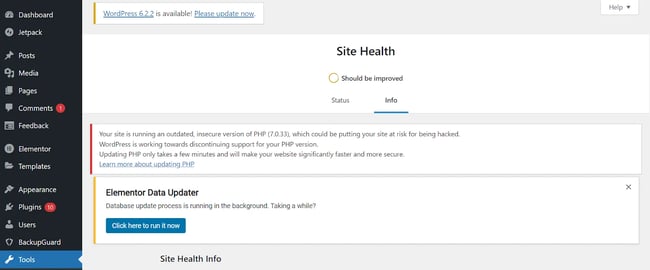
WordPress has a built-in tool to check your PHP version. Go to your WordPress dashboard and open “Tools.” Then click “Site Health.”
Find the “Info” tab inside the Site Health page. Scroll down to the “Server” section. Your PHP version will be listed there clearly. This method is quick and does not require extra steps.
Using Hosting Control Panel
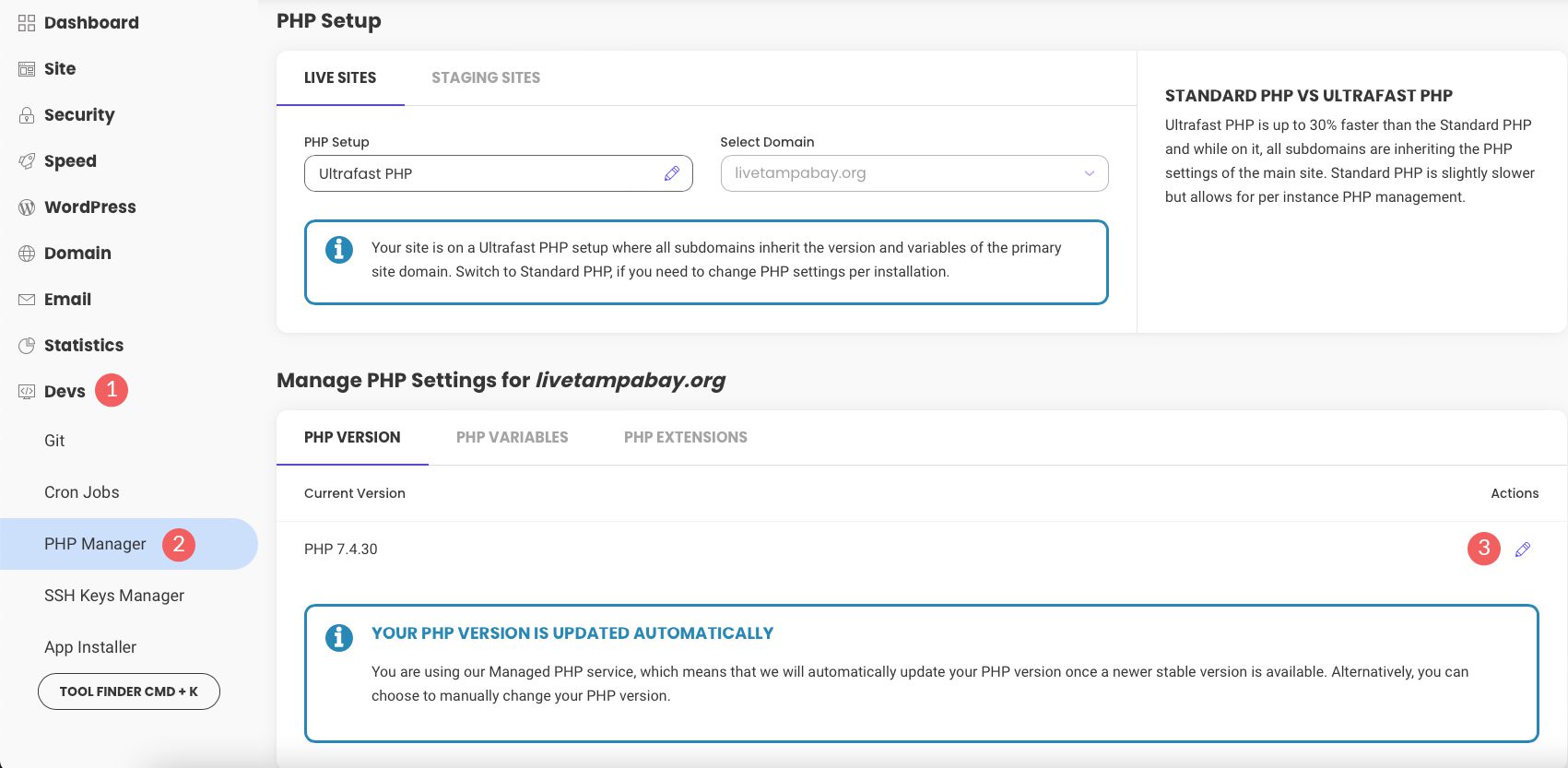
Your hosting provider’s control panel often shows the PHP version. Log in to the control panel like cPanel or Plesk. Look for sections named “Software” or “PHP Settings.”
There, you will see the current PHP version running on your server. Some panels also allow you to change the PHP version directly. This method is useful if you want to update PHP soon.
Using Php Info File
Create a simple PHP info file to check the version manually. Open a text editor and add this line: php phpinfo(); ?. Save the file as phpinfo.php.
Upload this file to your WordPress root directory using FTP or your control panel. Then open your browser and visit yourwebsite.com/phpinfo.php. The PHP info page will show your version and other details.
Delete the phpinfo.php file after checking to keep your site secure.
Backup Your Website
Backing up your WordPress website is a critical step before updating PHP. It protects your site’s data and files from loss or damage. A reliable backup lets you restore your website if something goes wrong during the update. Taking time to back up ensures peace of mind and site safety.
Full Site Backup
A full site backup saves all your website files. This includes themes, plugins, images, and uploads. It also keeps WordPress core files intact. Full backups create a complete copy of your site. You can restore everything exactly as it was before.
Database Backup
Your WordPress database stores posts, pages, comments, and settings. Backing up the database separately is important. It protects your content and configurations. Database backups are smaller and faster to create. They offer a quick way to recover your site’s information.
Choosing Backup Plugins
Backup plugins simplify the backup process. They automate saving and storing your website data. Choose plugins that are easy to use and reliable. Look for features like scheduled backups and cloud storage options. Popular plugins often have good support and regular updates.
Update Php Via Hosting Panel
Testing your website’s compatibility after updating PHP is very important. It ensures your site runs smoothly without errors. This step helps avoid downtime and keeps visitors happy. You need to check if themes, plugins, and the site itself work well with the new PHP version.
Check For Plugin And Theme Issues
Plugins and themes may not support the latest PHP version right away. Start by reviewing all active plugins and themes. Look for updates or notes from developers about PHP compatibility. Disable plugins one by one if you see errors. This helps find which plugin causes trouble. Also, switch to a default theme to check if your theme is the problem.
Use Staging Environment
A staging environment is a copy of your live website. It lets you test PHP updates safely without affecting visitors. Make the PHP update on the staging site first. Check all pages, forms, and functions. Fix issues before applying changes to the live site. Many hosts offer easy staging setup with one click.
Troubleshoot Common Errors
Common errors after PHP updates include white screens, broken pages, or error messages. Enable debugging mode in WordPress to see error details. Check the error logs for clues. Fix errors by updating incompatible plugins or themes. You can also restore a backup if needed. Clear your cache to see changes correctly.
Test Website Compatibility
Updating PHP on WordPress can be tricky. Plugins help check if your site works well with newer PHP versions. They scan your themes and plugins. These tools highlight problems before you update PHP. This makes the update safer and smoother.
Php Compatibility Checker
The PHP Compatibility Checker plugin scans your WordPress site. It looks for code that may not work in newer PHP versions. The plugin shows a list of issues found. You can see which plugins or themes cause problems. This helps you fix errors before updating PHP. It saves time and prevents site crashes.
Alternative Plugin Options
Besides PHP Compatibility Checker, other plugins also help. Tools like WP Engine PHP Compatibility and PHP Compatibility by WP Engine offer similar scans. They provide detailed reports on compatibility issues. Using these alternatives gives more options. You can choose the best fit for your site. These plugins keep your WordPress site safe during PHP updates.
Credit: www.elegantthemes.com
Use Plugins For Php Compatibility
Updating PHP manually on WordPress gives you more control over your website’s environment. This method is useful for advanced users and developers. It requires access to your server and some technical knowledge.
Manual updates ensure your site uses the latest PHP version. This helps improve performance and security. Below are two common ways to update PHP manually.
Using Ssh And Command Line
SSH lets you connect to your server securely. You can update PHP directly using command line tools. First, log in to your server using an SSH client like PuTTY or Terminal.
Next, check your current PHP version by typing php -v. To update PHP, use your server’s package manager. For example, on Ubuntu, run sudo apt update and sudo apt install php. After installation, verify the new PHP version again.
Restart your web server to apply changes. Use commands like sudo systemctl restart apache2 or sudo systemctl restart nginx. This step completes the PHP update process via SSH.
Custom Php Configuration
Some hosting providers allow custom PHP configurations. You can create or edit a php.ini file to change PHP settings. This file controls how PHP runs on your server.
To update PHP manually, upload the new PHP version files to your server. Then, configure the php.ini file for your needs. You might need to adjust memory limits or error reporting settings.
Custom PHP configuration helps optimize your site’s performance. It also allows you to enable or disable PHP extensions. Make sure to restart your web server after changes.
Manual Php Update Methods
Updating PHP on your WordPress site is important for security and speed. After the update, some steps help keep your site running smoothly. These best practices prevent problems and improve performance. Follow them to get the most from your PHP update.
Clear Cache And Cdn
Clear your site cache after updating PHP. Cached files might cause errors or show old content. Clear your browser cache too. If you use a CDN, clear its cache. This ensures visitors see the latest version of your site. It helps avoid conflicts with the new PHP version.
Monitor Site Performance
Watch your site closely after the update. Check for slow loading pages or broken features. Use tools like Google PageSpeed Insights to track speed. Look for any error messages in your WordPress dashboard. Fix issues quickly to keep visitors happy and safe.
Regular Php Updates
Keep your PHP version updated regularly. New versions fix bugs and improve security. Set a schedule to check for updates every few months. Staying current helps your site run fast and protect against threats. It also keeps your WordPress themes and plugins working well.
Credit: www.techwalls.com
Frequently Asked Questions
How Do I Check My Current Php Version In WordPress?
To check your PHP version, log in to your WordPress dashboard. Go to Tools > Site Health > Info tab. Expand the Server section to see the current PHP version your site uses. This helps determine if you need an update for better performance and security.
Why Should I Update Php On My WordPress Site?
Updating PHP improves your site’s speed, security, and compatibility. Newer PHP versions fix vulnerabilities and enhance performance. It also ensures your themes and plugins work smoothly, preventing errors or crashes caused by outdated PHP versions.
Can I Update Php Without Breaking My WordPress Site?
Yes, but take precautions. Backup your site and database first. Test the update on a staging site if possible. Update your themes and plugins to the latest versions to avoid compatibility issues during the PHP update.
How Do I Update Php Version Via Hosting Control Panel?
Log in to your hosting account’s control panel. Locate the PHP settings or PHP version manager. Select the desired PHP version compatible with WordPress and save the changes. Your site will use the new PHP version immediately or after a short delay.
Conclusion
Updating PHP on WordPress keeps your site safe and fast. It improves compatibility with themes and plugins. Always back up your site before starting the update. Check your hosting provider’s tools for easy PHP upgrades. Test your website after updating to spot any issues.
Regular updates help your site run smoothly and avoid errors. Stay proactive to protect your online presence and offer visitors a better experience.


