
Imagine this: You’ve found the perfect WordPress theme that beautifully showcases your brand or personal blog. But as time goes by, new features and updates come out, leaving your theme in the past.
You don’t want to miss out on these enhancements, right? Updating your WordPress theme can seem daunting, but it doesn’t have to be. In this guide, you’ll discover the step-by-step process to keep your theme fresh and up-to-date. Whether you’re a WordPress novice or a seasoned pro, you’ll find actionable tips to ensure your site remains secure, fast, and stylish.
Dive in, and learn how easy it is to give your website the makeover it deserves!
Backup Your Website
Website backups are very important. They keep your website safe. If something goes wrong, you can restore it. Sometimes, updates can cause problems. Backups help fix these issues quickly. Always make sure to backup your site. This way, you don’t lose important data. Backups are like a safety net.
There are many tools for backups. Some are free, others cost money. UpdraftPlus is a popular choice. It is easy to use. Another option is BackupBuddy. It offers good features. You can also try Jetpack. It provides automatic backups. These tools make the backup process simple. Choose one that fits your needs.
Check Theme Compatibility
First, check the theme’s minimum requirements. Look for the right WordPress version. Also, check PHP version. Older versions might cause issues. Ensure your server meets these needs. Always read theme documents. They help with details. Understand what the theme needs. Follow these requirements closely. It ensures smooth updates. Avoid problems later.
Plugins can affect themes. Some plugins may not work with new themes. Check plugin compatibility. Update or replace outdated plugins. Sometimes, conflicts happen with updates. Test plugins after theme changes. Check site functionality. Make sure everything works smoothly. Backup your site beforehand. It protects your data. Prevents loss if things go wrong.
Updating Through WordPress Dashboard
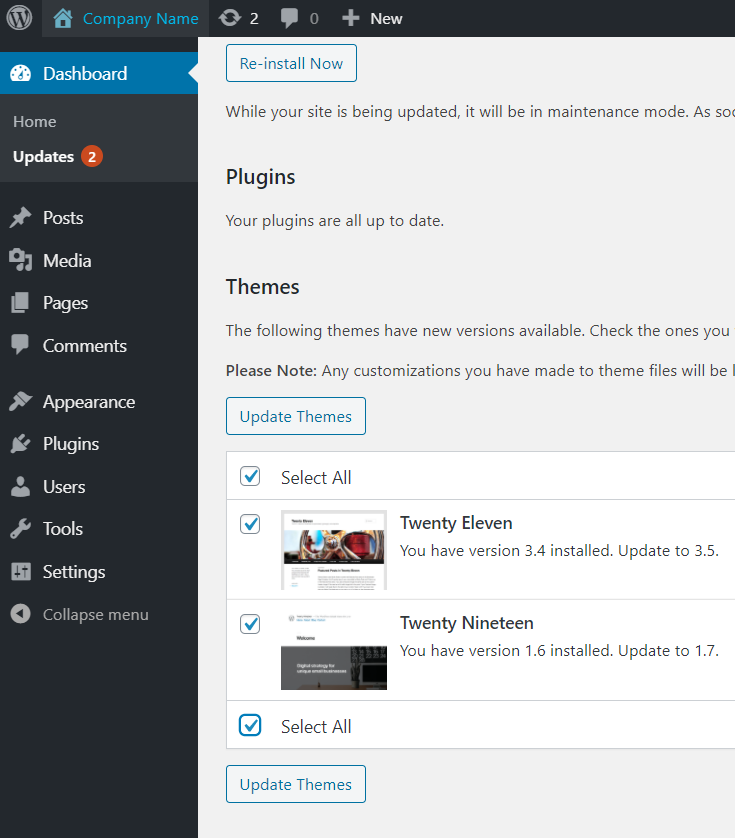
Access the WordPress dashboard to update your theme easily. Navigate to “Appearance,” then “Themes. ” Click “Update” below the theme needing an update.
Locating Theme Updates
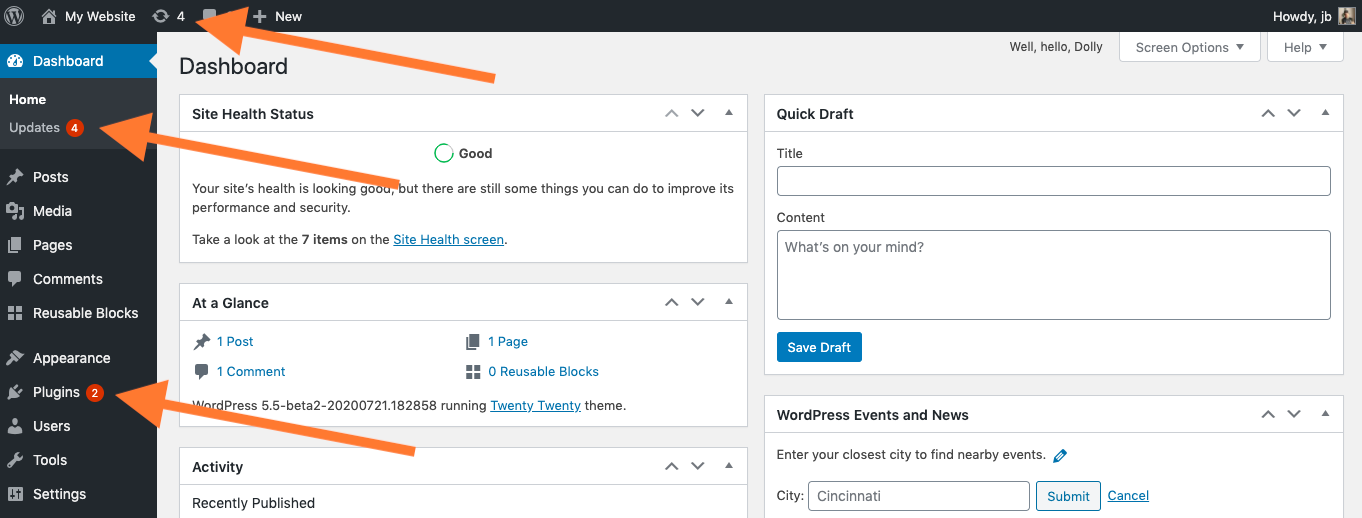
First, log into your WordPress dashboard. Go to the Appearance section. Click on Themes. Here, you can see all your themes. Look for a theme with an update notification. This notification shows which themes need updates. Click on the update link. It is usually next to the theme title. This will help you proceed with the update process.
Manual Update Process
Download the latest version of your theme. Visit the theme developer’s website. Get the updated theme files. Now, go back to your WordPress dashboard. Navigate to Appearance and then Themes. Click on the Add New button. Upload the new theme version. Make sure to activate it after uploading. This ensures your site uses the new features and fixes.
Updating Via Ftp
First, you need an FTP client. FileZilla is a good choice. Open the client and enter your website’s FTP credentials. You can find these in your hosting account. Connect to your server. Now, you can see your website files. This is your site’s file directory.
Navigate to the wp-content folder. Inside, you will see the themes folder. This folder holds all theme files. Make a backup of your current theme. Just in case. Download the theme files to your computer. You are now ready to replace them.
Download the new theme version from the official source. Extract the files on your computer. Open the FTP client again. Go to the themes folder in your website directory. Upload the new theme files. Overwrite the old files if prompted. This step updates your theme.
After uploading, check your website. Ensure everything looks correct. If something seems wrong, use your backup. Restore the old theme files. Always keep a backup for safety. It helps in case things go wrong. Updating themes keeps your site secure and fresh.
Updating Via Theme Upload
First, visit the theme’s official website. Find the latest version. Click the download button. Save the file to your computer. Make sure it’s a zip file. Check the file size. Ensure it’s not corrupted. It’s important to have a stable internet connection. This prevents download errors. You can also check the theme’s changelog. It helps understand new features.
Log in to your WordPress dashboard. Go to Appearance and then Themes. Click Add New at the top. Select the Upload Theme button. Choose the downloaded zip file. Click Install Now. Wait for the upload to finish. Once done, activate the theme. Check your website to ensure everything looks fine. You might need to clear your cache. This helps to see the changes.
Credit: www.wpzoom.com
Testing After Update
Checking Site Functionality is very important. First, open your website. Look at every page. Click on links and buttons. Make sure they work. Check forms. See if they send messages. Test your site on different browsers. Use Chrome, Firefox, and Safari. Use your phone too. Websites should work everywhere. Ask a friend to visit your site. They might find problems you missed.
Verifying Customizations ensures all changes remain. Customizations make your site unique. Look at your logo and colors. Check if they stayed the same. Review fonts and text size. Make sure they did not change. Look at custom menus. See if they work like before. Check special plugins. They should still be there. If anything is wrong, fix it quickly. Keep your site looking good.
Troubleshooting Common Issues
Updating a theme in WordPress can fix bugs and improve security. First, back up your site. Then, navigate to the dashboard, select “Appearance,” and click “Themes. ” Choose your theme and hit “Update. ” Always ensure compatibility with plugins to avoid issues.
Resolving Error Messages
Some error messages pop up during theme updates. These can be annoying. Many times, plugin conflicts cause these messages. Deactivate plugins one by one. Check if the problem goes away. Server issues might also cause errors. Ensure your server meets the theme’s requirements. File permission errors can block updates too. Check your file permissions in the WordPress directory. Set them correctly. Be sure to follow WordPress guidelines.
Reverting To Previous Version
Updated themes sometimes have bugs. Reverting back helps fix these issues. First, backup your site before any update. Use a backup plugin for this task. Keep old theme files handy. Go to your dashboard. Click on themes. Choose the older version. Activate it again. Your site should return to its previous state. Always have a backup plan. It saves you from trouble.
Credit: www.inmotionhosting.com
Credit: wordpress.org
Frequently Asked Questions
How Do I Edit An Existing WordPress Theme?
To edit an existing WordPress theme, access the WordPress dashboard. Navigate to Appearance > Theme Editor. Choose the theme file you want to edit. Make necessary changes using HTML, CSS, or PHP. Save your changes. Always back up your theme before editing to prevent data loss.
Do WordPress Themes Update Automatically?
WordPress themes do not update automatically by default. You must manually update them through the dashboard. Enable automatic updates by navigating to “Themes” and selecting “Enable Auto-updates” for each theme. Regular updates ensure security and compatibility, keeping your website running smoothly.
Always back up your site before updating themes.
Can I Change A WordPress Theme Without Losing Content?
Yes, you can change a WordPress theme without losing content. Your posts, pages, and media remain intact. Always back up your site and check compatibility before switching themes. Some theme-specific features might require reconfiguration. After changing, review your site’s appearance and settings to ensure everything displays correctly.
How Do I Manually Change The Theme In WordPress?
Go to your WordPress dashboard. Click on “Appearance”, then “Themes”. Choose your desired theme and click “Activate”.
Conclusion
Updating a WordPress theme is a simple process. Always back up your site first. This ensures no data loss. Next, check for theme updates in your dashboard. Click “update” when available. If using a custom theme, update manually. Download the latest version.
Then, upload it via FTP. Remember to clear your cache. This ensures new changes appear. Regular updates improve security and functionality. Your website stays fresh and efficient. Enjoy a smooth WordPress experience by keeping themes current. Happy updating!


