
Switching your domain from Namecheap to Wix can seem like a daunting task, but it doesn’t have to be. If you’re looking to streamline your online presence and take full advantage of Wix’s user-friendly website building tools, you’re in the right place.
Imagine your website running smoothly, with seamless integration and fewer technical headaches. This guide will walk you through each step, simplifying the process and ensuring you make the switch without a hitch. Whether you’re a seasoned webmaster or a complete beginner, you’ll find everything you need right here.
Stick around to discover how easy it can be to transfer your domain and enhance your website with Wix.

Credit: www.youtube.com
Preparing For Domain Transfer
Transferring a domain from Namecheap to Wix involves several steps. First, unlock your Namecheap domain. Next, get the transfer code. Finally, enter it on Wix’s domain transfer page. Follow these steps carefully. Your domain will switch smoothly.
Switching a domain from Namecheap to Wix might sound daunting at first. However, with the right preparation, you can make the process smooth and efficient. Understanding the steps involved and gathering necessary information beforehand can save you time and avoid potential pitfalls. Let’s dive into how you can prepare effectively for transferring your domain, ensuring a seamless transition.Check Domain Eligibility
Before you start the transfer process, ensure your domain is eligible for transfer. Domains usually need to be at least 60 days old. If your domain doesn’t meet this criteria, you’ll need to wait. Also, make sure your domain is unlocked, as a locked domain cannot be transferred.Verify Contact Information
Ensure your contact information on Namecheap is accurate. This includes your email address, as transfer notifications will be sent there. If your email is incorrect, you might miss critical updates. Double-check your details to avoid any hiccups during the transfer.Backup Your Website Data
While transferring domains, your website data remains intact. However, it’s wise to backup all your website files and data. Having a backup provides peace of mind in case anything unexpected happens during the transfer.Gather Authorization Code
You’ll need an authorization code from Namecheap to initiate the transfer. This code, also known as EPP code, acts like a password for your domain. Locate this in your Namecheap account settings and keep it handy for the transfer process.Consult Wix Support
Wix offers excellent support resources for domain transfers. Consider reaching out to their support team or browsing their help center for detailed instructions. This ensures you’re well-informed and ready to tackle any issues that arise. Are you ready to make the move? With these preparations in place, transferring your domain from Namecheap to Wix can be a straightforward process. What steps are you taking to ensure a smooth transition?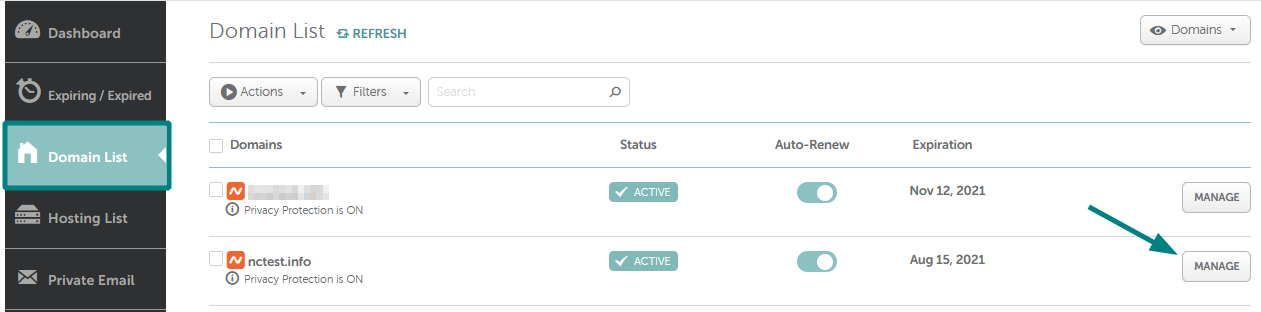
Credit: www.namecheap.com
Initiating Domain Transfer In Namecheap
Switching a domain from Namecheap to Wix is a straightforward process. It requires some essential steps to ensure a smooth transition. Initiating the domain transfer in Namecheap is the first crucial step. This process involves unlocking your domain and obtaining an authorization code. These steps are necessary for a seamless transfer to Wix.
Unlock Your Domain
Log into your Namecheap account. Navigate to the “Domain List” section. Find the domain you want to transfer. Click on “Manage”. Look for the “Domain Lock” setting. Make sure it is set to “Off”. This unlocks your domain for transfer.
Get The Authorization Code
Stay on the same page after unlocking your domain. Scroll down to the “Sharing & Transfer” section. Click on “Get EPP Code”. The EPP code is essential for the transfer. Namecheap will send it to your registered email address. Check your inbox for the code.
Verify Your Domain Contact Information
Ensure your contact details are up-to-date. Check the “Domain Contacts” section. Update any outdated information. Accurate details are crucial for a successful transfer. This ensures you receive all necessary notifications.
Disable Whoisguard Protection
If WhoisGuard is enabled, turn it off. Go to the “WhoisGuard” section. Switch the toggle to “Off”. Disabling it allows Wix to access your domain details. This step is vital for a smooth transfer process.
Completing Domain Setup In Wix
Switching a domain from Namecheap to Wix involves a few simple steps. Start by updating the DNS settings in Namecheap. Then, connect your domain to Wix through the site’s dashboard.
Completing the domain setup in Wix is a crucial step when transferring your domain from Namecheap. It ensures that your website is accessible to your audience with the new domain. If you’ve ever wondered how to make this transition smoothly, you’re not alone. Many website owners have navigated this journey, and with a few practical steps, you can too. Let’s dive into the specifics of how you can complete your domain setup in Wix. ###1. Accessing The Wix Dashboard
To start, you need to log into your Wix account. Navigate to your site’s dashboard. This is the control center where you manage all aspects of your site. It might seem like a lot at first, but take a deep breath and explore. ###2. Connecting Your Domain
Once in the dashboard, look for the option to connect a domain. Click on “Connect a Domain You Already Own.” This directs you to a straightforward form where you’ll enter your domain name. Have you ever filled out a form and felt unsure? Wix makes this part easy and intuitive, ensuring you don’t feel lost. ###3. Updating Dns Settings
Next, you’ll need to update your DNS settings. This step is like giving directions to your website. In Namecheap, head to your DNS settings page. You will need to replace the current DNS with Wix’s name servers. Have a notepad handy. Jot down the Wix name servers and carefully input them into Namecheap. This ensures your domain points to your Wix site seamlessly. ###4. Verifying Domain Connection
After updating the DNS settings, return to Wix and verify the domain connection. Wix will check if your domain is correctly pointing to your site. This might take a few minutes, so grab a coffee and relax. During my first transfer, I was nervous about this waiting period. But remember, if everything is set correctly, there’s nothing to worry about. ###5. Checking Domain Propagation
Domain propagation can take up to 48 hours. This is the time it takes for changes to spread across the internet. Keep an eye on your site during this time. Do you enjoy watching your favorite series? Think of this as a mini-break while the internet does its job. ###6. Troubleshooting Common Issues
Sometimes, issues arise, and that’s okay. Check if the DNS settings are correct. Ensure there are no typos in the name servers. Have you ever fixed a minor issue and felt a wave of triumph? This is no different. Once resolved, your site will be live and ready for your audience. Completing the domain setup in Wix doesn’t have to be daunting. By following these steps, you’ll have your domain connected in no time. What part of the setup surprised you the most? Share your experiences in the comments!
Credit: www.youtube.com
Frequently Asked Questions
Can I Transfer A Namecheap Domain To Wix?
You can’t directly transfer a Namecheap domain to Wix. First, unlock your domain on Namecheap. Then, initiate the transfer process via Wix. Ensure your domain is eligible and follow the instructions provided by Wix. This process usually takes several days to complete.
How Do I Transfer A Domain Out Of Namecheap?
Unlock your domain in Namecheap account. Obtain the authorization code. Initiate transfer with new registrar. Approve transfer via email. Transfer completes in 5-7 days.
How Much Does It Cost To Transfer A Domain To Wix?
Transferring a domain to Wix costs $14. 95. This fee covers the domain transfer process. Make sure your domain is eligible for transfer. You can manage your domain settings easily on the Wix platform.
How Do I Transfer My Domain Name From One Website To Another?
To transfer your domain, unlock it and obtain the authorization code. Initiate the transfer with your new registrar, enter the code, and confirm the transfer. Ensure your contact information is updated. The process may take several days to complete.
Conclusion
Switching a domain from Namecheap to Wix can seem tough. But with clear steps, it becomes manageable. Start by accessing your Namecheap account. Then, find the domain settings and get the authorization code. Next, go to Wix and enter the code to transfer.
Wait for the process to complete. It usually takes a few days. Remember, patience is key. Once done, your domain will be live on Wix. Enjoy the new platform. Feel free to explore Wix’s features. They might offer more than you expected.
Keep your site updated regularly. This ensures smooth operation.


