

Are you struggling to redirect a page in WordPress and worried about losing your visitors? Redirecting pages is a simple but powerful way to guide your audience exactly where you want them to go.
Whether you’ve changed your site’s structure or want to fix broken links, knowing how to set up redirects can save you time and keep your site running smoothly. You’ll discover easy, step-by-step methods to redirect your WordPress pages without any hassle.
Keep reading, and you’ll master this essential skill that can boost your site’s performance and user experience.
Why Redirect Pages
Redirecting pages in WordPress helps manage your site better. It sends visitors from one URL to another. This keeps your site organized and user-friendly. Redirects also help protect your SEO rankings and improve user experience.
Benefits Of Redirects
Redirects stop visitors from seeing broken pages. They guide users to the right content quickly. This keeps visitors on your site longer. Search engines like Google also see your site as reliable. Redirects save your SEO by passing page authority to new URLs. They prevent losing traffic from old or changed links.
Common Redirect Scenarios
Redirects are useful after changing a page URL. They help when deleting old pages to avoid 404 errors. Redirects work if you move your site to a new domain. They also help in fixing duplicate content issues. Redirects assist when combining several pages into one. These situations make redirects necessary to keep your site smooth.

Credit: www.youtube.com
Types Of Redirects
Redirects guide users and search engines from one page to another. They help keep your website organized and maintain traffic. Different types of redirects serve different purposes. Choosing the right type affects SEO and user experience.
301 Permanent Redirect
This redirect tells browsers the page has moved permanently. Search engines transfer ranking power to the new page. Visitors automatically go to the new URL. Use it when you change a page’s address for good.
302 Temporary Redirect
This redirect signals a temporary change in page location. Search engines keep the original page indexed. Users are sent to the new URL only for now. Use it during short-term site updates or testing.
Meta Refresh Redirect
This redirect happens on the page itself, not the server. It uses a delay before sending users to another page. Search engines may not pass ranking power with it. Best avoided for SEO but useful for simple redirects.
Using Plugins For Redirects
Using plugins to redirect pages in WordPress is simple and effective. Plugins save time by handling redirects without coding. They offer easy tools to set up redirects quickly. This method is perfect for beginners and busy site owners.
Popular Redirect Plugins
Several plugins help manage redirects with ease. Redirection is one of the most popular and free options. It tracks 404 errors and creates redirects automatically. Simple 301 Redirects offers a clean and easy interface for basic redirects. Yoast SEO includes redirect features along with SEO tools. Each plugin serves different needs but all simplify the redirect process.
Step-by-step Setup
First, install your chosen redirect plugin from the WordPress plugin directory. Activate the plugin after installation. Next, find the plugin’s settings page in your dashboard. Add the URL you want to redirect from in the source field. Then, enter the destination URL where visitors should go. Save the redirect to activate it. Test the redirect by visiting the old URL. Confirm it sends you to the new page. Adjust or add more redirects as needed.
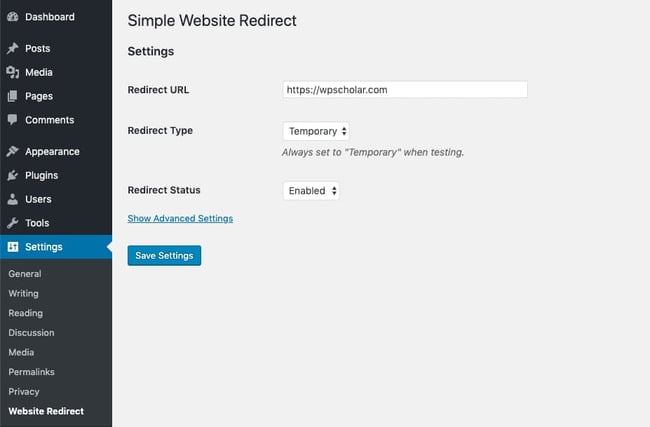
Credit: blog.hubspot.com
Manual Redirects Via .htaccess
Manual redirects via the .htaccess file offer a powerful way to control how visitors reach your WordPress pages. This method works on the server level, making redirects fast and reliable. It is especially useful for permanent or temporary URL changes without using plugins. Directly editing the .htaccess file lets you manage redirects with precision.
Editing .htaccess File
The .htaccess file is located in your WordPress root directory. Access it using an FTP client or your hosting file manager. Always create a backup before making changes. Open the .htaccess file with a plain text editor. Add redirect rules carefully to avoid site errors. Save your changes and test the redirects immediately. Incorrect edits can cause site downtime.
Redirect Syntax Examples
Use simple commands for different types of redirects. To redirect one page to another permanently, use:
Redirect 301 /old-page.html https://yourdomain.com/new-page.html
To redirect a whole folder, use:
RedirectMatch 301 ^/old-folder/(.)$ https://yourdomain.com/new-folder/$1
For temporary redirects, replace 301 with 302. These examples help you control traffic effectively. Always test your redirects after adding them.
Redirects With Php Code
Redirecting pages with PHP code in WordPress allows you to control where visitors land. This method is useful when you want a quick redirect without plugins. PHP redirects work by sending a new location header to the browser.
Using PHP for redirects requires adding code to your theme files or using WordPress functions. These methods are simple and effective for many redirect needs.
Adding Redirect In Theme Files
You can add redirect code directly in your theme’s functions.php file. This method sends visitors from one URL to another automatically. Place the code at the top of the file to ensure it runs early.
For example, use this code to redirect a specific page:
if (is_page('old-page')) { wp_redirect(home_url('/new-page/')); exit; } This checks if the visitor is on “old-page” and sends them to “new-page”. Always add exit; after wp_redirect to stop further code running.
Using Wp_redirect Function
The wp_redirect function is the best way to send a redirect in WordPress. It handles the URL and HTTP status code cleanly. You can use it for 301 (permanent) or 302 (temporary) redirects.
Example of a 301 redirect:
wp_redirect('https://example.com/new-page', 301); exit; Use this inside hooks like template_redirect to make sure it runs at the right time. This method is reliable and works well with WordPress themes and plugins.
Testing Your Redirects
Testing your redirects is a key step after setting them up in WordPress. It confirms that visitors reach the correct page without errors. Proper testing avoids broken links and improves user experience. It also helps search engines understand your site better. Always test redirects on different devices and browsers to ensure consistency.
Tools For Checking Redirects
Several tools can help check if redirects work properly. Redirect Checker is a simple online option. It shows the status code and the redirect path. Browser developer tools also reveal redirect information in the network tab. Screaming Frog SEO Spider scans your whole site to find redirect chains. These tools save time and catch issues early.
Troubleshooting Common Issues
Redirect loops happen when pages redirect to each other endlessly. This causes browser errors and must be fixed quickly. Clear your browser cache to avoid false errors during tests. Check your redirect rules in plugins or .htaccess files for conflicts. Make sure the redirect target URL is correct and active. Fixing these errors ensures smooth navigation for visitors.

Credit: totalwptheme.com
Frequently Asked Questions
How Do I Create A 301 Redirect In WordPress?
To create a 301 redirect, use a plugin like Redirection or edit your. htaccess file. This tells search engines the page has permanently moved.
Can I Redirect Pages Without A Plugin In WordPress?
Yes, by adding redirect rules in your. htaccess file or using PHP header functions in your theme’s functions. php file.
Why Should I Use 301 Redirects On My WordPress Site?
301 redirects help preserve SEO rankings by signaling permanent page moves. They improve user experience by preventing broken links.
How Do I Redirect A WordPress Page To Another Url?
Install a redirect plugin or add redirect code in. htaccess. Enter the old page URL and destination URL to set up the redirect.
Conclusion
Redirecting a page in WordPress is simple and useful. It helps visitors find the right content fast. You can use plugins or edit your site’s files directly. Always choose the method that fits your skill level best. Test your redirects to make sure they work well.
Good redirects improve user experience and SEO. Keep your site organized and easy to navigate. Small steps like these make a big difference. Try redirecting your pages today and see the benefits.



