

Are you struggling to find the right way to login to your WordPress admin? You’re not alone.
Getting access to your WordPress dashboard is the first step to managing your website, but it can sometimes feel confusing if you’re new. Imagine having full control over your site’s content, design, and settings right at your fingertips. This guide will walk you through each simple step to login quickly and securely.
By the end, you’ll feel confident accessing your WordPress admin whenever you need. Ready to unlock your website’s full potential? Let’s dive in.
Locate WordPress Admin Url
Finding the WordPress admin URL is the first step to access your website dashboard. This URL lets you log in and manage your site’s content, settings, and design. Knowing where to find this URL saves time and avoids confusion.
Most WordPress sites use a standard admin URL. Sometimes, website owners change this URL for security reasons. Both default and custom URLs are important to understand.
Default Admin Urls
The most common WordPress admin URL ends with /wp-admin. You add this to your website’s main address. For example, www.yoursite.com/wp-admin.
Another default option is /wp-login.php. This also leads to the login page. Both URLs work the same way on most sites.
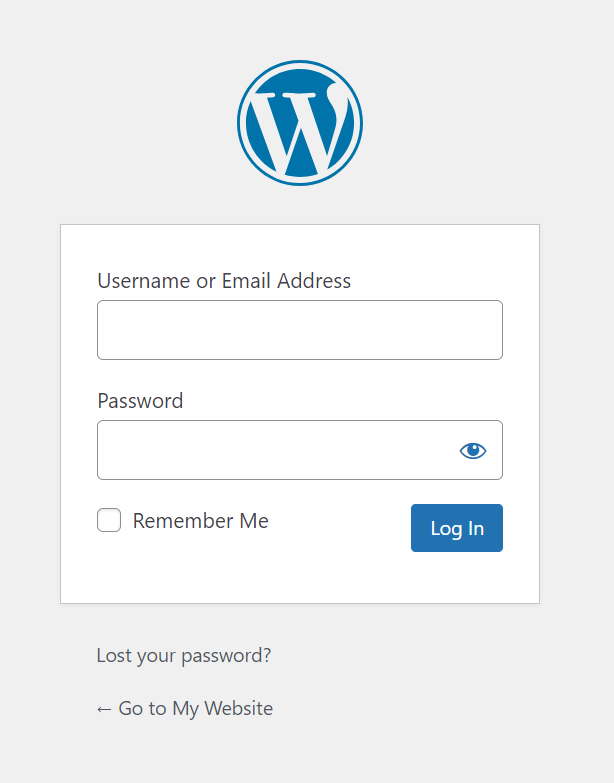
These URLs open the login screen where you enter your username and password. After login, you get access to your WordPress dashboard.
Custom Login Urls
Some websites change their admin URL for extra security. This helps stop hackers from guessing the login page.
Custom URLs can look like www.yoursite.com/my-login or any other name. Only the site owner knows this address.
To find a custom URL, check your site’s email or ask your developer. Some plugins also change the login URL automatically.
Remember, using a custom URL adds a layer of protection to your WordPress admin area.
Credit: www.hostinger.com
Access The Login Page
Accessing the WordPress login page is the first step to managing your website. It is simple and quick. Knowing the right URL helps you reach the admin area without hassle.
This guide shows easy ways to find and save the login page. Save time and avoid confusion every time you want to log in.
Using Browser
Open your web browser. Type your website’s address followed by /wp-admin or /wp-login.php. For example, www.yoursite.com/wp-admin. Press Enter. This opens the WordPress login page.
If your website uses a custom login URL, check your site setup or ask your developer. The standard URL works for most WordPress sites.
Bookmarking For Future
Once on the login page, bookmark it. Click the star icon or bookmark option in your browser. Name it “WordPress Login” for easy access.
Using bookmarks saves time. You do not need to type the URL every time. Simply click the bookmark to open the login page fast.
Enter Login Credentials
Entering your login credentials is the key step to access your WordPress admin panel. This step keeps your website safe and ensures only authorized users can make changes. You need to provide the correct username and password to move forward.
Take your time to enter each detail carefully. A small mistake can block your access. Understanding how to use your username, password, or email helps in logging in smoothly.
Username And Password Tips
Your username is your identity on the WordPress site. Use a unique username that is easy to remember but hard to guess. Avoid common names like “admin” or “user”.
Passwords must be strong. Use a mix of letters, numbers, and symbols. Change your password regularly to keep your site secure. Never share your password with others.
Using Email To Login
WordPress allows login using your registered email address instead of a username. This can be easier to remember. Make sure you use the email linked to your WordPress account.
Check your email spelling carefully. A small typo can cause login errors. Using email to login provides flexibility and can help if you forget your username.

Credit: jetpack.com
Troubleshooting Login Issues
Login problems can stop you from accessing your WordPress admin area. These issues may happen for many reasons. This section helps you fix common login troubles fast. Follow these clear steps to get back into your dashboard.
Resetting Password
Forgot your password? Use the “Lost your password?” link on the login page. Enter your username or email address. WordPress sends a password reset link to your email. Check your inbox and spam folder. Click the link to create a new password. Make sure to choose a strong but easy-to-remember password.
Clearing Browser Cache
Sometimes your browser stores old data that blocks login. Clear your browser cache and cookies to fix this. Open browser settings and find the clear browsing data option. Select cache and cookies, then confirm. Restart the browser and try to log in again. This step often resolves loading and login errors.
Disabling Plugins
Plugins can cause conflicts that stop login access. Access your website files using FTP or hosting file manager. Go to the wp-content folder and rename the plugins folder to something else. This action disables all plugins temporarily. Try logging in now. If successful, rename the folder back and disable plugins one by one. Identify the problem plugin and remove or update it.
Enhancing Login Security
Keeping your WordPress admin login safe is crucial. Weak security can lead to hackers gaining access. Protecting your site starts with strong login defenses. Small steps make a big difference in stopping attacks.
Two-factor Authentication
Two-factor authentication (2FA) adds a second step to login. You enter a code from your phone after your password. This extra step blocks most unauthorized access. Many plugins offer easy 2FA setup for WordPress. It helps keep your admin area much safer.
Limiting Login Attempts
Limiting login attempts stops repeated password guessing. After several tries, the system locks the user out. This reduces the risk of brute force attacks. Plugins can track and limit login attempts automatically. It’s a simple way to improve your login security.

Credit: www.temok.com
Frequently Asked Questions
How Do I Access The WordPress Admin Login Page?
To access the WordPress admin login, add “/wp-admin” or “/wp-login. php” after your site’s URL. For example, www. yoursite. com/wp-admin. This directs you to the login screen where you enter your username and password to manage your site.
What Are Common Login Issues With WordPress Admin?
Common login issues include incorrect passwords, browser cache problems, or plugin conflicts. Reset your password if needed, clear your browser cache, or disable plugins via FTP to resolve access issues quickly and regain control of your WordPress dashboard.
Can I Customize The WordPress Admin Login Url?
Yes, you can customize the admin login URL using security plugins like WPS Hide Login. This enhances security by hiding the default login page and reducing the risk of brute force attacks on your WordPress site.
How Do I Reset My WordPress Admin Password?
To reset your WordPress admin password, click “Lost your password? ” On the login page. Enter your username or email to receive a password reset link. Follow the link to create a new secure password and regain access to your admin panel.
Conclusion
Logging into WordPress admin is simple and quick. Just enter your username and password at the login page. Keep your details safe to protect your site. If you forget your password, use the reset option. Regular logins help you manage your site easily.
Now you know how to access your WordPress dashboard. Start managing your content with confidence today.


