Are you looking to hide a page on your WordPress site but don’t know where to start? Maybe you want to keep certain content private or only share it with a select group.
Whatever your reason, hiding a page can help you control who sees what. You’ll discover simple and effective ways to hide your WordPress pages without any confusion or hassle. By the end, you’ll have the tools to manage your site exactly how you want.
Ready to take control of your content? Let’s dive in.
Credit: rankmath.com
Why Hide A Page In WordPress
Hiding a page in WordPress can be very useful for many reasons. Sometimes, you want to keep certain content private. Other times, you want to prepare a page before showing it to the public. Understanding why to hide a page helps you control your website better.
Protect Sensitive Information
Some pages hold private details. These might be for staff only or specific users. Hiding these pages keeps your information safe. It stops visitors from seeing data they should not access.
Work On Content Before Publishing
You might want to create a page but not show it yet. Hiding the page lets you edit and improve it. Your visitors see only finished, polished content. This helps keep your site professional.
Limit Access To Specific Users
Sometimes, only certain users should see a page. For example, members or customers. Hiding pages from general visitors allows this. It helps you manage who sees what on your site.
Reduce Clutter On Your Website
Not all pages need to be visible all the time. Hiding less important pages keeps your site clean. Visitors find the main content easily. It improves user experience and navigation.
Test New Features Or Designs
Hiding pages helps test new ideas quietly. You can try out layouts or functions without public view. This way, you fix problems before anyone notices.
Methods To Hide Pages
Hiding pages in WordPress can help you control who sees your content. Different methods offer various levels of privacy and ease. Some ways hide pages completely, while others limit access to certain users. Choose the method that fits your needs best.
Password Protect A Page
WordPress lets you add a password to any page. Only visitors with the password can view the page. This method is simple and effective. No plugins needed. Just edit the page, find the visibility settings, and set a password.
Use Private Page Settings
Marking a page as private hides it from the public. Only logged-in users with permission can see it. It won’t appear in search results or menus. This method works well for team or member-only pages.
Exclude Pages From Navigation Menus
Removing a page from your menu keeps it hidden from casual visitors. The page still exists and can be found by direct link. This method is good for pages under construction or special offers.
Use Plugins For Page Visibility
Plugins offer more control over who sees your pages. They can hide pages by user role or membership level. Some plugins also schedule when pages appear or disappear. Many free and paid options are available in the WordPress plugin library.
Password Protecting A Page
Password protecting a page on WordPress helps you control who sees your content. This method requires visitors to enter a password before accessing the page. It is an easy way to hide sensitive or private information from the public. Password protection keeps your content safe without deleting or moving the page.
Many website owners use this feature for exclusive content, member areas, or private announcements. WordPress offers a simple built-in option for this task. No extra plugins are needed, making it quick to set up.
Steps To Add Password Protection
Open your WordPress dashboard and go to Pages. Choose the page you want to protect. Click the Edit button to open the page editor. On the right side, find the “Visibility” option under the “Status & Visibility” panel. Click the link that says “Public” or “Visibility.” Select “Password Protected.” Enter the password you want visitors to use. Save or update the page to apply changes. Now, visitors must enter this password to view the page content.
Pros And Cons
Password protection is easy to use and built-in. No need to install extra tools or plugins. It works well for simple privacy needs. Visitors only need a password to access the page.
On the downside, passwords are shared easily. Anyone with the password can see the page. It is not the best method for high-security needs. Also, search engines may still index the page unless blocked separately. Password protection is a basic privacy tool, not a full security solution.
Setting Pages To Private
Setting pages to private in WordPress helps control who sees your content. It is a simple way to hide a page from the public without deleting it. This method keeps your page safe and accessible only to certain users. Private pages do not appear in search results or public menus. They offer a quick solution for content meant for limited viewers.
How To Mark A Page As Private
Open your WordPress dashboard and go to Pages. Select the page you want to hide. On the right side, find the “Visibility” option in the “Publish” box. Click “Edit” next to Visibility. Choose “Private” from the options. Click “OK” to confirm. Finally, hit “Update” or “Publish” to save changes.
Who Can View Private Pages
Only logged-in users with editor or administrator roles can see private pages. Visitors or subscribers cannot access these pages. Private pages stay hidden from the public and search engines. This setting helps share content with trusted users only. It works well for team projects or internal information.
Removing Pages From Menus
Removing pages from menus helps keep your website clean and user-friendly. It allows you to hide pages without deleting them. This method is useful for pages under construction or private content. You control what visitors see in your navigation menus easily.
Editing Menus In WordPress
Go to your WordPress dashboard. Find the “Appearance” section and click “Menus.” Here, you see all menus used on your site.
Select the menu where the page appears. To remove a page, click the down arrow next to it. Then, click “Remove.”
After removing the page, click “Save Menu.” The page will no longer show in your site’s navigation.
Hiding Pages From Sidebar Or Footer
Sidebars and footers often use widgets to show pages. To hide a page here, go to “Appearance” and then “Widgets.”
Find the widget that displays pages or links. You can remove the widget or adjust its settings. Some widgets let you exclude certain pages by ID.
Another option is using plugins to control which pages appear in sidebars or footers. This gives more precise control over visibility.
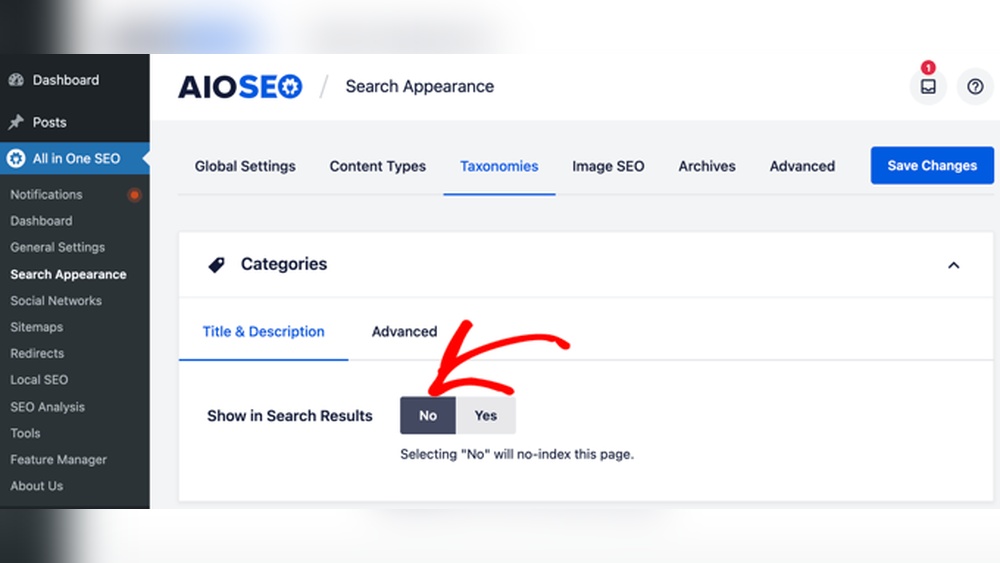
Credit: aioseo.com
Plugins To Control Page Visibility
Plugins offer a simple way to control page visibility in WordPress. They help you hide pages without touching any code. These tools are perfect for beginners or anyone who wants quick results. Using plugins saves time and reduces errors. You can easily set who sees what on your site.
Recommended Plugins
Several plugins stand out for controlling page visibility. “Hide Page and Post” lets you hide pages from visitors and search engines. “User Access Manager” controls access based on user roles. “WP Private Content Plus” restricts content for certain users. Each plugin has easy options to hide or show pages as needed. Choose one that fits your site’s needs and your comfort level.
How To Configure Visibility Settings
After installing a plugin, you will find new options in your page editor. Usually, a visibility box appears where you can select who can see the page. You might choose to hide it from all visitors or just certain users. Some plugins let you schedule when a page appears or disappears. Save your settings and test by logging out or using a different browser. Adjust as needed until the page is hidden correctly.
Tips For Managing Hidden Pages
Managing hidden pages in WordPress needs care and attention. These pages are not visible to everyone but still play a role in your site’s function and SEO. Knowing how to handle them well keeps your site organized and secure.
Regularly Review Page Permissions
Check who can see your hidden pages often. Permissions might change with new users or plugins. Make sure only the right people have access to these pages. This prevents unwanted views or edits.
Use WordPress settings or plugins to control access. Set roles clearly and update them as needed. A regular review helps keep your site safe.
Keep Seo In Mind When Hiding Pages
Hidden pages can affect your site’s search ranking. Use “noindex” tags to tell search engines not to list these pages. This avoids duplicate content problems.
Also, avoid hiding pages that have important links. Hidden pages should not break your site’s link structure. Keep your sitemap clean and updated for better SEO results.

Credit: wpmanageninja.com
Frequently Asked Questions
How Do You Hide A Page In WordPress Without Plugins?
You can hide a WordPress page by setting its visibility to “Private” or “Password Protected” in the page settings. This limits access without needing plugins and keeps the page out of public menus and search engines.
Can I Hide A WordPress Page From Search Engines?
Yes, you can hide a WordPress page from search engines by using SEO plugins like Yoast to set the page to “noindex. ” This prevents search engines from indexing the page, keeping it hidden from search results.
How To Exclude A WordPress Page From Navigation Menus?
To exclude a page from menus, go to Appearance > Menus and manually remove the page. Alternatively, use custom menu options to control which pages appear in navigation.
Is It Possible To Hide WordPress Pages From Certain Users?
Yes, you can restrict page access by user roles using membership or content restriction plugins. This hides pages from unauthorized users and controls content visibility effectively.
Conclusion
Hiding a page in WordPress keeps your site clean and organized. You control what visitors see. This helps protect private or draft content. Use simple settings or plugins to hide pages easily. Always check your site after hiding to be sure.
Keep your WordPress site user-friendly and neat. Try these steps today and see the difference.