
Have you ever wondered what SQL version your WordPress site is using? Knowing this can be crucial for optimizing your site’s performance and ensuring compatibility with plugins and themes.
It can also help you troubleshoot issues more effectively. If you’re feeling a bit lost trying to uncover this information, don’t worry—you’re not alone. Many WordPress users find themselves puzzled by the technical details hidden behind their website’s dashboard. But here’s the good news: finding the SQL version doesn’t have to be a daunting task.
This guide will walk you through simple steps to uncover this essential piece of information. By the end of it, you’ll feel more confident managing your WordPress site. Curious? Let’s dive in and unlock the secrets of your site’s SQL version.
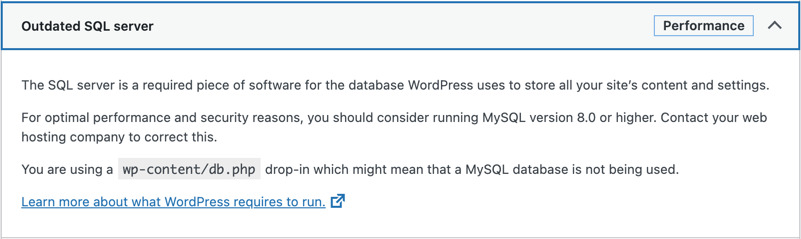
Credit: tualatinweb.com
Importance Of Knowing Sql Version
Knowing the SQL version used by WordPress is very important. It helps keep your site secure and fast. Each SQL version has different features and bugs. Understanding these can help you make better choices. You can fix problems faster. SQL versions affect how plugins and themes work. Some plugins need a newer version to run well. Without the right version, your site might face errors.
SQL version can change how your data is stored and managed. This impacts your site’s performance. Knowing the version helps in troubleshooting. If your site slows down, the SQL version could be the reason. Regularly checking the SQL version is a good habit. It helps keep your site running smoothly and safely.
Accessing The WordPress Database
phpMyAdmin is a tool to manage MySQL databases. First, log into your hosting panel. Find the phpMyAdmin option. Click to open it. This tool shows all your database tables. Look for the WordPress database. Click on it to explore. You can see the SQL version in the information section. Usually, it appears at the top or under the settings tab. This method is simple and quick.
The command line is another way to check your SQL version. Open your terminal or command prompt. Connect to your server using SSH. Type mysql -V command. This command will show the version number. Ensure you have the right permissions. This method is good for users comfortable with commands. It’s effective and direct.
Finding Sql Version Via Phpmyadmin
First, open your browser. Type the phpMyAdmin URL. Enter your username and password. This will let you access the dashboard. The dashboard is where you manage databases. Make sure you have the correct credentials.
Once inside, look for the server information. It’s usually on the main page. You can see different tabs at the top. Click on the “Server” tab. This tab shows important details about your SQL server.
Find the “Server version” section. It displays the SQL version number. This number tells you what version you are using. Write it down if you need to remember. It’s helpful for troubleshooting.

Credit: buildnumbers.wordpress.com
Checking Sql Version Via Command Line
First, you need to open the Terminal or Command Prompt. These are tools that help you talk to your computer. On a Mac, find Terminal in Applications. On Windows, search for Command Prompt in the search bar. Open it and get ready to type commands.
Type a command to check the SQL version. Use mysql -V for MySQL. Use psql –version for PostgreSQL. Press Enter after typing the command. Your computer will show the version in a few seconds.
The result will show numbers. These numbers tell you the SQL version. For example, 5.7.33 means version 5.7.33. Look for numbers after the command name. They are usually after MySQL or PostgreSQL. This helps you know which version is running.
Using WordPress Plugins
Plugins can help find the SQL version easily. They are simple tools. Some plugins are free. Others might need payment. It is important to choose the right one. Always check reviews before installing.
Recommended Plugins
Several plugins are popular. They work well with WordPress. WP-ServerInfo is a good choice. It shows SQL version quickly. Query Monitor is another great option. It offers more details about the database.
Steps To Install And Use
First, go to your WordPress dashboard. Click on “Plugins” and then “Add New”. Search for the plugin name. Click “Install Now”. After installing, click “Activate”. Go to the plugin settings. Find the section that shows the SQL version. Follow these steps for each plugin.
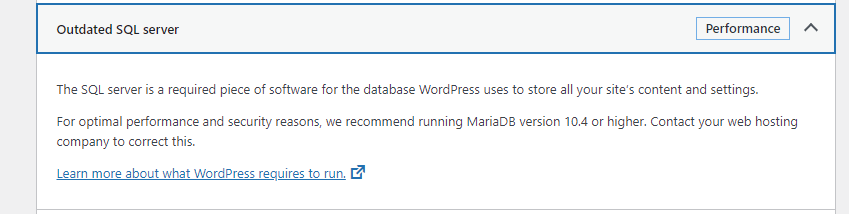
Credit: forum.virtualmin.com
Interpreting Sql Version Information
SQL has two types of versions: major and minor. The major version is the first number. It shows big changes. The minor version is the second number. It shows small updates.
WordPress needs the right SQL version to work. Each WordPress version has its own SQL needs. Using the wrong SQL can break things. Always check WordPress requirements before updating SQL. This keeps your site safe and running.
Troubleshooting Common Issues
Version mismatch problems can cause headaches. This happens when the WordPress version and SQL version don’t match. WordPress updates often. SQL also updates often. Both need to be compatible. Use PHPMyAdmin to check your SQL version. Log in, and the version displays on the home page. If versions mismatch, WordPress may not work properly. Plugins might fail too. Always make sure to check compatibility before updating.
Updating SQL Safely is crucial. First, back up your database. This prevents data loss. Use tools like UpdraftPlus for backups. Next, check your hosting provider. They often provide SQL updates. Follow their instructions carefully. Test the update on a staging site first. This ensures safety before going live. After updating, check everything works fine. Look for errors or broken features. If issues arise, contact your host for support.
Frequently Asked Questions
How To Check Sql Version In WordPress?
To check the SQL version, access your WordPress hosting control panel. Navigate to the database section and find the database information. Alternatively, you can use phpMyAdmin to view the server version by clicking on the “Status” tab.
Can Plugins Reveal WordPress Sql Version?
Yes, certain plugins can display the SQL version. Database management plugins often have features that reveal such information. Make sure to choose a reliable plugin to ensure accurate data.
Why Know The Sql Version Used By WordPress?
Knowing your SQL version helps ensure compatibility with WordPress updates. It also assists in troubleshooting database-related issues and optimizing performance. Regularly updating SQL is vital for security and efficiency.
Is It Necessary To Update Sql For WordPress?
Yes, updating SQL is crucial for security and compatibility. New versions often fix bugs and enhance performance. Ensure your server meets WordPress’s minimum SQL requirements to prevent issues.
Conclusion
Finding your WordPress SQL version is straightforward. Access your database tools. Check the version information. This helps ensure compatibility. Protects against errors. Keeps your site running smoothly. Regular updates are crucial. They improve security and performance. Make it a routine check.
It prevents potential issues. You gain better control over your site. Remember, a well-maintained site is essential. It boosts user experience. Enhances trust and reliability. Stay informed and proactive. Your site will thank you.


