

Your website’s footer might seem like a small detail, but it plays a big role in how visitors experience your site. Whether you want to add contact info, social media links, or a simple copyright notice, knowing how to edit the footer in WordPress puts you in control of your site’s look and feel.
If you’ve ever felt stuck or unsure about changing your footer, this guide is made just for you. You’ll discover easy and clear steps to customize your footer—no coding skills needed. Ready to make your footer work harder for your site?
Let’s dive in and transform that footer into a powerful part of your WordPress website.
Credit: www.hostinger.com
Editing Footer Via Customizer
The WordPress Customizer offers a simple way to change your website’s footer. It lets you update content and style without coding. This tool is perfect for beginners. You see changes in real-time. It makes editing fast and clear. Follow these steps to edit your footer using the Customizer.
Accessing Footer Settings
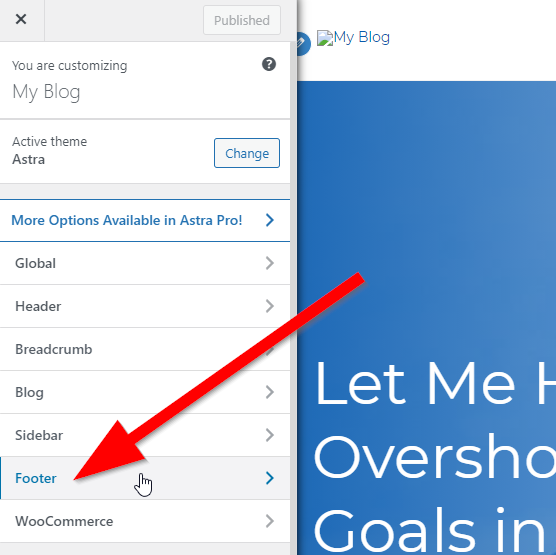
Log in to your WordPress dashboard. Go to Appearance in the menu. Click Customize. The Customizer panel opens on the left. Look for the Footer section. Click it to see all footer options. Some themes may name it differently, like Footer Settings or Footer Options. This area controls your footer content and design.
Changing Footer Content
Inside the Footer section, find text or widget areas. You can edit copyright text or add links. Use the available fields to type new content. Widgets let you add menus, images, or social icons. Drag and drop widgets to reorder them. Some themes allow you to add HTML for more control. Keep your footer content clear and useful for visitors.
Styling Footer Elements
The Customizer also lets you change the look of your footer. Find options for colors, fonts, and background. Pick colors that match your brand. Change font size and style for better readability. Some themes offer layout choices like columns or full width. Adjust padding and margins to create space. Small style changes can improve your website’s appeal.
Saving Footer Changes
After editing, preview your footer on different screen sizes. Make sure everything looks good on mobile and desktop. Click the Publish button at the top of the Customizer panel. This saves your changes live on the website. You can return to the Customizer any time to update your footer again.
Credit: www.crazyegg.com
Using Site Editor For Footer
The Site Editor in WordPress offers a simple way to customize your website’s footer. It uses blocks, so you can add, remove, or move elements easily. This tool gives full control over the footer design without needing code. Below, learn how to use the Site Editor to update your footer quickly and clearly.
Navigating To Footer Template
Open your WordPress dashboard. Click on “Appearance” and select “Editor.” The Site Editor will load. Look for the “Templates” tab or icon. Find and click the “Footer” template to open it. This view shows all footer blocks ready for editing. You can now change any part of your footer.
Adding And Removing Blocks
Inside the footer template, click the plus (+) button to add new blocks. Choose blocks like text, images, or menus to enhance your footer. To remove a block, select it and click the three dots menu. Then choose “Remove block.” This way, you keep your footer clean and focused on important content.
Rearranging Footer Layout
To move blocks, click on the block you want to shift. Use the drag-and-drop handle or arrow buttons to change its position. Rearranging helps organize your footer for better look and function. Place important items like contact info or social links where visitors see them first.
Saving Footer Edits
After making changes, look for the “Save” button in the top right corner. Click it to apply your edits to the live site. Always save your work before leaving the editor. This ensures all changes appear correctly on your website footer.
Managing Footer Widgets
Managing footer widgets in WordPress lets you add useful content to your site’s bottom area. Widgets can display menus, text, images, or social links. You can control what appears in the footer by editing these widgets. This section explains how to manage footer widgets step-by-step.
Opening Widgets Section
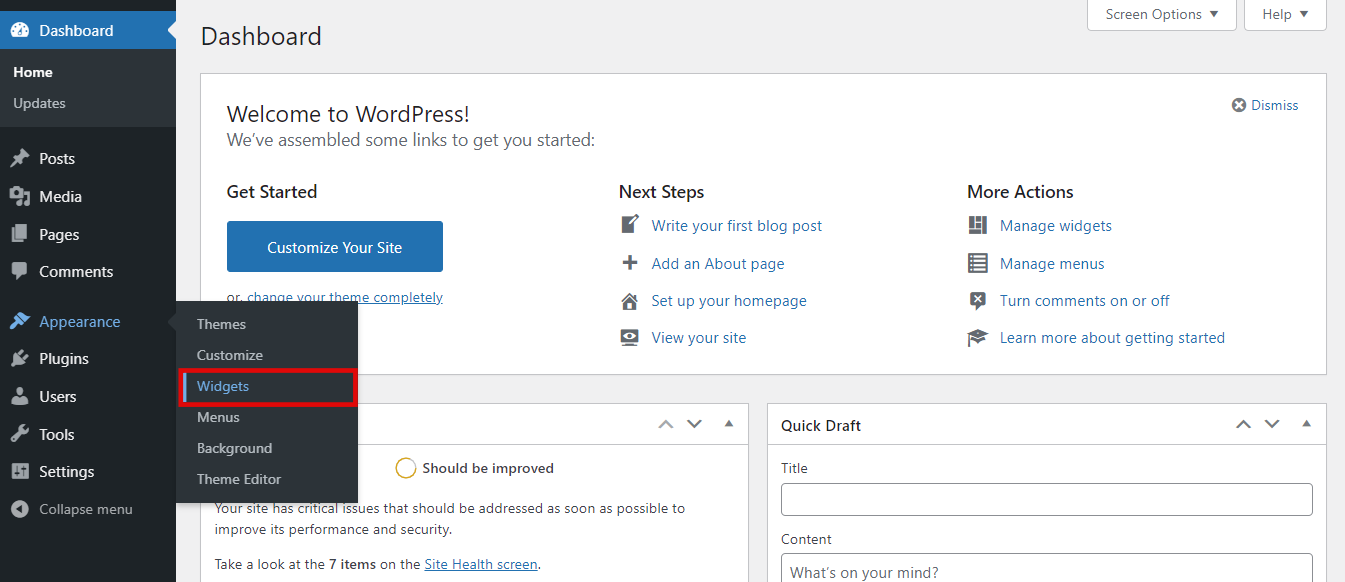
First, log in to your WordPress dashboard. Go to Appearance in the left menu. Click on Widgets. This opens the widget management page. Here, you see all available widget areas, including the footer sections. Some themes offer multiple footer widget areas.
Adding Widgets To Footer
To add a widget, find the widget you want on the left side. Drag it to the footer area on the right. You can also click the widget and select the footer area from the list. Release the mouse button to drop the widget into the footer. The widget now appears in your site’s footer.
Customizing Widget Content
Click the down arrow on the widget to open its settings. Enter the title and content you want visitors to see. This could be text, links, or images depending on the widget type. After editing, click Save. The changes update your website’s footer immediately.
Organizing Widget Areas
You can rearrange widgets in the footer by dragging them up or down within the same area. This changes the order they appear on your site. To remove a widget, drag it back to the left side or click Delete. Organizing widgets helps keep your footer clean and user-friendly.
Editing Footer With Page Builders
Editing the footer with page builders offers a simple way to create unique and functional footers. Page builders provide a visual interface. It helps users design without coding knowledge. You can build footers that fit your website style. The process involves opening the footer editor, customizing the template, adding elements, and publishing the design.
Opening Page Builder Footer Editor
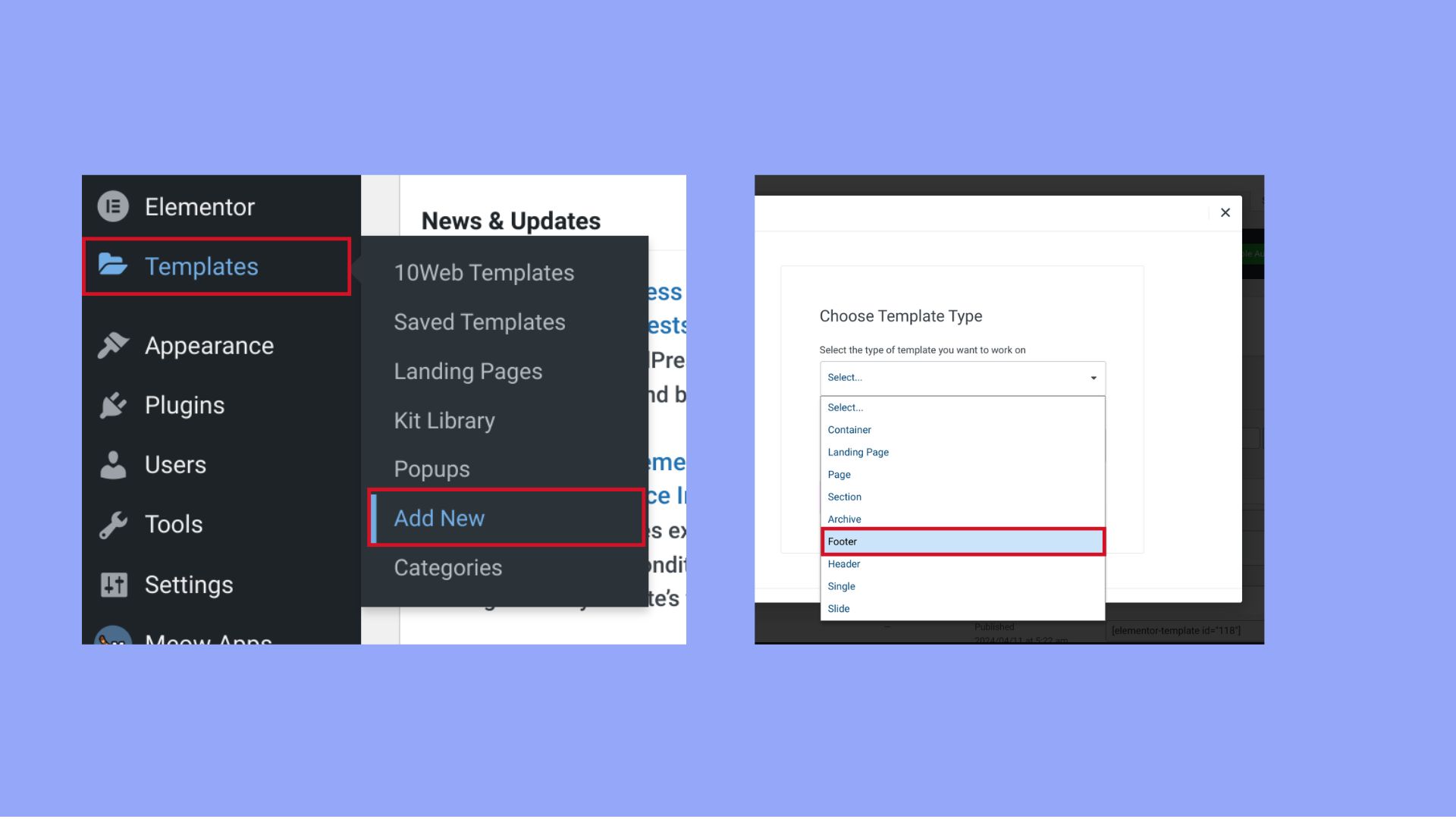
Start by opening your WordPress dashboard. Navigate to the page builder plugin installed on your site. Look for the footer or template section. Click on the footer template to open the editor. Some page builders like Elementor or Divi have dedicated footer editing modes. This mode focuses only on footer design for easier customization.
Customizing Footer Template
Once inside the footer editor, choose a footer template. You can select a blank footer or use a pre-made design. Modify the layout to fit your needs. Change colors, fonts, and spacing. Adjust columns and rows to organize footer content clearly. Keep your design simple for better user experience.
Adding Custom Elements
Add elements that make your footer useful. Common elements include contact info, social media icons, and navigation links. Use text blocks for addresses or business hours. Insert images like logos or badges. Many page builders offer widgets for easy drag-and-drop placement. Customize each element’s style to match your site’s look.
Publishing Footer Design
After editing, save your footer design. Preview it to check how it appears on different devices. Make sure the footer looks good on mobiles and desktops. When satisfied, click the publish or update button. Your new footer will replace the old one on the live site. Regular updates keep the footer fresh and relevant.
Modifying Footer.php File
Modifying the footer.php file in WordPress allows you to customize the footer area deeply. This file controls the content and layout at the bottom of your site. Editing it gives you freedom to add, remove, or change footer elements beyond what the theme options offer.
Careful editing of footer.php can improve your site’s look and functionality. It requires some basic knowledge of PHP and HTML. Always proceed with caution to avoid breaking your site.
Locating Footer.php In Theme
To start, access your WordPress dashboard. Go to Appearance > Theme Editor. On the right side, find the footer.php file. This file is usually listed as “Theme Footer.”
You can also locate footer.php using an FTP client. It is inside the active theme folder in /wp-content/themes/your-theme/. Make sure you edit the correct theme folder.
Using Child Themes
Directly editing footer.php in the main theme is risky. Updates to the theme will overwrite your changes. To avoid this, use a child theme.
A child theme copies the parent theme’s files. You can override the footer.php file safely here. This keeps your changes safe after updates.
Create a child theme folder. Add a new footer.php file with your edits. WordPress will load this file instead of the parent theme’s footer.
Editing Code Safely
Always edit footer.php carefully. Even small errors can break your site. Use a plain text editor or the WordPress Theme Editor for quick changes.
Check your code for missing tags or syntax errors. Preview changes on a staging site if possible. Avoid editing live sites directly.
Backing Up Before Changes
Backup your website before editing the footer file. This includes both files and the database. Use a plugin or manual backup via your hosting control panel.
If something goes wrong, you can restore your site easily. Backups prevent loss of work and downtime. Always save a copy of the original footer.php file before editing.
Creating Footer Menus
Creating footer menus in WordPress helps organize important links at the bottom of your site. These menus improve navigation and user experience. You can add pages, categories, or custom links. Setting up a footer menu is simple and requires just a few steps.
Building A New Menu
Start by logging into your WordPress dashboard. Go to Appearance > Menus. Click on “Create a new menu.” Give your menu a clear name, such as “Footer Menu.” This helps you identify it later. After naming, click the “Create Menu” button to proceed.
Assigning Menu To Footer
After creating the menu, find the “Menu Settings” section. Look for the “Display location” options. Select the checkbox labeled “Footer Menu” or similar, depending on your theme. This assigns your menu to the footer area. Some themes might name it differently, like “Footer Navigation.”
Adding Links And Pages
On the left side, you will see options to add Pages, Posts, Custom Links, or Categories. Choose the items you want in the footer menu. Click the checkbox next to each item and press “Add to Menu.” Arrange the order by dragging items up or down. This sets the sequence visitors will see.
Saving Footer Menu
Once you finish adding and ordering links, look for the “Save Menu” button. Click it to store your changes. Your footer menu will now appear on your website’s footer area. Refresh your site to see the new menu live. Editing or updating this menu is easy by repeating these steps.
Troubleshooting Footer Issues
Troubleshooting footer issues in WordPress can be frustrating. Many users face problems like greyed-out footers or restricted editing options. These issues often block simple footer changes. Identifying the root cause helps fix the problem quickly. The following tips guide you through common footer troubles.
Fixing Greyed-out Footers
A greyed-out footer means you cannot edit it directly. This usually happens due to restrictions in the editor or theme. Start by checking if the footer is locked in a read-only mode. Sometimes, plugins or settings prevent changes to protect the design. Disabling these restrictions allows you to edit the footer normally.
Unlinking Footer From Previous Sections
Footers linked to previous sections inherit settings and content. This link prevents unique footer edits on certain pages. To fix this, open the footer editor and look for “Link to Previous” options. Uncheck this setting to break the connection. After unlinking, you can customize the footer independently for each section or page.
Checking Theme Restrictions
The active theme may limit footer editing capabilities. Some themes have fixed footer layouts or locked areas. Check the theme documentation for footer editing instructions. Switching to a different theme or using a child theme may help. Also, explore the theme customizer for footer options before editing code.
Disabling Read-only Mode
Read-only mode blocks all edits to the footer. It might be set by WordPress or third-party plugins. To disable it, go to your WordPress dashboard. Look under the editor or plugin settings for any “Restrict Editing” options. Turning off these options gives you full access to edit the footer content.
Credit: 10web.io
Frequently Asked Questions
How Do I Edit An Existing Footer?
To edit an existing footer, go to Appearance > Customize > Footer in WordPress. Modify content or widgets, then click Publish. For block themes, use Appearance > Editor or widgets under Appearance > Widgets. Advanced users can edit footer. php or use page builder theme builders.
How Do I Edit The Footer Of My Website?
To edit your website footer, go to WordPress dashboard > Appearance > Customize > Footer. Modify content or widgets, then click Publish to save. For block themes, use Appearance > Editor or widgets under Appearance > Widgets. Advanced users can edit footer.
php or use page builder theme builders.
Why Can’t I Edit The Footer?
You can’t edit the footer if your theme restricts changes or uses a page builder. Check for footer settings in Appearance or a theme builder. Some footers require editing via widgets, the Site Editor, or directly in footer. php within a child theme.
How To Get Footer Menu In WordPress?
Go to WordPress dashboard > Appearance > Menus. Create a new menu named “Footer Menu. ” Add desired links. Set display location to “Footer Menu” and save.
Conclusion
Editing the footer in WordPress is simple and flexible. Choose the method that fits your site best. Use the Customizer for basic changes or the Site Editor for block themes. Widgets work well for widget-based footers. For advanced edits, try page builders or a child theme.
Remember to save your changes and check the site. Now your footer can better reflect your brand and information. Keep practicing to improve your WordPress skills.


