
Are you ready to take control of your WordPress website and make it truly yours? Editing your site might seem tricky at first, but it’s easier than you think.
Whether you want to change text, update images, or tweak the layout, knowing how to edit your WordPress website can save you time and money. In this guide, you’ll discover simple steps that anyone can follow to make your website look professional and work perfectly.
Keep reading, and you’ll soon feel confident making changes that boost your site’s appeal and keep your visitors coming back.
Accessing The WordPress Dashboard
Accessing the WordPress dashboard is the first step to edit your website. This dashboard is the control center for your site. It allows you to change pages, add posts, and adjust settings. Understanding how to access and navigate it helps you manage your site easily.
Logging In To Your Site
To log in, open your web browser and go to your website’s login page. Usually, it is your website URL followed by /wp-admin. Enter your username and password in the login fields. Click the “Log In” button to access the dashboard. Keep your login details safe to protect your site.
Navigating The Dashboard Interface
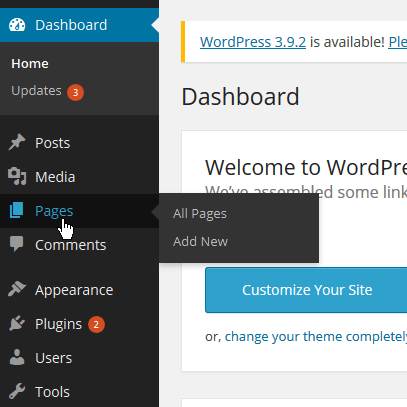
Once logged in, you see the WordPress dashboard interface. The left side has a menu with all the options. Use this menu to create posts, pages, and change themes. The main area shows updates and quick links. Explore these sections to find the tools you need. Simple and clear layout helps you work quickly.
Editing Pages And Posts
Editing pages and posts is a key part of managing a WordPress website. It lets you update your content and keep your site fresh. This process is simple once you know the steps.
WordPress uses a tool called the Block Editor. It helps you change text, images, and other parts of your posts or pages easily. You can add new blocks or move existing ones around. This makes editing flexible and straightforward.
Finding The Content To Edit
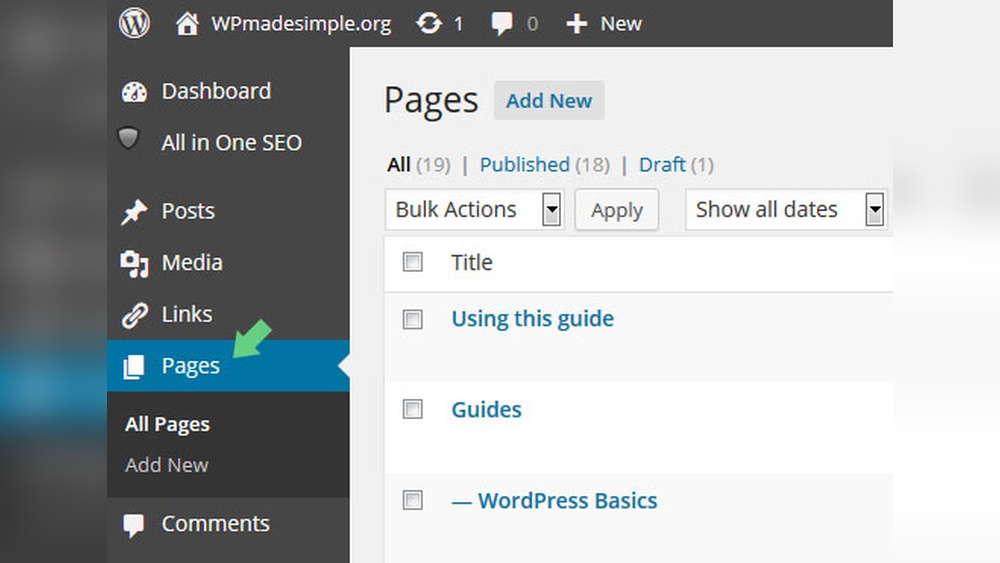
Start by logging into your WordPress dashboard. From there, go to the “Pages” or “Posts” section. You will see a list of all your content. Find the title of the page or post you want to change. Click on it to open the editor.
Using The Block Editor
The Block Editor shows your content in blocks. Each block holds a piece of content like a paragraph, image, or heading. Click on a block to edit its text or settings. You can add new blocks by clicking the plus (+) icon. Rearrange blocks by dragging them up or down.
Saving And Previewing Changes
After making changes, save your work by clicking the “Update” button. This ensures your edits are stored on the site. To see how your changes look live, click the “Preview” button. It opens a new tab showing your updated page or post. Check everything looks right before you publish.
Customizing Themes
Customizing themes lets you change how your WordPress site looks and feels. Themes control the design, layout, and style of your website. Editing a theme helps your site reflect your brand and style. You can make your site unique without coding skills.
Selecting A New Theme
Choose a theme that fits your website’s purpose. WordPress offers thousands of free and paid themes. Go to the Appearance menu and click Themes. Browse themes by category or features. Preview themes to see how they look. Activate the one you like best. Changing a theme can refresh your entire site’s look.
Modifying Theme Settings
Most themes come with options you can change. Go to Appearance and select Customize. Adjust colors, fonts, and layouts easily. Change the header, footer, and background. Some themes allow you to add widgets or menus. Save changes to see them live on your site. These settings help tailor the theme to your needs.
Adding Custom Css
Custom CSS lets you style your site beyond basic options. In the Customize panel, find the Additional CSS section. Write CSS code to change fonts, colors, or spacing. Use simple CSS rules to tweak your design. This is useful for small changes without editing theme files. Always check your site after adding CSS to avoid errors.

Credit: onesmartsheep.com
Managing Plugins
Managing plugins is key to customizing your WordPress website. Plugins add new features and improve site performance. You can control which plugins run and keep them updated. This helps your website stay secure and fast.
Installing New Plugins
Go to the WordPress dashboard. Click on “Plugins” then “Add New.” Search for the plugin you want. Click “Install Now” to add it to your site. Wait a few seconds for the installation to finish.
Some plugins need extra setup after installation. Follow the instructions to configure the plugin. Choose plugins that suit your website needs.
Activating And Deactivating Plugins
After installing, activate the plugin to start using it. Go to “Plugins” and find the plugin list. Click “Activate” under the plugin name. The plugin will begin working immediately.
To stop using a plugin, deactivate it. Click “Deactivate” in the plugin list. The plugin will stop running but stays installed. This lets you turn it back on later if needed.
Updating And Deleting Plugins
Keep plugins updated to protect your site. WordPress shows update alerts for plugins. Click “Update Now” to install the latest version. Updates fix bugs and add new features.
Delete plugins you no longer use. Deactivating is not enough if you want to remove them. Click “Delete” after deactivating. Removing unused plugins improves site speed and security.
Editing Menus And Navigation
Editing menus and navigation is key to improving your WordPress website’s user experience. Clear menus help visitors find pages quickly. Well-structured navigation guides users through your content. WordPress makes menu editing simple with its built-in tools.
Menus can show links to important pages, categories, or external sites. You can add, remove, or change menu items anytime. Organizing menus neatly helps visitors stay longer on your site.
Adding And Removing Menu Items
To add a menu item, go to Appearance > Menus in your WordPress dashboard. Choose a page, post, or custom link to add. Click “Add to Menu” and the item appears in the menu structure.
Removing a menu item is easy. Click the arrow next to the item and select “Remove.” Then save your menu to update the live site.
Rearranging Menu Order
Drag and drop menu items to change their order. Place the most important pages at the top. A clear order helps visitors find key content fast. Save the menu after rearranging to apply changes.
Creating Dropdown Menus
Dropdown menus show sub-items under a main menu link. To create one, drag a menu item slightly to the right under a parent item. This makes it a child item. Visitors see a list when they hover over the parent link.
Dropdowns keep your menu clean and organized. They also help group related pages together for easier navigation.
Adjusting Widgets And Sidebars
Widgets and sidebars are key parts of a WordPress website. They help show extra content, links, and features. Adjusting these areas can improve your site’s look and function.
Changing widgets and sidebars makes your site easier to use. You can add new tools or remove ones you don’t need. This keeps your site clean and user-friendly.
Adding Widgets
Go to your WordPress dashboard. Click on Appearance, then Widgets. You will see available widgets on the left side.
Drag a widget from the list and drop it into a sidebar area. The sidebar is where the widget will appear on your site. Save your changes to apply the new widget.
Customizing Widget Settings
After adding a widget, click its arrow to open settings. Change the title, text, or other options as needed. Some widgets allow you to add links or images.
Make sure to save your changes before leaving the page. Check your site to see how the widget looks and works.
Removing Unwanted Widgets
Go back to the Widgets page in the dashboard. Find the widget you want to remove in the sidebar area. Click on it to open settings.
Click Delete or drag the widget back to the available widgets area. This removes the widget from your site instantly. Clean sidebars help visitors focus on important content.
Managing Media Files
Managing media files is a key part of editing a WordPress website. Media includes images, videos, and audio files that make your site lively and interesting. Proper management keeps your website fast and organized. It also helps visitors enjoy your content without delays or errors.
Uploading Images And Videos
To add images or videos, open the WordPress dashboard. Click on “Media” and then “Add New.” Drag files or click to select from your computer. WordPress supports common file types like JPG, PNG, GIF, and MP4. Uploading is quick and simple.
After uploading, files appear in the media library. You can reuse them anytime in posts or pages. This saves time and keeps files in one place.
Editing Media Details
Each media file has details you can edit. In the media library, click on a file to open its info. Change the title, caption, alt text, and description.
Alt text is important. It helps search engines understand your images. It also improves accessibility for users with disabilities. Use clear, short descriptions that match the image content.
Optimizing Media For Performance
Large files slow down your website. Resize images before uploading to reduce file size. Use tools to compress images without losing quality.
Choose the right format: JPG for photos, PNG for graphics, and WebP for faster loading. Limit video size and use streaming services if needed. Fast media improves user experience and search rankings.
Setting Up Basic Seo
Setting up basic SEO on your WordPress website helps search engines find and rank your site better. It improves your site’s visibility and brings more visitors. Simple steps can make your website easier to understand for both users and search engines.
Installing Seo Plugins
Start by adding an SEO plugin to your WordPress site. Popular plugins like Yoast SEO or All in One SEO are easy to use. They guide you through optimizing your content and settings. These tools check your pages for SEO issues and suggest fixes. Installing a plugin makes SEO management simple and effective.
Editing Meta Titles And Descriptions
Meta titles and descriptions appear in search results. They tell users what your page is about. Use your SEO plugin to edit these fields for each page. Keep titles clear and include important keywords. Write descriptions that briefly explain your page’s content. This helps attract clicks and improves ranking.
Creating Seo-friendly Urls
URLs should be short, clear, and include keywords. WordPress lets you edit URLs for each post or page. Avoid using numbers or random characters in URLs. Use words that describe your content well. SEO-friendly URLs are easier to read and share.
Backing Up Your Website
Backing up your WordPress website protects your content and settings from loss. It saves a copy of your site data and files. If something breaks, you can restore the site quickly. Regular backups reduce stress and save time.
Choosing A Backup Plugin
Select a backup plugin that fits your needs. Look for one that is easy to use and reliable. Popular options include UpdraftPlus, BackWPup, and Duplicator. Check if the plugin supports cloud storage like Google Drive or Dropbox. Confirm it can back up your entire site, including files and databases.
Scheduling Automatic Backups
Set your backup plugin to run automatically. Schedule backups daily or weekly depending on how often you update your site. Automatic backups ensure you always have the latest copy. This reduces the risk of losing recent changes. Most plugins offer easy scheduling options in their settings.
Restoring From A Backup
Restoring your website from a backup is simple. Use your backup plugin’s restore feature. Choose the backup file and start the process. The plugin will replace your current site with the saved version. Test your site after restoring to make sure everything works fine.

Credit: wordpress.org
Credit: xmission.com
Frequently Asked Questions
How Do I Access The WordPress Editor?
To edit a WordPress website, log in to your dashboard. Navigate to “Pages” or “Posts,” then click “Edit” on the item you want to change. Use the WordPress block editor or classic editor to make updates easily and save your changes.
Can I Edit WordPress Without Coding Skills?
Yes, WordPress allows easy editing without coding. Use the visual block editor to add text, images, and media. Many themes offer drag-and-drop builders, enabling you to customize layouts without any programming knowledge or technical experience.
How Do I Update Themes And Plugins Safely?
Always back up your website before updates. Go to “Appearance” > “Themes” or “Plugins” in your dashboard. Update each item one at a time and check your site after each update to avoid conflicts or errors.
What Are The Best Tools For Editing WordPress Content?
The built-in Gutenberg editor is excellent for content editing. For advanced design, use page builders like Elementor or Beaver Builder. These tools offer drag-and-drop features and customizable templates for easy site editing.
Conclusion
Editing a WordPress website is simple and clear. You can change text, images, and layout easily. Use the WordPress dashboard to make updates fast. Always save your work to avoid losing changes. Practice helps you get better with each edit.
Keep your site fresh and user-friendly. Regular updates improve your site’s look and function. Start editing today and see your website grow.


