
Are you tired of cluttering your WordPress dashboard with themes you no longer use? Deleting unwanted themes not only keeps your site clean but also boosts its performance and security.
If you’ve been wondering how to safely remove those extra themes without breaking your site, you’re in the right place. This guide will walk you through the simple steps to delete themes in WordPress, helping you take control of your website with confidence.
Keep reading to learn how to tidy up your WordPress themes quickly and easily.
Accessing WordPress Themes
Accessing WordPress themes is the first step to managing your site’s appearance. Themes control how your website looks and feels. Knowing how to find and manage themes helps keep your site updated and fresh.
This section explains how to access themes easily. Follow simple steps to reach the theme area in WordPress.
Logging Into Your Dashboard
Start by opening your web browser. Type your website’s URL, followed by “/wp-admin”. Enter your username and password. This action takes you to the WordPress dashboard. The dashboard is the control center for your website.
Be sure to use the correct login details. Without access, you cannot manage themes or other settings.
Navigating To Themes Section
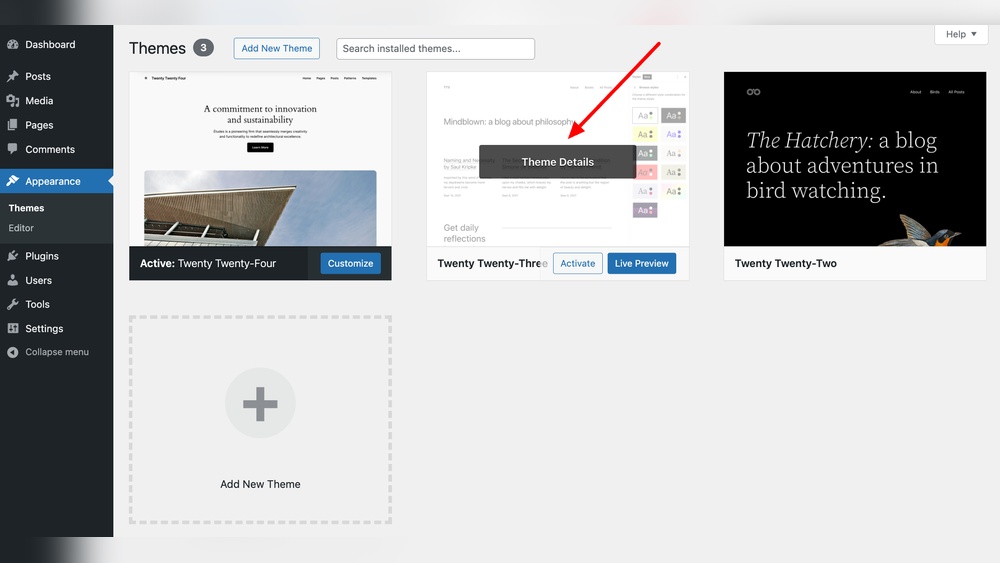
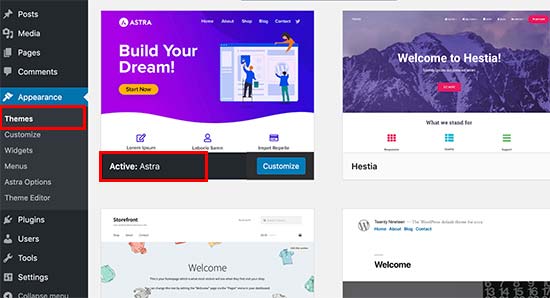
Once inside the dashboard, look at the left-hand menu. Find the “Appearance” option and click it. A new submenu will appear. Click on “Themes” in this submenu. This page shows all installed themes on your site.
Here, you can activate, preview, or delete themes. Accessing this section is key to managing your site’s design.
Credit: blog.hubspot.com
Identifying Unused Themes
Identifying unused themes helps keep your WordPress site clean and fast. Old themes take up space and can cause security risks. Removing them improves website performance and safety. First, find out which themes are active and which are not used. Then, check how often each theme is used or tested.
Checking Active And Inactive Themes
Log in to your WordPress dashboard. Go to Appearance > Themes. Here, the active theme shows as “Active.” Other themes are inactive. These inactive themes are not in use right now. They stay on your server but do not affect your site’s look.
Check all themes listed. Some may be old or unused. Keep only the themes you need. Removing inactive themes reduces clutter.
Evaluating Theme Usage
Think about why each theme is on your site. Some are for testing or special projects. Others might be backups. Ask yourself if you plan to use them soon.
If a theme has not been used for months, it is likely safe to delete. Old themes can slow your site and cause conflicts. Keep your WordPress installation simple. This helps maintain speed and security.
Deleting Themes Via Dashboard
Deleting themes via the WordPress dashboard is quick and simple. It helps keep your site clean and free from unused themes. You can remove themes you no longer need to save space and avoid confusion. The process takes just a few clicks inside your dashboard.
Selecting A Theme To Delete
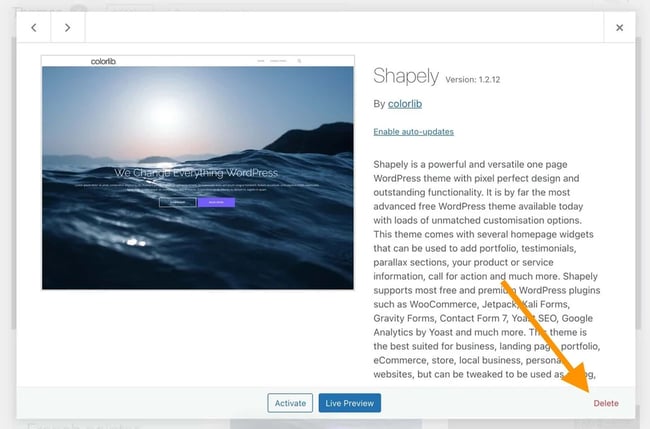
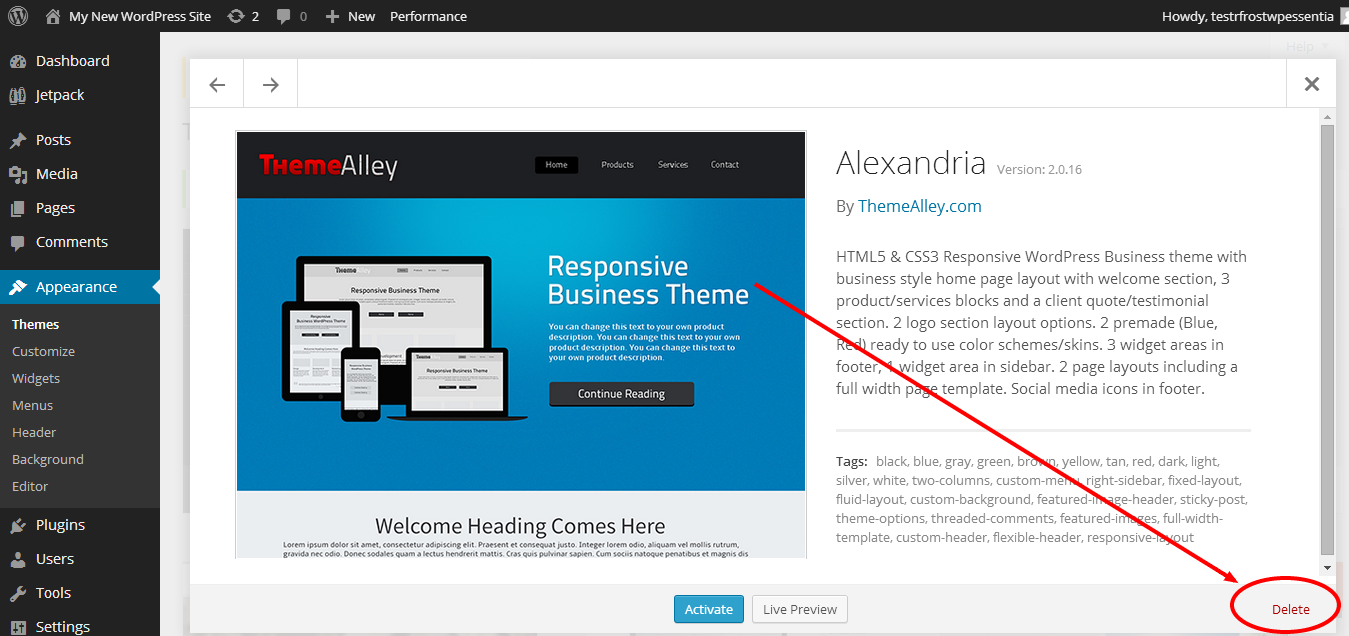
First, log in to your WordPress dashboard. Go to the “Appearance” menu and choose “Themes.” Here, you see all installed themes. Click on the theme you want to remove. Make sure it is not the active theme. Active themes cannot be deleted. After selecting, a window with theme details will open.
Confirming Theme Removal
In the theme details window, find the “Delete” button at the bottom right. Click the “Delete” button to start removing the theme. A confirmation popup appears to avoid mistakes. Confirm your choice to delete the theme permanently. The theme will be removed from your site immediately. This frees up space and keeps your site tidy.
Credit: www.ipage.com
Removing Themes Using Ftp
Removing themes using FTP is a direct method to delete unwanted WordPress themes. It works well when you cannot delete themes from the dashboard. This process involves connecting to your website’s server and removing theme files manually.
This method gives you full control over your WordPress files. It is safe if you follow the steps carefully. Make sure you back up your site before starting.
Connecting To Your Server
First, open your FTP client like FileZilla. Enter your server address, username, and password. These details come from your hosting provider. Click “Connect” to access your website files. Wait until the connection is established.
Locating Theme Files
Once connected, find the “wp-content” folder. Open it and look for the “themes” folder. This folder holds all installed themes. Each theme has its own subfolder named after the theme. Find the theme you want to delete.
Deleting Theme Folder
Select the theme’s folder carefully. Right-click and choose “Delete.” Confirm the deletion to remove the theme files. The theme will no longer appear in your WordPress admin panel. Check your site to ensure it works correctly after deletion.
Using Plugins For Theme Cleanup
Using plugins to clean up themes in WordPress is a simple and safe way. Plugins help manage your themes without needing coding skills. They make it easy to find and delete unused themes. This keeps your site fast and secure.
Choosing A Theme Management Plugin
Choose a plugin that is easy to use and well-rated. Check if it is updated regularly by the developer. Make sure it works with your WordPress version. Look for plugins that offer theme backup before deletion. This protects your site in case something goes wrong.
Deleting Themes Safely
Always back up your website before deleting themes. Use the plugin’s delete option to remove themes safely. This prevents leftover files that can slow down your site. Confirm the theme is not active before deleting it. After deletion, check your site for any issues.
Credit: themelooks.com
Best Practices For Theme Management
Managing themes in WordPress is important for site performance and security. Proper theme management keeps your website fast and safe. It also helps avoid conflicts and errors. Follow these best practices to handle themes smartly and keep your site healthy.
Backing Up Your Site
Always back up your website before deleting or changing themes. Backups save your content and settings. Use plugins or hosting tools for easy backups. Store backups on your computer or cloud storage. This step prevents data loss and helps restore your site quickly.
Keeping Themes Updated
Update themes regularly to fix bugs and improve security. Updates add new features and keep compatibility with WordPress. Check for updates in the dashboard under Appearance > Themes. Avoid using outdated themes that can cause issues or vulnerabilities.
Avoiding Common Mistakes
Do not delete an active theme. Switch to a default theme before removing others. Avoid installing many themes just to try them out. Too many themes can slow down your site. Remove unused themes to reduce security risks and clutter.
Frequently Asked Questions
How Can I Safely Delete A WordPress Theme?
To safely delete a WordPress theme, go to Appearance > Themes in your dashboard. Activate a different theme first. Then, click on the theme you want to delete and select “Delete” in the bottom-right corner. This ensures your active site remains unaffected.
Can I Delete A Theme Without Ftp Access?
Yes, you can delete a theme without FTP access. Use the WordPress dashboard under Appearance > Themes. Select the theme you want to remove and click “Delete. ” FTP access is not required for this simple process.
What Happens If I Delete An Active WordPress Theme?
You cannot delete an active theme directly. WordPress requires you to activate another theme first. Deleting an active theme without switching may cause your site to break or display errors.
Will Deleting Unused Themes Improve Site Speed?
Deleting unused themes can improve site security but has minimal impact on site speed. It reduces clutter and potential vulnerabilities but does not significantly affect loading times or performance.
Conclusion
Deleting themes in WordPress keeps your site clean and fast. Unused themes can cause security risks. Removing them is simple and quick. Always back up your site before making changes. This way, you avoid losing important data. Regularly check your themes and delete those you don’t use.
Staying organized helps your site run better. Now you know how to delete themes safely. Keep your WordPress site fresh and secure with this easy step.


