
Are you ready to bring your ideas online but don’t know where to start? Creating a WordPress website might sound tricky, but it’s simpler than you think.
Imagine having full control over your site’s look and content without needing to be a tech expert. In this guide, you’ll discover clear, step-by-step instructions that make building your own WordPress website easy and even enjoyable. By the end, you’ll have the confidence to launch a site that truly represents you or your business.
Let’s dive in and make your website dream a reality!
Choosing A Domain And Hosting
Choosing the right domain and hosting is the first step to build a WordPress website. These two elements form the base of your site. The domain name is your website’s address on the internet. Hosting is where your website’s files live. Picking them carefully helps your site run smoothly and grow over time.
Picking The Right Domain Name
Choose a domain name that is easy to spell and remember. Short names work best for visitors and search engines. Use keywords related to your website’s topic to help with SEO. Avoid numbers or special characters that confuse users. Check if the domain name is available and not trademarked. This step protects your brand and avoids legal issues.
Selecting A Reliable Hosting Provider
Pick a hosting provider with good speed and uptime records. Fast servers keep your site loading quickly for visitors. Look for providers that offer strong security features. These protect your site from hacks and malware. Choose a host with easy WordPress installation and good customer support. Reliable hosting ensures your website stays online without interruptions.
Credit: wedevs.com
Installing WordPress
Installing WordPress is the first step to build your website. This process puts WordPress software on your web server. It lets you start creating and managing your site easily. There are two main ways to install WordPress. You can use quick one-click installers or do it manually. Both ways work well and depend on your comfort level.
One-click Installation Methods
Many web hosts offer one-click WordPress installation tools. These tools make setup very simple and fast. You just log in to your hosting account. Then find the WordPress installer in the control panel. Click the install button, choose your site name, and wait. The system handles everything else automatically. It creates the database, uploads files, and configures settings. You get a ready-to-use WordPress website in minutes. This method is perfect for beginners and saves time.
Manual Installation Process
Manual installation gives more control but takes extra steps. First, download the latest WordPress files from wordpress.org. Next, upload these files to your web server using FTP software. Then create a MySQL database and user through your hosting control panel. After that, open your website URL in a browser. WordPress will guide you through the setup wizard. Enter your database details and site information as requested. Finally, complete the installation and log in to your new dashboard. This method suits users who want deeper control over their setup.
Configuring Basic Settings
Configuring basic settings is the first step in building a WordPress website. These settings shape your site’s identity and how it runs. Setting them correctly helps visitors understand your site and improves user experience.
Setting Site Title And Tagline
The site title is the name visitors see first. It should clearly show what your site is about. The tagline is a short phrase that explains your site’s purpose. Both appear on the browser tab and search engines. Make them simple and clear. You can change these anytime in your WordPress dashboard under Settings > General.
Adjusting Timezone And Language
Setting the correct timezone ensures your posts display the right time. It also helps with scheduling content. Choose the timezone closest to your location. Next, pick the language for your site. This affects the dashboard and public view. Select a language your audience understands. You can find these options in Settings > General as well.
Selecting And Installing Themes
Selecting the right theme is an important step in creating a WordPress website. Themes control how your site looks and feels. They also affect how visitors interact with your content. Choosing and installing a theme carefully can improve your site’s appeal and usability.
WordPress offers many themes. Some are free, while others require payment. Each type has pros and cons. Understanding these options helps you pick the best theme for your site.
Free Vs Premium Themes
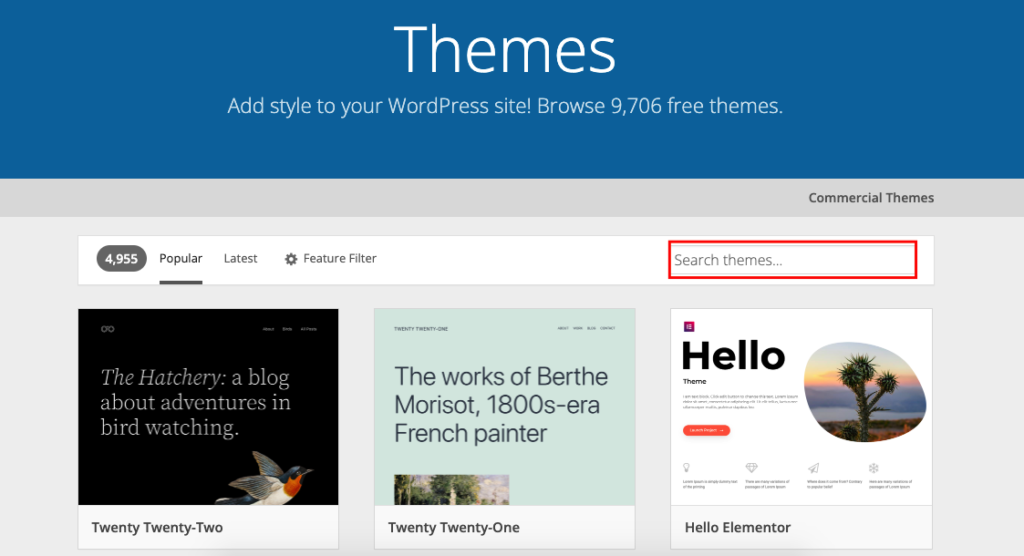
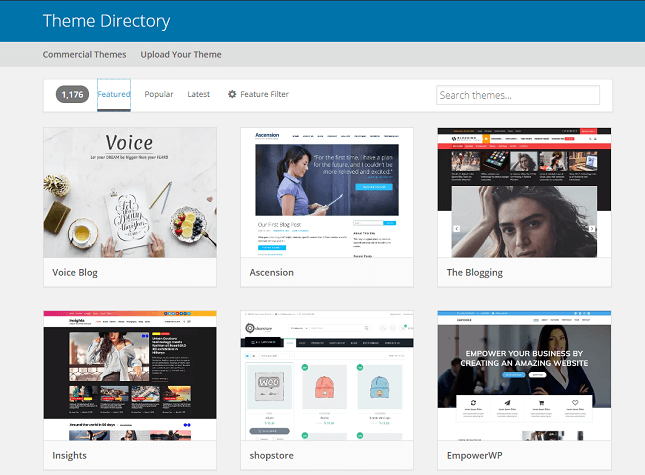
Free themes are available directly from the WordPress theme directory. They are easy to install and cost nothing. These themes often suit simple websites or blogs. They may have limited features and less support.
Premium themes cost money but offer more features. They often include better design and advanced options. Premium themes come with support from developers. This helps solve any issues quickly. They are a good choice for business sites or portfolios.
Customizing Theme Appearance
After installing a theme, customize it to match your brand. Use the WordPress Customizer to change colors, fonts, and layouts. Upload your logo and set your homepage style. Customization lets you create a unique look.
Many themes have built-in options for easy changes. Some support page builders for more control. Spend time adjusting the theme to make your site user-friendly. A well-customized theme improves visitor experience and keeps them engaged.
Adding Essential Plugins
Adding essential plugins is a key step in building a WordPress website. Plugins add new features and improve your site’s performance. They help with security, SEO, design, and more. Choosing the right plugins can make your site easier to manage and more user-friendly.
Must-have Plugins For Beginners
Start with plugins that cover basic needs. A good SEO plugin helps your site rank better in search engines. Security plugins protect your site from hackers and malware. Backup plugins save your site data regularly. Contact form plugins allow visitors to reach you easily. Speed optimization plugins improve page load times for better user experience.
Installing And Activating Plugins
Log in to your WordPress dashboard. Go to the “Plugins” section and click “Add New.” Use the search bar to find the plugin you want. Click “Install Now” to add the plugin to your site. After installation, click “Activate” to start using the plugin. Configure the plugin settings to fit your needs. Keep your plugins updated for best performance and security.
Credit: www.websitebuilderexpert.com
Creating Content Pages
Creating content pages is a key step in building a WordPress website. Pages hold important information about your site. They help visitors learn more about you and contact you easily.
Good content pages make your website clear and useful. WordPress makes it simple to add and edit these pages. Let’s explore how to create common pages and use the WordPress editor.
Adding Pages Like About And Contact
Start by adding important pages like About and Contact. These pages tell visitors who you are and how to reach you. In the WordPress dashboard, go to Pages and click Add New.
Give your page a clear title, such as “About” or “Contact.” Add text that explains your story or provides contact details. Save or publish the page when done. Repeat this for each new page needed.
Using The WordPress Editor
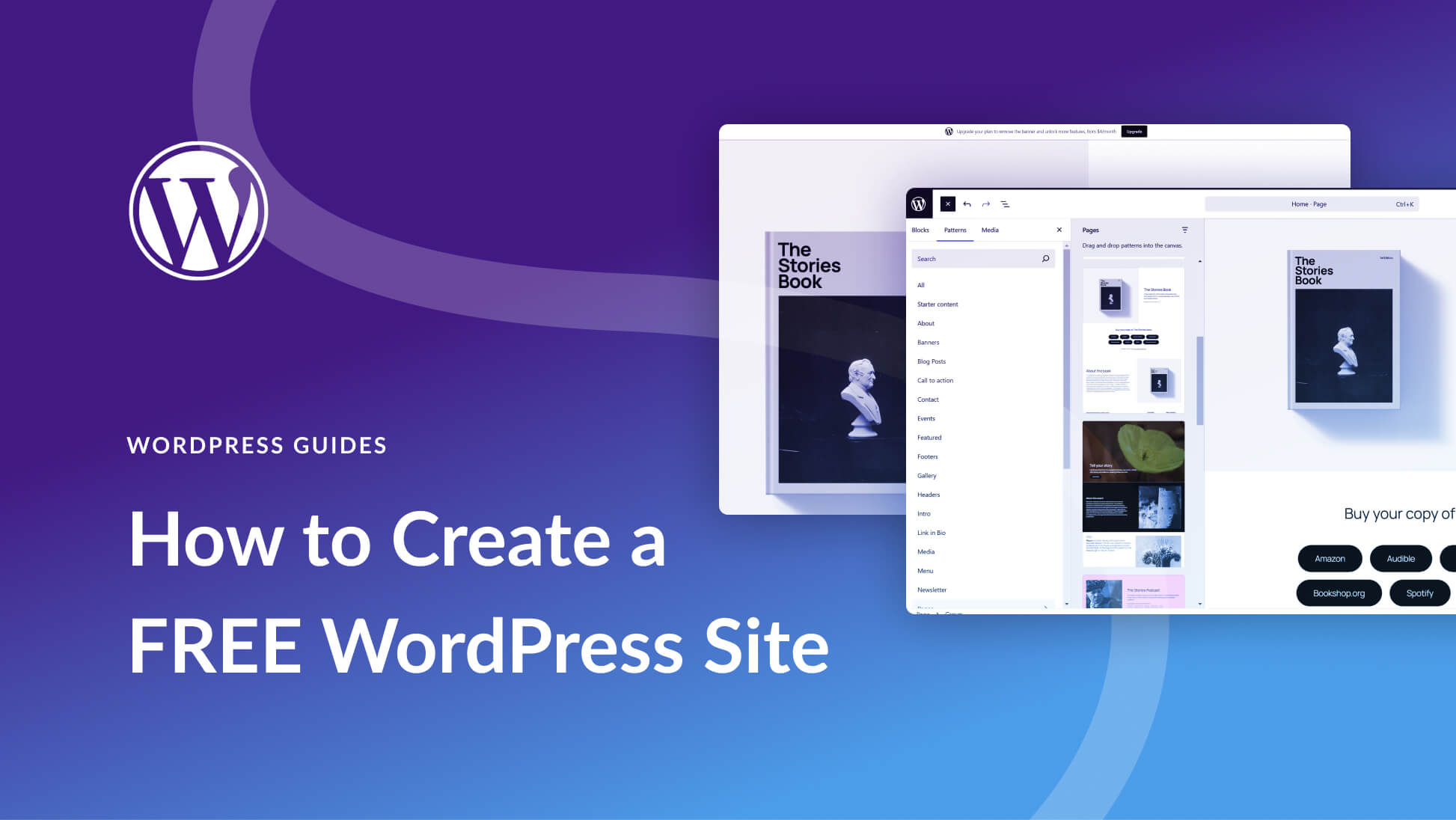
The WordPress editor lets you create and format content easily. It uses blocks for text, images, and other items. Click the plus (+) sign to add a new block.
Edit text by typing directly in the block. Use the toolbar to make text bold, italic, or add links. You can move blocks up or down to change the layout.
Preview your page before publishing. Make sure it looks good on phones and computers. Update or publish your page when ready.
Setting Up Menus And Navigation
Menus and navigation guide visitors through your website. Clear menus help users find pages fast. They improve the user experience and keep visitors on your site longer. Setting up menus in WordPress is simple and flexible. You can create menus that fit your site’s needs and style. Organizing menus well makes your site easy to explore.
Creating Custom Menus
Start by going to the WordPress dashboard. Find the “Appearance” section and click “Menus.” Here, you can create a new menu. Name your menu to keep it organized. Add pages, posts, or custom links to your menu. Select items from the left and click “Add to Menu.” Drag menu items to change their order. Save the menu once you finish arranging it.
Organizing Menu Items
Arrange your menu items to create a clear structure. Put main pages at the top level. Add subpages as nested items below main pages. This creates drop-down menus for better navigation. Keep menu items short and descriptive. Group related pages together for easy access. Avoid too many menu items to keep it simple. Check your menu on different devices to ensure it looks good.
Credit: www.elegantthemes.com
Optimizing For Seo
Optimizing your WordPress website for SEO helps improve its visibility on search engines. It makes your site easier for people to find. SEO involves many steps, but starting with the right tools and basics is key.
Installing Seo Plugins
SEO plugins add important features to your WordPress site. They help you manage titles, descriptions, and keywords. Popular plugins like Yoast SEO or All in One SEO are easy to use. These plugins guide you to optimize each page. They also create sitemaps that search engines use to index your site. Installing an SEO plugin is simple and saves time.
Basic Seo Practices
Start with clear and simple page titles. Use keywords that people search for. Write short and meaningful descriptions for each page. Use headings to organize your content. Add alt text to images so search engines understand them. Make sure your website loads fast and works well on phones. Regularly update your content to keep it fresh. These basic steps improve your chances of ranking higher.
Securing Your Website
Securing your WordPress website protects it from hackers and malware. A safe site builds trust with visitors and keeps your data private. Taking steps to secure your site is not hard but very important.
Implementing Security Plugins
Security plugins add a strong layer of protection to your website. They scan for viruses and block suspicious activity automatically. Popular plugins include Wordfence, Sucuri, and iThemes Security.
Install a security plugin to monitor login attempts and stop hackers. These tools can also create firewalls to block harmful traffic. Regular scans find weak spots before they cause trouble.
Best Security Practices
Use strong passwords for your WordPress admin and hosting accounts. Change passwords regularly to keep accounts safe. Limit login attempts to stop brute force attacks.
Keep WordPress, themes, and plugins updated. Updates fix security bugs and improve protection. Back up your website often to recover quickly after an attack.
Disable file editing from the dashboard to prevent unauthorized changes. Use SSL certificates to encrypt data between users and your site. These steps help keep your WordPress website secure and reliable.
Launching And Maintaining Your Site
Launching your WordPress site marks an important step. It means your work is ready to be seen by visitors. Maintaining the site keeps it running smoothly. Both launching and upkeep need careful attention.
Good preparation before launch avoids problems later. Regular site updates and backups protect your content. This section guides you through these essential tasks.
Final Checklist Before Launch
Check all links to ensure they work. Test your site on phones and tablets. Confirm images load quickly and look clear. Review your text for spelling and grammar mistakes. Set up SEO basics like titles and descriptions. Make sure your contact form sends messages correctly. Enable caching to speed up your site. Set up Google Analytics to track visitors. Remove any test content or demo data. Double-check your site’s security settings.
Regular Updates And Backups
Keep WordPress, themes, and plugins up to date. Updates fix bugs and add new features. Create backups before updating to avoid data loss. Schedule backups weekly or more often if possible. Store backups on cloud storage or an external drive. Monitor your site’s performance and loading speed. Fix broken links and outdated content regularly. Use security plugins to protect against attacks. Respond quickly to any site issues or errors. Regular care helps your site stay safe and fast.
Frequently Asked Questions
What Are The Basic Steps To Create A WordPress Website?
To create a WordPress website, first choose a domain and hosting. Next, install WordPress, pick a theme, and customize it. Finally, add essential plugins and publish your content for visitors.
How Much Does It Cost To Build A WordPress Site?
WordPress itself is free, but costs include domain, hosting, premium themes, and plugins. Basic sites can cost as low as $50 per year, while advanced setups may require more investment.
Can I Create A WordPress Website Without Coding Skills?
Yes, WordPress offers user-friendly tools and drag-and-drop builders. You can customize themes and plugins easily without needing any coding knowledge.
How Do I Choose The Right WordPress Theme?
Select a theme based on your website’s purpose, design preference, and responsiveness. Check user reviews, update frequency, and compatibility with plugins before deciding.
Conclusion
Creating a WordPress website can be simple and fun. Start with a clear plan and choose a good hosting service. Pick a theme that fits your style and add useful plugins. Write content that people find helpful and easy to read.
Keep your site updated and secure to avoid problems. With steady work, your site will grow and attract visitors. Take one step at a time and enjoy the process. Your website can become a valuable tool for sharing ideas or business.
Just keep learning and improving as you go.


