

Imagine losing all your hard work on your WordPress website in an instant. It’s a scary thought, right?
Backing up your site is the best way to protect yourself from unexpected crashes, hacks, or mistakes. But how do you actually back up your WordPress website without wasting time or money? If you want simple, clear steps that anyone can follow, you’re in the right place.
Keep reading, and you’ll learn exactly how to keep your website safe and secure—no tech skills needed.
Importance Of Backing Up WordPress
Backing up your WordPress website is very important. It protects your data from loss or damage. Websites face many risks every day. A backup keeps your site safe and your work secure. It also saves time and stress during problems.
Regular backups help maintain your website’s health. They make recovery quick and easy after issues. Without backups, you risk losing important content forever.
Risks Of Data Loss
Data loss can happen anytime. Hackers attack websites to steal or destroy data. Server crashes or hosting issues can erase files. Plugin or theme updates might cause errors. Human mistakes like accidental deletion occur often. Losing data means losing visitors and trust. Your site could be offline for days.
Benefits Of Regular Backups
Backups restore your site quickly after problems. They allow you to fix errors without stress. Regular backups keep multiple copies of your data. This means you can choose the best version to restore. Backups protect your work from all types of risks. They give you peace of mind and save time. Your website stays reliable and professional.
Credit: agethemes.com
Types Of WordPress Backups
Backing up your WordPress website is essential for protecting your content and data. Different types of backups serve different needs. Understanding these types helps you choose the best method for your site. Backups can be done in several ways, each with its own benefits and uses.
Manual Backups
Manual backups involve copying your website files and database yourself. You can use tools like FTP to download files. Export your database using phpMyAdmin or similar tools. This method gives you full control over what gets saved. It is simple but requires regular effort and attention. Great for small sites or those who want hands-on control.
Automated Backups
Automated backups run on a set schedule without your intervention. Many plugins and hosting services offer this feature. They save backups to cloud storage or your server. This method reduces human error and saves time. Ideal for busy site owners who want peace of mind. You can usually choose backup frequency and storage location.
Full Vs Partial Backups
Full backups save all website files and the database. This ensures a complete copy of your site. Partial backups save only specific files or the database. For example, backing up just the database or themes. Partial backups are faster and use less space. Choose full backups for complete safety. Use partial backups for quick recovery of specific parts.
Manual Backup Methods
Backing up your WordPress website manually gives you full control over your data. You save copies of your files and database yourself. This method is simple and does not need extra plugins. It is useful if you want to understand how your website works behind the scenes.
Using Cpanel File Manager
cPanel File Manager lets you access your website files easily. Start by logging into your hosting account’s cPanel. Find and open the File Manager tool. Go to the folder where WordPress is installed, usually called public_html.
Select all files and folders related to your WordPress site. Use the compress option to create a zip file. Download this zip file to your computer. This backup contains all your themes, plugins, and uploads.
Exporting Database Via Phpmyadmin
Your WordPress database stores all content and settings. To export it, open phpMyAdmin in your cPanel. Choose your WordPress database from the list on the left. Click the Export tab at the top of the page.
Select the Quick export method and SQL format. Press Go to download the database file. Save this file safely. It is crucial for restoring your website later.
Using Backup Plugins
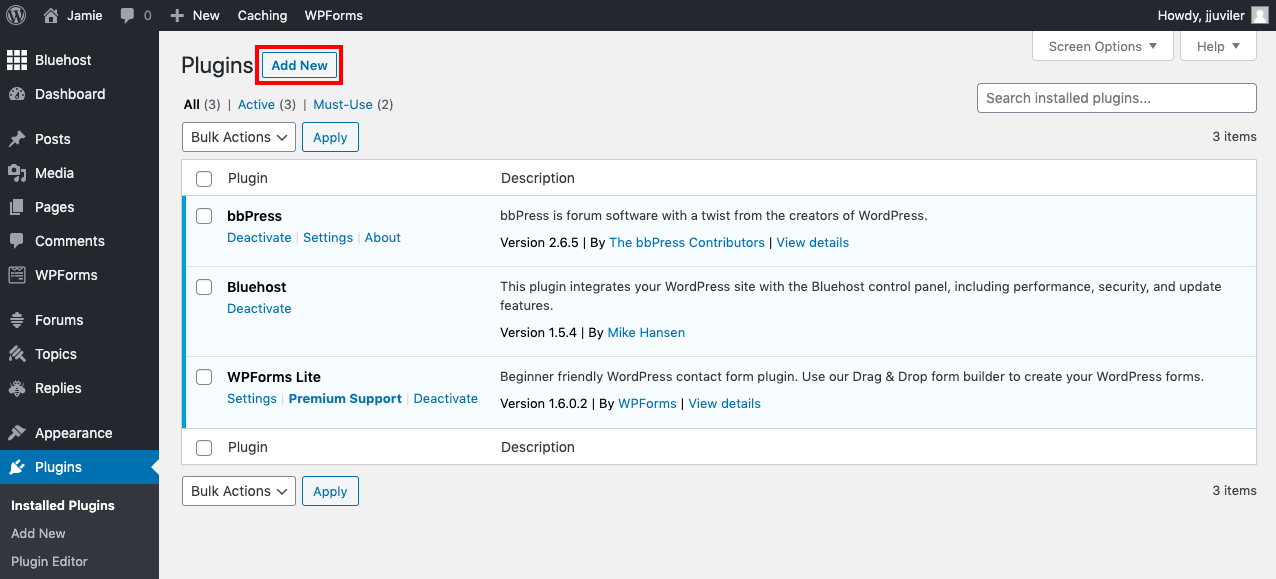
Using backup plugins is a simple way to protect your WordPress site. These tools save copies of your website files and database. You can restore your site quickly if something goes wrong. Backup plugins make this process easy, even for beginners.
Popular Backup Plugins
Many backup plugins are available for WordPress. Some well-known options include UpdraftPlus, BackupBuddy, and BackWPup. These plugins offer free and paid plans. They support automatic backups and store files safely. Choose one that fits your needs and budget.
Setting Up Automated Backups
Automated backups save your site regularly without manual work. Most plugins allow you to set schedules. You can choose daily, weekly, or monthly backups. Set the plugin to store backups on cloud services or your server. This keeps your data secure and updated.
Restoring From Plugin Backups
Restoring your website is simple with backup plugins. Access the backup plugin dashboard in WordPress. Select the backup file you want to restore. Follow the plugin’s instructions to complete the process. Your website will return to the saved state quickly.
Backing Up Via Hosting Services
Backing up your WordPress website through hosting services offers a simple and reliable way to protect your data. Many hosting providers include backup options as part of their service. These backups can save your website files and databases, keeping them safe from loss or damage.
Using hosting backups means less work on your side. The host handles the backup process, which reduces the risk of errors. This method is perfect for users who want a straightforward backup solution without extra plugins or tools.
Hosting Backup Options
Most hosting companies offer different backup options. Some provide daily or weekly backups automatically. Others allow you to create manual backups anytime. These backups often include your entire website, including databases and files.
Some hosts store backups on separate servers for extra security. Others let you download backups to your computer. Check your hosting plan to see what backup features are available.
Scheduling Backups With Hosts
Scheduling backups with your host saves time and effort. Many hosting services let you set automatic backup times. You can choose daily, weekly, or monthly schedules.
Automatic backups reduce the chance of forgetting to save your data. They also help keep your website updated with the latest changes. You can usually access and restore backups directly from your hosting control panel.

Credit: www.youtube.com
Storing Backup Files Securely
Storing backup files securely is a key step in protecting your WordPress website. Backups keep your data safe from loss due to hacks, crashes, or accidental deletions. Storing them correctly ensures you can restore your site quickly and avoid downtime.
Choosing the right storage method matters. Backups need to be safe, easy to access, and kept separate from your website. This protects your data even if your site gets compromised.
Cloud Storage Solutions
Cloud storage offers a safe and flexible option for backup files. Services like Google Drive, Dropbox, and Amazon S3 keep your backups offsite. This means your data stays safe even if your computer or server fails.
Cloud storage allows easy access to backups from any device. It also supports automatic syncing, which saves time and reduces mistakes. Encryption is often built-in, adding an extra layer of security.
Local Storage Best Practices
Local storage involves saving backups on physical devices like external hard drives or USB drives. Keep these devices in a secure, dry place away from heat and moisture.
Use strong passwords and encryption to protect files on local drives. Create multiple copies and store them in different locations. This lowers the risk of losing all backups due to theft or damage.
Testing Backup Integrity
Testing backup integrity is a vital step in securing your WordPress website. It confirms that your backup files are complete and usable. Without testing, you risk facing corrupted or incomplete backups when you need them most. Regular checks ensure your data is safe and ready for recovery.
Verifying Backup Files
Start by checking the backup files for completeness. Look at file sizes and types to match the original data. Confirm all important files, including databases and media, are present. Use tools or plugins that scan for file corruption. Verifying saves time and prevents surprises during restoration.
Performing Test Restorations
Perform a test restoration on a separate server or local environment. This process shows if your backup can fully restore your website. Check if the site loads correctly and all features work. Testing restorations helps you spot issues early. It ensures your backup will be reliable in a real crisis.
Backup Frequency Recommendations
Choosing how often to back up your WordPress website is very important. Backups protect your content from loss or damage. Your backup frequency depends on how often your site changes. Regular backups keep your site safe and easy to restore.
Factors Influencing Backup Schedule
The first factor is how often you add new content. Blogs that post daily need daily backups. Sites with fewer updates can back up weekly or monthly. Another factor is the size of your site. Larger sites may need more frequent backups to avoid data loss. Security risks also affect backup frequency. If your site faces many attacks, back up more often. Finally, consider your hosting service’s backup options. Some hosts offer automatic daily backups.
Setting Up Backup Alerts
Backup alerts help you stay on track. These notifications tell you when a backup is complete or if it fails. Setting alerts ensures you never miss a backup. Many backup plugins offer built-in alert systems. You can receive alerts by email or phone. Alerts save time and prevent data loss. They keep your site safe and your mind at ease.
Credit: www.wpbeginner.com
Frequently Asked Questions
How Often Should I Backup My WordPress Website?
You should backup your WordPress site at least once a week. Increase frequency if you update content daily. Regular backups protect your site from data loss or hacking.
What Are The Best WordPress Backup Plugins?
Popular WordPress backup plugins include UpdraftPlus, BackupBuddy, and BackWPup. These plugins offer automated backups, cloud storage options, and easy restoration features.
Can I Backup WordPress Manually Without Plugins?
Yes, you can manually backup WordPress by exporting your database and downloading files via FTP. This method requires technical knowledge but gives full control over backups.
Where Should I Store My WordPress Backups Safely?
Store backups off-site using cloud services like Google Drive, Dropbox, or Amazon S3. Off-site storage ensures backups remain safe even if your server fails.
Conclusion
Backing up your WordPress website protects your work and data. Regular backups save you from unexpected problems. Use plugins or manual methods to keep copies safe. Store backups in different places for extra security. Check your backups often to ensure they work.
A good backup plan gives peace of mind. Don’t wait for trouble; start backing up today. Simple steps can save hours of stress later. Stay safe, and keep your website secure.


