

Backing up your WordPress website isn’t just a good idea—it’s a must. Imagine losing all your hard work overnight because of a hack, a server crash, or a simple mistake.
You don’t want to be left scrambling without a safety net. The good news? Backing up your site is easier than you think. Whether you prefer using a plugin, relying on your hosting provider’s tools, or doing it manually, this guide walks you through every step.
By the end, you’ll know exactly how to protect your website and keep your content safe—no tech skills required. Ready to secure your site and your peace of mind? Let’s dive in.
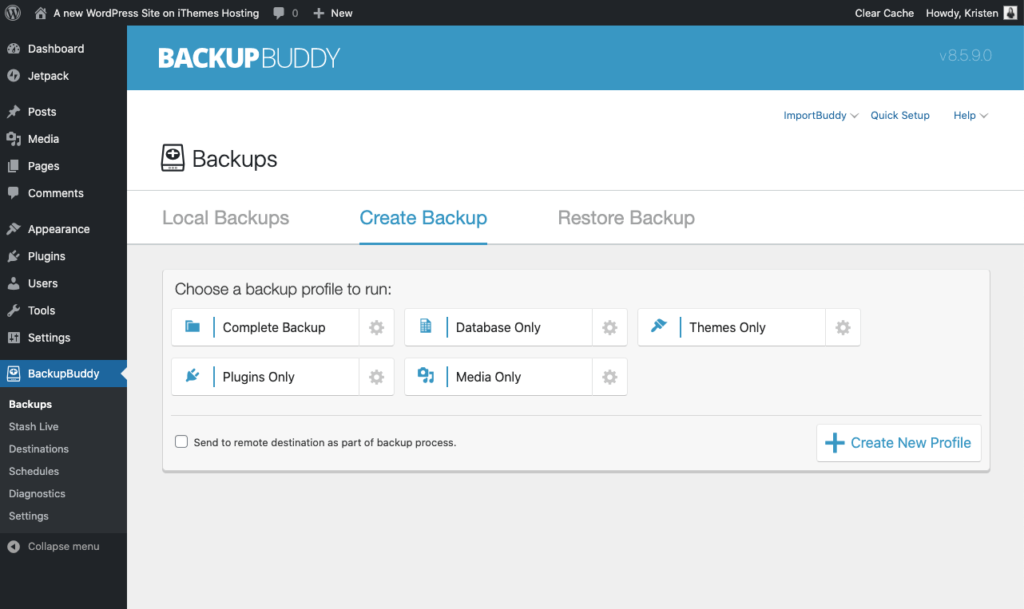
Credit: solidwp.com
Backup Methods
Backing up a WordPress website is vital for data safety. There are several methods to create backups. Choose one that fits your skill level and needs. The backup should cover all website files and the database. This ensures full restoration if needed.
Using Plugins
Backup plugins are easy to use and popular. Install a plugin like UpdraftPlus or Duplicator from your dashboard. These plugins let you schedule automatic backups. They save files to cloud storage like Google Drive or Dropbox. You can also restore your site with a few clicks. Plugins reduce the risk of human error during backup.
Hosting Provider Tools
Many hosting providers offer built-in backup tools. Access these tools from your hosting control panel. You can create manual or automated backups here. Some hosts store backups on their servers for easy access. This method is simple and does not require extra plugins. Check your host’s backup options and policies.
Manual Backup
Manual backup requires more effort but gives full control. Use an FTP client to download all website files. Export your WordPress database using phpMyAdmin or a similar tool. Save these files securely on your computer or external drive. This method is useful if you want to avoid plugins. Regular manual backups keep your data safe from unexpected loss.
Plugin Backup Steps
Backing up your WordPress website through your hosting service is a reliable way to keep your data safe. Most hosts offer built-in backup tools that simplify this process. These tools create copies of your website files and database automatically or on demand.
The hosting backup process does not require extra plugins. It helps you save time and avoid technical errors. Following a few clear steps ensures your website data stays secure.
Access Hosting Dashboard
Start by logging into your hosting account. Use the credentials provided by your host. This action takes you to the hosting dashboard where all management tools are located.
The dashboard is the central place to control your website settings. It often features a clean, user-friendly design to help you find options quickly.
Locate Backup Manager
Inside the dashboard, look for the Backup Manager or Backup section. This tool handles all backup operations for your website. Names may vary depending on the hosting provider.
Some hosts also place backup options under File Management or Security settings. The goal is to find where backups are created and stored.
Start Backup
Once in the Backup Manager, choose the option to create a new backup. You may select full backup or partial backup, depending on what you need. A full backup includes all files and databases.
Click the start or create backup button to begin. The process runs on the server and may take a few minutes. After completion, download or save the backup files in a safe place.
Hosting Backup Process
Creating a manual backup of your WordPress website helps keep your data safe. This method gives you full control over your files and database. You can save a copy on your computer or an external drive. Follow these simple steps to back up your site manually.
Download Website Files
First, connect to your website using an FTP client like FileZilla. Enter your FTP credentials provided by your hosting provider. Navigate to the root folder where WordPress is installed, usually named public_html or www. Select all files and folders, including themes, plugins, and uploads. Download these files to a secure folder on your computer. This step ensures you have a copy of all your website’s content.
Export Database
Next, log in to your hosting control panel and open phpMyAdmin. Select your WordPress database from the list on the left. Click the “Export” tab at the top. Choose the “Quick” export method and the SQL format. Click “Go” to download the database file. This file contains all your posts, pages, and settings. Keep it safe along with your website files.
Compress Backup Files
After downloading both your website files and database, compress them into a single archive. Use tools like WinZip, 7-Zip, or the built-in compression tool on your computer. Create a ZIP or TAR file to reduce space and keep files organized. Store this backup file in multiple locations such as an external drive or cloud storage. This step protects your backup from accidental loss.
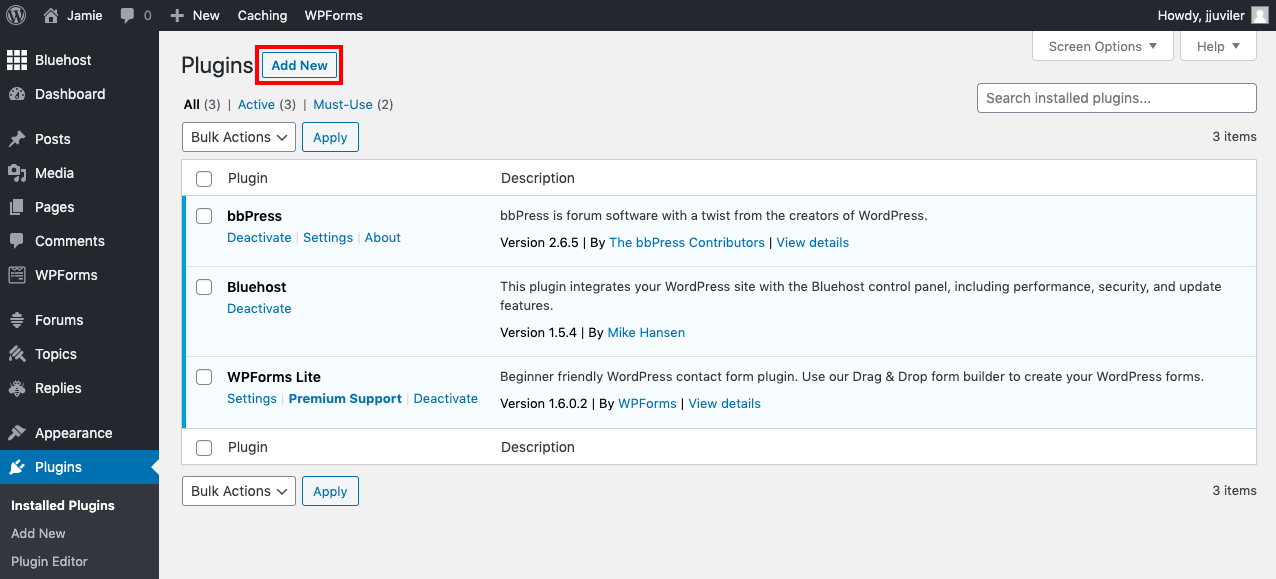
Credit: agethemes.com
Manual Backup Guide
Choosing the right backup storage option is vital for WordPress website safety. It affects how easily you can restore your site after data loss. Each option offers different benefits and levels of security. Consider your needs carefully before deciding where to store your backups.
Local Storage
Local storage means saving backups on your computer or external hard drive. This method gives you full control over your files. It is fast to access and easy to manage. However, local storage risks losing data if your device fails or is stolen. Always keep multiple copies if you choose this option.
Cloud Services
Cloud services store your backups on the internet using providers like Google Drive or Dropbox. This option allows easy access from any device with internet. Cloud storage protects against local hardware failures. It often includes automated backup scheduling. Some services offer free storage with limits, while others require payment for more space.
Remote Servers
Remote servers are offsite computers where you upload your backups. This method separates your backup from your main site location. It protects against local disasters like fire or theft. Remote servers often use FTP or SFTP to transfer files securely. Choosing a reliable server is important to ensure data safety.
Backup Storage Options
Restoring your WordPress backup is crucial after data loss or website issues. It helps you bring your site back to a working state fast. Backups include your files and database. Choose the right restoration method based on your backup type and comfort level.
Restore Via Plugin
Many WordPress backup plugins offer easy restore options. Open your plugin dashboard in WordPress. Find the restore tab or section. Upload the backup file if needed. Click the restore button and wait. The plugin will replace your site files and database. This method is simple and user-friendly. Plugins like UpdraftPlus and Duplicator make restoring quick.
Restore Via Hosting Panel
Hosting panels often have backup and restore tools. Log in to your hosting account. Find the backup or restore section in the control panel. Select the backup to restore from the list. Follow the instructions to restore files and databases. Hosting providers like cPanel and Plesk support this. It’s a good option if you do not use plugins.
Manual Restoration
Manual restoration requires more steps but offers full control. First, connect to your server using FTP or File Manager. Upload your backup files to the WordPress root folder. Next, restore the database using phpMyAdmin. Import the SQL file from your backup. Replace old files and database with the backup versions. This method is useful for advanced users. Always backup current data before manual restoration.
Restoring Your Backup
Backing up your WordPress website protects your data from loss or damage. Popular backup plugins make this task simple and quick. These tools help you save your files and database securely. They often offer automated backups and cloud storage options. Choosing the right plugin depends on your needs and technical comfort.
Updraftplus
UpdraftPlus is a widely used backup plugin. It supports scheduled backups and manual backups. You can store backups on cloud services like Google Drive and Dropbox. The plugin also offers easy restoration with a few clicks. It works well for beginners and advanced users alike.
Duplicator
Duplicator helps you create a full copy of your website. It is great for backup and site migration. The plugin packages your entire site, including files and database. You can download the package or save it to cloud storage. Duplicator also supports scheduled backups with its Pro version.
Jetpack Backups
Jetpack Backups offers automated daily backups with real-time protection. It stores backups safely on WordPress.com servers. The plugin includes easy one-click restore options. Jetpack also provides security features alongside backups. It suits users who want both backup and security in one tool.

Credit: developer.wordpress.org
Frequently Asked Questions
How To Backup An Entire WordPress Site?
Backup an entire WordPress site by using plugins like UpdraftPlus or Duplicator. Alternatively, use your hosting provider’s backup tools or manually download files via FTP and export the database with phpMyAdmin. Always back up both website files and the database for a complete backup.
Does WordPress Have A Backup?
WordPress does not include built-in backups but supports backups via plugins, hosting tools, or manual methods. Use plugins like UpdraftPlus for easy, automated backups. Backups should include both website files and the database to ensure complete restoration if needed.
How To Backup A Whole Website?
Access your hosting control panel or use an FTP client to download all website files. Export the database via phpMyAdmin. Compress and save both files securely. Alternatively, use backup plugins like UpdraftPlus or Duplicator for automated, complete backups including files and database.
What Is The Easiest Backup For WordPress?
The easiest WordPress backup uses plugins like UpdraftPlus or Duplicator. These automate backups, saving files and databases to cloud storage. Hosting providers often offer built-in backup tools for quick backups. Manual backups require downloading files via FTP and exporting databases using phpMyAdmin.
Conclusion
Backing up your WordPress website protects your data from loss or damage. Regular backups keep your site safe and easy to restore. Choose a method that fits your skill level and needs. Plugins offer simple, automatic backups for beginners. Manual backups give more control but need care.
Always include both files and database in backups. Store backups in a safe place, like cloud storage or your computer. Make backup a habit to avoid future headaches. Your website’s safety depends on how well you prepare today.


