

If you’ve ever lost important website data or faced a sudden crash, you know how stressful it can be. That’s why backing up your WordPress site isn’t just a good idea—it’s essential.
But how do you actually create a backup? What’s the simplest way to keep your files and database safe? Whether you’re a beginner or someone looking for reliable methods, this guide will walk you through easy, effective ways to back up your WordPress site.
Keep reading to protect your hard work and avoid future headaches.
Backup Essentials
Backing up your WordPress site protects your work and data. It keeps your website safe from unexpected problems. Understanding backup essentials helps you choose the right backup method.
Two main parts need backup: your site files and your database. Each holds different but important information for your site to work well.
Files Vs Database
Your WordPress files include themes, plugins, and media uploads. These files control how your website looks and functions.
The database stores your posts, pages, comments, and settings. It holds all the content and user data on your site.
Backing up only files or only the database is not enough. You must back up both parts to restore your site fully.
Why Backup Matters
Backups prevent data loss from hacks, server crashes, or mistakes. They give you a way to restore your site quickly.
Regular backups reduce downtime and protect your site’s reputation. They keep your visitors happy and your business running.
Without backups, you risk losing all your content and hard work. Creating backups is a simple step with big rewards.
Manual Backup Methods
Manual backup methods give you full control over your WordPress site data. You handle every step yourself, ensuring you know exactly what is saved. These methods involve downloading your files and database directly from your server. Manual backups are reliable and do not depend on plugins or third-party services. They are essential for users who want a hands-on approach to site protection.
Using Ftp/sftp
FTP (File Transfer Protocol) and SFTP (Secure FTP) let you access your WordPress files on the server. You need an FTP client like FileZilla or Cyberduck. Connect to your server by entering your hostname, username, and password. Navigate to your WordPress root folder, usually named public_html or www. Download all files and folders to your computer. This includes themes, plugins, uploads, and core WordPress files. Save them in a safe place for future use.
Backing Up Via Cpanel
cPanel is a popular hosting control panel with built-in backup tools. Log in to your hosting account and open cPanel. Find the “Backup” or “Backup Wizard” option. Choose to download a full backup or partial backups like home directory and databases. The full backup saves your entire account as a compressed file. Download the backup file to your local computer. This method is fast and easy for most hosting providers.
Database Backup With Phpmyadmin
Your WordPress database holds all your posts, pages, and settings. phpMyAdmin is a web-based tool to manage your database. Access phpMyAdmin from your hosting control panel. Select your WordPress database from the list on the left. Click the “Export” tab at the top. Choose the “Quick” export method and SQL format. Click “Go” to download the database file. Store this file safely as it contains your site’s content.
Ssh Backup Techniques
SSH (Secure Shell) allows command-line access to your server. This method suits users comfortable with terminal commands. Connect to your server using an SSH client like PuTTY or Terminal. Use the tar command to compress your WordPress files. For example: tar -czvf wordpress-backup.tar.gz /path/to/wordpress. Use mysqldump to export your database. For example: mysqldump -u username -p database_name > backup.sql. Download these backup files to your local machine with SCP or SFTP. SSH backups provide speed and control for advanced users.
Automatic Backup Solutions
Automatic backup solutions help protect your WordPress site without manual effort. They create copies of your site regularly. These backups save time and reduce risks from errors or attacks. Many tools and services offer easy setup for automatic backups. Choose the right one to keep your site safe and running smoothly.
Hosting Provider Backups
Many hosting providers include automatic backups in their plans. These backups often run daily or weekly. They store your files and database on secure servers. You can restore your site quickly if needed. Check your hosting dashboard to manage and download backups. This option is simple and does not require extra plugins.
Popular Backup Plugins
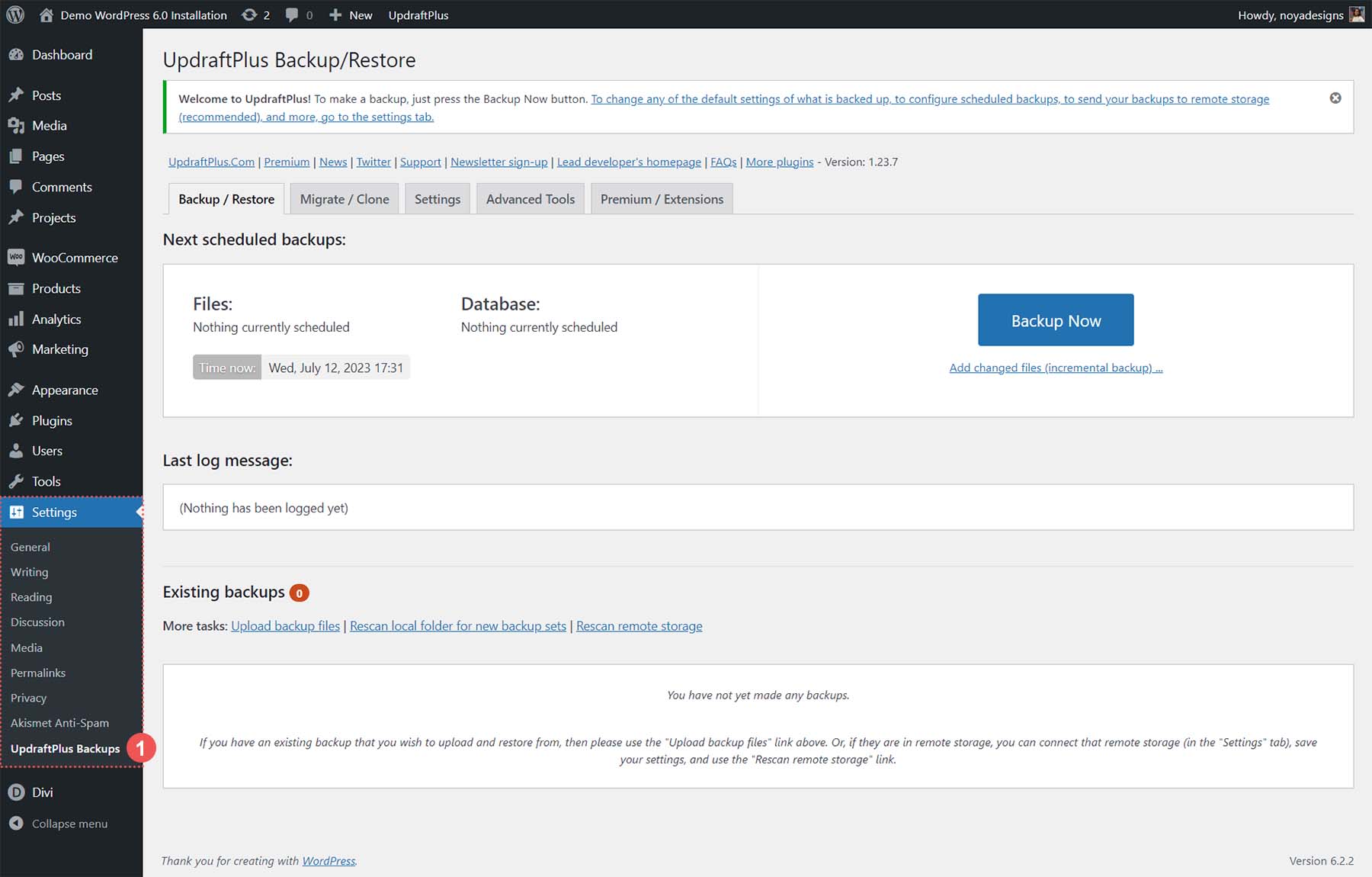
Backup plugins offer flexible automatic backup features. They let you schedule backups at your preferred times. Plugins like UpdraftPlus and BackWPup are widely used. They can save backups to cloud services like Dropbox or Google Drive. These plugins also allow easy restoration from the WordPress dashboard. They are user-friendly for beginners and advanced users alike.
Jetpack And Vaultpress Options
Jetpack and VaultPress provide automatic backup services by Automattic. They back up your site in real time or daily. These services store your backups on their secure cloud. You can restore your site quickly with a few clicks. Jetpack also offers security and performance features alongside backups. VaultPress focuses mainly on reliable backup and restoration.

Credit: developer.wordpress.org
Backup Storage Options
Choosing the right backup storage option is key to protecting your WordPress site. Each option has its own benefits and risks. Understanding these helps you keep your data safe and easy to restore. Below are some common storage choices for WordPress backups.
Local Storage Benefits
Local storage means saving backups on your own computer or external drives. This option gives you full control over your data. You can access your backups quickly without internet delays. Local storage is often free after the initial setup. It is good for small sites or quick restores.
One risk is hardware failure, so keep multiple copies. Local storage also needs manual updates to stay current. Still, it works well for users who want direct access to files.
Cloud Storage Choices
Cloud storage saves your backups on remote servers managed by providers. This option offers automatic backups and easy access from anywhere. Popular services include Google Drive, Dropbox, and Amazon S3. Cloud storage scales well for growing sites with large data.
Cloud providers handle security and data redundancy for you. Monthly fees may apply depending on storage size. Cloud storage protects against local hardware issues and theft.
Offsite Backup Importance
Offsite backups store your data away from your main location. This protects your site if local disasters happen, like fire or theft. Combining local and offsite backups gives extra security. Offsite storage can be physical, like a safe deposit box, or digital, like cloud services.
Regularly updating offsite backups ensures you have recent copies. This strategy reduces the risk of losing all your data at once. Offsite backups are a smart part of any backup plan.
Restoring Your Site
Restoring your WordPress site is crucial after data loss or errors. It brings your website back online quickly. A good backup ensures minimal downtime and saves your work. Knowing how to restore your site is key to website management.
Using Backup Plugins
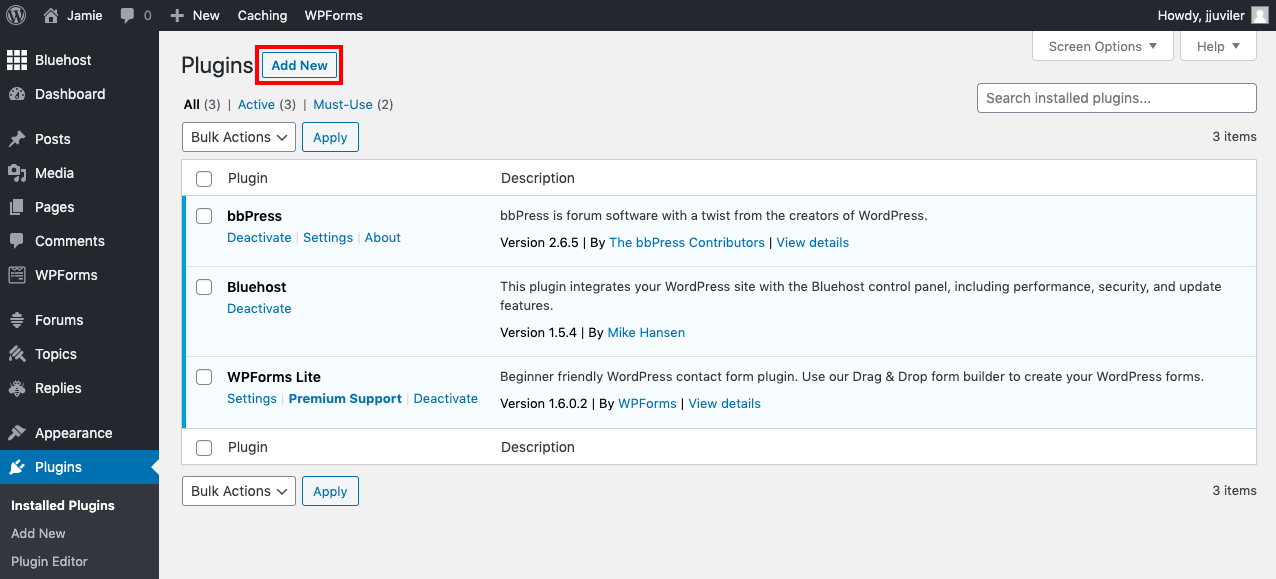
Backup plugins simplify the restoration process. Most plugins have a restore option within their dashboard. Upload your backup file and click restore. The plugin will replace your current files and database. This method requires less technical knowledge. Popular plugins include UpdraftPlus, BackupBuddy, and BackWPup.
Manual Restoration Process
Manual restoration involves more steps but offers full control. First, connect to your server using FTP or cPanel. Upload your backed-up files to the root directory. Next, restore the database using phpMyAdmin or a similar tool. Import your SQL backup file to replace the current database. Finally, check your wp-config.php file for correct database details.
Testing Backup Integrity
Testing backups ensures they work before disaster strikes. Restore a backup on a staging or local site first. Check if all pages, posts, and media load correctly. Verify plugins and themes function as expected. This step prevents surprises during actual restoration. Regular testing keeps your backups reliable and ready.
Credit: agethemes.com
Backup Best Practices
Backing up a WordPress site protects your content and settings from data loss. Following best practices makes backups reliable and easy to restore. A good backup routine saves time and stress during emergencies.
Backup Frequency
Back up your site regularly. The frequency depends on how often you update your content. For active blogs or shops, daily backups are best. For slower sites, weekly backups might work. Consistent backups reduce data loss risk.
Security Tips
Store backups securely. Use encrypted storage or password-protected locations. Avoid saving backups on the same server as your site. Keep multiple backup copies in different places. This prevents loss from hacks or hardware failure.
Backup Verification
Check backups often. Verify files are complete and not corrupted. Test restoring backups on a staging site. This ensures your backups work when needed. Regular checks avoid surprises during recovery.
Credit: www.elegantthemes.com
Frequently Asked Questions
How To Backup An Entire WordPress Site?
Backup your entire WordPress site by saving all files via FTP and exporting the database using phpMyAdmin. Use plugins or hosting backups for automation. Store backups securely offline or in the cloud. Regularly update backups to protect your site from data loss.
Does WordPress Have A Backup?
WordPress does not have built-in backups but supports manual backups and many plugins for automatic backups. Hosting providers often offer backup options too.
Can You Export An Entire WordPress Site?
Yes, you can export an entire WordPress site by backing up both files and the database manually or using plugins.
How To Backup A Whole Website?
Access your hosting control panel or use FTP/SFTP to download website files. Export the database via phpMyAdmin. Store backups securely offline or in the cloud. Use backup plugins or hosting services for automated backups. Regularly verify backup integrity for complete website protection.
Conclusion
Backing up your WordPress site protects your work and data. Regular backups help you recover quickly from problems. Use manual or automatic methods based on your needs. Store backups in safe locations, like your computer or cloud. Test your backups sometimes to ensure they work properly.
Keeping your site backed up gives peace of mind. Don’t wait for trouble—start backing up today.


