
Are you ready to unlock the full potential of your WordPress website? Understanding how visitors interact with your site is key to growing your audience and boosting your success.
That’s where Google Analytics comes in. It gives you clear, detailed insights about who’s visiting, what they’re doing, and how you can make your site better. If you’ve ever wondered, “How do I use Google Analytics with WordPress? ” you’re in the right place.
This guide will walk you through simple, step-by-step instructions so you can start tracking your website’s performance like a pro—no tech jargon, just easy tips you can follow right now. Keep reading to discover how to turn your website data into powerful decisions.
Credit: www.youtube.com
Setting Up Google Analytics Account
Setting up a Google Analytics account is the first step to track your WordPress website’s visitors. This process helps you gather important data about your audience. It shows how users find your site and what they do there. Follow simple steps to create your account and get the tracking code. This code connects Google Analytics with your WordPress site.
Creating A Google Analytics Account
Start by visiting the Google Analytics website. Use your Google account to sign in or create a new one. Click on the “Start measuring” button to begin. Enter your account name. It can be your business or website name. Choose your data sharing settings carefully. These settings control what information Google can use. Click “Next” to continue.
Now, add your website details. Enter the website name and URL. Select your industry category and reporting time zone. This information helps Google Analytics provide better reports. Finally, click “Create” to finish setting up your account.
Getting Your Tracking Id
After creating your account, Google Analytics gives you a tracking ID. This ID is a unique code that links your site to Google Analytics. To find it, go to the Admin section on the left menu. Under the Property column, select “Tracking Info” and then “Tracking Code.”
Your tracking ID starts with “UA-” followed by numbers. Copy this ID carefully. You will need it to connect Google Analytics with your WordPress site. Keep this code safe and do not share it publicly.

Credit: visualmodo.com
Integrating Google Analytics With WordPress
Integrating Google Analytics with WordPress helps track website traffic and user behavior. This data guides website improvements and marketing strategies. Setting up Google Analytics can be simple or more hands-on, depending on the method chosen. Two common ways to add Google Analytics to a WordPress site are using a plugin or manual code insertion. Both methods provide accurate tracking but differ in ease and control.
Using A Plugin For Easy Integration
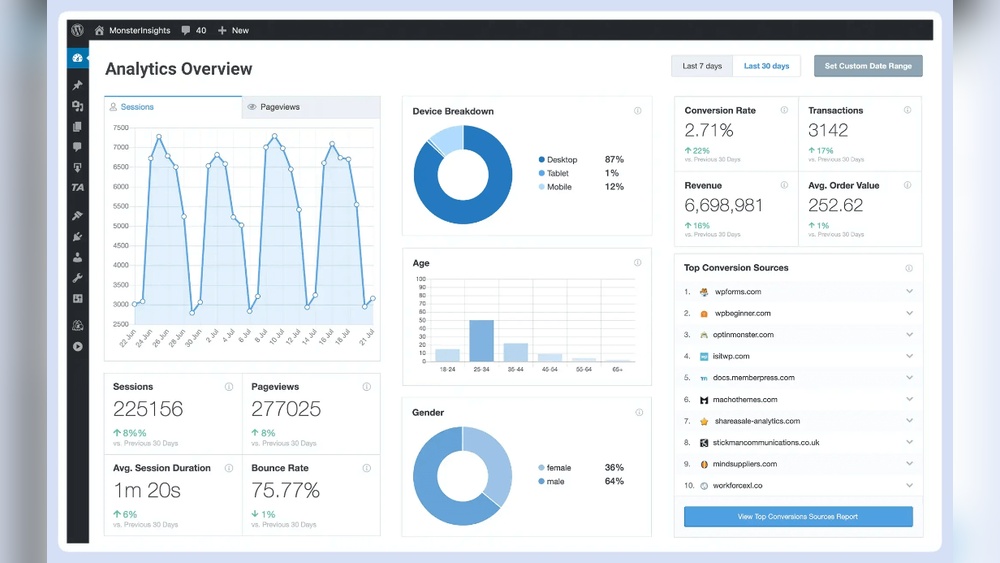
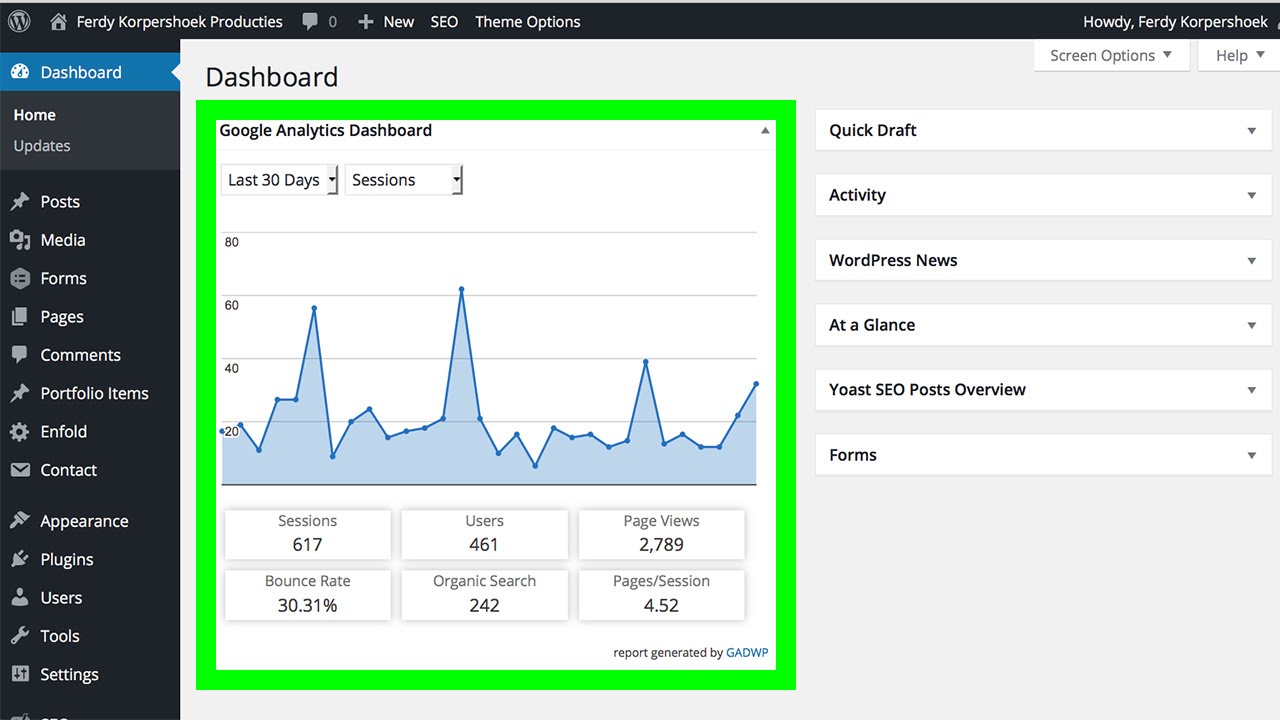
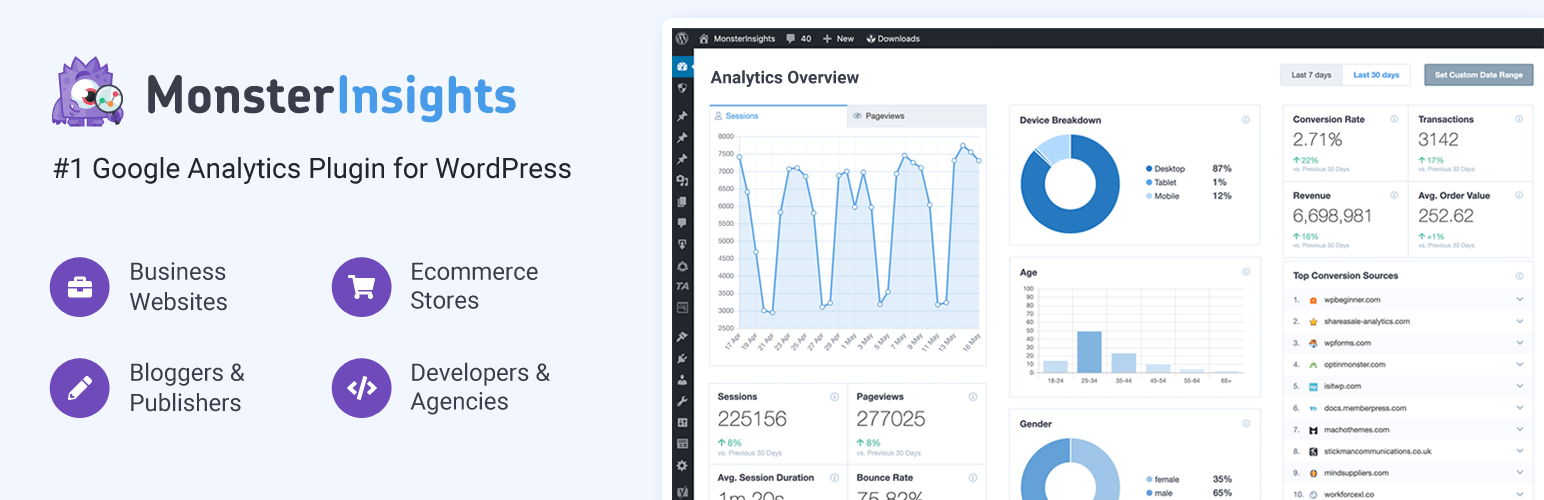
Plugins simplify adding Google Analytics to WordPress. They require no coding knowledge. Install a popular plugin like “MonsterInsights” or “Site Kit by Google”. After installation, connect the plugin to your Google Analytics account. The plugin automatically adds the tracking code to your site’s pages. This method saves time and reduces errors. You can also view analytics data directly from the WordPress dashboard. Plugins often include extra features like event tracking and reports.
Manual Integration Via Theme Code
Manual integration involves adding the tracking code to your theme files. First, get the Google Analytics tracking ID from your account. Then, open the WordPress theme editor and locate the header.php file. Paste the tracking code before the closing tag. Save changes to activate tracking. This method requires basic knowledge of HTML and WordPress themes. It offers full control and no reliance on plugins. Remember to update the code if you switch themes or update them.
Configuring Google Analytics Settings
Configuring Google Analytics settings in WordPress helps track your website’s performance. Adjusting these settings allows better data collection. This helps understand visitor behavior and improve your site.
Enabling Enhanced Measurement
Enhanced Measurement tracks more user actions automatically. It records clicks, scrolls, video views, and file downloads. This feature works without extra coding. Turn it on in your Google Analytics property settings. This helps gather detailed data easily.
Setting Up Goals And Conversions
Goals measure important actions visitors take on your site. Examples include form submissions, purchases, or newsletter signups. Set goals in the Google Analytics admin panel. Define clear conditions for each goal. Tracking goals helps see if your site meets business targets.
Tracking WordPress User Behavior
Tracking user behavior on your WordPress site helps you understand visitor actions. This knowledge allows you to improve your content and design. Google Analytics offers detailed insights into how users interact with your website. By linking Google Analytics with WordPress, you can monitor key metrics easily. These metrics show what content attracts visitors and how they navigate your pages.
Monitoring Pageviews And Sessions
Pageviews count how many times a page is viewed. Sessions measure the total visits by users during a specific period. Tracking these helps identify popular pages and user engagement levels. You can see which posts or products get the most attention. This data guides you in creating content that keeps visitors interested. Also, it shows how long visitors stay on your site.
Analyzing User Demographics And Interests
Google Analytics provides data on visitor age, gender, and location. This helps tailor your content to your audience’s needs. Understanding visitor interests lets you create relevant posts and offers. You learn what topics attract different groups of users. This insight improves your marketing strategies and user experience. Knowing your audience supports better decision-making for your site.
Leveraging Google Analytics Reports
Google Analytics reports offer powerful tools to understand your WordPress site’s visitors and their actions. These reports provide clear data that helps improve your website’s performance. You can track visitors in real time, learn about who they are, see how they find your site, and check what they do once they arrive.
Using these insights helps you make smart changes. You can create better content, improve user experience, and increase your conversions. Let’s explore the main types of reports you should focus on.
Real-time Reports For Instant Insights
Real-time reports show live data about your website visitors. You can see how many people are on your site right now. It also shows which pages they visit and their locations. This report helps check if your new posts or campaigns work instantly. You can monitor traffic spikes or issues as they happen.
Audience And Acquisition Reports
Audience reports reveal who visits your site. You learn about their age, gender, location, and devices used. Acquisition reports show how visitors find your website. It could be from search engines, social media, or direct visits. These reports help tailor your content and marketing to attract the right visitors.
Behavior And Conversion Reports
Behavior reports track what visitors do on your site. You see which pages are popular and where visitors leave. Conversion reports measure goals like newsletter signups or purchases. This data shows how well your site meets its objectives. Use it to improve user paths and boost your success rates.
Optimizing WordPress Site With Analytics Data
Using Google Analytics data can help improve your WordPress site. It shows how visitors use your site. This information lets you make smart changes. You can boost user experience and grow your audience.
Focus on what users like and what slows them down. Analytics helps you find these details. Use the data to make your content and site faster. Small improvements can lead to better results.
Improving Content Based On User Engagement
Check which pages get the most visits. See how long users stay on each page. If visitors leave quickly, the content may not fit their needs. Update or remove low-engagement pages. Add useful information and clear calls to action. Use popular topics to create more content users want. Tailor your posts to keep readers interested and coming back.
Enhancing Site Speed And Performance
Google Analytics reveals slow-loading pages. Slow sites cause users to leave early. Find pages with high bounce rates and long load times. Optimize images and reduce large files to speed up loading. Use caching plugins to improve performance. Fast sites keep visitors happy and improve search rankings. Monitor site speed regularly to maintain a smooth experience.
Troubleshooting Common Issues
Troubleshooting is a key step when using Google Analytics with WordPress. Sometimes, tracking might not work correctly. Data might look wrong or incomplete. These problems need fixing to get accurate results. This section explains how to solve common issues fast and clearly.
Fixing Tracking Code Problems
The tracking code must be on every page. Check your WordPress theme or plugin to add the code correctly. If the code is missing, Google Analytics will not record visits. Make sure the code is the latest one from your Google Analytics account.
Clear your browser cache after adding the code. Sometimes, the old page version shows without the tracking code. Use a browser’s incognito mode to test if tracking works. Also, verify no other plugin blocks the tracking code.
Resolving Data Discrepancies
Data might not match between Google Analytics and WordPress stats. Different time zones can cause this problem. Set the correct time zone in your Google Analytics settings. Check your WordPress site’s time settings too.
Filters in Google Analytics can remove some data. Review filters to ensure they don’t block important visits. Bot traffic can also cause false data. Enable bot filtering in Google Analytics to clean your reports.
Credit: wordpress.org
Frequently Asked Questions
How Do I Install Google Analytics On WordPress?
To install Google Analytics, first create a GA account and get your tracking ID. Use a plugin like “MonsterInsights” or add the tracking code directly to your theme’s header. php file for easy integration.
Can I Use Google Analytics Without A Plugin On WordPress?
Yes, you can add the Google Analytics tracking code manually to your WordPress theme’s header. php file. This method avoids plugins but requires caution during theme updates to avoid code loss.
How Do I Track WordPress User Behavior With Google Analytics?
Google Analytics tracks user behavior automatically once installed. You can view pages visited, session duration, bounce rate, and real-time user activity through the GA dashboard for better insights.
Is Google Analytics Free To Use With WordPress?
Yes, Google Analytics is completely free. It provides valuable website traffic data and user insights without any cost, making it ideal for WordPress site owners of all sizes.
Conclusion
Using Google Analytics with WordPress helps you understand your website visitors. It shows which pages get the most traffic. You can see where visitors come from and what they like. This information helps you make your site better. Setting up Google Analytics is simple and quick.
Check your data often to improve your content. Tracking user behavior helps grow your website step by step. Start using Google Analytics today to learn more about your audience.


