
Are you eager to give your website a fresh look but unsure how to upload your own WordPress theme to Bluehost? You’re in the right place!
Imagine the thrill of seeing your creative vision come to life on your website. Whether you’re a seasoned developer or a passionate beginner, customizing your site with a unique theme can make it stand out and captivate visitors. But, the process might seem daunting at first.
Fear not! By the end of this article, you’ll have the confidence and know-how to effortlessly upload your own WordPress theme to Bluehost. Let’s dive in and transform your website into a true reflection of your style and purpose.
Preparing Your Theme Files
Ensure your theme meets all WordPress standards. Check for compatibility with the latest version. Make sure your theme is responsive and works on mobile devices. Avoid themes with errors or broken links. Make sure it supports widgets and plugins. Verify it has a clean code and follows best practices.
Place theme files in a single folder. Name the folder clearly. Include all necessary files. Check for style.css and index.php. Ensure all files are present. Remove any extra files not needed. This makes upload easy.
Accessing Bluehost Dashboard
Start by visiting the Bluehost website. Enter your login details. Look for the login button at the top. After entering details, press the button. You will see the dashboard now.
Find the WordPress tools in the menu. Click on it. This will take you to the WordPress dashboard. From here, you can manage your site. It’s simple and easy to use. The dashboard helps with many tasks. You will upload your theme here.
Uploading Via WordPress Admin
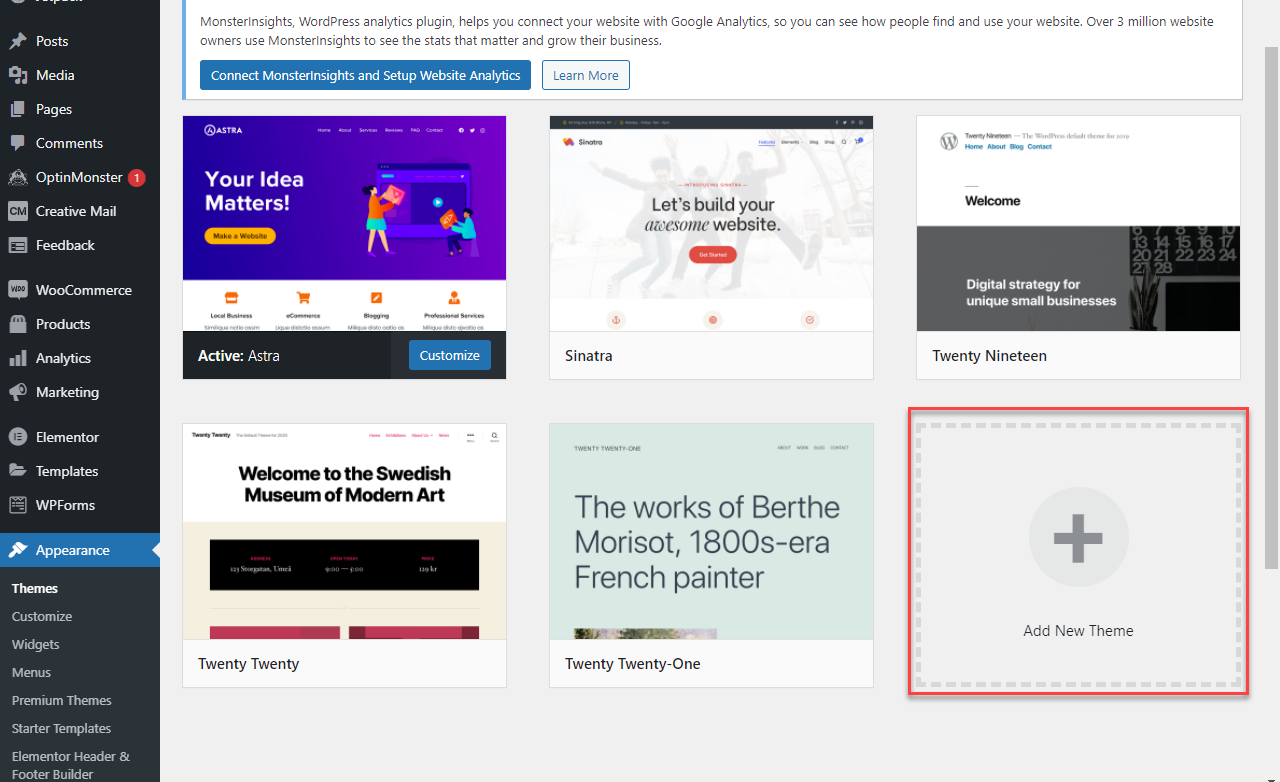
First, log in to your WordPress Admin dashboard. Click on the Appearance section. You will find it on the left side of the screen. Find and click on the ‘Add New’ option. This button is usually at the top of the page. Now, you need to upload your theme. Make sure your theme is in a .zip file format. Click on the ‘Upload Theme’ button. A new screen will appear. Here, you can select your theme file. Click on the ‘Choose File’ button. Find your theme file and select it. Then, click ‘Install Now’. Wait for the upload to finish. You will see a message once the theme is installed. Finally, click on ‘Activate’ to use your new theme.

Credit: www.bluehost.com
Using Bluehost File Manager
Open your Bluehost account. Find the cPanel option. Click on it. Look for the File Manager icon. Click to enter. This opens a new window.
In File Manager, find the public_html folder. Open it. Locate the wp-content folder. Inside, find the themes folder. This is where you upload your theme.
Click the Upload button. It is at the top. Choose your theme file. Ensure it is in .zip format. Wait for the upload to complete. Once done, go to your WordPress dashboard. Activate your new theme.
Activating Your Theme
Open your WordPress dashboard. Find the Appearance menu on the left. Click it. Now, see the Themes option. Click on it. You will see your new theme here. It’s easy!
Locate the theme you uploaded. Hover over the theme. You will see an Activate button. Click the button. Your theme is now active. Your website will show the new theme.

Credit: www.bluehost.com
Troubleshooting Common Issues
Uploading a WordPress theme to Bluehost can be simple. Start by accessing the Bluehost dashboard, then navigate to the “File Manager” under “Advanced” settings. Locate the “wp-content/themes” folder and upload your theme files there.
Resolve Upload Errors
Sometimes, you might face upload errors when adding a theme. First, check your internet connection. A weak connection can cause problems. Also, ensure your theme file is in .zip format. Other formats won’t work. File size can also be an issue. Bluehost has a file size limit. Try reducing the file size if needed. For persistent errors, check your server settings. Some settings may block uploads. Contact Bluehost support for further help.
Fix Theme Compatibility Problems
A theme may not work well with your site. This is a compatibility problem. First, check if your theme supports your WordPress version. Outdated themes often cause issues. Update WordPress if needed. Plugins can also create conflicts. Try deactivating plugins one by one. See if the theme works. If it does, one of your plugins is the issue. Contact the theme developer for more help. They might have a solution.
Customizing Your New Theme
The Theme Customizer is a powerful tool. It lets you change your theme easily. You can adjust colors, fonts, and images. Make your website look special. Try different layouts and see what you like. You can preview changes before saving. This keeps your site looking good.
Settings help you manage your site. Change the way your pages look. Choose the right layout for your content. Experiment with header and footer styles. Make your site easy to navigate. These settings improve user experience. Keep your site clean and simple.
Credit: www.bluehost.com
Frequently Asked Questions
How Do I Upload A Theme To WordPress Bluehost?
Log in to your Bluehost account. Go to WordPress dashboard, click “Appearance,” then “Themes. ” Click “Add New,” upload your theme file, and activate it.
How Do I Upload My Own Theme To WordPress?
To upload your theme to WordPress, go to your dashboard. Click “Appearance,” then “Themes. ” Select “Add New,” then “Upload Theme. ” Choose your theme file and click “Install Now. ” Finally, activate your theme.
How Do I Upload My WordPress Site To Bluehost?
Log in to your Bluehost account. Go to “My Sites” and click “Create Site. ” Follow prompts to set up WordPress. Use FTP to upload your site files. Update your database details in wp-config. php. Finally, check your site to ensure it displays correctly.
How Do I Import A Custom Theme Into WordPress?
Go to your WordPress dashboard. Click on “Appearance,” then “Themes. ” Select “Add New” and “Upload Theme. ” Choose your theme file and click “Install Now. ” Finally, activate your theme.
Conclusion
Uploading your WordPress theme to Bluehost is simple and rewarding. Follow these steps: choose your theme, prepare files, and access Bluehost. Then, upload the theme using the file manager. Activate your theme through WordPress after the upload. Ensure your theme is functional and visually pleasing.
These steps help your website stand out. With a custom theme, your site reflects your unique style. Your website’s design is in your hands. Enjoy the process and make your website shine. Success is just a few clicks away. Happy designing!


