
Are you ready to remove WordPress but don’t know where to start? Uninstalling WordPress might seem tricky, but it doesn’t have to be.
Whether you want to switch to a new platform, clean up your hosting space, or just start fresh, this guide will walk you through every step. By the end, you’ll have the confidence to uninstall WordPress safely and completely—without losing important data or causing website errors.
Keep reading, and let’s make this process simple and stress-free for you.
Preparing To Uninstall
Preparing to uninstall WordPress is an important step. It helps avoid losing important files and settings. Careful preparation saves time and prevents problems later. Follow these simple tasks before starting the uninstall process.
Backup Your Website Data
Backup all your website files and databases first. This includes posts, images, and settings. Use a plugin or your hosting control panel for backups. Store the backup in a safe place. This step protects your data from permanent loss.
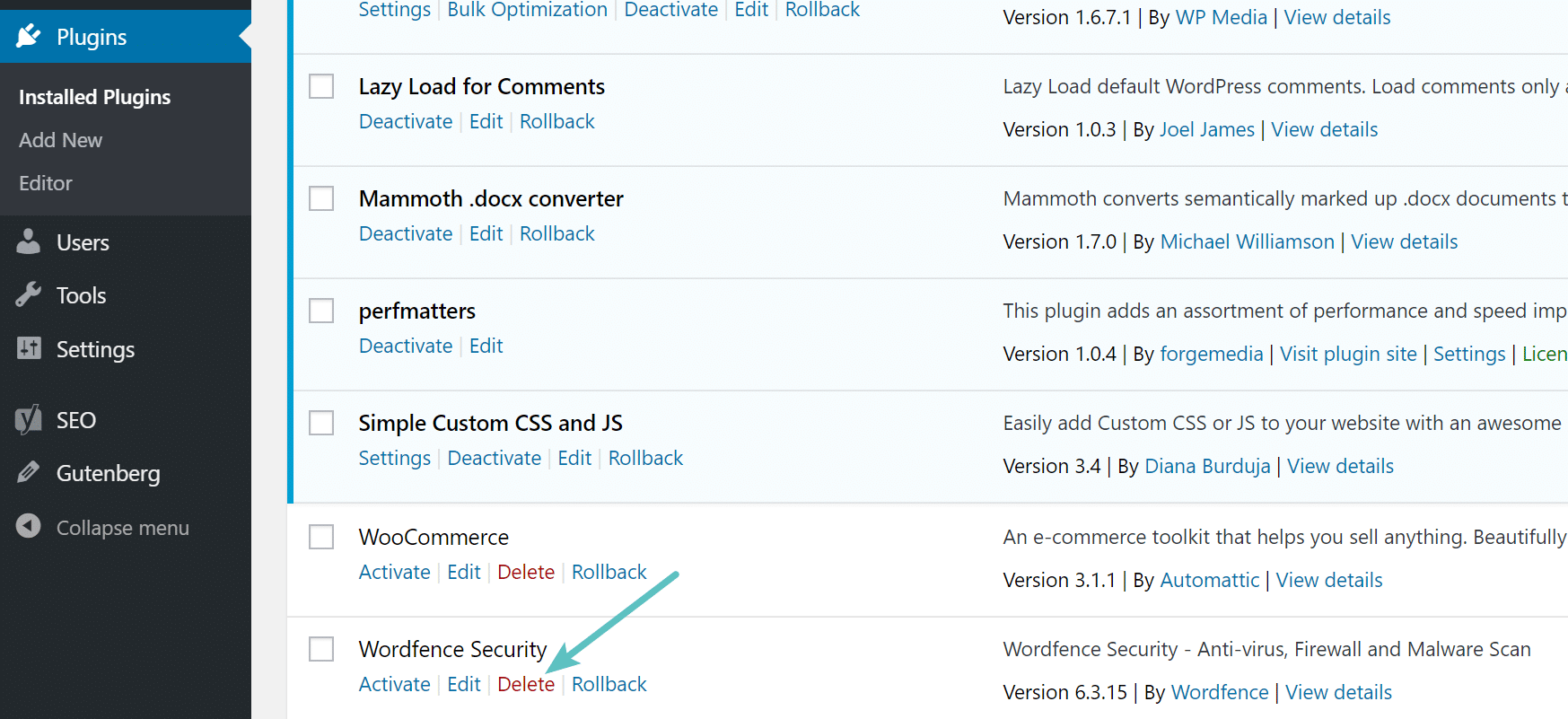
List Installed Plugins And Themes
Make a list of all active plugins and themes. This helps if you want to reinstall or switch platforms later. Note down their names and versions. Also, check if any plugins have special settings. Keep this list handy for future reference.
Accessing Your Hosting Control Panel
Accessing your hosting control panel is the first step to uninstall WordPress. This panel lets you manage all files and databases of your website. You need to find the right tools to remove WordPress safely.
Most hosts use cPanel or a custom dashboard. Both give access to your website’s core files and database. Knowing where to look saves time and avoids mistakes.
Login To Cpanel Or Hosting Dashboard
Start by entering your hosting provider’s website. Use your username and password to log in. These details come from your hosting signup email. If you lose them, contact your host’s support team.
Once logged in, you see the main dashboard. It shows many options for managing your site. Look for icons or links related to files and databases.
Locate File Manager And Database Tools
File Manager is where you find all your website files. It lets you delete WordPress files or backup before removal. The database tool is often called phpMyAdmin.
phpMyAdmin manages your WordPress database. You can delete or export your database here. Both tools are essential to uninstall WordPress completely.
Deleting WordPress Files
Deleting WordPress files is a key step in uninstalling WordPress from your server. This process removes the core files that run your website. It clears space and stops WordPress from functioning on your domain.
Be careful while deleting files. Removing the wrong files might cause issues on your server. Follow the steps below to delete WordPress files safely.
Navigate To WordPress Directory
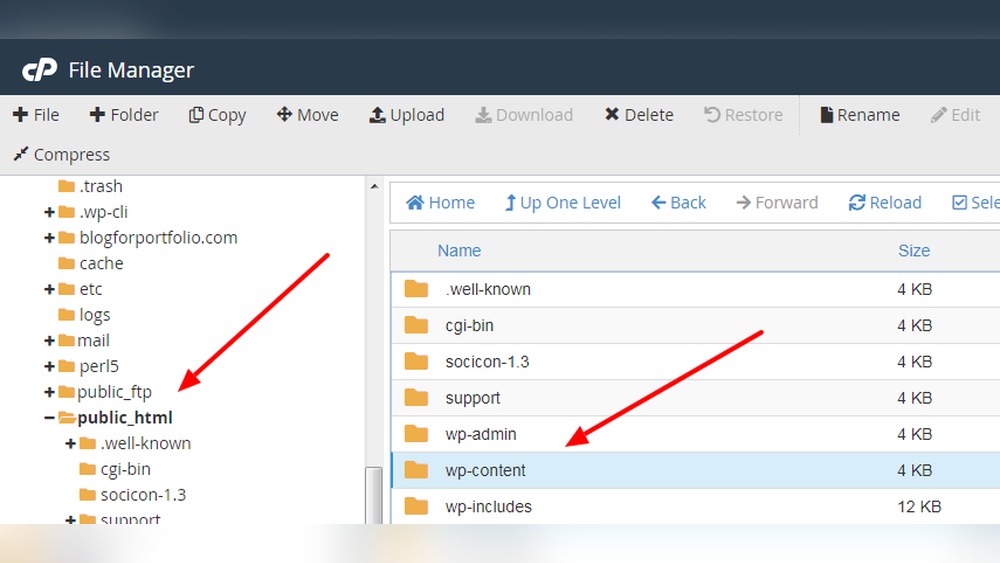
First, access your web hosting control panel or use an FTP client. Look for the folder where WordPress is installed. This is usually named “public_html” or “www.”
Inside this folder, find the WordPress directory. It contains all WordPress files and folders. If WordPress is installed in a subfolder, open that folder instead.
Remove Core Files And Folders
Select all WordPress files and folders inside the directory. These include wp-admin, wp-content, wp-includes, and many files like index.php, wp-config.php.
Delete these files carefully. This will remove WordPress’s core files from your server. Empty the trash or recycle bin after deletion to free up space.
Credit: kinsta.com
Removing The WordPress Database
Removing the WordPress database is a key step in uninstalling WordPress completely. The database holds all your site’s content, settings, and user information. Deleting it frees up space and removes all traces of WordPress from your server.
Take care during this process. The deletion is permanent. Back up your data if you want to save anything for later.
Identify The WordPress Database
First, find the name of your WordPress database. This name is in the wp-config.php file. Access your website files using FTP or a file manager.
Open wp-config.php and look for the line: define('DB_NAME', 'your_database_name');. This shows your database name. Write it down for the next step.
Drop Database Using Phpmyadmin
Login to your web hosting control panel. Find and open phpMyAdmin. This tool manages your databases.
In phpMyAdmin, select the database you noted earlier from the left sidebar. Verify it contains your WordPress tables.
Click the “Operations” tab. Scroll down and click “Drop the database (DROP)”. Confirm the action. This deletes the entire WordPress database.
Check that the database no longer appears in phpMyAdmin. Your WordPress data is now fully removed.
Cleaning Up After Uninstallation
After uninstalling WordPress, some cleanup steps remain. These help keep your server safe and free from leftover files. Clearing out all related data ensures no old settings or users cause issues later. This process also protects your site from potential security risks.
Delete Database Users
WordPress creates database users for managing site data. These users have access to your database and may remain after uninstallation. Removing these users stops unauthorized access and keeps your database secure. You can delete them through your hosting control panel or database management tool. Be sure to delete only users linked to your old WordPress site.
Clear Browser Cache And Cookies
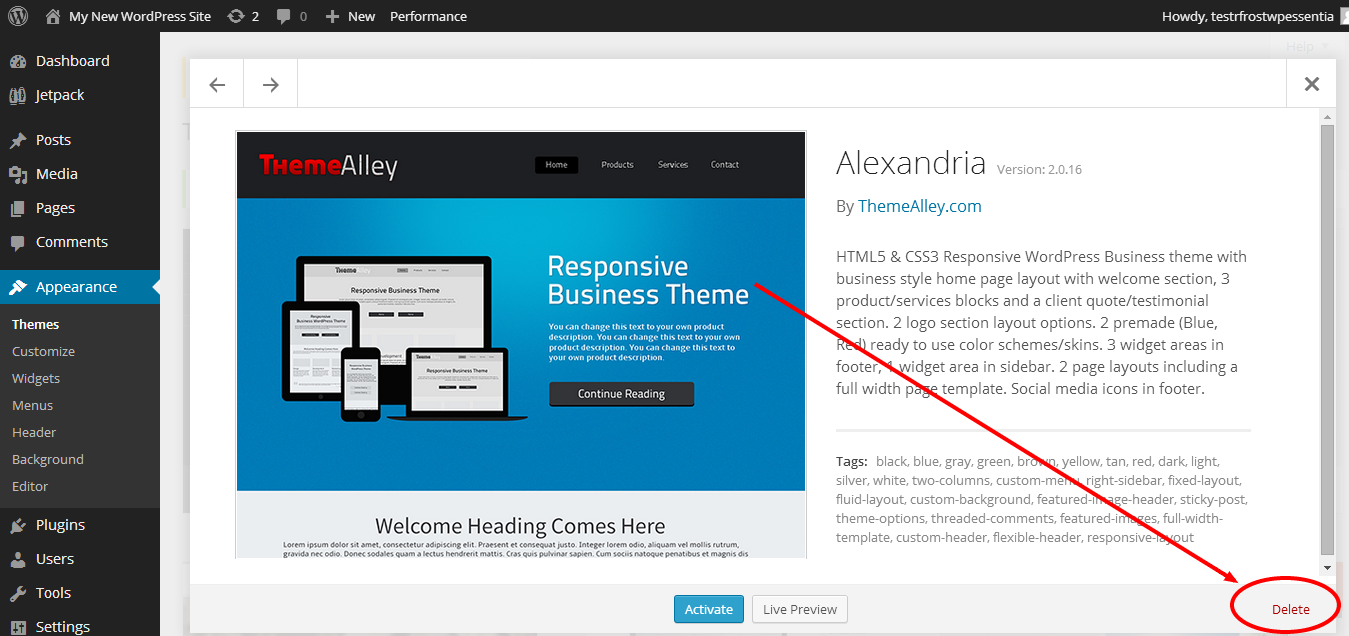
Your browser stores files and cookies from websites you visit. These can include login details and site settings from WordPress. Clearing cache and cookies prevents old data from showing up when you visit your site again. It also helps load fresh versions of your web pages. This step is simple and improves your browsing experience after uninstalling WordPress.
Credit: www.ipage.com
Alternative Methods To Uninstall
There are other ways to uninstall WordPress besides the usual method. These options offer more control and flexibility. They work well for users with some technical knowledge. Each method has clear steps to help you remove WordPress safely.
Using WordPress Management Tools
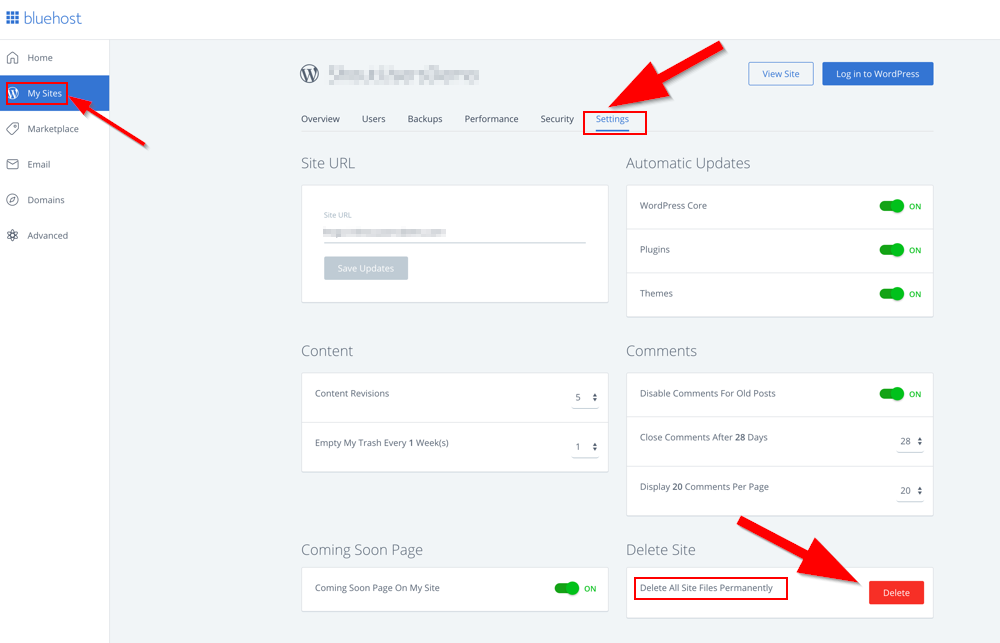
WordPress management tools simplify site control tasks. Some tools let you uninstall WordPress with just a few clicks. They handle database cleanup and file removal automatically. This method saves time and reduces errors. You just need to select the site and choose uninstall. These tools often include backups before uninstalling. So, you can restore your site if needed.
Uninstalling Via Ftp Clients
FTP clients connect directly to your web server. You can access WordPress files and delete them manually. Start by logging into your server with an FTP client. Locate the WordPress folder and remove all files. Next, delete the related database using your hosting control panel. This method requires caution to avoid deleting wrong files. It gives you full control over what stays or goes.
Common Issues And Fixes
Uninstalling WordPress can sometimes cause problems. These issues can stop the process or cause errors. Knowing common problems helps fix them fast. This saves time and avoids frustration. Below are two frequent problems and their simple solutions.
File Permission Errors
File permission errors happen when WordPress cannot delete files. Permissions tell the server who can access files. If permissions are too strict, WordPress cannot remove files. You may see error messages about access denied.
Fix this by changing file permissions. Use your hosting control panel or FTP client. Set permissions to 755 for folders and 644 for files. This gives WordPress enough rights to delete files safely. After uninstalling, reset permissions to secure your site.
Database Connection Problems
Database connection problems occur if WordPress cannot connect to its database. This stops WordPress from deleting data properly. Errors like “Error establishing a database connection” may appear.
Check your database username, password, and host in the wp-config.php file. Ensure these details match your hosting database settings. Sometimes, repairing the database helps. Many hosts offer tools to repair or optimize databases. Fixing connection issues allows WordPress to remove all data correctly.
Credit: litextension.com
Frequently Asked Questions
How Do I Uninstall WordPress From My Hosting?
To uninstall WordPress, delete all WordPress files via your hosting file manager or FTP. Then, remove the associated database using your hosting control panel’s database manager, like phpMyAdmin, to ensure a complete uninstall.
Can I Uninstall WordPress Without Losing My Data?
Uninstalling WordPress deletes files and the database, removing your content. To keep data, back up your entire site and database before uninstalling. This lets you restore your website later if needed.
What Steps Remove WordPress Plugins And Themes Fully?
Deleting WordPress files also removes plugins and themes. For a clean uninstall, delete all WordPress directories and database tables. This ensures no leftover plugin or theme files remain on your server.
How Do I Uninstall WordPress Using Cpanel?
Log in to cPanel, open File Manager, and delete WordPress files from the public_html folder. Next, go to phpMyAdmin, select your WordPress database, and drop all tables to complete the uninstall.
Conclusion
Uninstalling WordPress can be simple with the right steps. Follow the guide carefully to avoid mistakes. Back up your data before you start deleting files. Remove WordPress files and clean your database fully. Check your website to confirm everything is gone.
This helps keep your server clean and organized. Take your time and double-check each step. You can always reinstall WordPress later if needed. Stay patient and careful throughout the process. This makes uninstalling stress-free and safe for your site.


