
Are you wondering how to temporarily disable your WordPress site without causing permanent damage or losing visitors? Whether you need to perform maintenance, update content, or fix errors, turning off your site briefly can protect your visitors from a broken experience.
But how do you do it quickly and safely? You’ll discover simple, effective methods to pause your WordPress site exactly when you need to—and get it back online just as easily. Keep reading to find the easiest way to take control of your site’s visibility right now.

Credit: www.interserver.net
Reasons To Disable Your WordPress Site
There are several reasons to temporarily disable your WordPress site. Sometimes, keeping it live can cause issues or confuse visitors. Disabling the site helps protect your content and improves user experience during important changes. Below are common reasons why site owners choose to take their WordPress site offline for a while.
Maintenance And Updates
Regular maintenance keeps your site running smoothly. Updates to plugins, themes, or WordPress itself may cause errors. Disabling the site prevents visitors from seeing broken pages or bugs. It also stops users from submitting forms or orders during changes. This ensures your site stays professional and reliable.
Security Concerns
Security threats can harm your site and visitors. Sometimes, you need to disable your site while fixing vulnerabilities. This action stops hackers from exploiting weaknesses. It also gives you time to install security patches safely. A disabled site lowers the risk of data loss or damage.
Redesign And Development
Redesigning your site needs focus and privacy. Visitors may get confused by unfinished pages or layouts. Disabling the site hides the changes until they are ready. Developers can work without interruptions or accidental data loss. This way, you launch a polished and complete website.
Credit: www.hostinger.com
Methods To Temporarily Disable WordPress
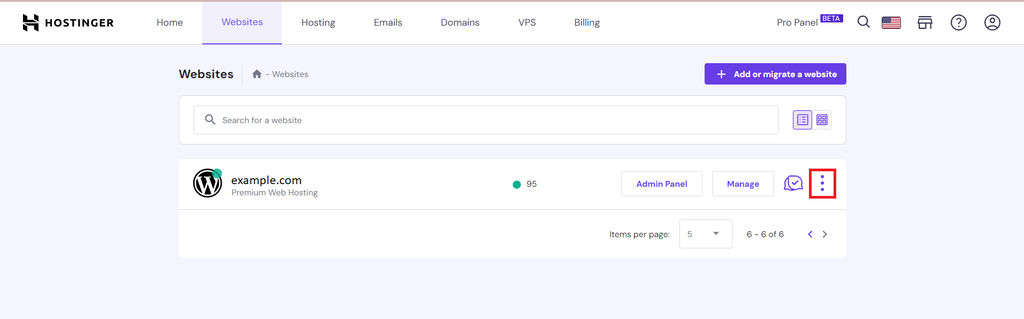
Temporarily disabling your WordPress site can help during updates, redesigns, or troubleshooting. It prevents visitors from seeing unfinished or broken pages. Several easy methods exist to pause your site without deleting content or harming SEO.
Choose the method that fits your needs and technical skills best. Each approach offers a different level of control and customization.
Using A Maintenance Mode Plugin
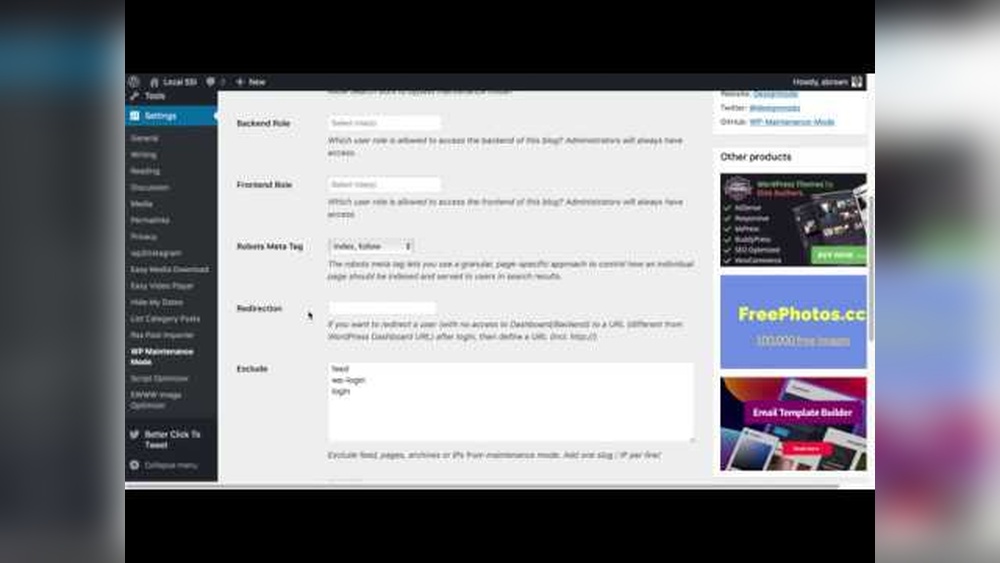
Maintenance mode plugins show a simple message to visitors while you work behind the scenes. They keep your site online but block public access. Popular plugins include WP Maintenance Mode and SeedProd.
These plugins often allow you to add custom text, countdown timers, or contact info. They activate with a few clicks and do not require coding skills.
Editing The .htaccess File
The .htaccess file controls server settings for your WordPress site. You can add rules to restrict access temporarily. This method blocks visitors but lets you and your team access the site.
Editing .htaccess needs caution. A small mistake can cause errors. Always back up the file before making changes.
Disabling WordPress Via Wp-config.php
Adding a line to the wp-config.php file can disable your site quickly. This method stops the site from loading and shows a blank page or error. It is useful for quick shutdowns during emergencies.
Only users with FTP or hosting panel access should use this method. Always save a backup before editing wp-config.php.
Using A Coming Soon Plugin
Coming Soon plugins display a launch or update message before your site goes live. They are perfect for new sites or major redesigns. Visitors see a friendly page instead of your unfinished site.
These plugins often include email capture forms and social media links. They help build anticipation and keep visitors informed.
Step-by-step Guide To Maintenance Mode Plugin
Using a maintenance mode plugin lets you hide your WordPress site temporarily. It shows visitors a clear message while you update or fix your site. This guide will help you set up maintenance mode easily with a plugin.
Choosing The Right Plugin
Select a plugin that is easy to use and suits your needs. Popular options include “WP Maintenance Mode” and “Maintenance.” Check user reviews and ratings before deciding. Pick one that gets regular updates and good support.
Installing And Activating The Plugin
Go to your WordPress dashboard. Click on “Plugins” and then “Add New.” Search for your chosen maintenance mode plugin. Click “Install Now” and wait a moment. After installation, click “Activate” to enable the plugin.
Configuring Maintenance Settings
Open the plugin settings from the dashboard menu. Set your maintenance message or choose a template. Customize colors, text, and access permissions if available. Save your changes to apply the new settings.
Testing Your Site Status
Log out or use a different browser to visit your site. Check if the maintenance message appears correctly. Ask a friend to visit your site to confirm the status. Make sure normal visitors see the maintenance page, not your live content.

Credit: www.gsplugins.com
Disabling WordPress With .htaccess
Disabling your WordPress site temporarily can help you perform updates or fixes safely. Using the .htaccess file is a straightforward way to block site access. This method stops visitors from seeing your content while keeping your site online for you. It is a simple and effective solution for maintenance periods.
Accessing .htaccess File
The .htaccess file is in your WordPress root folder. You can find it using an FTP client or your hosting control panel. This file controls how your website behaves on the server. If you don’t see it, make sure hidden files are visible in your settings. Always back up this file before making changes.
Adding Maintenance Code
To disable your site, add code to the .htaccess file. This code blocks access and shows a maintenance message instead. Paste the following lines at the top of the file:
RewriteEngine On RewriteCond %{REMOTE_ADDR} !^123\.456\.789\.000$ RewriteCond %{REQUEST_URI} !/maintenance\.html$ RewriteRule ^.$ /maintenance.html [R=302,L]Replace 123\.456\.789\.000 with your IP address. This lets you access the site while others see the maintenance page. Create a simple maintenance.html file to display your message.
Restoring Original File
After maintenance, remove the added code from .htaccess. Upload the original file back to the server if you saved a backup. This restores normal access to your WordPress site. Double-check your site loads properly for visitors after restoring.
Using Wp-config.php To Pause Site
Using the wp-config.php file to pause your WordPress site is a quick and effective method. This file controls many core settings of your site. By adding a simple code snippet, you can stop visitors from seeing your content temporarily.
This method is helpful during site updates or maintenance. It prevents users from browsing unfinished work. The process is straightforward and does not require plugins or extra tools.
Locating Wp-config.php
Find the wp-config.php file in your WordPress root folder. This folder contains all your main WordPress files. You can access it using an FTP client or your web host’s file manager.
Look for the file named wp-config.php. It is usually in the same folder as wp-login.php and wp-content. Make sure to back up this file before editing.
Adding Disable Code
Open the wp-config.php file in a text editor. Insert the following code near the top, but after the opening PHP tag:
define('WP_INSTALLING', true);This code tells WordPress that the site is installing or updating. It stops the site from loading normally, showing a maintenance message instead.
Save the file and upload it back to the server. Your site will now display a temporary pause notice to visitors.
Removing Code To Reactivate
To make your site live again, open wp-config.php once more. Delete the line define('WP_INSTALLING', true); that you added earlier.
Save and upload the file back to your server. Your site will return to normal and be accessible to all visitors.
Best Practices While Site Is Disabled
Temporarily disabling your WordPress site requires careful handling. Follow best practices to keep your visitors informed and your site safe. This helps maintain trust and avoids confusion during downtime.
Informing Visitors
Always show a clear message on your site. Let visitors know the site is temporarily down. Explain why and when it will be back. This helps reduce frustration and keeps visitors patient.
Monitoring Site Performance
Keep an eye on your website’s status while it is disabled. Check for any errors or unexpected issues. Use monitoring tools to get alerts if something goes wrong. This ensures a smooth restart later.
Backing Up Your Site
Before disabling, create a full backup of your site. Save all files and databases safely. Backups protect your data from loss during updates or changes. They allow easy restoration if needed.
Frequently Asked Questions
How Can I Temporarily Disable My WordPress Site?
You can temporarily disable your WordPress site by using a maintenance mode plugin or by adding a simple code snippet. This hides the site from visitors while allowing admins to work behind the scenes. It’s a safe way to pause site access without deleting content.
What Is The Easiest Way To Put WordPress In Maintenance Mode?
The easiest way is to install a maintenance mode plugin like “WP Maintenance Mode. ” Activate it to display a customizable message to visitors while you work on your site. No coding knowledge is required, and it’s reversible with a single click.
Will Disabling My WordPress Site Affect Seo Rankings?
Temporarily disabling your site using maintenance mode typically won’t harm SEO if done correctly. Use a 503 HTTP status code to signal search engines your site is down temporarily. Avoid long downtime to prevent any negative impact on rankings.
Can I Disable My WordPress Site Without Plugins?
Yes, you can disable your WordPress site without plugins by adding a maintenance mode code to your theme’s functions. php file. This method requires editing code and is best for users comfortable with PHP. Always back up your site before making changes.
Conclusion
Temporarily disabling your WordPress site helps with updates and maintenance. It keeps visitors informed without showing errors or broken pages. Use simple plugins or built-in tools to pause your site easily. Always back up your content before making changes. This way, your site stays safe and ready to go live again.
Remember, a well-handled pause improves user experience and protects your site’s reputation. Take control of your WordPress site with these easy steps. Your visitors will appreciate a smooth, clear message during downtime.


