

Have you ever faced the panic of your WordPress site suddenly breaking or losing important data? It’s a stressful moment, but the good news is you don’t have to start from scratch.
Restoring your WordPress site from a backup can bring everything back to normal quickly and easily. In this guide, you’ll discover simple, step-by-step instructions that anyone can follow. By the end, you’ll feel confident handling your website’s restoration like a pro—no tech jargon, no confusion.
Ready to get your site back up and running? Let’s dive in!
Backup Types For WordPress
Backing up your WordPress site is essential. It protects your data from loss or damage. There are different ways to create backups. Each type has unique features and benefits. Understanding these types helps you choose the best method for your site.
Manual Backups
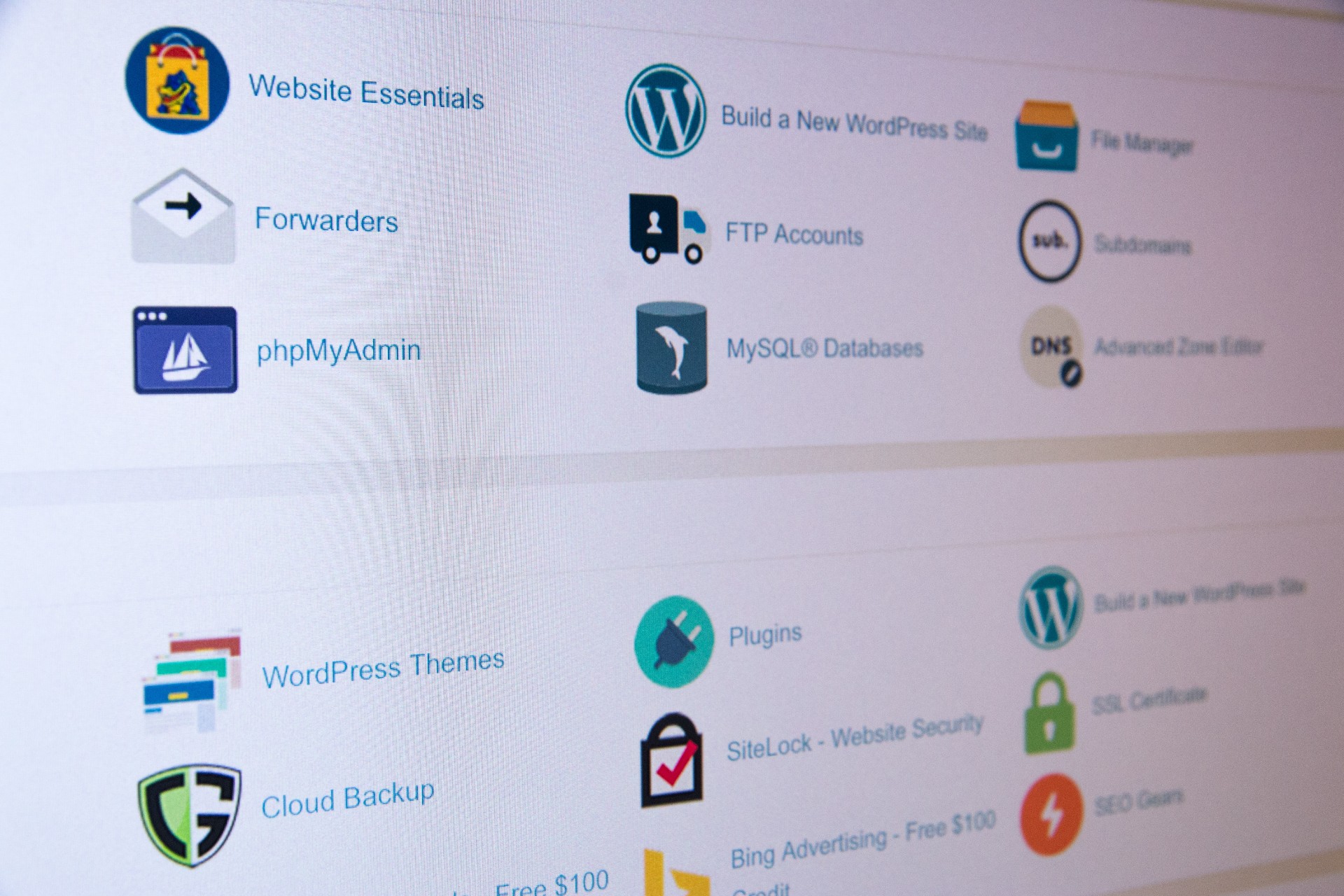
Manual backups require you to save files and databases yourself. You use tools like FTP and phpMyAdmin. This method gives full control over what you save. It takes time and some technical knowledge. It is good for small sites or quick copies.
Plugin-based Backups
Plugins automate the backup process. They save your files and database regularly. Many plugins offer options to store backups on cloud services. This method is easy and suits beginners. Some plugins also allow quick site restoration.
Hosting Provider Backups
Many hosting providers offer automatic backups. They store backups on their servers. This service often runs daily or weekly. It is convenient and requires no extra work. Check your host’s backup policy before relying on it.
Credit: managewp.com
Preparing For Restoration
Preparing to restore your WordPress site from a backup is a key step. It helps avoid problems during the restore process. Taking time to prepare ensures your site returns to a stable and working state.
Start by verifying your backup files. Choose the correct backup version that fits your needs. Also, save your current site data before restoration. These steps protect your content and minimize risks.
Check Backup File Integrity
Make sure your backup file is complete and not corrupted. An incomplete backup may cause errors when restoring. Use file verification tools or check the file size. If the file looks suspicious, find a different backup.
Choose The Right Backup Version
Select a backup version that matches the date you want to restore. Older backups may miss recent updates. Newer backups might have unwanted changes. Pick the backup that best fits your restoration goal.
Backup Current Site Data
Save your current site data before restoring. This protects any new content or changes made after the backup. Use plugins or manual methods to create a fresh backup. Keep this backup safe in case you need it later.
Restoring Using Hosting Backup
Restoring your WordPress site using your hosting backup is a reliable way to recover lost data. Hosting providers often create automatic backups. These backups save your website’s files and database regularly. Using these stored backups can quickly bring your site back to a previous state. This method is simple and does not require extra plugins or tools.
Access Hosting Control Panel
Start by logging into your hosting control panel. This is usually provided by your web host. Use your username and password to sign in. The control panel is where you manage all your website settings. It offers tools to handle files, databases, and backups.
Locate Backup Section
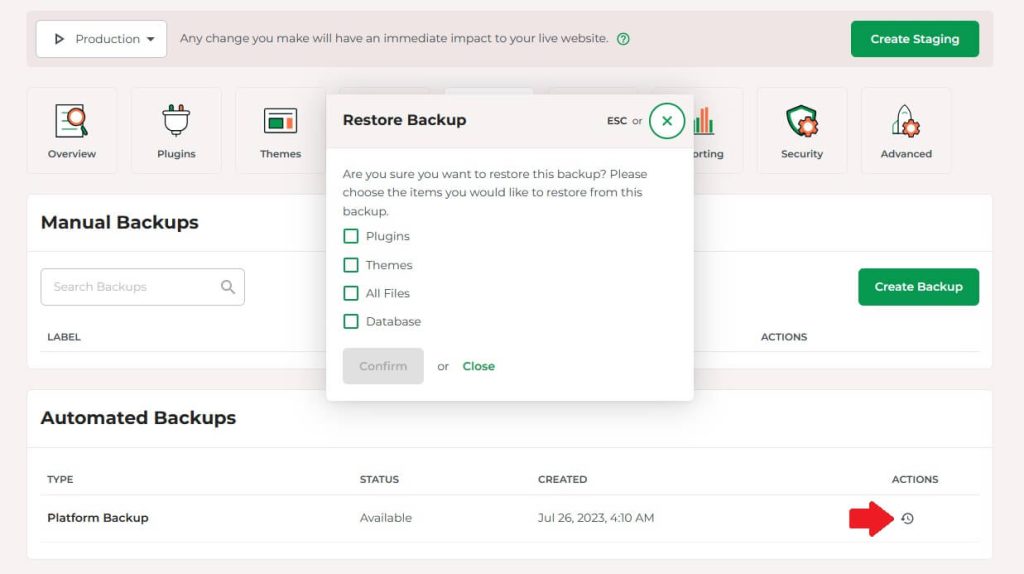
Once logged in, find the backup section in the control panel. It may be called “Backup,” “Backup Manager,” or “Restore.” This area shows available backups for your website. You can see backups from different dates and times. Choose the backup that best fits your needs.
Initiate Restore Process
Select the backup you want to restore. Click the restore button or link. The system will start copying files from the backup to your website. This process may take a few minutes. Wait until you get a confirmation that the restore is complete. Then, check your site to ensure everything works properly.
Credit: www.hostpapa.com
Restoring With Plugins
Restoring a WordPress site from a backup can be simple using plugins. These tools help you save time and reduce errors. They let you restore your site with just a few clicks. Many plugins offer easy interfaces and automatic backup options. This section explains popular plugins, steps to restore, and common issues you may face.
Popular Backup Plugins
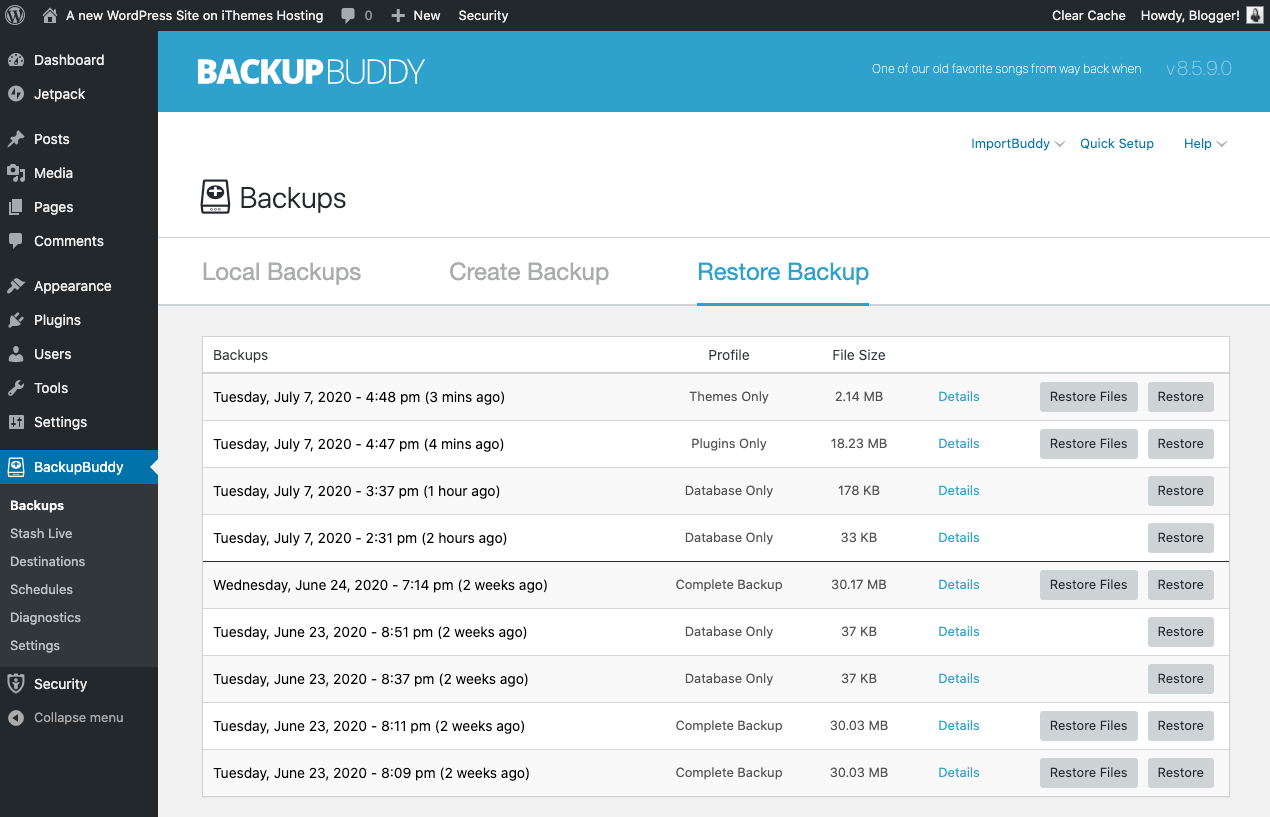
Several plugins are well-known for WordPress backups. UpdraftPlus is one of the most used. It supports cloud storage like Google Drive and Dropbox. BackupBuddy is another plugin with good restore features. It allows full site backups and quick restores. WPvivid Backup Plugin also offers easy backups and restores. Each plugin has free and premium versions. Choosing one depends on your needs and budget.
Restore Steps For Plugins
First, install and activate your chosen backup plugin. Next, go to the plugin’s backup or restore section. Upload your backup file or select it from storage. Click the restore button to start the process. Wait until the plugin finishes restoring your site. After that, check your site to make sure all content is correct. Clear your browser cache to see the latest version.
Troubleshooting Plugin Restores
Sometimes restores do not work as expected. Check if your backup file is complete and not corrupted. Make sure your plugin is updated to the latest version. Disable other plugins to avoid conflicts during restore. Increase your PHP memory limit if the restore stops halfway. Review error messages for clues on what went wrong. Contact plugin support if issues continue after these steps.
Manual Restoration Process
Restoring a WordPress site manually is a careful process. It involves several steps that bring your site back to life using backup files. This method suits those who want full control over their restoration. The process requires access to your hosting control panel and some basic tools like phpMyAdmin and FTP client.
Start by restoring the database, then upload WordPress files. Finally, update the configuration settings to link everything properly. Each step is important to get your site working again without errors.
Restore Database Via Phpmyadmin
Access your hosting control panel and open phpMyAdmin. Select the database used by your WordPress site. Before importing, drop all existing tables to avoid conflicts. Click the Import tab and choose your database backup file. Wait for the upload to finish. The database will now contain all your site’s content and settings.
Upload WordPress Files Via Ftp
Connect to your website using an FTP client like FileZilla. Navigate to the root folder where WordPress is installed. Upload all your backed-up files and folders here. This includes core WordPress files, themes, plugins, and uploads. Overwrite existing files to restore the original setup.
Update Wp-config.php Settings
Locate the wp-config.php file in your WordPress root folder. Open it with a text editor. Check the database name, username, and password match your restored database. Update these details if needed. Save the file and close it. This file links your WordPress files to the database correctly.
Credit: solidwp.com
Post-restoration Checks
After restoring your WordPress site from a backup, some important checks ensure everything works well. These checks help catch issues early and keep your site safe. Follow these steps carefully to confirm your website runs smoothly.
Verify Site Functionality
Test your site on different pages to confirm proper loading. Check links, images, and buttons to ensure they work. Test forms and other interactive elements for errors. Also, confirm that the site looks correct on mobile devices.
Clear Cache And Cookies
Clear your browser cache and cookies to see the updated site. Clear any caching plugins on your WordPress dashboard. This step helps avoid loading old versions of your site. It also ensures visitors see the latest content.
Update Passwords And Security
Change your WordPress admin password after restoration. Update passwords for your hosting and FTP accounts too. Check security plugins for any alerts or warnings. These actions protect your site from potential threats.
Common Restoration Issues
Restoring a WordPress site from a backup can sometimes bring unexpected problems. These issues can stop your site from working well or looking right. Knowing common problems helps fix them fast and get your site live again.
Database Connection Errors
This error shows when WordPress cannot connect to the database. It usually means the database name, username, or password is wrong. Check your wp-config.php file to make sure all details match your database settings. Also, the database server might be down or unreachable.
Missing Media Files
After restoration, images or videos might not appear. This happens if the wp-content/uploads folder was not backed up properly. Check if all media files exist on your server. You can re-upload missing files or restore them from a separate backup.
Plugin Or Theme Conflicts
Sometimes plugins or themes cause errors after restoration. This can happen if versions do not match or files are corrupted. Disable all plugins and switch to a default theme to test. Activate them one by one to find the problem. Update or reinstall the faulty plugin or theme to fix the issue.
Tips To Avoid Future Data Loss
Protecting your WordPress site means more than just restoring backups. Preventing data loss is key. Simple steps keep your website safe and running smoothly. These tips help avoid future problems and save time.
Regular Backup Schedule
Set up automatic backups for your site. Daily or weekly backups work well for most sites. Regular backups ensure you have recent copies of your data. This reduces the risk of losing important content. Choose a schedule that fits your site’s update frequency.
Use Reliable Backup Solutions
Select trusted backup plugins or services. Good solutions store backups securely and allow easy restoration. Check reviews and update backups tools often. Avoid free or unknown tools that might fail when needed. Reliable backups give peace of mind.
Test Backups Periodically
Check your backups by restoring them to a test site. This confirms the backup works and files are complete. Testing avoids surprises during real recovery. Schedule tests every few months to ensure backup quality. It’s a simple step that can save your site.
Frequently Asked Questions
How Do I Restore A WordPress Site From Backup?
To restore a WordPress site, access your hosting control panel or WordPress dashboard. Upload the backup files and database. Replace existing files and import the database. Follow your backup plugin’s restore instructions for a smooth process.
What Types Of Backups Can Restore A WordPress Site?
You can restore from full site backups, database-only backups, or file-only backups. Full backups include all files and database. Database backups restore content and settings. File backups restore themes, plugins, and uploads.
Can I Restore WordPress Without Losing Current Data?
Yes, but it’s risky. Always back up current data before restoring. Use incremental or differential backups to minimize data loss. Restore in a staging environment first to check for issues.
How Long Does A Typical WordPress Restore Take?
Restoration time varies by site size and backup method. Small sites may take a few minutes. Larger sites with extensive data can take up to an hour. Internet speed and server performance also impact restore time.
Conclusion
Restoring your WordPress site from a backup is easier than it seems. Follow each step carefully to avoid mistakes. Backups protect your site from data loss and errors. Keep regular backups to stay safe. Choose the right method that fits your needs.
Test your site after restoring to ensure everything works. Stay calm and patient during the process. Your website will be up and running soon. Remember, backups save time and stress in emergencies. Take action now to protect your WordPress site.


