

Are you feeling stuck with your WordPress site? Maybe things aren’t working the way you want, or you’ve made changes that you now regret.
Resetting WordPress to its default settings can give you a fresh start without the hassle of building everything from scratch. You’ll discover simple, step-by-step methods to reset your WordPress site safely and quickly. By the end, you’ll have the confidence to restore your site to its original state and move forward with a clean slate.
Keep reading—you’re closer to solving your WordPress problems than you think.
Reasons To Reset WordPress
Resetting WordPress means returning your site to its original state. This process deletes all content, settings, and customizations. It gives you a clean slate to start over. Many users choose to reset their site for different reasons. Understanding these reasons helps decide if resetting is right for you.
Sometimes, sites become cluttered or slow. Other times, changes do not work as planned. Resetting fixes these problems quickly. It also helps when testing new themes or plugins without risk.
Common Scenarios For Resetting
Some users reset WordPress after a failed update. Others reset to remove unwanted content. Developers reset sites before building new designs. Testing new features often requires a fresh start. Resetting also helps clear errors from bad code.
Benefits Of Starting Fresh
Resetting gives a clean and fast website. It removes all errors and conflicts. You can test new ideas without old data. Starting fresh saves time fixing complicated problems. It helps keep your site organized and secure.

Credit: quadlayers.com
Backup Before Reset
Resetting WordPress to default removes all changes and data. Backing up your site is vital before this step. It keeps your work safe and easy to restore later. Save all important files and settings first. This guide helps you back up your content, themes, plugins, and database efficiently.
Exporting Content
Export your posts, pages, and media files. Use the WordPress Export tool found in the dashboard. Choose “All Content” to save everything in an XML file. This file holds your text, images, and comments. Keep it safe on your computer or cloud storage. You can import this file back after the reset.
Saving Themes And Plugins
Backup your active themes and plugins manually. Use an FTP client or your hosting file manager. Download the wp-content folder, especially the themes and plugins folders. This saves your design and functionality settings. You can reinstall and reactivate them after resetting.
Database Backup Tips
Your WordPress database stores all site information. Use a plugin like UpdraftPlus or WP-DB-Backup for easy backup. Alternatively, export your database via phpMyAdmin. Save the SQL file securely. This step protects your posts, users, and settings from loss.
Reset Options
Resetting WordPress to default means restoring it to its original state. It deletes all changes, themes, plugins, and settings. This process helps fix issues or start fresh. There are several ways to reset WordPress. Each option suits different users and needs.
Using Plugins For Reset
Plugins offer a quick and easy way to reset WordPress. They remove all content, themes, and plugins safely. Popular reset plugins have simple buttons to start the reset. No coding skills needed. Just install a reset plugin, activate it, and follow instructions. This method is perfect for beginners or those who want fast results.
Manual Reset Via Database
Resetting via the database requires accessing WordPress’s backend data. This method deletes all tables in the database used by WordPress. Use tools like phpMyAdmin to open the database. Select all WordPress tables and drop them. After this, reinstall WordPress. This option suits advanced users familiar with databases. It gives full control but needs caution to avoid data loss.
Reset Via Hosting Control Panel
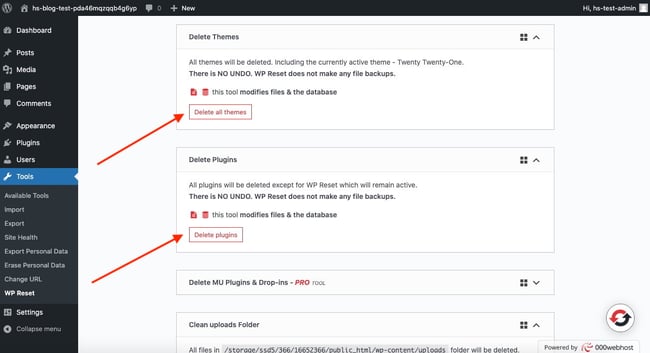
Some hosting providers include reset options in their control panels. This feature wipes your WordPress files and database. It allows a fresh WordPress install with just a few clicks. Check your hosting dashboard for WordPress tools or reset buttons. This method saves time and avoids manual errors. It is useful for users comfortable with hosting interfaces.
Credit: blog.hubspot.com
Step-by-step Plugin Reset
Resetting WordPress to its default settings is simple with the right plugin. Plugins help clear all changes and bring your site back to the original state. This step-by-step plugin reset guide makes the process clear and easy.
Choosing The Right Plugin
Pick a plugin designed for full WordPress reset. It should clear content, themes, and settings. Look for plugins with good reviews and recent updates. Popular choices include WP Reset and Advanced WordPress Reset. They offer safety features to avoid accidental loss.
Installation And Activation
Go to your WordPress dashboard. Click on “Plugins” and then “Add New.” Search for your chosen reset plugin by name. Click “Install Now” and then “Activate.” The plugin will appear in your dashboard menu for easy access.
Executing The Reset
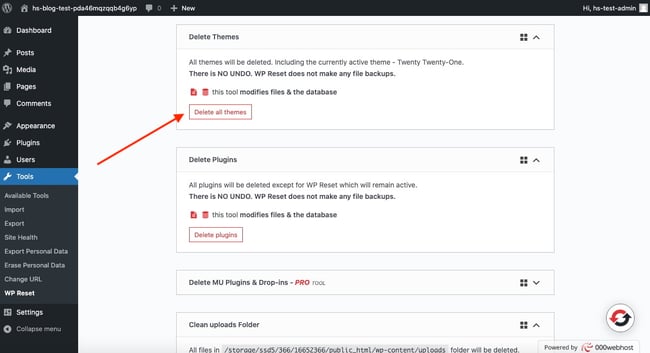
Open the plugin’s settings page. Read all warnings carefully before starting. You may need to type a confirmation word to proceed. Click the reset button to start. The plugin will erase all changes and restore defaults. Wait until the process completes before doing anything else.
Manual Reset Steps
Resetting WordPress manually clears all data and settings. It helps start fresh without leftover files. This method requires careful steps to avoid errors. Follow each step slowly and double-check your actions.
Accessing Phpmyadmin
Log in to your web hosting control panel. Find and open phpMyAdmin from the tools section. Select the database used by your WordPress site. Be sure to choose the correct database to avoid problems.
Deleting WordPress Tables
In phpMyAdmin, see a list of tables in the database. Select all tables related to WordPress. Use the “Drop” option to delete these tables completely. This removes all site content and settings from the database.
Reinstalling WordPress
Download the latest WordPress version from the official site. Upload the files to your server using FTP or your hosting file manager. Open your website URL to start the installation process. Enter the database details and create a new admin account. Complete the setup to get a clean WordPress site.
Post-reset Setup
After resetting WordPress to its default state, the next step is setting up your site again. This process helps you bring back essential features and makes your site ready for use. Focus on basic settings, themes, plugins, and content restoration.
Configuring Basic Settings
Start by adjusting your site’s basic settings. Set the site title and tagline to match your brand. Check the timezone, date, and time format to fit your location. Update the permalink structure to improve SEO and user experience. Make sure your email address is correct for notifications. These steps help your site work smoothly and look professional.
Reinstalling Themes And Plugins
Next, reinstall themes that suit your site’s style and purpose. Choose lightweight themes for faster loading times. Avoid installing too many plugins to keep your site fast and secure. Install only the plugins you need for functionality, like SEO, security, or contact forms. Activate and configure each plugin properly to ensure they work well together.
Restoring Content If Needed
Restore your content by importing backups or manually adding posts and pages. Use the WordPress import tool for easy content restoration. Check media files to ensure images and videos appear correctly. Organize your menus and widgets to match your original layout. Take time to review your content for any missing details or errors.
Troubleshooting Reset Issues
Resetting WordPress to default settings can sometimes cause issues. Problems might occur during or after the reset process. Knowing how to fix these issues saves time and stress. This section covers common problems and how to solve them.
Common Errors
Errors often show up as white screens or error messages. These can happen if plugins conflict with the reset process. Sometimes, the database does not clear properly. Another issue is missing files after reset. These errors stop WordPress from working correctly.
Fixing Permission Problems
Permission problems block WordPress from changing files. This happens when your server settings are too strict. You can fix this by updating file permissions. Use 755 for folders and 644 for files. Make sure your web server user owns the files. This lets WordPress write necessary changes.
When To Seek Help
Some issues need expert help. If errors continue after trying fixes, contact support. Ask your hosting provider or a WordPress developer. They can check server settings and advanced problems. Don’t wait too long to get help. It protects your site and data.
Credit: blog.hubspot.com
Tips To Avoid Frequent Resets
Resetting WordPress often can slow down your work and risk losing data. Preventing frequent resets saves time and keeps your site stable. Follow these tips to keep your WordPress site healthy and avoid unnecessary resets.
Regular Maintenance
Check your site regularly for updates and errors. Update WordPress, themes, and plugins on time. Remove unused plugins and themes to reduce conflicts. Back up your site often to protect your data. Clean your database to improve site speed and performance.
Using Staging Environments
Test changes in a staging site before applying them live. Staging sites mimic your real site but avoid risks. Make updates, try new plugins, and check fixes safely. This prevents errors that might force a reset. It keeps your live site stable and secure.
Safe Plugin And Theme Testing
Choose plugins and themes carefully from trusted sources. Check reviews and ratings before installation. Test new plugins on staging or test sites first. Avoid installing too many plugins to reduce conflicts. Keep your active plugins and themes updated to avoid bugs.
Frequently Asked Questions
How Do I Reset WordPress Without Losing Data?
You can reset WordPress using plugins that keep your content safe. Always back up your database before resetting to avoid data loss.
What Is The Easiest Way To Reset WordPress?
Using a WordPress reset plugin is the easiest method. It clears settings and content quickly without complex manual steps.
Can I Reset WordPress Via Phpmyadmin?
Yes, resetting via phpMyAdmin involves deleting and recreating WordPress database tables. This method requires technical knowledge and caution.
Will Resetting WordPress Delete My Themes And Plugins?
Resetting usually removes themes and plugins data but not the files. You might need to reinstall or reactivate them after reset.
Conclusion
Resetting WordPress to default can fix many common issues fast. Always back up your site before starting. Choose the method that fits your skill level and needs. A fresh start helps clear errors and unwanted changes. Keep your site clean and running smoothly with regular resets.
Simple steps lead to a fresh, working WordPress site again. Now, you can manage your site with confidence and ease.


