
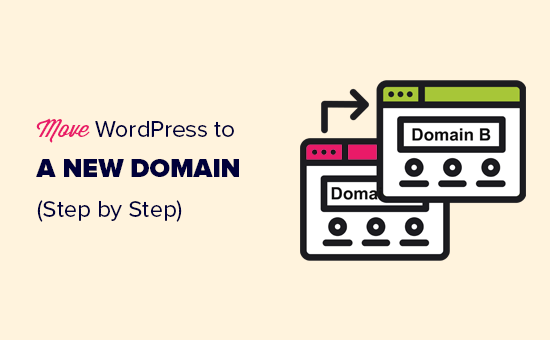
Thinking about moving your WordPress site to a new domain? You’re not alone, and it can feel overwhelming at first.
But don’t worry—this process doesn’t have to be complicated or risky. If you want to keep all your content, maintain your SEO rankings, and avoid downtime, you need to get it right the first time. You’ll discover simple, step-by-step guidance that makes moving your WordPress site smooth and stress-free.
By the end, you’ll have the confidence to switch domains without losing a thing. Keep reading to learn exactly how to do it.
Credit: www.wpbeginner.com
Prepare Your WordPress Site
Preparing your WordPress site before moving to a new domain is important. It makes the process smooth and safe. Taking the right steps helps avoid data loss and downtime. Follow these key tasks to get ready.
Backup Files And Database
Start by backing up all your WordPress files. This includes themes, plugins, and media uploads. Use a plugin or your hosting control panel for backup. Next, export your WordPress database. The database holds your posts, pages, and settings. Save both files and database in a safe place.
Choose A New Domain
Select a new domain name that fits your site’s purpose. Keep it short and easy to remember. Check if the domain is available and register it. Make sure the new domain matches your branding and goals.
Set Up Hosting For New Domain
Get hosting for your new domain before the move. Choose a reliable hosting provider with good speed and support. Set up your hosting account and link it to your new domain. This step ensures your site has a home after the transfer.
Credit: www.elegantthemes.com
Export Your WordPress Content
Exporting your WordPress content is the first step in moving your site to a new domain. This process saves all your posts, pages, comments, and other content in a file. You can then use this file to import the content to your new website. The WordPress export tool makes this process simple and quick. Follow these steps to export your content safely and correctly.
Use WordPress Export Tool
Log in to your WordPress dashboard. Go to the Tools menu and select Export. Choose what to export: all content, posts, pages, or media. For a full site move, select “All Content.” Click the “Download Export File” button. WordPress will create an XML file with your data. This file contains all the information needed for your new site.
Download Exported Files
After clicking the download button, save the XML file to your computer. Keep this file safe. You will need it to import your content to the new domain. Check the file size to make sure it downloaded correctly. If the file is missing or too small, try exporting again. This step ensures your content moves without any loss.
Move WordPress Files To New Domain
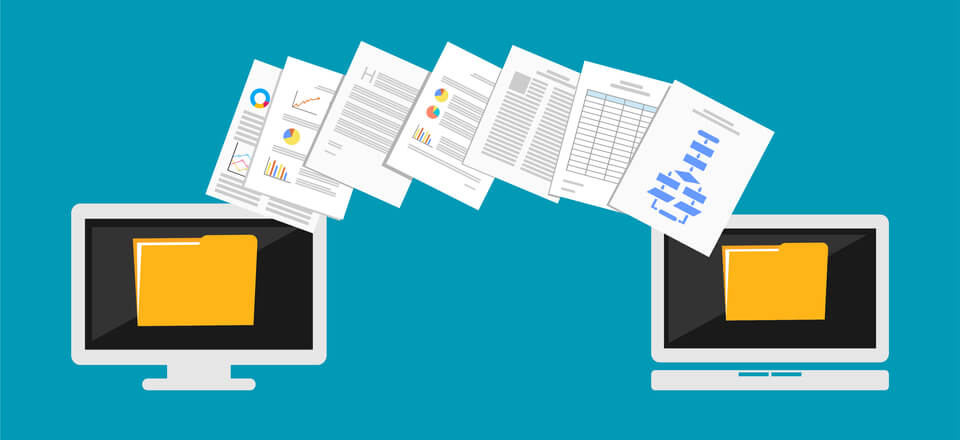
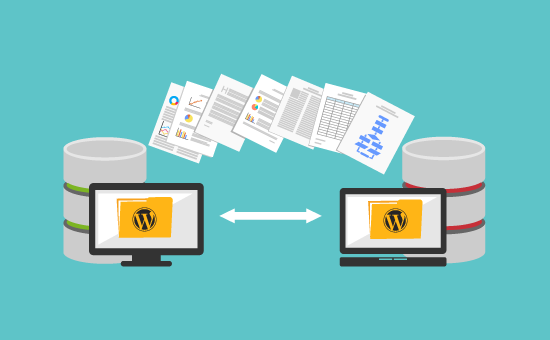
Moving your WordPress files to a new domain is a key step in site migration. It involves transferring all site content and data from the old domain to the new one. This process keeps your website intact and ready to work on the new domain without losing any data. Follow these steps carefully to move your files safely.
Access Old Site Via Ftp
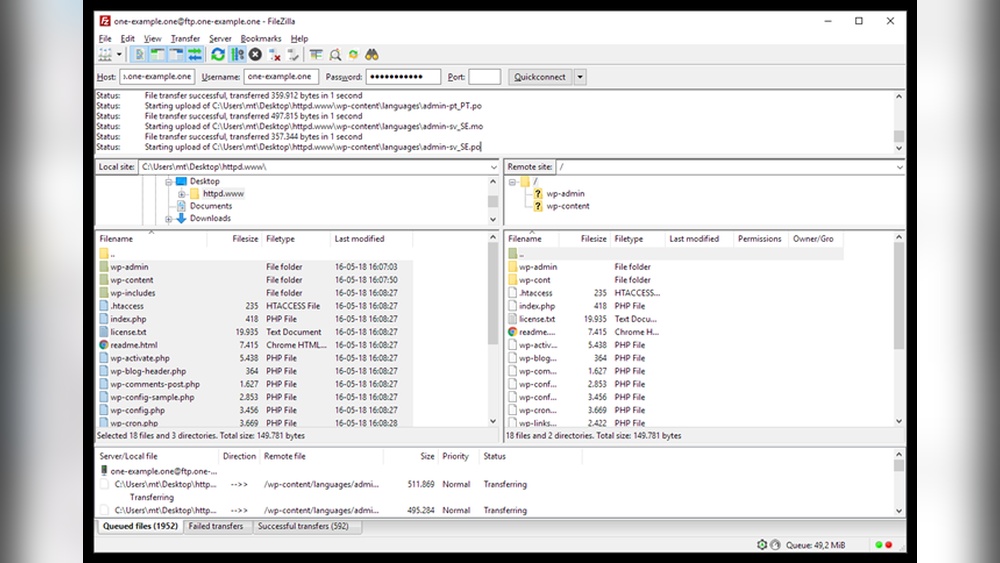
Start by connecting to your old website using an FTP client. FTP lets you access all files on your server directly. Use your FTP username and password to log in. This step gives you full access to your WordPress files and folders.
Download WordPress Files
Once connected, find the root directory of your WordPress site. It usually contains folders like wp-content and wp-admin. Select all files and folders. Download them to your computer. Make sure to get every file for a complete transfer.
Upload Files To New Domain
Next, connect to your new domain with the FTP client. Navigate to the root folder of the new site. Upload all the WordPress files you downloaded earlier. Wait until the upload finishes. Your files are now on the new domain, ready for the next steps.
Transfer The Database
After moving a WordPress site to a new domain, URLs and permalinks need fixing. This step ensures all links point to the correct location. Broken links can hurt user experience and SEO. Fixing URLs in the database and resetting permalinks helps your site run smoothly on the new domain.
Update Site Url In Database
The WordPress database stores your site URL in several places. Changing the domain requires updating these URLs. You can do this using phpMyAdmin or a similar tool. Look for the wp_options table. Update the siteurl and home values to the new domain. This change tells WordPress where to find your site.
Fix Urls Using Search And Replace
Many URLs are stored in posts, pages, and settings. These URLs still point to the old domain after the move. Use a search and replace tool to update them all at once. Plugins like Better Search Replace make this task easier. Replace all old domain URLs with the new one. This step fixes broken links and missing images.
Reset Permalinks
Permalinks control how your URLs look. After changing domains, permalinks might break. Resetting permalinks refreshes WordPress’s URL settings. Go to the WordPress dashboard, then to Settings > Permalinks. Click “Save Changes” without altering anything. This action rebuilds your .htaccess file and fixes URL structure.
Update WordPress Configuration
Testing your new WordPress site is a critical step after moving it to a new domain. This ensures everything works correctly before visitors arrive. Careful checks help you spot and fix issues early. A smooth user experience depends on thorough testing.
Check Frontend And Backend
Start by visiting your site’s frontend. Look at pages, images, and links. Make sure they load fast and appear correctly. Next, log into the WordPress dashboard. Check if you can access all menus and settings. Confirm the new domain shows in the site URL settings.
Verify Plugins And Themes
Check that all plugins are active and working well. Test common features they provide. Also, review your theme’s appearance and functions. Look for broken layouts or missing styles. Update any plugins or themes if needed to avoid conflicts.
Test Forms And Functionality
Try submitting contact forms or signup forms on your site. Confirm emails are sent and received properly. Test search bars, shopping carts, or other key functions. Ensure everything behaves as expected for your visitors.
Credit: www.wpbeginner.com
Frequently Asked Questions
How Do I Move A WordPress Site To Another Domain?
To move a WordPress site, back up your files and database first. Then, update the domain in the WordPress settings and database. Finally, upload the files to the new domain and update DNS settings to point to the new server.
What Tools Help Transfer WordPress To A New Domain?
Plugins like Duplicator, All-in-One WP Migration, and UpdraftPlus simplify WordPress site migration. They back up and restore your site easily. These tools handle files, databases, and URLs automatically, reducing errors and saving time during the move.
How Do I Update Urls After Moving WordPress?
Use a plugin like Better Search Replace or run SQL queries to update URLs in the database. This ensures all internal links, images, and references point to the new domain. Avoid broken links by thoroughly checking after migration.
Will Moving WordPress Affect My Seo Rankings?
If done correctly, moving WordPress with 301 redirects preserves SEO rankings. Redirect old URLs to the new domain to inform search engines. Update Google Search Console and submit a new sitemap to help maintain your search presence.
Conclusion
Moving a WordPress site to a new domain takes careful steps. Back up your files and database first. Update your site URL and fix links. Test everything to ensure it works well. This process helps keep your site safe and running.
Take your time and follow the steps closely. A smooth move keeps visitors happy and your site strong.


