
Have you ever wondered what would happen if your WordPress site suddenly crashed or got hacked? Losing all your hard work can be heartbreaking—and costly.
That’s why making a backup of your WordPress site is one of the smartest moves you can make right now. You’ll learn simple, step-by-step ways to protect your site and keep your content safe. Keep reading to discover how easy it is to secure your online presence before it’s too late.
Credit: www.wpbeginner.com
Backup Importance
Backing up your WordPress site is one of the most important steps you can take. It protects your hard work and data. Without backups, you risk losing everything in moments. Regular backups ensure you can restore your site quickly after problems. This saves time, money, and stress.
Why Backups Matter
Backups give you control over your website’s safety. They keep your content, settings, and files secure. If something breaks or is hacked, a backup lets you restore your site fast. This means less downtime and fewer losses. Backups also help when updates cause errors. You can return to the last working version easily.
Common Risks To WordPress Sites
WordPress sites face many threats daily. Hackers try to steal data or damage your site. Mistakes during updates can break your site. Server crashes or hosting problems may cause data loss. Malware infections can corrupt your files. Even accidental deletions can cause trouble. Backups protect you from all these risks.
Backup Methods
Backing up your WordPress site is important. It protects your data from loss or damage. Different methods exist for making backups. Choose the one that fits your needs best. Some ways need more time and skill. Others are faster and easier.
Manual Backup Process
Manual backup means you do all steps yourself. First, access your site files via FTP or File Manager. Download all WordPress files to your computer. Next, export your database from phpMyAdmin. Save the database as an SQL file. Store both files safely. Manual backups give full control but take time.
Using Plugins For Backup
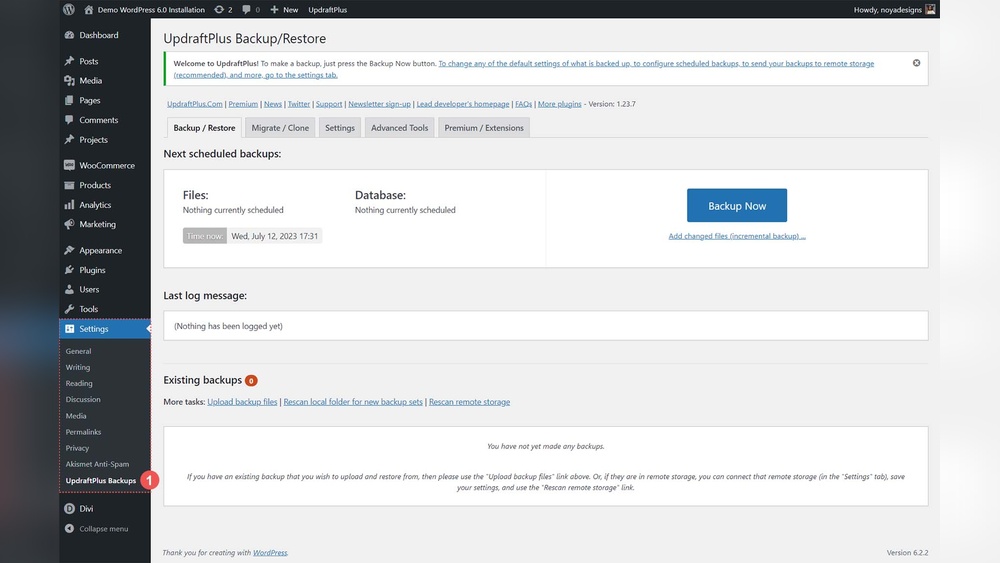
Backup plugins make the process easier. Install a plugin like UpdraftPlus or BackWPup. These plugins can back up files and databases automatically. Set a schedule for regular backups. You can save backups to cloud storage. Plugins work well for beginners and save time. They also allow easy restoration.
Hosting Provider Backup Options
Many hosting providers offer backup services. Check if your host creates automatic backups. Some hosts keep daily or weekly copies of your site. You can restore your site quickly if needed. Hosting backups are convenient but may have limits. Understand what your host offers before relying on it.
Manual Backup Steps
Backing up your WordPress site manually means saving all your files and database yourself. It gives you full control and helps avoid losing important data. Follow these simple steps to create a complete backup of your site.
Backing Up WordPress Files
Your WordPress files include themes, plugins, and media. Use an FTP client like FileZilla to connect to your web server. Download all files from the public_html or www directory to your computer. Make sure to save everything, including hidden files like .htaccess.
Exporting The Database
Your site’s content and settings are stored in the database. Access your hosting control panel and open phpMyAdmin. Select your WordPress database and click the Export tab. Choose the “Quick” export method and the SQL format. Click “Go” to download the database file to your device.
Storing Backup Safely
Keep your backup files in a secure place. Use an external hard drive or cloud storage service. Avoid storing backups only on your web server. That prevents losing data if your site crashes. Label your backup with the date for easy reference later.
Popular Backup Plugins
Backing up your WordPress site is vital for security and peace of mind. Popular backup plugins simplify this task. They help save your files and database safely. These plugins offer features that suit different needs and skill levels.
Many plugins support full or partial backups. Some work well with cloud storage services. Others include easy restore options to recover your site quickly.
Features To Look For
Choose a plugin with clear backup options. It should save both files and databases. Check for support of popular cloud storage like Google Drive or Dropbox. Look for easy restore features. Notifications for backup status help track success. Security is a must. Encryption for backups keeps data safe.
Setup And Configuration
Installing a backup plugin is simple. Most plugins guide you through setup steps. Connect your cloud storage account if needed. Choose what to include in the backup. Select files, folders, and database tables. Configure notifications for backup completion or errors.
Scheduling Automatic Backups
Automatic backups keep your site safe without extra work. Set backups to run daily, weekly, or monthly. Consider how often your site changes. More frequent updates need more frequent backups. Scheduling reduces risk of data loss. Most plugins let you select backup times. This avoids site slowdowns during busy hours.
Restoring Your Site
Restoring your WordPress site is crucial after data loss or errors. A backup helps you get your site back fast. Knowing how to restore keeps your website safe and online.
Using Backups To Restore
Start by locating your backup files. They include your database and WordPress files. Upload these files to your hosting server using FTP or your hosting control panel. Import your database using phpMyAdmin or a similar tool. Make sure to replace the old database with the backup copy. After uploading, check your site to confirm it works correctly.
Common Restoration Issues
Sometimes, the site may not load properly. This can happen if the database connection details are wrong. Check your wp-config.php file for the correct database name, username, and password. Another issue is missing files. Ensure all WordPress files and folders are uploaded. Permissions problems can also block your site. Set correct file permissions to fix this. Clear your browser cache if you see an old version of your site.

Credit: thewebsitearchitect.com
Backup Best Practices
Backing up your WordPress site protects your content and settings from loss. Following best practices ensures your backups are reliable and easy to use. These tips help keep your data safe and save time during restoration.
Frequency Of Backups
Back up your site regularly to avoid losing recent changes. Update backups after posting new content or making site changes. For active sites, daily backups work best. Less active sites may need weekly backups. Keep a backup schedule and stick to it.
Offsite Backup Storage
Store backups outside your hosting server for extra security. Use cloud services like Google Drive or Dropbox. This prevents data loss if your server crashes. Keep multiple copies in different locations. Offsite storage adds a strong layer of protection.
Testing Backup Integrity
Check your backups often to ensure they work properly. Restore a backup on a test site to verify. Broken backups waste time and cause stress. Testing helps catch errors early and ensures smooth recovery. Always confirm your backup files are complete and accessible.
Credit: www.elegantthemes.com
Frequently Asked Questions
How Often Should I Back Up My WordPress Site?
You should back up your WordPress site at least once a week. For active sites, consider daily backups to protect recent changes and data.
What Are The Best Tools For WordPress Backups?
Popular WordPress backup tools include UpdraftPlus, BackupBuddy, and Jetpack. These plugins simplify backups and offer scheduled, automated options.
Can I Back Up WordPress Manually Without Plugins?
Yes, you can manually back up WordPress by exporting your database and copying files via FTP. This method requires technical knowledge.
Where Should I Store My WordPress Backups?
Store backups offsite, such as on cloud services like Google Drive or Dropbox. This protects data from server failures or hacks.
Conclusion
Backing up your WordPress site protects your hard work and data. Regular backups keep your site safe from unexpected issues. Choose a method that fits your skills and needs. Store backups in a secure place outside your website. Test backups to ensure they work before you need them.
Stay consistent with your backup routine. This simple habit saves time and stress later. Keep your site running smoothly and worry-free.


