
Are you struggling to log into your WordPress site? You’re not alone.
Knowing exactly how to access your site’s dashboard is the first step to managing your content, making updates, and growing your online presence. Imagine being able to quickly and easily get inside your site whenever you need, without confusion or frustration.
You’ll discover simple, step-by-step instructions that make logging in straightforward—so you can focus on what really matters: building your website. Keep reading, and let’s unlock your WordPress site together.
Credit: www.wpbeginner.com
Accessing The Login Page
Accessing the login page is the first step to managing your WordPress site. Without it, you cannot enter the admin area. The login page is where you enter your username and password to access your dashboard.
Knowing the correct URL saves time and avoids confusion. Some websites use the default WordPress login page. Others change the login URL for security reasons. Understanding both helps you find the right place to log in.
Common Login Urls
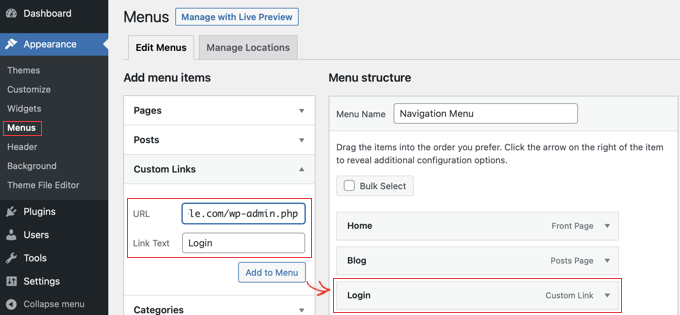
The most common URL to access the WordPress login page is yoursite.com/wp-login.php. This URL takes you directly to the login form. Another common option is yoursite.com/wp-admin. This URL redirects to the login page if you are not logged in yet.
These URLs work on most WordPress sites unless the login page has been customized. Bookmarking these URLs can help you log in quickly. Always replace yoursite.com with your actual website address.
Using Custom Login Urls
Some website owners change the login URL to improve security. This prevents hackers from finding the default login page. Custom URLs can look like yoursite.com/my-login or any unique path.
If your site uses a custom login URL, you must know it before trying to log in. Check your website settings or ask your site administrator for the right address. Using a custom login URL helps protect your website from unauthorized access.

Credit: elements.envato.com
Entering Your Credentials
Entering your credentials is the key step to access your WordPress site. This process keeps your site safe and private. You need to provide the right information to log in successfully.
Pay close attention to the details you enter. Even small mistakes can block access. Understanding the difference between username and email address helps in this step.
Username Vs Email Address
WordPress allows login using either a username or an email address. Your username is the name you chose during setup. It is unique to your account.
An email address is linked to your user profile. It acts as an alternative login method. Both options identify you, but only one is needed to log in.
Choose the one you remember best. Use the exact spelling and case. WordPress is case-sensitive for usernames and emails.
Password Tips
Your password protects your site from unauthorized access. Use a strong password with letters, numbers, and symbols. Avoid simple words or common phrases.
Keep your password private and change it regularly. Use a password manager if you struggle to remember it. Never share your password with others.
Make sure the password matches exactly what you set. Check for extra spaces or typos. A correct password helps you log in smoothly every time.
Troubleshooting Login Issues
Logging into your WordPress site should be easy. Sometimes, issues happen. This section helps you fix common login problems fast. Follow these simple steps to get back into your site.
Resetting Your Password
Forgot your password? No worries. Click the “Lost your password?” link on the login page. Enter your username or email address. WordPress will send a reset link to your email. Open the email and follow the instructions. Choose a new password that is strong and easy to remember. This process usually takes just a few minutes.
Dealing With Locked Accounts
Too many failed login attempts can lock your account. This protects your site from hackers. Wait for a few minutes before trying again. If you still cannot log in, contact your site administrator. They can unlock your account or reset your password. Keep your login attempts limited to avoid being locked out.
Clearing Browser Cache
Sometimes, your browser saves old data. This can cause login problems. Clear your browser cache and cookies to fix this. Go to your browser settings and find the clear browsing data option. Select cache and cookies, then clear them. Restart your browser and try logging in again. This step often solves many login issues.
Enhancing Login Security
Protecting your WordPress login is crucial. Attackers often try to steal access using weak methods. Strengthening login security blocks many common threats. Simple steps can make your site safer and harder to break into.
Focus on tools and habits that add layers of protection. Every extra step reduces the risk of unauthorized access. Below are key methods to enhance your WordPress login security.
Enabling Two-factor Authentication
Two-factor authentication (2FA) requires a second proof of identity. Usually, a code sent to your phone or email. This extra step stops hackers even if they know your password. Many WordPress plugins offer easy setup for 2FA. Turning on 2FA makes login much more secure.
Using Strong Passwords
Choose passwords that are long and complex. Mix letters, numbers, and symbols. Avoid common words or simple patterns. Strong passwords take longer to crack. Use a password manager to create and store tough passwords safely. Change passwords regularly to keep security fresh.
Limiting Login Attempts
Limiting login attempts stops repeated guessing attacks. After several failed tries, the login locks temporarily. This blocks bots and hackers from trying many passwords fast. Plugins can set limits on login attempts easily. It adds a strong defense layer to your login page.
Alternative Login Methods
Logging into a WordPress site does not always mean using the standard username and password fields. Alternative login methods make the process quicker and easier for many users. These options help reduce password fatigue and improve security by using trusted platforms or plugins.
Alternative methods also simplify access for users who manage multiple sites or accounts. They offer a smoother experience and save time during login.
Logging In Via Social Media
Some WordPress sites allow users to log in using social media accounts. Common platforms include Facebook, Google, and Twitter. This method uses your existing social login details instead of creating a new username and password. It is faster and reduces the need to remember multiple passwords.
To use this feature, click the social media icon on the login page. The site redirects you to the social platform to confirm your identity. Once confirmed, you get access to the WordPress dashboard.
Using Single Sign-on Plugins
Single Sign-On (SSO) plugins allow users to log into WordPress using one set of credentials for multiple sites. This is common in workplaces or schools with many online tools. SSO simplifies user management and increases security by reducing password use.
Popular SSO plugins include miniOrange, OneLogin, and Okta. Install and configure the plugin on your WordPress site. Users then authenticate through a central system and gain access to the WordPress site automatically.

Credit: wpmayor.com
Frequently Asked Questions
How Do I Find My WordPress Login Url?
You can find your WordPress login URL by adding “/wp-login. php” or “/wp-admin” to your website’s main URL. For example, www. yoursite. com/wp-login. php. This direct link takes you to the login page quickly and easily.
What Information Do I Need To Log Into WordPress?
To log in, you need your WordPress username or email address and your password. These credentials are set during WordPress installation or user registration. Ensure they are correct to access your WordPress dashboard securely.
How Can I Reset My WordPress Password?
Click the “Lost your password? ” Link on the login page. Enter your username or email to receive a password reset link. Follow the instructions in the email to create a new password safely.
Why Can’t I Log Into My WordPress Site?
Login issues may be caused by incorrect credentials, browser cache, or plugin conflicts. Clear your browser cache, check your username and password, or disable plugins via FTP to resolve common login problems.
Conclusion
Logging into a WordPress site is simple when you know the steps. Enter your username and password carefully. Use the correct login URL to access the site. Keep your login details safe and private. If you forget your password, use the reset option.
Regularly updating your password helps protect your site. Now, you can manage your WordPress site with ease. Practice these tips to avoid login problems. Stay confident and keep your site secure.


