
Are you curious about which version of WordPress you’re currently using? Understanding your WordPress version is crucial for maintaining the security and functionality of your website.
Knowing your version helps you ensure that your site is up-to-date, secure, and equipped with the latest features. But don’t worry—finding this information is easier than you might think. You’ll discover simple steps to quickly identify your WordPress version, empowering you to take control of your site’s health and performance.
Keep reading to unlock the secrets of your WordPress installation and ensure your site runs smoothly and securely!
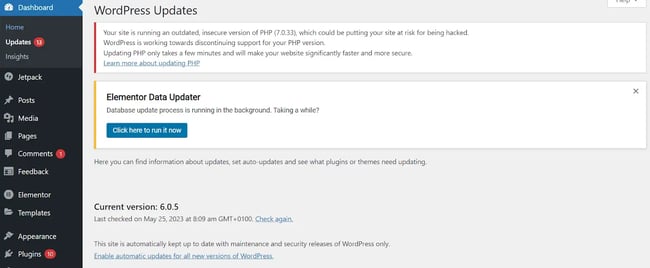
Credit: blog.hubspot.com
Checking WordPress Version In Dashboard
First, open your WordPress site. Find the Admin Dashboard. It is usually on the left side. Click on it to explore more options. You will see different menu items. These items help you manage your site. Always keep your login details secure. Never share them with strangers. This is important for your site safety.
Once in the Dashboard, look for At a Glance. This section tells you about your site. It shows the WordPress version you use. You will see numbers like 5.8 or 6.0. These numbers are your current version. Knowing your version is important. It helps with updates and fixes. Always check this section for the latest version.
Using The Site’s Source Code
Open your website in a browser. Right-click anywhere on the page. Choose “View Page Source” or “Inspect”. A new tab or window will open. This shows the site’s HTML code. Look for the meta tag that says “generator”. This tag tells the WordPress version. It usually looks like this: . The numbers after “WordPress” are the version.
Searching For Version Meta Tag
Finding the version tag is easy. Use the browser’s search feature. Press Ctrl+F or Cmd+F to open it. Type “generator” in the search box. This highlights the generator tag. You can now see your WordPress version.
Accessing Version In The Readme File
Navigating to WordPress Installation Directory is simple. First, open your hosting account. Next, find the File Manager in the control panel. Click to enter the file manager. You will see a list of folders. Look for the folder named public_html or www. This is where WordPress files are kept. Click on it to open.
Inside, you will find many files and folders. Find the readme.html file. It is usually near the top. This file holds your WordPress version info. Now, open this file. You can double-click or right-click, then select open. Once opened, look for the version number. It is clearly stated near the top. This tells you the exact version of WordPress.

Credit: wordpress.stackexchange.com
Checking Version Via Ftp Or File Manager
Discover your WordPress version by accessing your site via FTP or File Manager. Open the root directory and locate the “wp-includes” folder. Inside, find the “version. php” file to see the version number.
Connecting To Your Server
First, open your FTP client or file manager. Enter your server details like username and password. Once connected, you will see your website files. Make sure to handle these files with care. Mistakes can cause problems.
Locating The Wp-includes/version.php File
Find the folder named wp-includes. Open it carefully. Look for a file called version.php. This file holds your WordPress version information. Open the file to find a line with $wp_version. The number next to it is your WordPress version. Remember not to change anything in this file.
Using Command Line Interface
First, open a terminal on your computer. Then, connect to your server using SSH. You need your server’s IP address and login details. Type ssh username@server-ip and press enter. Replace “username” with your real username. Replace “server-ip” with your real server IP. Enter your password when prompted. Now, you are connected to your server.
After accessing your server, navigate to your WordPress folder. Use the command cd path-to-wordpress. This command takes you to the WordPress directory. Now, type wp core version and press enter. This command shows your WordPress version. It’s a quick way to check your WordPress version.
Utilizing WordPress Plugins
Many WordPress plugins can show the current version. These plugins are easy to install. Simply go to the plugin store and search. Choose a plugin that displays the WordPress version. Click install and then activate it. The plugin will now show the WordPress version on your dashboard. Using plugins is a simple way to keep track.
After installing, open your WordPress dashboard. Look for the plugin settings. You will see your current version there. It’s displayed clearly for easy viewing. This method is fast and straightforward. No need to search deep into settings. Your version is just a click away.

Credit: meta.discourse.org
Frequently Asked Questions
How Can I Check My WordPress Version?
To find your WordPress version, log into your dashboard. Check the bottom of the “Updates” section or view the “At a Glance” widget. Alternatively, visit your site files and open the “wp-includes/version. php” file. Here, you’ll find the current version number.
Is My WordPress Version Affecting Site Performance?
Yes, your WordPress version can impact site performance. Using an outdated version may lead to security vulnerabilities. It might also cause compatibility issues with themes and plugins. Regular updates ensure optimal performance and security improvements, keeping your website running smoothly.
Can I Update WordPress Automatically?
Yes, WordPress provides automatic updates for minor releases. You can enable automatic updates for major releases via the “Updates” section in your dashboard. Alternatively, use a plugin to manage updates for core, themes, and plugins. Regular updates help maintain security and functionality.
Why Should I Update My WordPress Version?
Updating your WordPress version ensures improved security and performance. It fixes bugs and enhances features, offering a better user experience. Updates also ensure compatibility with newer themes and plugins. Regular updates are crucial for maintaining a secure and efficient website.
Conclusion
Knowing your WordPress version is essential. It helps keep your site secure. Regular updates improve performance and fix bugs. Check your version easily via the dashboard. You can also check through the readme file. Staying updated protects your website from vulnerabilities.
Always ensure you’re using the latest version. This keeps your site running smoothly. Don’t neglect updates for better security. It’s simple to find your version. Just a few clicks. Understanding your version helps manage your site effectively. Keep track of updates.
Your site’s performance depends on it. Stay informed and proactive.


