
Are you ready to give your website a fresh, new look? Installing a WordPress theme in Bluehost can transform your site from ordinary to extraordinary in just a few clicks.
If you’re feeling overwhelmed by tech jargon or worried about making mistakes, you’re not alone. Many people share the same concerns. But here’s the good news: installing a theme is easier than you think, and we’re here to guide you every step of the way.
Imagine the satisfaction of having a website that reflects your style and engages your visitors. With this guide, you’ll learn how to effortlessly install and customize your WordPress theme on Bluehost, turning your vision into reality. Keep reading to find out how simple it can be to give your website the upgrade it deserves!

Credit: www.youtube.com
Choosing The Right Theme
Many themes look nice. But not all fit your needs. Compatibility with your plugins is key. Some themes do not work well with them. Speed matters too. Slow themes can make users leave. Responsive design is crucial. Many use phones to browse. Check if the theme gets updates. Updated themes are safer. Customization options help. They let you change colors and fonts. Price is important. Some themes are free. Others cost money. Pick what fits your budget.
Some themes are loved by many. Astra is fast and flexible. It works with many plugins. OceanWP is good for beginners. It is easy to set up. Divi offers many designs. You can make your site unique. GeneratePress is lightweight. It helps your site load faster. Neve is simple and modern. It works well on phones. Each theme has strengths. Choose what fits your needs.
Credit: www.bluehost.com
Preparing For Installation
Start by visiting the Bluehost website. Click on “Get Started” to begin. Choose a plan that fits your needs. Enter your personal details carefully. Choose a domain name. Ensure the name is unique. Complete the payment process. Check your email for account confirmation. Follow the instructions to set up your password. Save your login details safely.
Log into your Bluehost account. Look for the control panel or dashboard. It’s easy to find. Click on “My Sites”. You will see your website options. Select your website. Find the “Themes” tab. Click to explore theme options. Choose the theme you like. Click “Install” to add it to your site.
Accessing WordPress Dashboard
First, open your browser. Type your website URL in the address bar. Add “/wp-admin” at the end. Press Enter. You will see the login page.
Enter your username and password. Click the Log In button. Now, you are in the WordPress dashboard. This is the control room of your site.
The dashboard is like a menu. It shows different options. Each option has a purpose. The Posts option lets you add new posts. The Media option helps you with pictures and videos.
Find the Appearance option. This is where themes live. Click on it to explore. You can choose a new theme here. It’s easy and fun.
Installing A New Theme
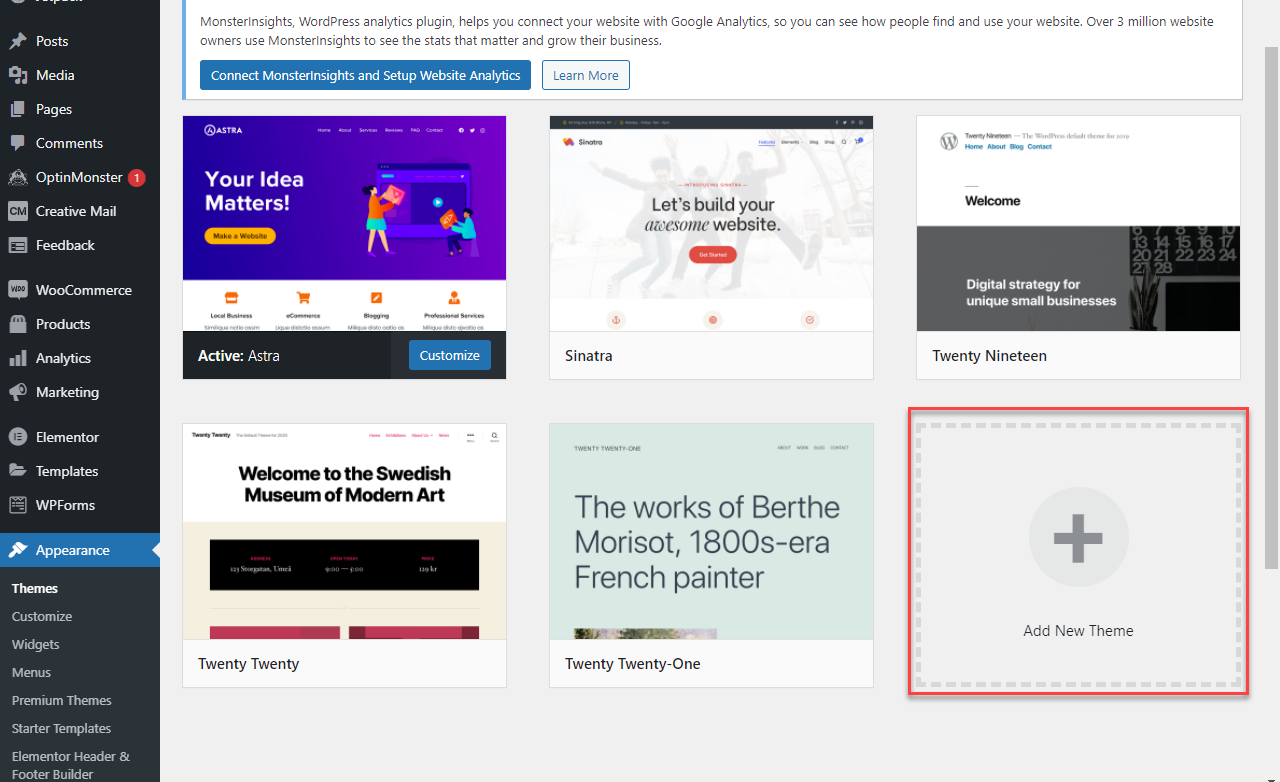
First, go to your WordPress dashboard. Click on Appearance, then choose Themes. Here, you can see the Theme Directory. Search for a theme you like. Use the search bar to find it.
Once you find a theme, click on Install. Wait a few seconds for it to load. After installation, click on Activate. Your new theme is now live.
Download a theme from a trusted site. Save it on your computer. Go to your WordPress dashboard. Click on Appearance, then Themes. Choose Upload Theme.
Select the file you saved. Make sure it’s a .zip file. Click Install Now. After it finishes, click Activate. Your theme is now ready.
Customizing Your Theme
Adjusting Theme Settings allows you to change how your site looks. You can modify colors, fonts, and layout. Each theme offers unique options. Find the settings in the WordPress dashboard. Click on “Appearance” and then “Customize”. Explore each section to adjust settings. Save changes once you are happy.
Adding Widgets and Menus enhances your site’s functionality. Widgets are small tools like a search bar or calendar. Menus help visitors find pages easily. To add widgets, go to “Appearance” and then “Widgets”. Drag and drop the ones you want. For menus, go to “Appearance” and then “Menus”. Create new menus and add links. Organize them for easy navigation.
Testing Theme Functionality
Responsive themes adapt to different screen sizes. Open your site on a phone. See if it looks good. Try on a tablet too. The text should be easy to read. Buttons should be easy to click. If anything looks odd, the theme is not responsive.
Check if the theme works with your plugins. Sometimes, themes and plugins do not get along. Test each plugin. Make sure everything runs smoothly. Also, ensure the theme works with the latest WordPress version. Compatibility is key for a smooth site experience. If problems arise, consider a different theme.
Troubleshooting Common Issues
Installing a WordPress theme on Bluehost can be tricky. Start by logging into your WordPress dashboard. Navigate to ‘Appearance’ and select ‘Themes. ‘ Click ‘Add New’ to browse themes or upload a zip file.
Theme Not Displaying Correctly
Themes sometimes do not show up right. Check your theme settings first. Ensure all files are uploaded. Clear your browser cache. This helps display the latest version. Try to change to another theme. Then switch back to your theme. This can reset the display.
Resolving Plugin Conflicts
Plugins sometimes cause conflicts with themes. Disable all plugins first. Then check if the issue is fixed. Enable each plugin one by one. See which plugin causes the problem. Update or replace the problem plugin. This can solve the conflict.

Credit: www.bluehost.com
Frequently Asked Questions
How Do I Manually Install A WordPress Theme?
To manually install a WordPress theme, download the theme’s zip file. Go to your WordPress dashboard. Click on “Appearance,” then “Themes,” and select “Add New. ” Click “Upload Theme” and choose the downloaded zip file. Click “Install Now” and then “Activate” to apply the theme.
How Do I Add My WordPress Site To Bluehost?
Log in to your Bluehost account. Click on “My Sites” and choose “Add Site. ” Follow the prompts to install WordPress. Once installed, customize settings as needed. Manage your site from the WordPress dashboard.
How Do I Download A WordPress Theme To My Website?
Log into your WordPress dashboard. Click “Appearance” then “Themes. ” Select “Add New” to browse themes. Click “Install” next to your chosen theme, then activate it. You can also upload a theme by clicking “Upload Theme” and selecting the theme file from your computer.
How Do I Change The Theme In Bluehost?
Log into your Bluehost account, go to WordPress dashboard, click “Appearance,” select “Themes,” and choose your desired theme.
Conclusion
Installing a WordPress theme in Bluehost is simple and straightforward. With these steps, you can customize your site quickly. First, log in to your Bluehost account. Then, go to the WordPress dashboard. Next, navigate to “Appearance,” then “Themes. ” Click “Add New” and select a theme.
Finally, activate your chosen theme. Your website now has a fresh look. Explore different themes to find the perfect fit. Remember, practice makes perfect. Keep experimenting to enhance your WordPress skills. Happy blogging!


