
Are you feeling overwhelmed trying to customize your WordPress site, or perhaps just want to add a personal touch to your theme? You’re not alone.
Many WordPress users find themselves puzzled when it comes to editing their theme’s CSS. The good news is, it’s easier than you think, and you don’t need to be a coding wizard to make it happen. Imagine having the power to change fonts, colors, and layouts, making your website truly yours.
By the end of this guide, you’ll have the confidence and know-how to access and tweak your theme’s CSS like a pro. Ready to transform your WordPress site into something unique? Let’s dive in!
Accessing WordPress Dashboard
Logging into WordPress is simple. Open your browser. Type your website address. Add “/wp-admin” at the end. Press Enter. Enter your username. Type your password. Click the login button. You will see the dashboard. This is where you manage your site.
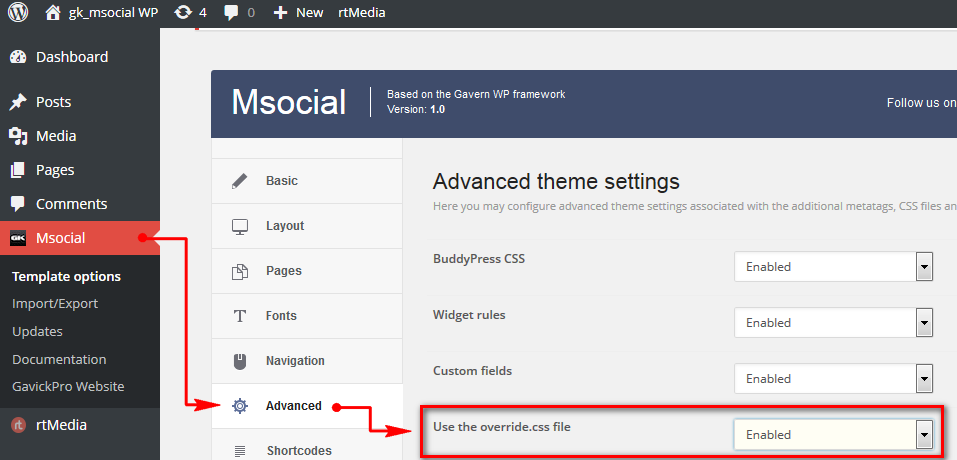
Navigating to the Appearance Section is easy. Look at the left side menu. Find “Appearance”. Click it. You will see options. Click “Editor”. Here you find the CSS file. You can edit your theme’s style here. Be careful when editing. Small changes can affect your site’s look. Always save your changes.
Credit: www.gavick.com
Locating The Theme Editor
Finding the Theme Editor Option is easy in WordPress. Log into your WordPress dashboard. Look for the “Appearance” option on the left menu. Click on it. You will see the “Theme Editor” option. Click on “Theme Editor”. This opens the editor screen. Here, you can find your theme’s files.
Understanding the Theme Files helps in editing. The theme files have different names. Styles and scripts are in these files. The CSS file is named “style.css”. Click on “style.css” to view or edit. Be careful. Mistakes can break your site. It’s good to have a backup.
Editing Css In WordPress
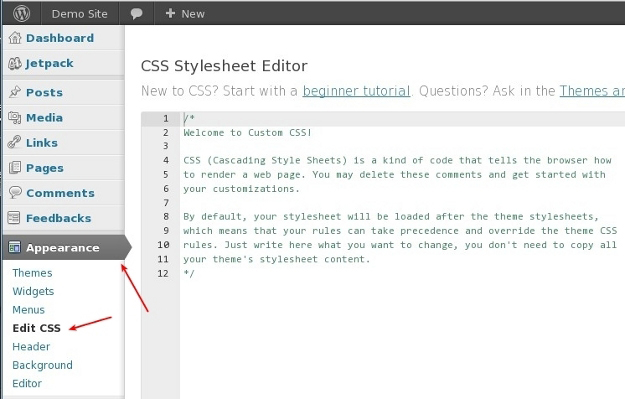
First, log in to your WordPress dashboard. Go to the Appearance menu. Click on Theme Editor. This will take you to the editor page. On the right side, find the style.css file. This file holds your theme’s CSS. Click to open it.
Once the style.css file is open, you can make changes. Add new styles or edit existing ones. Be sure to keep your changes simple. This helps avoid errors. Always double-check your code.
After editing, click the Update File button. This saves your changes. Then, go to your website. Check if the changes look right. If not, return to the editor. Make further adjustments as needed.
Credit: www.8theme.com
Using Additional Css Feature
First, go to your WordPress dashboard. Find and click on Appearance. Then, choose Customize. This opens the Customizer. You can now see many options. Look for the Additional CSS tab.
Click on the Additional CSS tab. A box will appear. You can type your CSS code here. Make changes to your theme’s look. It’s easy and safe. Changes show instantly in the preview.
This feature is very useful. You don’t change the main theme files. This keeps your site safe. Updates won’t erase your changes. You can try new styles easily. It’s a great way to learn CSS.
Using Ftp For Css Editing
Start by downloading an FTP client. FileZilla is a popular choice. Install and open the client. Enter your website’s FTP credentials. These include your host, username, and password. Click “Connect” to access your site’s files. Make sure to keep these details safe. They are important for future access.
Once connected, find the folder named public_html. Inside, locate the wp-content folder. Open it to see the themes directory. This directory holds all theme files. Choose your active theme folder. Inside, you will find various files and folders. Look for a file named style.css. This file contains your theme’s CSS.
Download the style.css file to your computer. Open it with a text editor. Make your desired changes carefully. Save the changes. Upload the file back to the same location on the server. Replace the old file with the new one. Check your website to see the changes. Remember to refresh your browser.
Credit: help.market.envato.com
Best Practices For Css Changes
Child themes help keep changes safe. They protect the main theme. Any updates to the main theme will not erase your edits. First, create a new folder in the themes directory. Name it after the main theme and add “-child” to the name. Next, create a style.css file inside this folder. Include the header information. Finally, import the parent theme’s CSS using @import. This keeps all styles linked.
Back up your site before making changes. Use a plugin or do it manually. Save the database and files. This ensures no data is lost if something goes wrong. Regular backups are a good habit. They keep your work safe. Always check backup files before making big changes.
Test changes on a staging site. This is a copy of your live site. It lets you see changes safely. Use plugins to create a staging environment. Make sure everything looks correct. No broken links or missing images. Check on different devices. This ensures your site looks good everywhere.
Common Issues And Troubleshooting
Accessing your WordPress theme’s CSS can resolve styling issues. Start by logging into your WordPress dashboard. Navigate to Appearance, then Editor. Here, you can find your theme’s CSS file for adjustments.
Handling Css Conflicts
CSS conflicts can make your site look wrong. Check if plugins are causing issues. Disable plugins one by one to find the culprit. Use browser tools to inspect elements. Correct the CSS to resolve conflicts. Keep your theme updated to prevent future issues.
Restoring Original Css
Sometimes changes can break your site. Keep a backup of your original CSS. Use version control tools like Git. Restore the original CSS if needed. You can also use a child theme. This keeps original CSS safe while making changes.
Seeking Help From Support Forums
Support forums can be a great help. Many users share solutions there. WordPress forums are full of helpful people. You can ask questions and get answers. Search for similar issues first. You may find the solution already posted. Always thank those who help you.
Frequently Asked Questions
How Do I Access Css In WordPress?
Access CSS in WordPress through the Customizer: Appearance > Customize > Additional CSS. You can also edit the theme’s style. css file via Appearance > Theme Editor. Use a child theme to prevent losing changes during updates. Consider plugins like Simple Custom CSS for more options.
Where Is Theme Css File WordPress?
The theme CSS file in WordPress is located in the “Appearance” section under “Theme Editor. ” Look for “style. css” in your active theme’s folder. You can also access it via FTP in the “wp-content/themes/[your-theme-name]/” directory.
How Do I Change The Css Style Of My WordPress Theme?
Access your WordPress dashboard. Navigate to “Appearance” > “Editor” or “Theme File Editor”. Select the CSS file, usually “style. css”. Make your changes, then save. Consider using a child theme to prevent losing changes during updates. Alternatively, use the “Additional CSS” section under “Customize” for quick edits.
How Do I Access My WordPress Theme Files?
Access WordPress theme files through your dashboard. Go to Appearance > Theme Editor. Alternatively, use FTP or cPanel. Locate files in wp-content/themes directory. Always create a child theme for customizations to avoid losing changes during updates. Backup files before making any modifications for safety.
Conclusion
Accessing your WordPress theme’s CSS is simple and essential. It allows you to personalize your website’s look. Follow the steps mentioned to navigate effectively. Make sure to back up your files before making changes. This ensures you can restore your site if needed.
Experiment with styles and find what suits your brand. Remember, small tweaks can make big differences. Your unique style makes your site stand out. Stay patient and keep exploring. Happy editing!


