
Have you ever stumbled upon a WordPress theme you adore and wondered how to find out its name or details? Maybe you’re facing issues with your own WordPress site and need to identify your current theme for troubleshooting.
Whatever the reason, discovering your WordPress theme through the database might seem daunting at first, but it doesn’t have to be. Imagine having the power to unlock this information with just a few clicks, giving you clarity and control over your website’s design.
In this guide, we’ll walk you through a straightforward method to uncover your WordPress theme directly from the database. Stay with us, and you’ll gain the knowledge to navigate your WordPress setup with ease and confidence.
Credit: www.scalahosting.com
Locating WordPress Theme Data
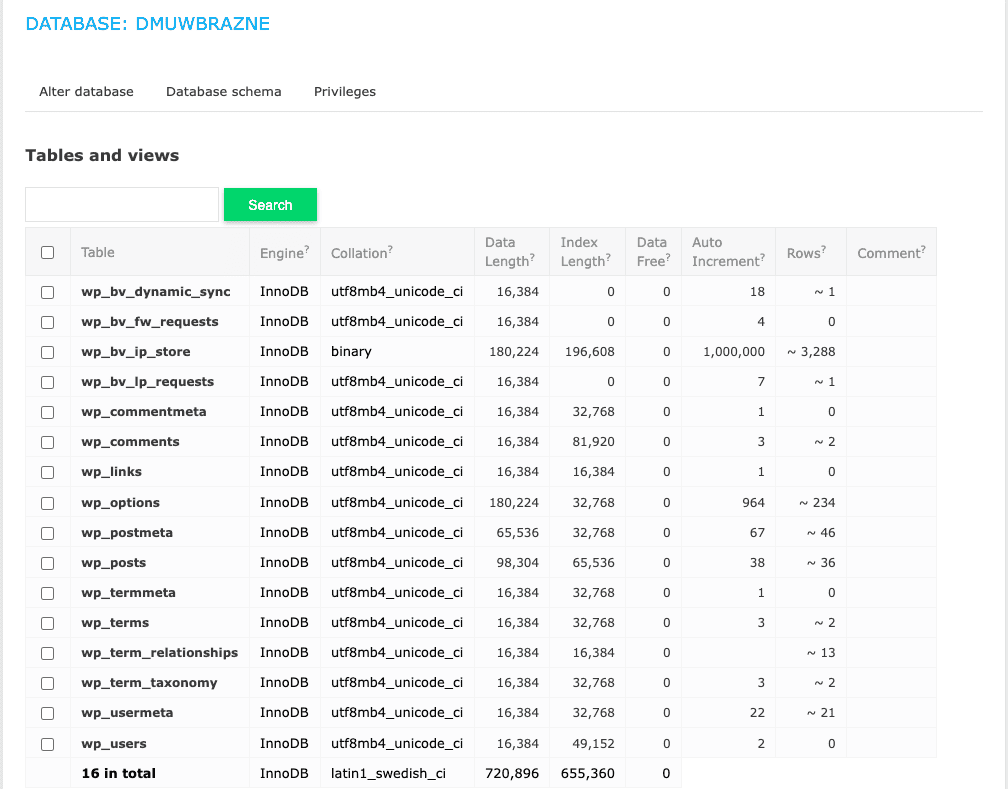
WordPress stores data in a database. This database has many parts. Each part is called a table. The wp_options table is very important. It keeps key settings. It also holds information about your theme. Here, you can find the name of your current theme.
Identifying Key Tables
The wp_options table is crucial for themes. Look for the template option. This tells you the theme name. The stylesheet option is also important. It confirms the theme’s style. Knowing these tables helps in finding theme data.
Accessing The WordPress Database
phpMyAdmin is a popular tool. It helps manage your database. First, log into your hosting account. Find the phpMyAdmin icon. Click it to open the tool. Once inside, look for the database linked to your WordPress site. Inside the database, search for the wp_options table. This table stores important settings. Next, locate the template and stylesheet rows. These rows show your current theme’s name. This method is simple and clear.
The command line is another way. It’s fast and efficient. First, access your server through SSH. Then, navigate to the WordPress directory. Use the command line to open the wp-config.php file. This file shows your database details. Next, run a MySQL command to view the wp_options table. Find the template and stylesheet values. These values reveal your theme’s name. Command line requires some skill. But it’s a handy tool for quick checks.
Finding Theme Information
To find your active theme, open your WordPress database. You need to look in the ‘wp_options’ table. This table holds many settings for your site. The theme name is stored here. Check the column named ‘option_name’. Look for the row with ‘template’ and ‘stylesheet’. These rows show your theme’s name. Write it down.
The ‘wp_options’ table has a lot of data. But only a few rows matter here. The ‘option_value’ column will show your theme’s folder name. This is how WordPress knows your theme. You can also see other settings here. Be careful not to change anything. Changes can break your site. Always make a backup before you start.
Credit: blogvault.net
Decoding Theme Data
WordPress stores theme details in its database. You can find these in the options table. This table holds many settings. One important setting is the template. This tells which theme is active. Another setting is the stylesheet. It shows the theme’s style name.
Interpreting Theme Data Entries
Theme data entries can be tricky. They are often serialized. Serialization means data is stored in a special format. This format makes it hard to read. You need to decode it to understand. Look for the template and stylesheet entries. These tell you the theme’s name and style.
Understanding Serialized Data
Serialized data looks like a long string. This string includes numbers and letters. To read it, you might need tools. Tools can convert serialized data into plain text. Once converted, you see the theme’s info clearly. Remember, template and stylesheet are key. They show the theme’s main details.
Troubleshooting Common Issues
Discovering the WordPress theme in your database can help with troubleshooting issues. Access your database through phpMyAdmin. Locate the “wp_options” table and find “template” and “stylesheet” under the “option_name” column. These entries reveal your active theme’s name.
Handling Missing Data
Sometimes, data might disappear from the database. This can happen for different reasons. Database errors can cause information to vanish. Theme updates might lead to missing data. Check your database for any recent changes. Look for logs or error messages. These can give clues about what went wrong. A backup helps restore lost data. Regular backups can prevent future problems. Keeping your database clean is important. Remove unused data often. This helps keep everything running smoothly.
Resolving Access Errors
Access errors can stop you from finding your theme in the database. Permissions issues might block access. Double-check user roles and permissions. Connection problems are common too. Ensure you are connected to the right database. Sometimes, a firewall might block access. Check firewall settings if needed. Restarting your server can fix some access issues. Regular updates help avoid errors. Always update your themes and plugins.

Credit: www.isitwp.com
Frequently Asked Questions
How Do I Find My WordPress Theme?
Go to your WordPress dashboard. Click on “Appearance” in the left menu. Select “Themes” to view your active theme. You can see its name and details there.
How Do I Know Which Database My WordPress Is Using?
Check your WordPress database by accessing the wp-config. php file. Look for the line with ‘DB_NAME’. This line specifies the database name your WordPress site uses. Access this file through your hosting control panel or via FTP. Always back up files before making any changes.
How To Change WordPress Theme In Database?
Access your database using phpMyAdmin. Locate the “wp_options” table. Find “template” and “stylesheet” rows. Change their values to your desired theme’s folder name. Save changes. Clear your site’s cache for the new theme to display.
Where Are WordPress Theme Files Stored?
WordPress theme files are stored in the “wp-content/themes” directory. Each theme has its own subfolder there. Access these files via your website’s file manager or FTP client. Customizations to themes are often made in this location.
Conclusion
Finding your WordPress theme in the database is simple. Follow the steps outlined to locate it quickly. This ensures you can customize your site with ease. Understanding your theme helps in better site management. Knowing these basics is useful for future site tweaks.
It empowers you to make informed decisions. Always keep your theme details handy for reference. It saves time and avoids confusion later. A little knowledge goes a long way in managing WordPress sites effectively. Remember, practice makes perfect. Keep exploring and learning.
Your WordPress journey just got easier!


