
Ever felt the urge to tweak your WordPress theme to better suit your style or needs? You’re not alone.
Editing your WordPress theme PHP files can seem daunting, but it’s a superpower you can easily master. Imagine the satisfaction of customizing your website just the way you want it, and the control you’ll gain over its appearance and functionality.
In this guide, you’ll discover step-by-step how to edit your WordPress theme PHP files safely and effectively. Dive in to unlock the potential of your website, and make your online presence truly yours.

Credit: jetpack.com
Understanding WordPress Theme Files
Editing WordPress theme PHP files involves accessing the theme editor within the WordPress dashboard. Locate the specific file you need, such as header. php or footer. php, and make changes directly. Always back up your theme to prevent accidental loss of your work.
Structure Of Theme Files
WordPress themes have many files. Each file has a purpose. The main file is style.css. It tells WordPress about the theme. The index.php file is also important. It helps display the site. Many themes have a header.php and footer.php. These files control the top and bottom of the pages. Themes often have a functions.php file. It adds features to the theme. Other files include single.php and page.php. They display posts and pages.
Common Php Files In Themes
Themes use PHP files to build sites. index.php is the central file. It shows the main content. header.php adds the top part of the page. footer.php creates the bottom part. sidebar.php adds side content. functions.php gives extra features. It can change how the theme works. Theme developers use single.php for posts. page.php is for pages. Each file has a special role.
Credit: www.wpzoom.com
Tools For Editing Php Files
Editing WordPress theme PHP files requires the right tools. Popular options include Notepad++, Sublime Text, and Visual Studio Code. These editors make code changes easy and efficient.
Text Editors
Text editors are simple and easy to use. Many people like Notepad++. It is free and works well with PHP files. Sublime Text is another good choice. It is fast and has many features. Atom is also popular. It is open-source and you can add plugins. These tools help you edit code easily. They show line numbers and highlight syntax. This makes coding better and faster.
Integrated Development Environments
IDEs are more advanced than text editors. They offer many features. PhpStorm is a top choice for PHP. It helps with code completion and debugging. Eclipse is a free option. It supports many languages, including PHP. NetBeans is another free IDE. It is good for beginners. IDEs help you write and test code efficiently. They provide tools for managing projects and files.
Accessing Theme Files In WordPress
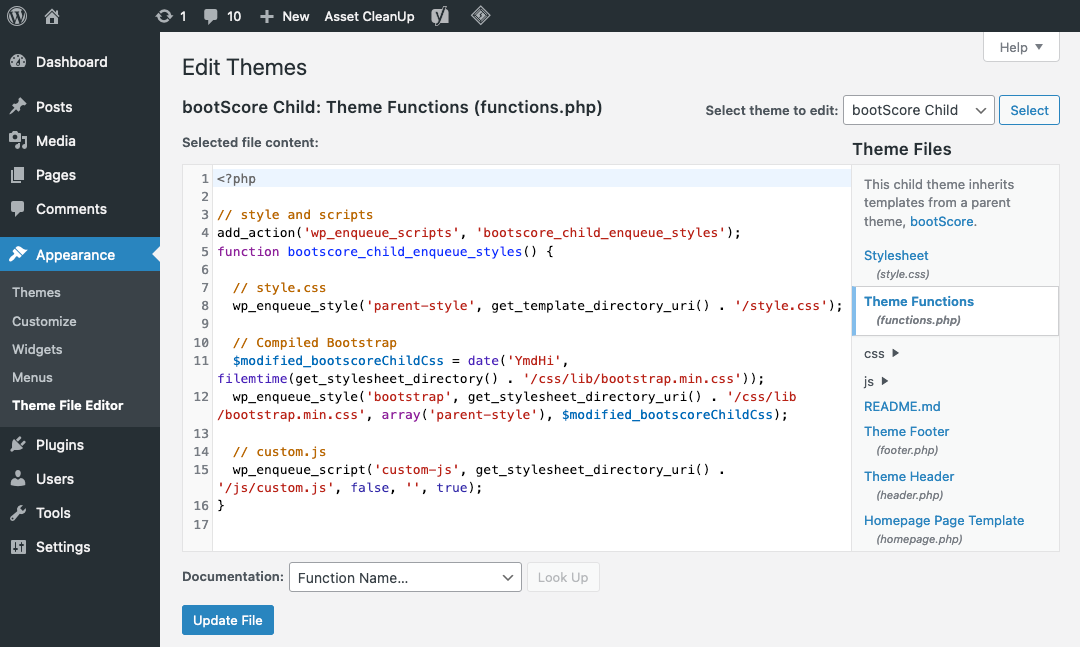
Open your WordPress dashboard. Look for the Appearance tab on the left. Click on Theme Editor. You can see the theme files. Find the PHP file you want to edit. Click it to open. You can now make changes. Be careful with your edits. A mistake can break the site. Always save a backup first.
Install an FTP client like FileZilla. Connect to your site with FTP details. Open the wp-content folder. Then, go to themes. Open your theme folder. Find the PHP files you need. Right-click to download and edit them. Upload the files back after editing. Check your site for changes.
Making Safe Edits
Editing a WordPress theme can be tricky. It’s best to create a child theme. A child theme keeps your changes safe. It uses the parent theme’s features but lets you make changes. You won’t lose your edits when you update the theme. This is very important. First, make a new folder in the themes directory. Name it something unique. Then, create a style.css file. In this file, tell WordPress about your child theme. Use the parent theme’s details. Lastly, activate your child theme. Now, you can edit safely.
Always back up your theme. Backups save your work. Mistakes happen. A backup can fix them. Use a plugin for backups. It makes the job easy. Choose a plugin with good reviews. Set up regular backups. Keep your files safe. Store them in a secure place. Cloud storage is a good option. This way, you always have a copy. You can restore it anytime.
Editing Php Code
PHP starts with php</strong and ends with ?>. This tells the server to run PHP code. Commands must end with a semicolon. A variable starts with a $ sign. Strings are wrapped in quotes. Comments help explain code. They start with // for single lines. Use / / for multi-lines. Functions are blocks of code. They perform tasks. Variables can store numbers or text. PHP is case-sensitive. Always check for errors. They can break code.
Change colors in the style.css file. Update fonts in the theme settings. Edit header or footer in header.php or footer.php. Add widgets using functions.php. Remove unwanted features. Use remove_action or remove_filter. Place code inside a child theme. This keeps changes safe. Backup files before edits. Mistakes can damage the site. Follow guides online for help. Many tutorials are available. They explain step-by-step.

Credit: kinsta.com
Testing Changes
Checking Website Functionality is very important. After making changes, see if the website works. Click all links. Make sure they lead to the right pages. Check if images are loading properly. Look at the website on different devices. It should work on phones and computers. Ask a friend to check too. They might spot errors you missed. Fix any problems you see.
In Debugging and Troubleshooting, errors can happen. Do not worry. Use the browser’s inspect tool. It shows where the problem is. Read error messages carefully. They often tell you the problem. Search online for solutions. Many people have faced the same issues. Follow step-by-step guides to fix them. Keep trying until the error is gone.
Best Practices For Php Edits
Keeping Themes Updated is very important. Always use the latest version of your theme. Updates fix bugs and improve security. Updated themes work better with plugins. Backup your theme before updating. This helps if something goes wrong. Check for updates regularly. Updates keep your site running smoothly.
Ensuring Compatibility is key when editing PHP. Check PHP version requirements. Some themes need specific PHP versions. Use a staging site for testing. This prevents breaking your live site. Test changes with different browsers. This ensures your site looks good everywhere. Compatibility checks make your site user-friendly.
Frequently Asked Questions
How Do I Edit Php Files In WordPress?
To edit PHP files in WordPress, use a child theme. Access files via Appearance > Theme Editor or use an FTP client. Always back up files before editing. Consider using a code editor for ease. Avoid editing core files to prevent errors and maintain updates.
How To Edit Wp-config Php WordPress?
Access your website’s files via FTP or cPanel. Locate the wp-config. php file. Download and open it in a text editor. Make necessary changes, then save and upload back to the server. Always create a backup before editing to prevent data loss.
How Do I Edit An Existing WordPress Theme?
To edit a WordPress theme, access your site’s dashboard. Navigate to Appearance > Editor. Select the theme file you wish to modify. Make changes using HTML, CSS, or PHP. Save your edits carefully to prevent errors. Always back up your theme files before making modifications.
How Do I Edit The Code Of A WordPress Theme?
Access the WordPress dashboard, navigate to Appearance, then Theme Editor. Select the theme file to edit. Save changes after editing. Always backup files before making modifications to avoid data loss. Use a child theme for safe customizations.
Conclusion
Editing WordPress theme PHP files can seem daunting. But it gets easier with practice. Start with backups. Always save original files. Then explore the theme editor. Make small changes. Test them regularly. This ensures your website remains functional. Remember, online communities offer help.
Forums and tutorials provide valuable guidance. So, don’t hesitate to ask questions. With time, you’ll gain confidence in editing. Keep experimenting and learning. Your website will thank you.


