
Have you ever found yourself staring at your WordPress site, wishing you could change that awkward piece of text or add a personal touch to your theme? You’re not alone.
Editing text on a WordPress theme might seem daunting at first, especially if you’re not a tech wizard. But what if I told you it’s simpler than you think? Imagine the satisfaction of having complete control over your website’s appearance, tailoring it to reflect exactly what you envision.
In this guide, you’ll discover straightforward steps to effortlessly edit text on your WordPress theme, making your site truly yours. Dive in, and let’s transform your WordPress editing experience from intimidating to invigorating.
Choosing The Right Theme
Picking a theme is important. Look for themes with clear design. Check for easy navigation. Make sure it has customizable options. These features help you edit text easily. A good theme should also have fast loading. This keeps visitors happy. Themes with responsive design work on all devices. Your theme should be SEO-friendly. This helps your site rank better.
Make sure your theme works with WordPress updates. Updates keep your site safe. Your theme should support plugins. Plugins add new features. Check if the theme is compatible with your hosting plan. Some themes need special hosting. Look for themes with good support. Support helps fix problems fast. Choose a theme that fits your site’s purpose. This makes editing text easy.
Credit: happyaddons.com
Accessing The WordPress Dashboard
First, open your web browser. Then, type your website URL. Add /wp-admin at the end. This opens the login page. Enter your username and password. Click the Log In button. Now, you will see the dashboard.
The dashboard shows many options. You will see a menu on the left. Find the Posts section. Here, you can edit your posts. Next, look for the Pages section. This is where you edit pages. The dashboard also shows settings and tools. Each section has different options.
Using The Theme Customizer
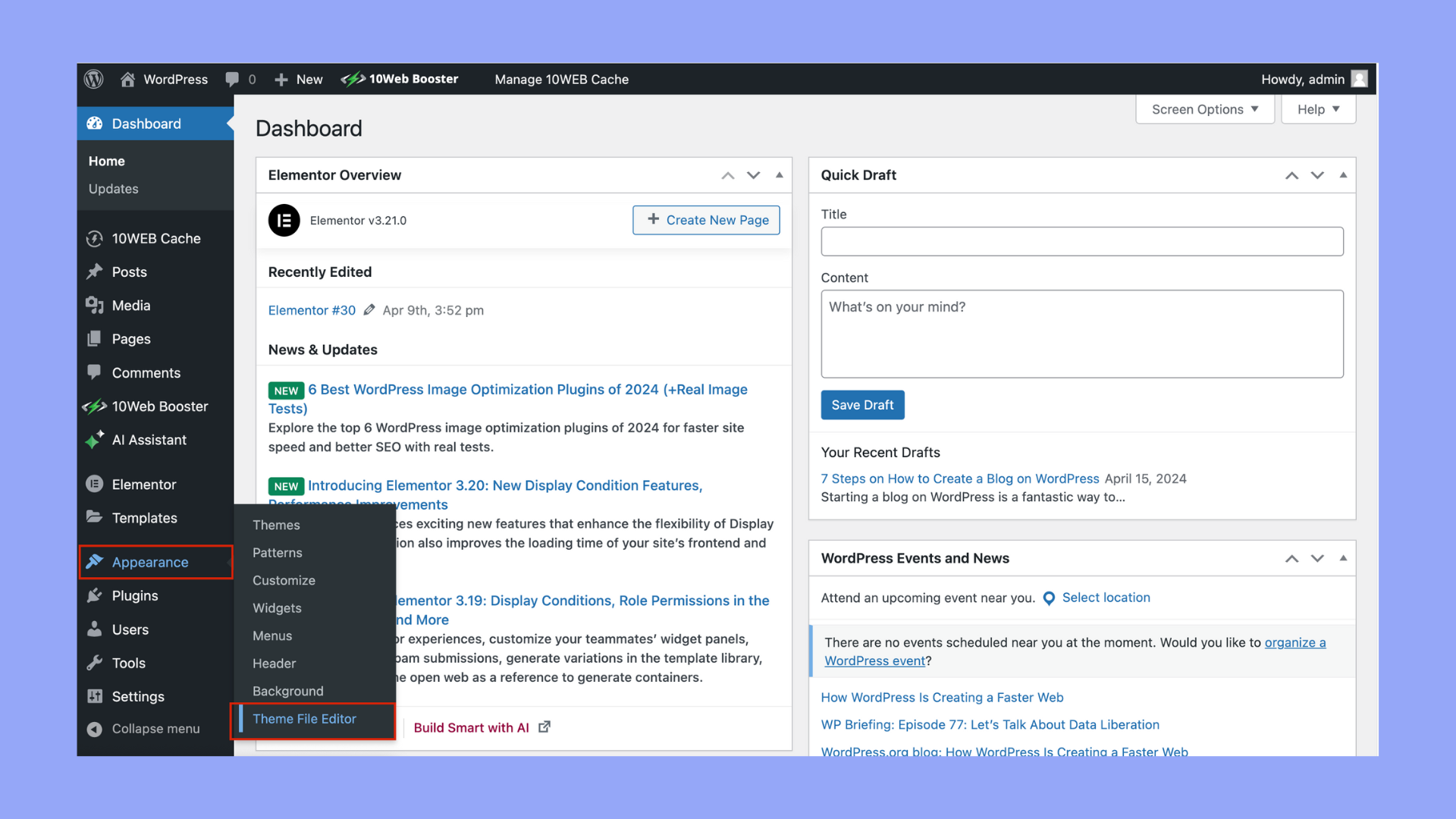
To find the Theme Customizer, log into your WordPress dashboard. Look for the Appearance tab on the left menu. Click on it. You will see a dropdown. Select Customize. The Theme Customizer will open. It shows options on the left side. Your site preview is on the right side.
In the Customizer, find Site Identity. Click on it. You can change the site title and tagline here. For other text, look for Widgets or Menus. Some themes have a Text Section. Use it to edit text. Always click Publish to save changes.
Using Page Builders
Page builders like Elementor, Beaver Builder, and Divi are popular. They make editing text easy. Just drag and drop. Edit text directly on the page. No coding needed. You see changes live. This makes it simple to adjust text as you like.
Some builders offer pre-made templates. These help in quick setup. You can change fonts, colors, and more. It’s all about what suits your style. These tools are user-friendly. Even beginners find them easy.
Many builders have free and paid versions. Free versions cover basic needs. Paid versions offer more features. Choose what fits your needs best. This way, you can create beautiful pages easily.
Editing Theme Files
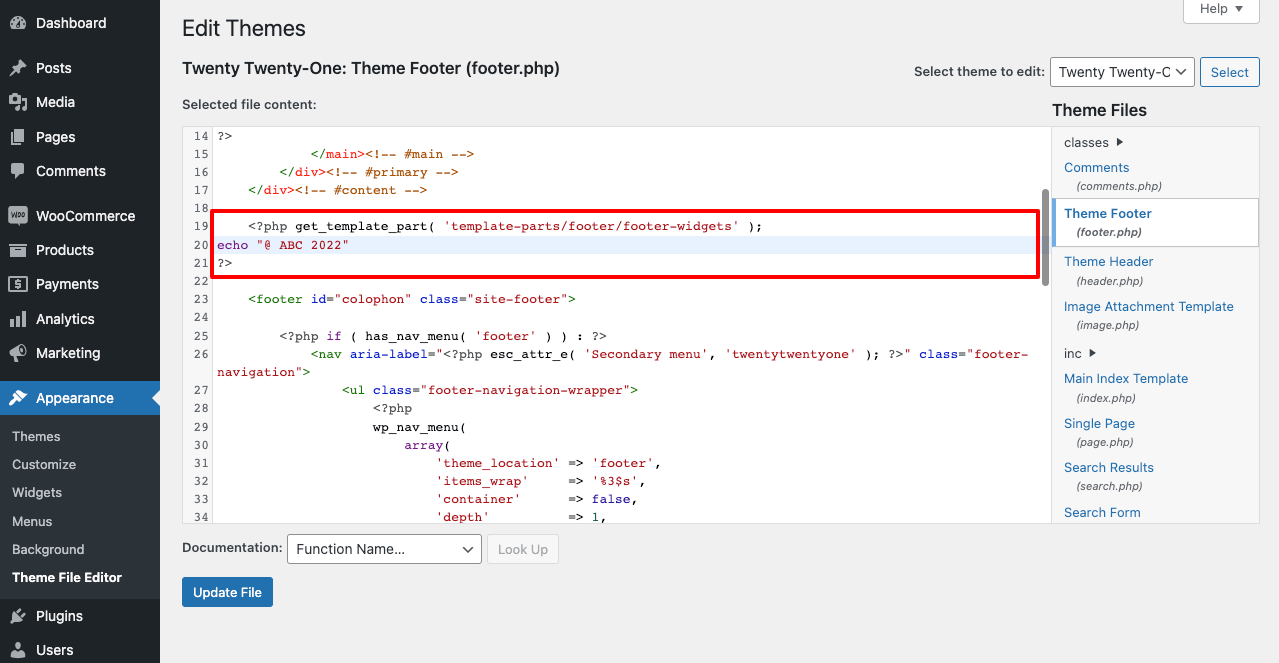
To edit text on a WordPress theme, access the dashboard and navigate to Appearance, then Editor. Locate the specific theme file containing the text you want to change. Make sure to save your changes and refresh your site to view the updates.
Understanding Theme Files
WordPress themes have different files. Each file controls parts of your site. The style.css file changes the look. The functions.php file adds features. Knowing these files helps you edit safely. Changes in the wrong file can break your site. Always backup before editing. Use a child theme to keep the original theme safe.
Modifying Code Safely
Editing code needs care. Mistakes cause problems. Open theme files with a code editor. Code editors show errors. They help fix mistakes easily. Change small parts at a time. Check your site after each change. This keeps errors small and easy to fix. Backup your site often. It saves your work and prevents data loss.
Credit: 10web.io
Utilizing Plugins
Text editing plugins can make your work easier. They help to change text on WordPress themes. These plugins offer many tools for editing. You can use them to change fonts, colors, and styles. Some popular plugins are Elementor and WPBakery. They are easy to use. Just install them and start editing.
Start by finding a plugin you like. Go to the WordPress dashboard. Click on the “Plugins” menu. Then click “Add New”. Search for your plugin. Click “Install Now”. After installation, click “Activate”. This makes the plugin ready to use. Follow the setup instructions. Each plugin has its own settings. Adjust them as needed. Now you can edit text easily.
Testing Changes
Previewing Edits is important before saving. Go to your WordPress dashboard. Find the theme editor option. Click it to open. Make your changes. Check the preview button. It shows what your site will look like. Is everything okay? If not, go back and fix it. Make sure your text looks good. Also, check if links work. This helps avoid mistakes.
Troubleshooting Common Issues can be easy. Sometimes, changes don’t show. Clear your browser cache. Refresh the page. Still not showing? Check if you saved your changes. Always save before previewing. Another problem is broken links. Double-check every link. Ensure they go to the right page. Doing this keeps your site working well.

Credit: wordpress.com
Frequently Asked Questions
How Do I Edit Text In A WordPress Theme?
To edit text in a WordPress theme, navigate to your WordPress dashboard. Go to “Appearance” and select “Editor. ” Choose the theme file you want to edit. Make your changes, then click “Update File” to save. Always back up your site before editing theme files to prevent data loss.
How Do I Change The Text Content In WordPress?
To change text content in WordPress, log into your dashboard, go to “Pages” or “Posts,” select the desired page or post, and edit the content using the WordPress editor. Click “Update” to save changes. Ensure your edits align with your SEO strategy for better visibility.
Where Is The Text Editor In WordPress?
Find the text editor in WordPress under the “Posts” or “Pages” section in the dashboard. Click “Add New” or “Edit” to access it. Switch between “Visual” and “Text” tabs for different views. This editor helps you format and publish content easily.
How Do I Edit An Existing WordPress Theme?
To edit an existing WordPress theme, use a child theme. Access the WordPress dashboard, navigate to Appearance, then Theme Editor. Make changes in the child theme’s style. css or functions. php files. Always backup your site before editing. Use FTP or a code editor for advanced modifications.
Conclusion
Editing text on a WordPress theme is easier than it seems. With practice, you can customize your site quickly. Start with simple edits and grow your skills. Use the WordPress editor to make changes. Always save your work to prevent data loss.
Preview changes before making them live. This helps ensure your site looks great. Remember, help is available through forums and tutorials. Keep learning and experimenting. Your site will reflect your unique style in no time. Enjoy the process and watch your website transform!


